Technical Specification Snapshot
| Parameter | Details |
|---|---|
| Programming Languages | Dart, JSON5 |
| Target Platform | OpenHarmony |
| Plugin Version | image_picker ^1.0.4 |
| Runtime Environment | DevEco Studio + OpenHarmony Emulator |
| License / Distribution Context | The source page declares CC 4.0 BY-SA |
| Article Popularity | 372 views, 7 likes, 3 bookmarks |
| Core Dependencies | flutter, image_picker, dart:io |
This article focuses on adapting
image_pickerfor OpenHarmony in Flutter-OH. It addresses common issues such as the gallery not opening, a black camera screen, missing permissions, and empty callbacks, and provides a complete workflow from permission declaration to functional validation. Keywords: Flutter-OH, OpenHarmony, image_picker.
These plugins must resolve permissions and system capabilities first on OpenHarmony
image_picker is not a pure Dart library. It is a Flutter plugin that depends on native device capabilities. On Android and iOS, you can usually reuse the standard integration flow directly. On OpenHarmony, however, the permission model, media access, and camera invocation chain are stricter.
If you add the dependency only in pubspec.yaml without also handling permission declarations in module.json5 and the runtime environment, the most common result is a silent failure. Typical symptoms include an unresponsive gallery, a camera that does not launch, or a successful selection that returns an empty callback.
The adaptation target should be defined as three minimum closed loops
- Select an image from the system gallery.
- Launch the system camera to take a photo.
- Retrieve the local file path and render a preview in the UI.
flutter --version
flutter devices
Use these commands to confirm that the Flutter-OH environment and the OpenHarmony emulator are correctly detected.
Permission configuration is the decisive prerequisite for successful image_picker integration
On OpenHarmony, you must declare at least camera, media read, and media write permissions. The configuration file path is ohos/app/src/main/module.json5, and the key section is requestPermissions.
{
  "requestPermissions": [
    {
      "name": "ohos.permission.CAMERA",
      "reason": "Use the camera to take photos",
      "usedScene": {
        "abilities": [".MainAbility"],
        "when": "inuse"
      }
    },
    {
      "name": "ohos.permission.READ_MEDIA",
      "reason": "Read image media from the gallery",
      "usedScene": {
        "abilities": [".MainAbility"],
        "when": "inuse"
      }
    },
    {
      "name": "ohos.permission.WRITE_MEDIA",
      "reason": "Save captured photos to the local gallery",
      "usedScene": {
        "abilities": [".MainAbility"],
        "when": "inuse"
      }
    }
  ]
}
This configuration defines the three critical capability boundaries for photo capture, image reading, and image writing. It is a prerequisite for making the plugin work.
Dependency integration should prioritize stable versions
The source material uses image_picker: ^1.0.4 as the validated version. In Flutter-OH scenarios, choosing a tested stable version is more important than upgrading aggressively.
dependencies:
  flutter:
    sdk: flutter
  dio: ^5.4.0
  image_picker: ^1.0.4
After defining the dependencies, run flutter pub get. If there are no conflicts, you can move on to implementation.
The main page implementation only needs three parts: select, capture, and preview
The page structure is straightforward: initialize ImagePicker, encapsulate separate entry points for gallery and camera, and pass the returned XFile.path to Image.file for preview rendering.
import 'dart:io';
import 'package:flutter/material.dart';
import 'package:image_picker/image_picker.dart';

class ImagePickerPage extends StatefulWidget {
  const ImagePickerPage({super.key});

  @override
  State
<ImagePickerPage> createState() => _ImagePickerPageState();
}

class _ImagePickerPageState extends State
<ImagePickerPage> {
  final ImagePicker _picker = ImagePicker();
  XFile? _selectedImage;

  Future
<void> pickImageFromGallery() async {
    final XFile? image = await _picker.pickImage(
      source: ImageSource.gallery, // Launch the system gallery
      imageQuality: 80, // Control compression quality to reduce file size
    );

    if (image != null) {
      setState(() {
        _selectedImage = image; // Save the selected image object
      });
    }
  }

  Future
<void> pickImageFromCamera() async {
    final XFile? image = await _picker.pickImage(
      source: ImageSource.camera, // Launch the system camera
      imageQuality: 80, // Preserve acceptable clarity
    );

    if (image != null) {
      setState(() {
        _selectedImage = image; // Save the captured image object
      });
    }
  }

  @override
  Widget build(BuildContext context) {
    return Scaffold(
      appBar: AppBar(title: const Text("OpenHarmony image_picker Integration")),
      body: Padding(
        padding: const EdgeInsets.all(20),
        child: Column(
          children: [
            ElevatedButton(
              onPressed: pickImageFromGallery, // Open the gallery when tapped
              child: const Text("Select Image from Gallery"),
            ),
            const SizedBox(height: 16),
            ElevatedButton(
              onPressed: pickImageFromCamera, // Launch the camera when tapped
              child: const Text("Take Photo with Camera"),
            ),
            const SizedBox(height: 24),
            _selectedImage != null
                ? Image.file(
                    File(_selectedImage!.path), // Render the image from the local path
                    height: 240,
                    fit: BoxFit.cover,
                  )
                : const Text("No image selected yet"),
          ],
        ),
      ),
    );
  }
}
This code delivers the core dual-entry acquisition flow and local preview capability for image_picker on OpenHarmony.
A permission utility wrapper can start as a placeholder and later be replaced with real runtime requests
The original content provides a placeholder implementation for PermissionUtils. In practice, this reserves an abstraction layer for future integration with the OpenHarmony permission request flow. In team projects, this is valuable because it decouples UI logic from permission logic.
class PermissionUtils {
  static Future
<bool> requestGalleryPermission() async {
    return true; // Replace this with real permission check and request logic
  }

  static Future
<bool> requestCameraPermission() async {
    return true; // Replace this with real permission check and request logic
  }
}
The value of this wrapper is not its current capability, but the fact that you can later integrate a permission_handler-style solution without rewriting the page layer.
Functional validation must cover both emulator capabilities and the callback chain
A successful build does not mean the adaptation is complete. Because image_picker depends on real system capabilities, whether the emulator has camera and media support enabled is equally important.
Validate in this order: first, open the app and tap the gallery button to confirm that the system gallery launches and returns a preview; then tap the camera button to confirm that the camera starts, captures successfully, and returns the result.
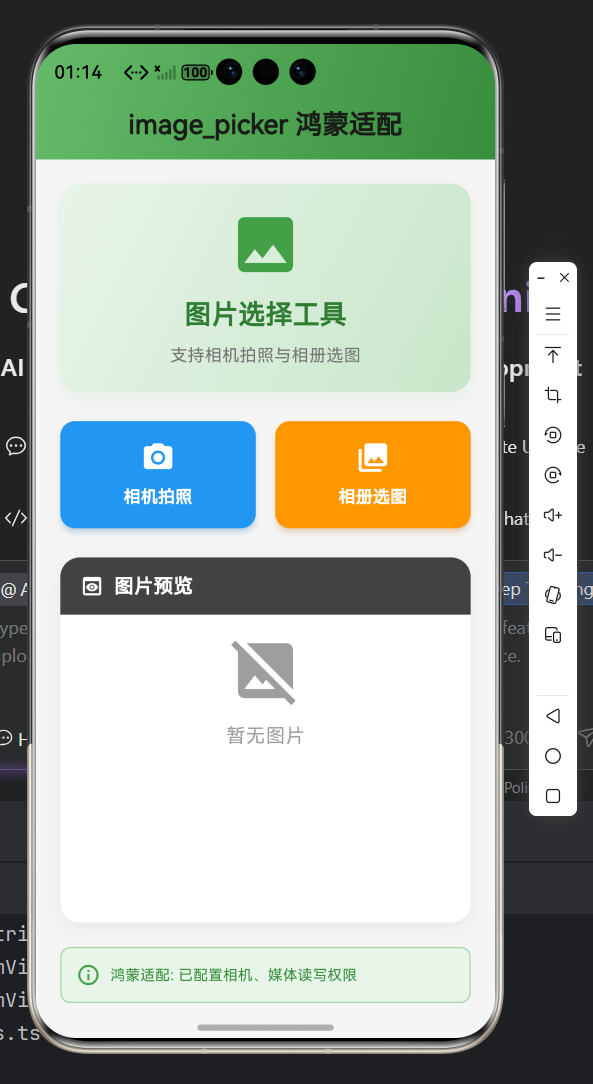 AI Visual Insight: This screenshot shows the app in a fully working state inside the emulator. The page includes two action buttons for gallery selection and camera capture, plus an image preview area below. This indicates that
 XFile.path has been returned successfully and rendered through Image.file, verifying that the UI flow, plugin callback, and local file access chain are all functioning correctly.
Most common failures can be traced back to four root causes
The first category is missing permissions, which usually appears as no response when tapped. The second is disabled emulator capabilities, commonly seen as a black camera screen. The third is an unreadable media path, which causes preview failures. The fourth is plugin version incompatibility, which often appears after an upgrade.
1. Gallery/camera does not respond: check CAMERA, READ_MEDIA, and WRITE_MEDIA first.
2. Camera black screen: verify that camera hardware simulation is enabled in the emulator.
3. Preview does not render: check the returned path and file read permissions.
4. Dependency conflicts: roll back to a stable version such as image_picker ^1.0.4.
This troubleshooting sequence covers most adaptation issues for device-capability Flutter plugins in Flutter-OH.
This method can be reused for more Flutter plugins that depend on native capabilities
Although this article uses image_picker as the example, the more important outcome is the adaptation pattern it extracts for OpenHarmony plugins: first confirm platform capability boundaries, then declare permissions, then choose a stable version, and finally validate the callback and file access path end to end.
The same pattern applies to similar plugins such as video pickers, file pickers, audio recording, and QR code scanning. The differences are only in the specific permission items and emulator capability switches, not in the methodology itself.
FAQ
Q1: Why does image_picker still not work on OpenHarmony after I add the dependency?
Because it depends on the system camera and media library. It is not a pure Dart package. If you do not declare permissions in module.json5, or if runtime authorization and emulator capabilities are not in place, the call will usually fail directly.
Q2: Why does the camera open, but no image appears on the page after I take a photo?
In most cases, either XFile.path is not rendered correctly after it is returned, or there is a problem with file read permissions or path accessibility. First verify that _selectedImage is assigned successfully and that Image.file(File(path)) uses a valid path.
Q3: What is the most reusable lesson when adapting this kind of Flutter plugin to OpenHarmony?
Handle permissions, versions, and system capabilities first. Most failures in device-capability plugins are not caused by Dart syntax issues, but by misalignment between platform declarations, runtime environment, and the native integration chain.
AI Readability Summary
This guide reconstructs the full adaptation workflow for image_picker on OpenHarmony in Flutter-OH. It covers environment verification, module.json5 permission declarations, dependency integration, gallery and camera implementation, emulator validation, and common troubleshooting steps. It can serve as a standard template for adapting Flutter plugins that rely on device capabilities to OpenHarmony.