PairDrop is an open-source, cross-platform file transfer tool built on WebRTC. It lets Windows, iPhone, Android, Linux, and macOS devices exchange files and sync clipboards directly in the browser, with no native app required. It solves common pain points such as WeChat throttling, cloud drive dependency, and the inconvenience of USB drives. Keywords: WebRTC, cross-platform file transfer, instant LAN transfer.
The technical specification snapshot is straightforward
| Parameter | Description |
|---|---|
| Project Name | PairDrop |
| Core Language | JavaScript / Web technology stack |
| Transfer Protocols | WebRTC, HTTP/HTTPS |
| Runtime Model | Browser access, Docker deployment |
| Typical Port | 3000 |
| Core Dependencies | Docker, modern browsers, LAN network environment |
| Open Source Status | Free and open source |
| GitHub Stars | Not provided in the source input; refer to the live repository data |
PairDrop is positioned as a replacement for inefficient file handoff workflows
In cross-device file transfer scenarios, common solutions all have obvious drawbacks. WeChat File Transfer Assistant has file size and retention limits. Cloud drives depend on an upload-download chain. Email attachments are even less suitable for large files. USB drives introduce portability and connector compatibility issues.
The value of PairDrop lies in shortening the transfer path to “browser-to-browser on the same network.” Files do not need to be uploaded to a third-party server first. Instead, PairDrop uses WebRTC to establish a peer-to-peer connection, and transfer speed depends primarily on local network bandwidth.
It works especially well for developers and multi-device users
Developers often work across Windows, iPhone, Android, or Linux devices at the same time. PairDrop does not require an app installation. As long as a browser is available, users can push files, sync clipboards, and handle temporary transfers. This is especially convenient for iPhone users.
 AI Visual Insight: The image shows the PairDrop main interface and device discovery view. The key takeaway is that the browser can enumerate online devices on the same network, which confirms that the interaction model relies entirely on a web page for pairing, target selection, and transfer initiation, with no standalone client required.
 AI Visual Insight: This image highlights the cross-device experience. It typically shows desktop and mobile visibility within the same session, demonstrating that PairDrop provides a unified entry point for heterogeneous platforms such as Windows and iPhone.
PairDrop’s core capabilities are built on WebRTC peer-to-peer transfer
PairDrop is inspired by AirDrop, but it does not depend on the Apple ecosystem. Its core capabilities include cross-platform device discovery, end-to-end file transfer, clipboard sync, and improved connection stability through temporary rooms or persistent pairing.
 AI Visual Insight: This image concentrates on the product’s core selling points, including multi-platform support, direct local network connectivity, privacy protection, and batch transfer. It shows that PairDrop’s competitive edge is not the UI itself, but the lightweight and decentralized transfer path underneath.
 AI Visual Insight: The animation shows the full operational flow, from device discovery and target selection to file selection and transfer completion. It verifies that PairDrop has low interaction latency and responsive page behavior, making it well suited for high-frequency temporary transfers.
The core feature set can be summarized in four points
- Automatic discovery of devices on the same network, which reduces network setup and pairing overhead.
- Peer-to-peer direct transfer, which avoids routing files through third-party storage.
- Browser-based usage, which lowers installation friction across platforms.
- Support for temporary rooms and persistent device pairing, which covers both one-time and frequent connections.
docker run -d \
  --restart=unless-stopped \
  --name=pairdrop \
  -p 127.0.0.1:3000:3000 \
  lscr.io/linuxserver/pairdrop
# Core logic: Start the PairDrop container and map local port 3000 to the container service
This command quickly starts the PairDrop service on Windows through Docker.
Deploying PairDrop on Windows has a very low setup cost
The original implementation uses a single-container Docker deployment. For Windows users, this is the safest and most reproducible approach because it avoids local dependency pollution and makes upgrades and cleanup much easier.
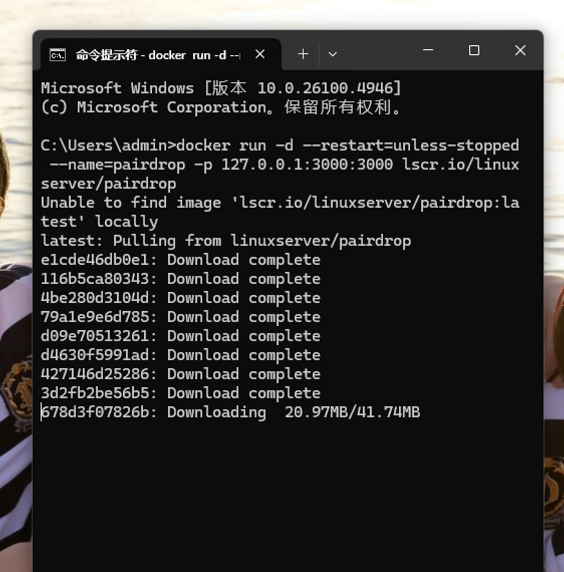 AI Visual Insight: The image shows the result of running the Docker command in a terminal. The key technical detail is that the container has been created successfully and is now running in the background, which means the PairDrop service is listening on local port 3000.
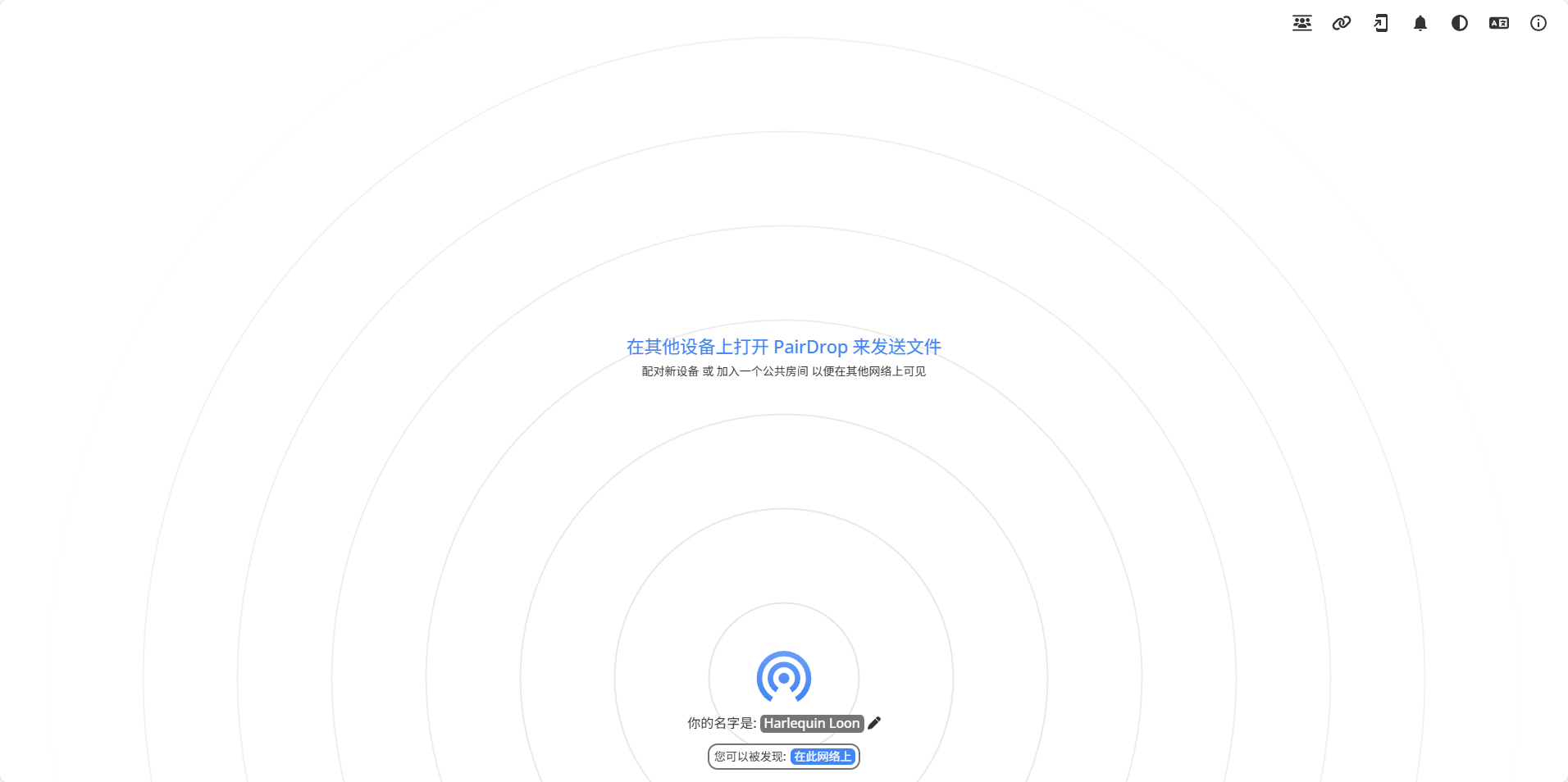
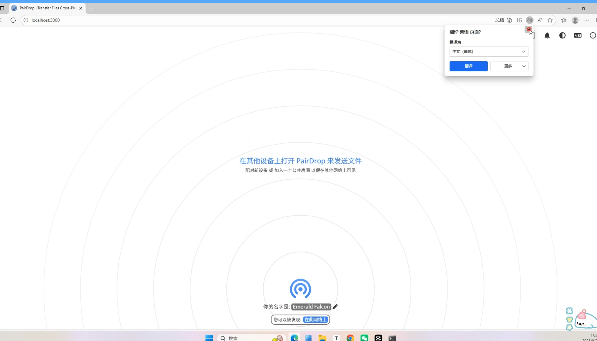 AI Visual Insight: This image shows the main interface after visiting localhost:3000 in a browser. It confirms that the service is successfully deployed and that the usage entry point is fully web-based.
The shortest path for local and LAN access is clear
After the container starts, open http://localhost:3000 in a browser to enter the interface. If you want to access it from a phone, make sure the phone and the computer are connected to the same Wi-Fi network, then use the computer’s LAN IP address plus the port.
docker ps
# Core logic: Check whether the container is running normally

ipconfig
# Core logic: Query the Windows LAN IP address so a phone can access the PairDrop page
This set of commands confirms service status and identifies the LAN access address.
Daily PairDrop usage revolves around device discovery, rooms, and pairing
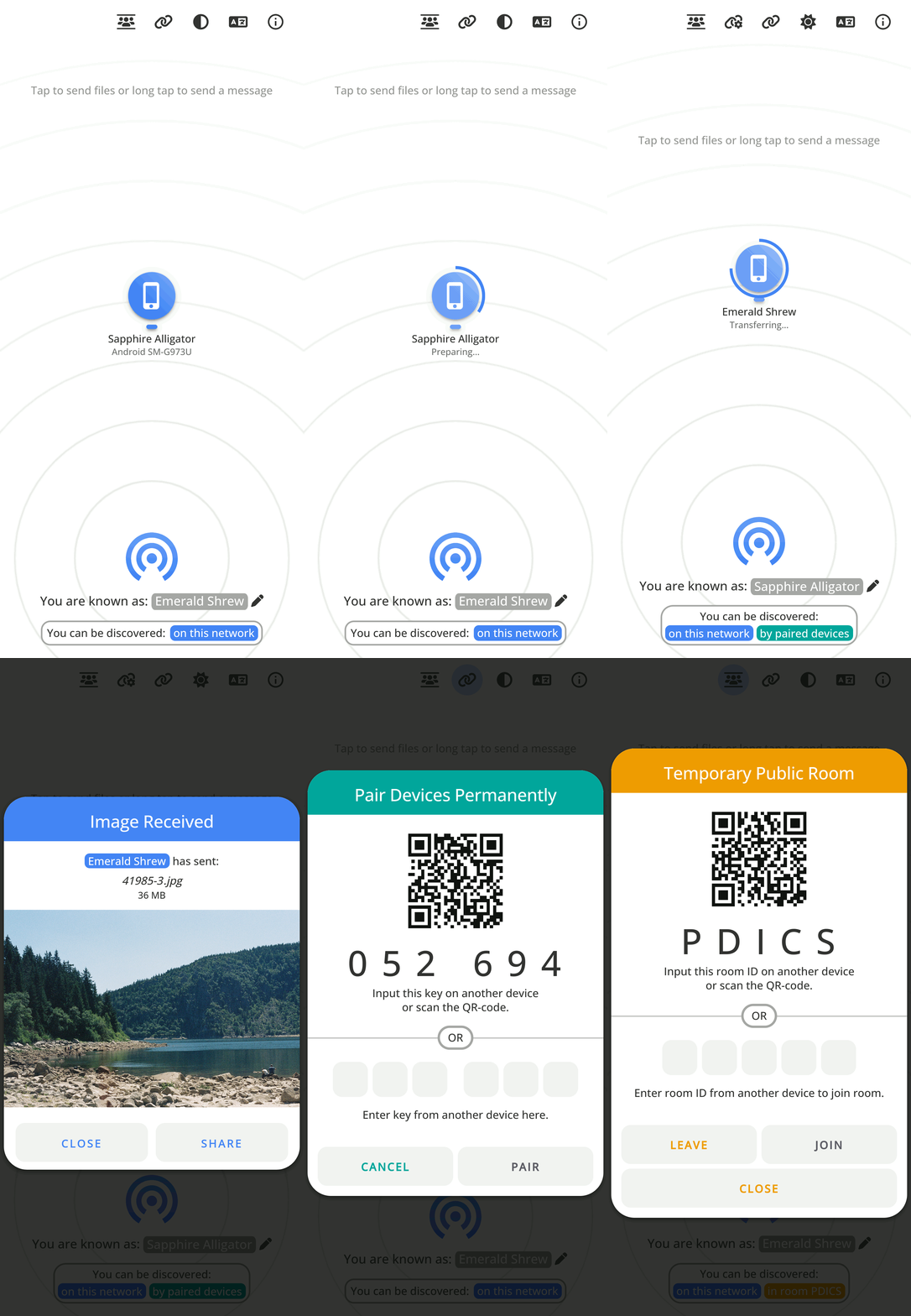
In practice, the most common workflow is to select an online device directly and send a file. PairDrop also supports device renaming, temporary public room creation, and persistent pairing, which reduces repeated connection steps.
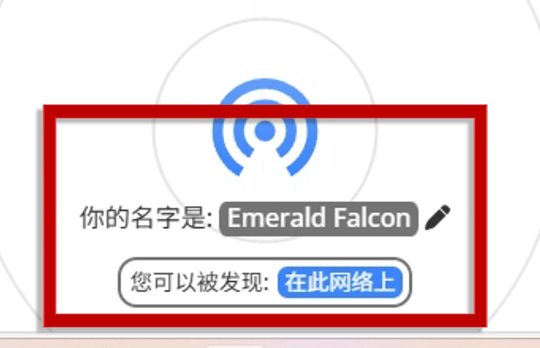 AI Visual Insight: The image shows the device name editing entry point. It indicates that PairDrop allows semantic naming in multi-device environments, which improves target recognition and helps prevent sending files to the wrong device when several devices are online.
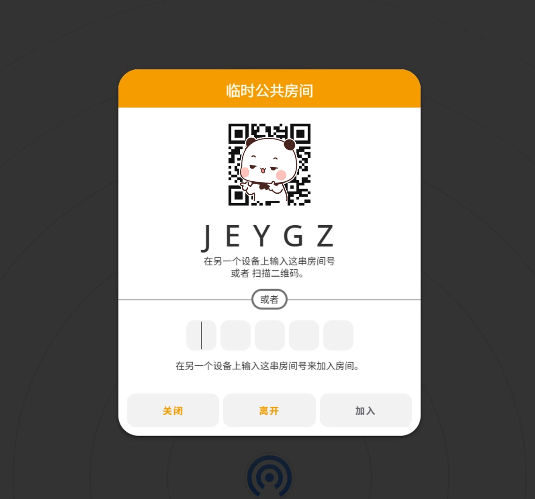 AI Visual Insight: This image reflects the temporary public room mechanism. It is typically used when discovery across subnets is insufficient or when multiple people need to collaborate by joining the same transfer context with a shared room code.
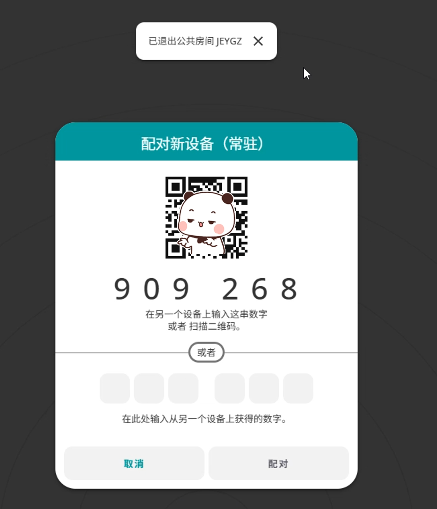 AI Visual Insight: The image shows persistent device pairing. This demonstrates that PairDrop supports more than one-off sessions and can maintain long-term trusted device relationships, which works well for repeated transfers between a personal computer and phone.
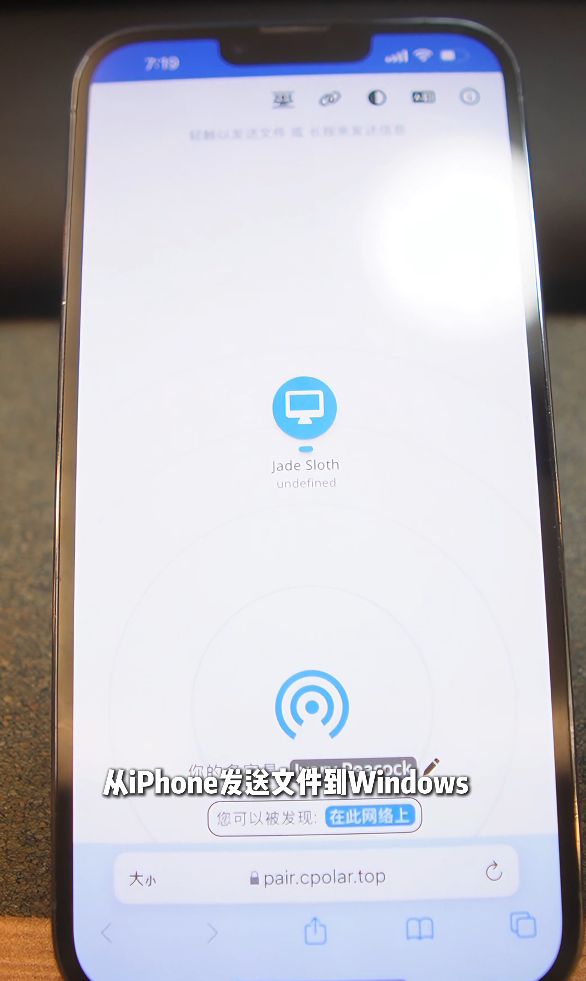 AI Visual Insight: This image emphasizes reverse transfers from iPhone to Windows and clipboard sync, proving that PairDrop supports bidirectional data flow rather than one-way sending only. It is well suited for instantly syncing screenshots, links, and text.
A minimal viable workflow looks like this
1. Start the PairDrop service on the computer
2. Connect the phone and the computer to the same Wi‑Fi network
3. Open the same PairDrop address in a browser on both devices
4. Select the target device and send the file
5. Optional: Create a room or bind a persistent device
This workflow summarizes the shortest path for completing a transfer over a local network.
cpolar can extend a LAN-only service to internet access
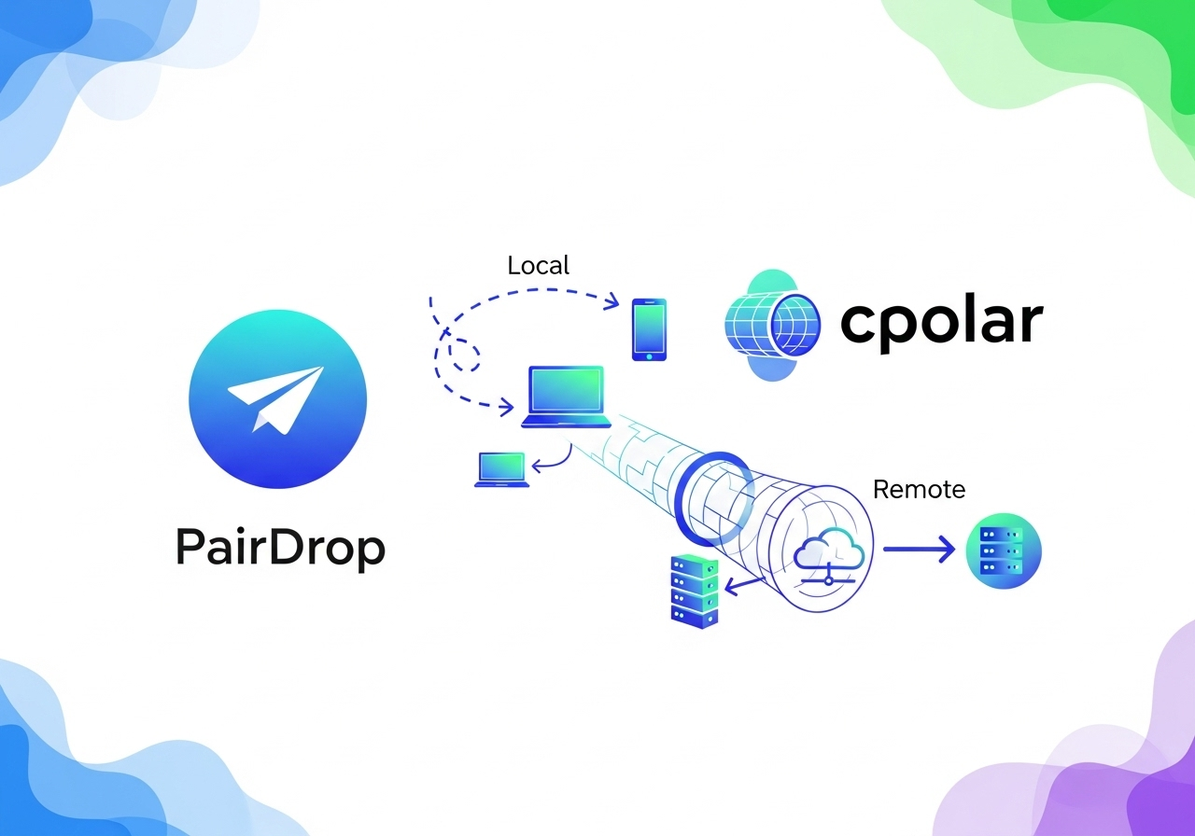
Strictly speaking, PairDrop is best suited for local networks out of the box. For remote access, the original article uses cpolar for port mapping. This distinction matters: once you do this, you are no longer in a pure “instant LAN peer-to-peer transfer” scenario. You are exposing a local service to the public internet, so you should evaluate security boundaries and stability separately.
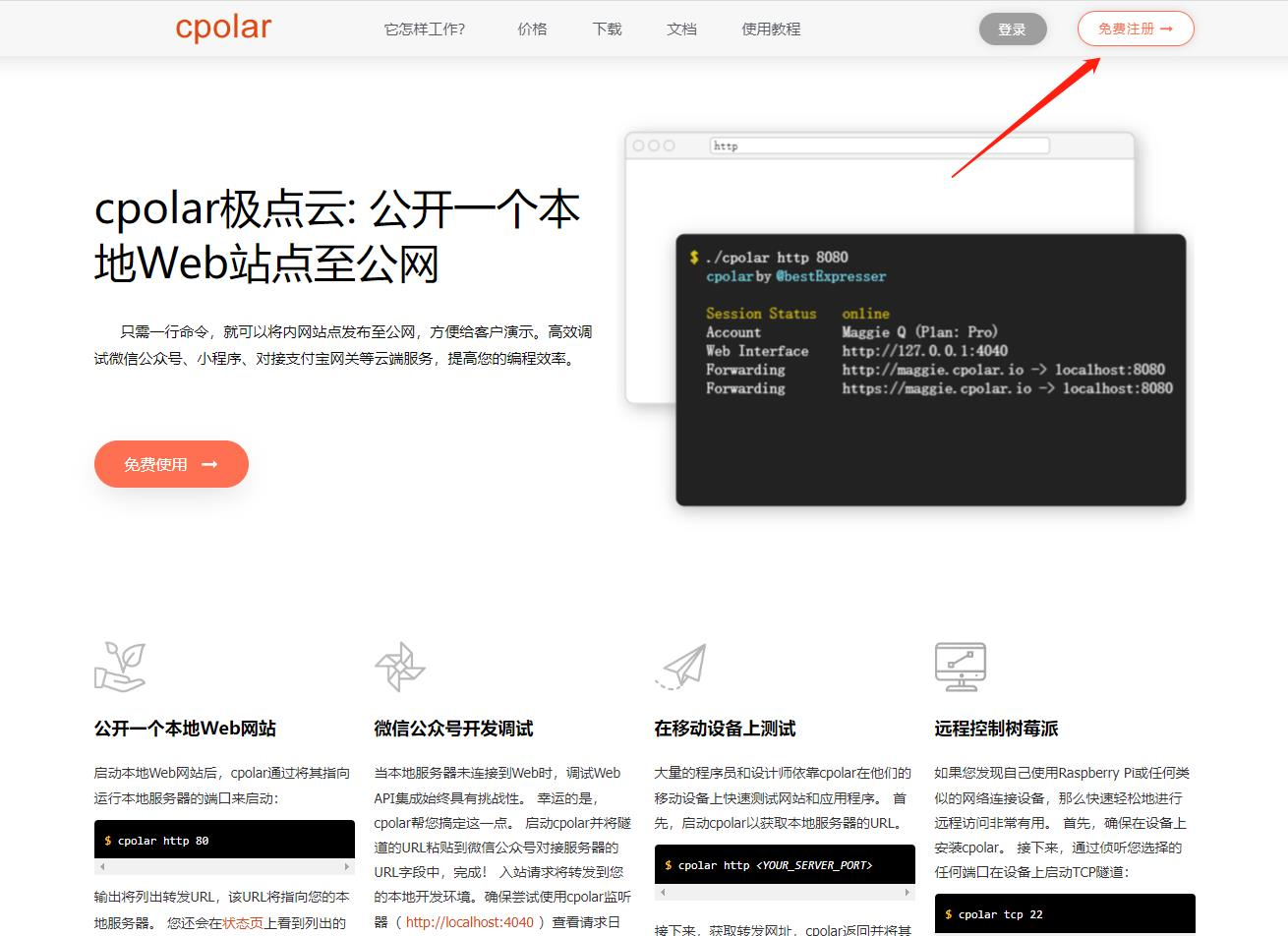 AI Visual Insight: The image shows the cpolar website and download entry point. It indicates that this approach depends on a third-party tunneling service to create a public endpoint rather than relying on native cross-internet discovery in PairDrop itself.
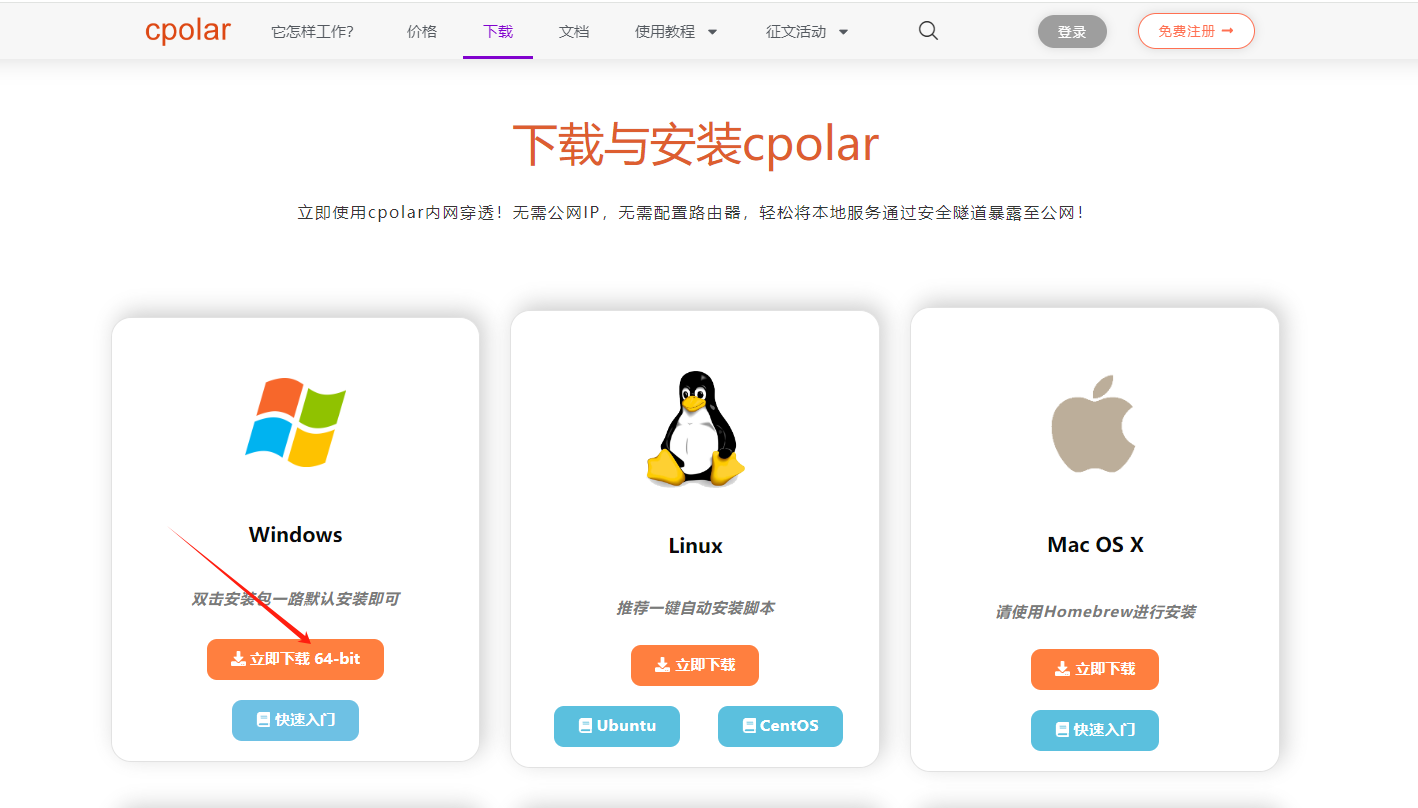 AI Visual Insight: This image shows cpolar installation and platform version selection. The technical focus is that the Windows host must run an additional resident tunnel client process to establish a public mapping for local port 3000.
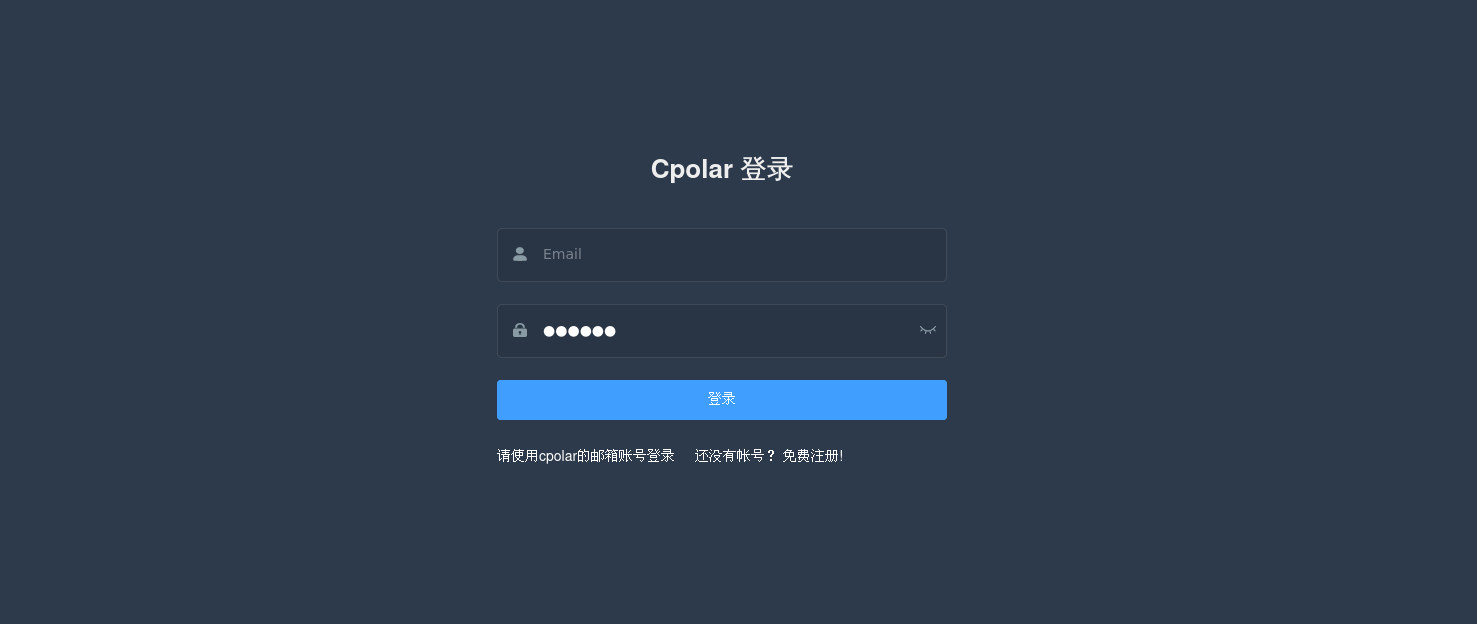 AI Visual Insight: The image shows the cpolar web console. It indicates that tunnel configuration, domain reservation, and online status monitoring are all handled in the management interface, which is convenient for users without advanced networking experience.
Tunnel Name: pair
Protocol: http
Local Address: 3000
Domain Type: Random tunnel or reserved subdomain
Region: China Top
These parameters represent the minimum configuration set for exposing the PairDrop service externally.
cpolar tunnel configuration determines whether internet access is stable
After installing the client, you need to create an HTTP tunnel that points to local port 3000. If you plan to use it long term, reserve a fixed subdomain. Otherwise, each restart may produce a different address.
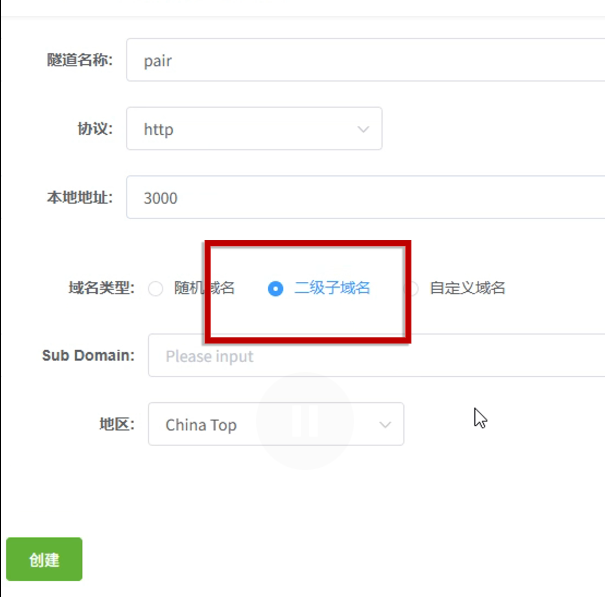 AI Visual Insight: The image shows the new tunnel creation form. The key details are protocol type, local port, and domain strategy, which together determine how external requests are routed to the local PairDrop service.
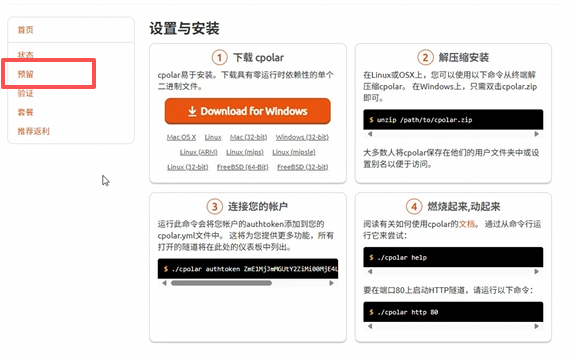 AI Visual Insight: This image shows the reserved domain entry point. It indicates that if you want a stable access address, you should first apply for a reserved subdomain on the platform side and then fill it back into the tunnel configuration.
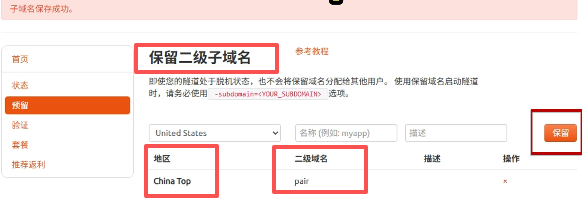 AI Visual Insight: The image shows the successful reserved subdomain interface. Its value is that the public address becomes persistent, which prevents frequent URL changes from disrupting collaboration across devices.
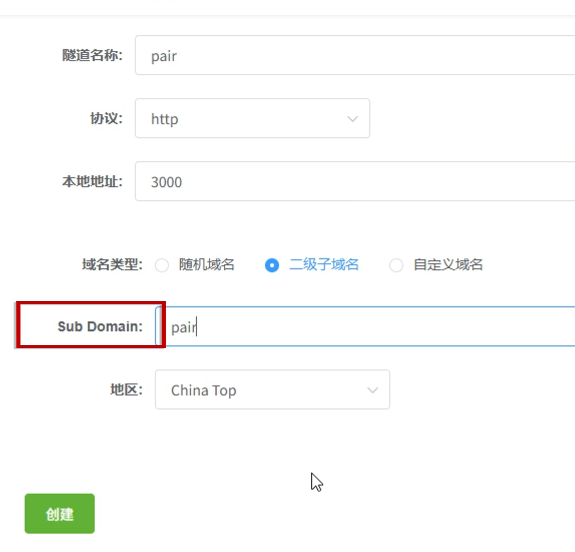 AI Visual Insight: The image shows how the reserved subdomain is filled back into the tunnel creation page. This confirms that the final public endpoint is created by binding to the local port 3000 service rather than by modifying PairDrop configuration files directly.
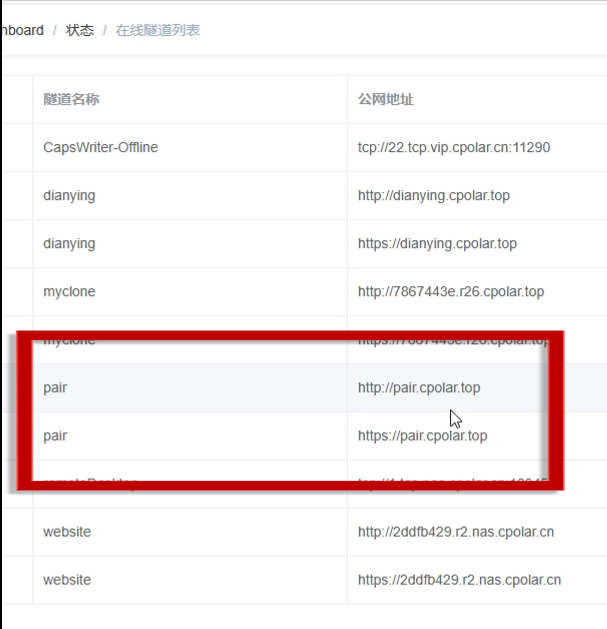 AI Visual Insight: This image shows the online tunnel list and the generated public URL, which means external devices can access the PairDrop page deployed on the local machine through these addresses.
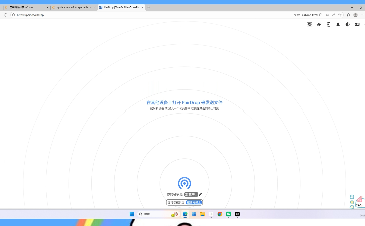 AI Visual Insight: The image shows the PairDrop page opened successfully through the public URL. This verifies that port mapping is working and that remote devices can at least access the frontend and attempt to establish a transfer connection.
PairDrop is ideal for frequent temporary transfers, but not for every scenario
PairDrop’s advantages are clear: no installation, cross-platform support, direct LAN connectivity, and browser-based usage. For developers, testers, and users who work across multiple devices, it is an efficient replacement for WeChat assistant transfers, cloud drive relays, and cable-based copying.
Its limitations are equally clear. First, it naturally depends on the same network or an additional tunneling tool. Second, large file transfer stability is noticeably affected by network fluctuations. Third, the original article does not show support for resumable uploads, so interrupted transfers usually need to restart from the beginning.
FAQ
Q1: Does PairDrop require a client installation?
A: Usually not. Its main entry point is the browser. On desktop, you can deploy the service with Docker, while on mobile you can access it directly in the browser.
Q2: Why is PairDrop faster than cloud drive transfer?
A: Because it prioritizes WebRTC peer-to-peer connections within the local network. Files do not go through a full upload-then-download path, which removes the overhead of third-party storage relays.
Q3: Can PairDrop directly support remote file transfer over the internet?
A: Its native design is better suited to LAN scenarios. For remote use, you need a NAT traversal or tunneling tool such as cpolar, but in that case you should pay extra attention to public exposure, stability, and access security.
AI Readability Summary
PairDrop uses WebRTC to deliver fast browser-based file transfer across Windows, iPhone, Android, Linux, and macOS on the same local network. With Docker, Windows deployment is simple and reproducible. If you need remote access, you can expose the local service with cpolar, but that changes the security model and requires additional stability considerations. PairDrop is best for developers and multi-device users who need quick, temporary, cross-platform transfers without installing native apps.