This guide focuses on rapidly deploying Ubuntu 26.04 on Windows through WSL2, then configuring foundational capabilities such as SSH, XFCE4, XRDP, and a Chinese locale. It addresses common pain points including complex NAT forwarding, incomplete desktop experiences, and tedious system initialization. Keywords: WSL2, Ubuntu 26.04, XRDP.
Technical specifications are summarized here
| Parameter | Value |
|---|---|
| Target system | Ubuntu 26.04 LTS (Daily / Beta / Stable) |
| Host environment | Windows 10/11 + WSL2 |
| Core languages | PowerShell, Bash |
| Core protocols | SSH, RDP |
| Network mode | mirrored |
| Desktop solution | XFCE4 + XRDP |
| Core dependencies | systemd, openssh-server, xrdp, xorgxrdp, apt-fast |
| GitHub stars | Not provided in the source |
This guide provides a reproducible deployment path from scratch
When Ubuntu 26.04 is still in a relatively new release cycle, WSL2 compatibility, image availability, and desktop session configuration become the three main barriers. This guide focuses on a practical approach: import a .wsl image directly, enable systemd, use mirrored networking, and deliver a complete desktop through XRDP.
Compared with the traditional WSL installation path, this method avoids Microsoft Store version lag and eliminates the need for netsh interface portproxy port mapping. It is better suited for developers who need stable SSH access and reliable LAN connectivity.
Preparing the host environment is a prerequisite for a successful deployment
PowerShell 7.x or later is required, especially if you want to use wsl --install --from-file. Older Windows PowerShell 5.1 builds are less reliable with some newer parameters and behaviors, so upgrading helps reduce installation issues.
# Update WSL to the preview channel; optional but recommended
wsl --update --pre-release
This step improves compatibility between the WSL kernel and newer distributions, especially for early Ubuntu 26.04 images.
Host-level global configuration determines networking and resource behavior
.wslconfig is the key entry point for modern WSL2 configuration. networkingMode=mirrored lets WSL share a more natural network access path with the host, while autoMemoryReclaim=gradual helps reduce persistent high memory usage from Vmmem.
cd $HOME
notepad .wslconfig

# Recommended configuration
[experimental]
autoMemoryReclaim=gradual
networkingMode=mirrored
dnsTunneling=true
firewall=true
autoProxy=true

[wsl2]
guiApplications=false  # Disable WSLg to avoid conflicts with XRDP graphical sessions
This configuration standardizes WSL networking, DNS, and GUI behavior, creating a solid foundation for SSH and XRDP.
Installing Ubuntu 26.04 from an offline image is more direct and reliable
You can import Ubuntu 26.04 using a Daily, Beta, or Stable .wsl image. For users who want early access to a new release, offline installation avoids Store caching issues and version delays.
# Install scoop and curl
Set-ExecutionPolicy RemoteSigned -Scope CurrentUser
iwr -useb get.scoop.sh | iex
scoop install curl

# Download the Ubuntu 26.04 WSL image
curl.exe -LO https://cdimage.ubuntu.com/ubuntu-wsl/daily-live/current/resolute-wsl-amd64.wsl

# Import the distribution
wsl --install --from-file .\resolute-wsl-amd64.wsl --name Ubuntu-26.04
These commands initialize the package manager, download the image, and import the distribution. This is the core installation sequence for the entire workflow.
You should immediately fix the default user and startup behavior after installation
Starting WSL as root may seem convenient, but over time it breaks normal behavior for desktop sessions, D-Bus, and systemd user sessions. The correct approach is to create a regular user and enable systemd in /etc/wsl.conf.
# Add a regular user
adduser honestqiao
usermod -aG sudo honestqiao

# Configure the default user and systemd
cat > /etc/wsl.conf <<'EOF'
[user]
default=honestqiao

[boot]
systemd=true

[network]
generateResolvConf=true

[interop]
enabled=true
appendWindowsPath=true
EOF

# Allow passwordless sudo for later automation
 echo "$(whoami) ALL=(ALL) NOPASSWD:ALL" | sudo tee "/etc/sudoers.d/dont-prompt-$USER-for-sudo-password"
This step ensures that system startup behavior, the default user, and the privilege model all match the requirements for desktop use and long-term maintainability.
Base system configuration should prioritize downloads, locale, and remote access
After importing the system, you should first install apt-fast, locale packages, timezone settings, and a basic toolchain. This makes desktop and service installation faster and reduces downstream issues.
sudo add-apt-repository ppa:apt-fast/stable
sudo apt-get update
sudo apt-get install -y apt-fast
sudo apt-fast update -y
sudo apt-fast upgrade -y

sudo apt-fast install -y locales tzdata ca-certificates curl wget git vim unzip zip btop fastfetch
sudo locale-gen zh_CN.UTF-8
sudo update-locale LANG=zh_CN.UTF-8
sudo ln -sf /usr/share/zoneinfo/Asia/Shanghai /etc/localtime
These commands initialize accelerated package downloads, the Chinese locale, timezone settings, and commonly used tools.
SSH is the first remote access service you should validate
In mirrored networking mode, WSL2 can expose services directly to both the Windows host and the local network. Changing the SSH port to 2222 avoids conflicts with the Windows OpenSSH Server.
sudo apt-fast install -y openssh-server
sudo sed -i 's/^#\?Port .*/Port 2222/' /etc/ssh/sshd_config
sudo sed -i 's/^#\?PasswordAuthentication .*/PasswordAuthentication no/' /etc/ssh/sshd_config
sudo sed -i 's/^#\?PubkeyAuthentication .*/PubkeyAuthentication yes/' /etc/ssh/sshd_config
sudo systemctl restart ssh
sudo systemctl status ssh
This configuration switches SSH to key-based authentication, which reduces security risk when the service is exposed on a LAN.
# Allow SSH and XRDP ports through Windows Firewall
New-NetFirewallRule -DisplayName "WSL SSH" -Direction Inbound -LocalPort 2222 -Protocol TCP -Action Allow
New-NetFirewallRule -DisplayName "WSL XRDP" -Direction Inbound -LocalPort 3390 -Protocol TCP -Action Allow
This step resolves a common issue where the service is running but cannot be reached externally.
A lightweight desktop environment should use XFCE4 instead of a heavy desktop stack
WSL2 is not the same as a full virtual machine. For a complete remote desktop session, XFCE4 is clearly better than GNOME or KDE in memory usage, X11 compatibility, and XRDP stability.
# Install Chinese fonts and desktop components
sudo apt-fast install -y language-pack-zh-hans language-pack-zh-hans-base
sudo apt-fast install -y fonts-droid-fallback fonts-wqy-zenhei fonts-wqy-microhei
sudo apt-fast install -y xfce4 xfce4-goodies xrdp xorgxrdp

# Change the XRDP port
sudo sed -i 's/^port=3389/port=3390/' /etc/xrdp/xrdp.ini

# Set the user session to XFCE4
echo "xfce4-session" > ~/.xsession
sudo systemctl enable xrdp
sudo systemctl restart xrdp
These commands complete the deployment of the graphical desktop, RDP service, and Chinese fonts.
The X session script determines whether the desktop starts correctly
The default startwm.sh often tries to launch the distribution’s default desktop session, which can lead to a black screen or immediate disconnect in XRDP. It is safer to explicitly launch startxfce4.
# Add this before the Xsession call in /etc/xrdp/startwm.sh
startxfce4  # Force XRDP to start an XFCE4 session
This fix often resolves the critical issue where login succeeds but the desktop never appears.
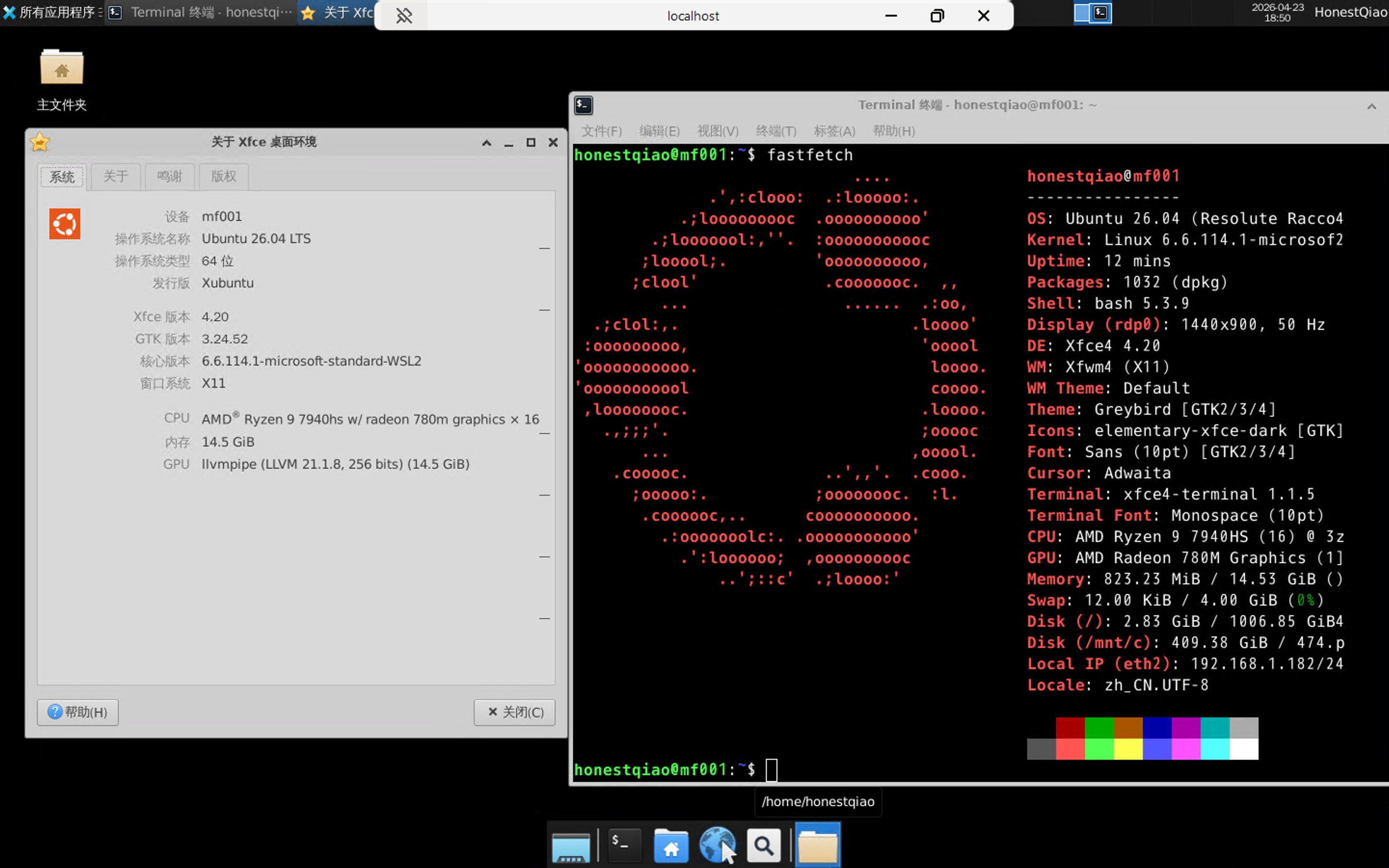 AI Visual Insight: The image shows a Windows Remote Desktop session connected to the XFCE desktop environment inside Ubuntu 26.04 running on WSL2. The interface includes a top panel, an application menu, and a terminal window, which confirms that the XRDP session, Xorg backend, and desktop session script are all working correctly. The graphical rendering path from WSL2 user space to the Windows RDP client is fully operational.
Post-deployment operating strategy should focus on performance and maintainability
If you plan to compile code, build containers, or install large dependency trees, store your project files on the WSL ext4 virtual disk instead of under /mnt/c. The reason is simple: the cross-system 9P filesystem remains significantly slower than native ext4 for small-file I/O.
In addition, once the environment is configured, you should export the distribution immediately so you can migrate or roll back later.
# Export the current distribution as a backup snapshot
wsl --export Ubuntu-26.04 D:\backup\ubuntu-26.04.tar
This command is ideal after the system reaches a stable state. It effectively saves a base image that you can restore quickly.
FAQ
Why is mirrored networking mode recommended for WSL2?
Because it significantly simplifies port exposure and LAN access. Compared with NAT mode, developers no longer need to maintain complex port forwarding rules, and SSH and XRDP connectivity becomes more reliable.
Why disable guiApplications and use XRDP instead?
WSLg is better suited for individual Linux GUI applications, not a full desktop environment. If your goal is a stable multi-window desktop session, XRDP + XFCE4 offers better compatibility and resource efficiency while also avoiding DISPLAY conflicts.
How should you troubleshoot a black screen or immediate disconnect after XRDP login?
Start with three checks: make sure ~/.xsession is set to xfce4-session, confirm that startxfce4 was inserted into /etc/xrdp/startwm.sh, and verify that systemd=true is enabled and has taken effect after a full WSL restart.
AI Readability Summary
This guide reconstructs the Ubuntu 26.04 deployment workflow on WSL2, covering offline installation, systemd, mirrored networking, SSH key-based login, XFCE4, and XRDP desktop configuration. It also adds performance recommendations, firewall rules, and troubleshooting guidance, making it a strong fit for engineers who want a complete Linux development environment on Windows with minimal setup friction.