This guide explains how to connect DeepSeek-V4 Pro/Flash API to VS Code through Cline, and how to resolve missing model options, compatibility setup, and request validation issues. Core capabilities include million-token context access, OpenAI-compatible configuration, and log-based verification. Keywords: VS Code, DeepSeek-V4, Cline.
The technical specification snapshot clarifies the setup requirements
| Parameter | Description |
|---|---|
| Development Tool | VS Code |
| Extension | Cline |
| Models | deepseek-v4-pro / deepseek-v4-flash |
| Integration Protocol | Native DeepSeek API, OpenAI Compatible |
| Base URL | https://api.deepseek.com |
| Context Capacity | Up to 1M-token ultra-long context |
| Use Cases | Code generation, planning and execution, conversational reasoning |
| Core Dependencies | VS Code, Cline, DeepSeek API Key |
DeepSeek-V4 already provides long-context capabilities and practical engineering value
The DeepSeek-V4 preview exposes two model endpoints: deepseek-v4-pro and deepseek-v4-flash. The former focuses on higher-quality reasoning and code generation, while the latter emphasizes speed and cost efficiency. This makes it well suited for layered model routing strategies inside an IDE.
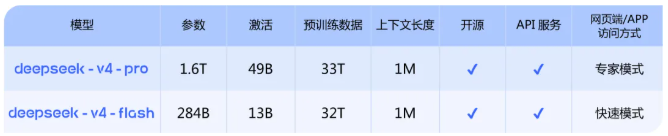 AI Visual Insight: This image shows the version split and capability positioning of the DeepSeek-V4 model family. The key information usually includes the Pro and Flash model tiers, context size, and recommended task types, helping developers choose models inside the editor based on quality, speed, and cost.
The official web app and mobile app already provide access, and on the API side you only need to switch the model name to deepseek-v4-pro or deepseek-v4-flash to reuse your existing request flow without rewriting the business protocol.
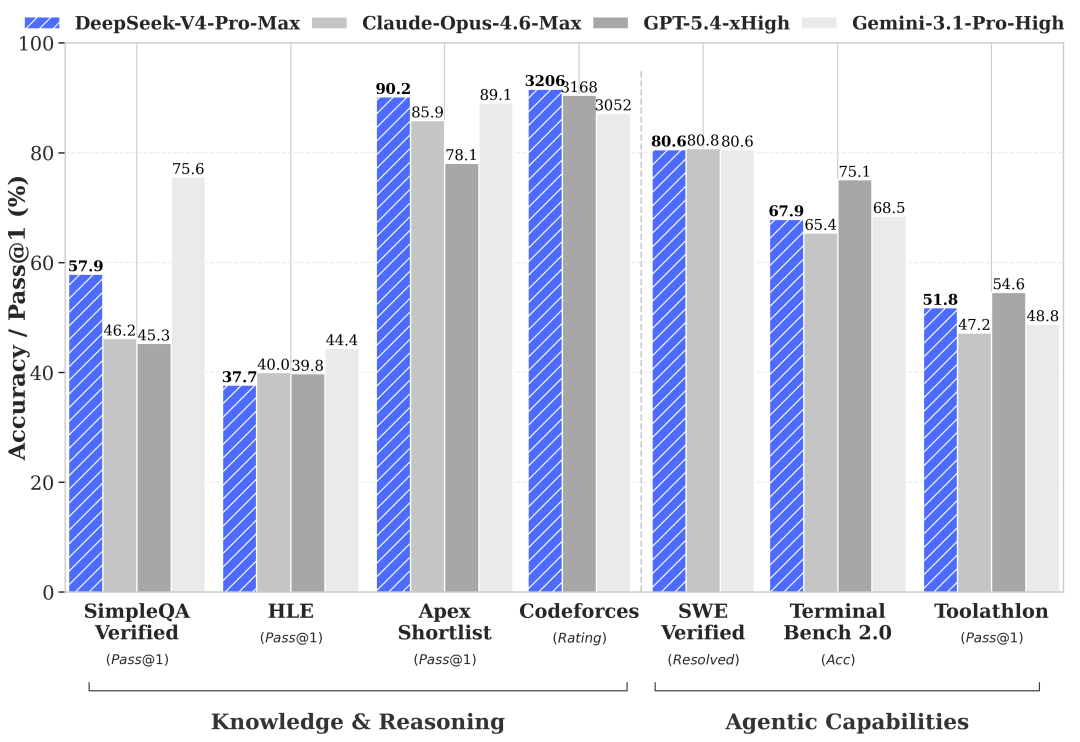 AI Visual Insight: This image shows the official product interface and model availability status. It highlights that DeepSeek-V4 is already available in both conversational products and the API, which means developers can validate results in the product UI first and then move directly to programmatic integration.
The model name is the most critical integration parameter
# Core model identifiers for direct API calls
MODEL_PRO=deepseek-v4-pro
MODEL_FLASH=deepseek-v4-flash
BASE_URL=https://api.deepseek.com
This configuration highlights the three most important parameters for DeepSeek-V4 integration: the model names and the base URL.
Installing Cline is the shortest path to integration in VS Code
Cline is the request entry point in this setup. After installation, a robot icon appears in the left sidebar. Click it to open the interactive panel and enter the model configuration page.
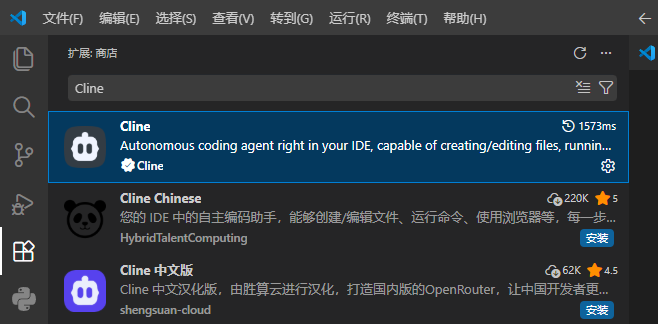 AI Visual Insight: This image shows the Cline installation page in the VS Code Extensions Marketplace. It indicates that the extension fits into the standard extension workflow, so developers only need to install it to gain access to the chat panel, model settings, and API request capabilities.
The first method works when Cline natively supports DeepSeek
If the Cline API Provider dropdown includes DeepSeek, select that provider directly, then enter your API key and model name. If the model list does not include deepseek-v4-pro, try entering it manually.
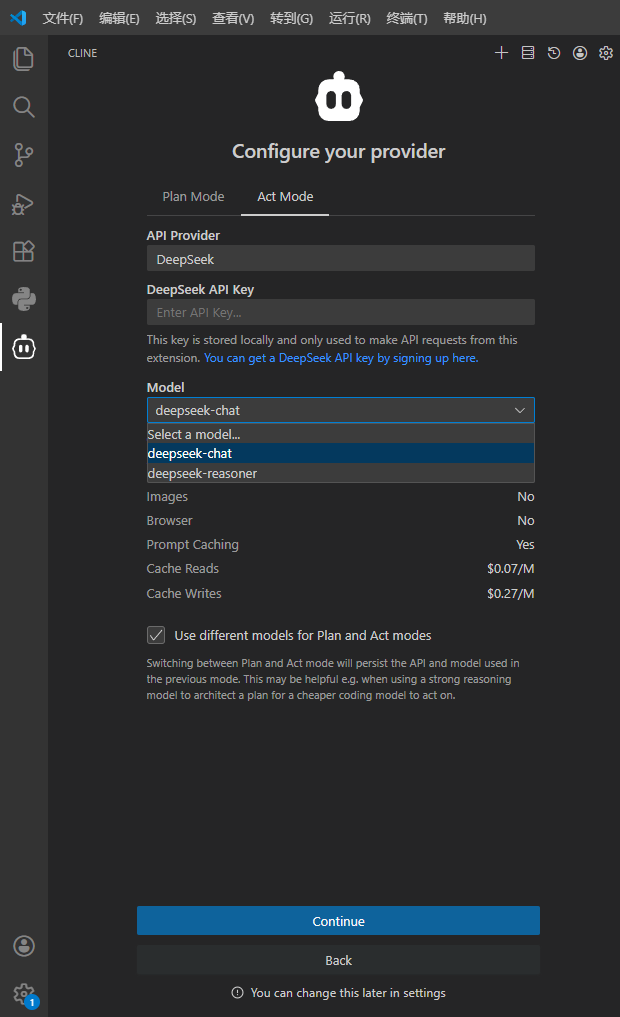 AI Visual Insight: This image shows the native DeepSeek configuration page in Cline. The focus is on the three direct-connection fields: Provider, API Key, and Model. If the UI supports custom model input, developers can bypass preset dropdown limitations and connect to newly released models directly.
{
  "provider": "DeepSeek",
  "apiKey": "Your DeepSeek API Key",
  "model": "deepseek-v4-pro"
}
This example matches Cline’s native integration mode and is the simplest configuration path.
You should switch to OpenAI-compatible mode when the extension does not expose new models
Some Cline versions only provide deepseek-chat or deepseek-reasoner, and the dropdown may not allow custom input. In that case, select OpenAI Compatible as the provider and specify the model manually through the compatible interface.
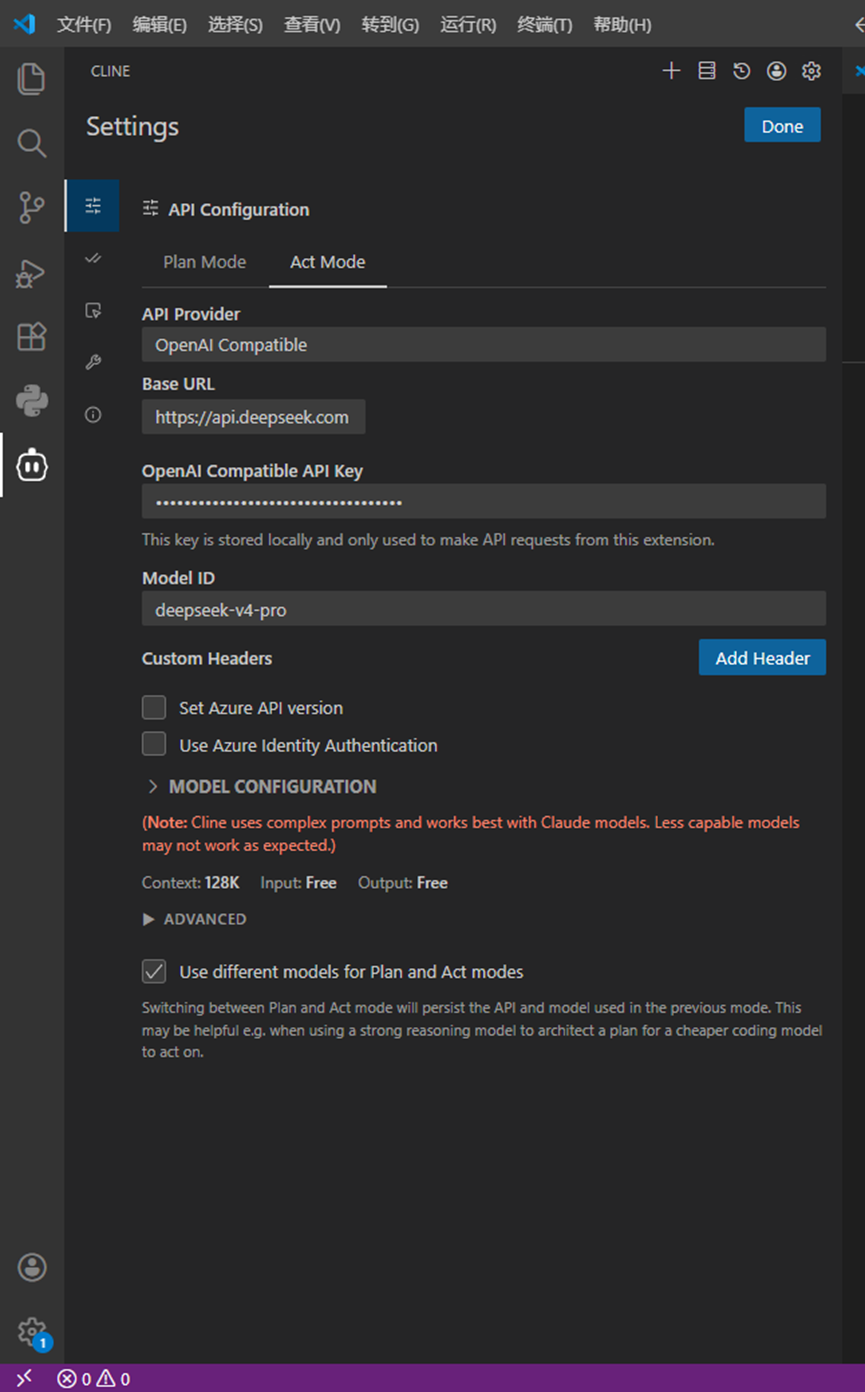 AI Visual Insight: This image shows the form structure used to configure third-party models through OpenAI Compatible mode. The key information is the manual binding of Base URL, API Key, and Model ID. This is a standard engineering workaround for extension model whitelist limitations.
The minimum working OpenAI-compatible configuration is as follows
{
  "provider": "OpenAI Compatible",
  "baseUrl": "https://api.deepseek.com",
  "apiKey": "Your DeepSeek API Key",
  "modelId": "deepseek-v4-pro"
}
This configuration routes Cline requests to the official DeepSeek endpoint by using the compatible protocol.
Note that custom headers, Azure API version, and Azure identity authentication are unrelated to this direct-connect setup. In most cases, leave them empty to avoid introducing unnecessary variables.
Separate planning and execution models can optimize both quality and cost
Cline supports splitting Plan and Act across different models. If you leave this option disabled, both phases share the same model, which keeps configuration simple and usually minimizes token usage. If you need finer-grained control, you can assign a faster model to planning and a stronger model to execution.
plan_model: deepseek-v4-flash   # Prioritize speed and cost for planning
act_model: deepseek-v4-pro      # Prioritize quality and generation capability for execution
shared_mode: false              # false means separate models are used
This configuration demonstrates a dual-model collaboration strategy inside the IDE and works well for complex coding tasks.
Verifying the model name through output logs is the standard way to avoid misconfiguration
After setup, send a simple prompt first, such as asking the model to introduce itself in Chinese. Then open View -> Output in VS Code, switch the channel to Cline, and search for the "model" field.
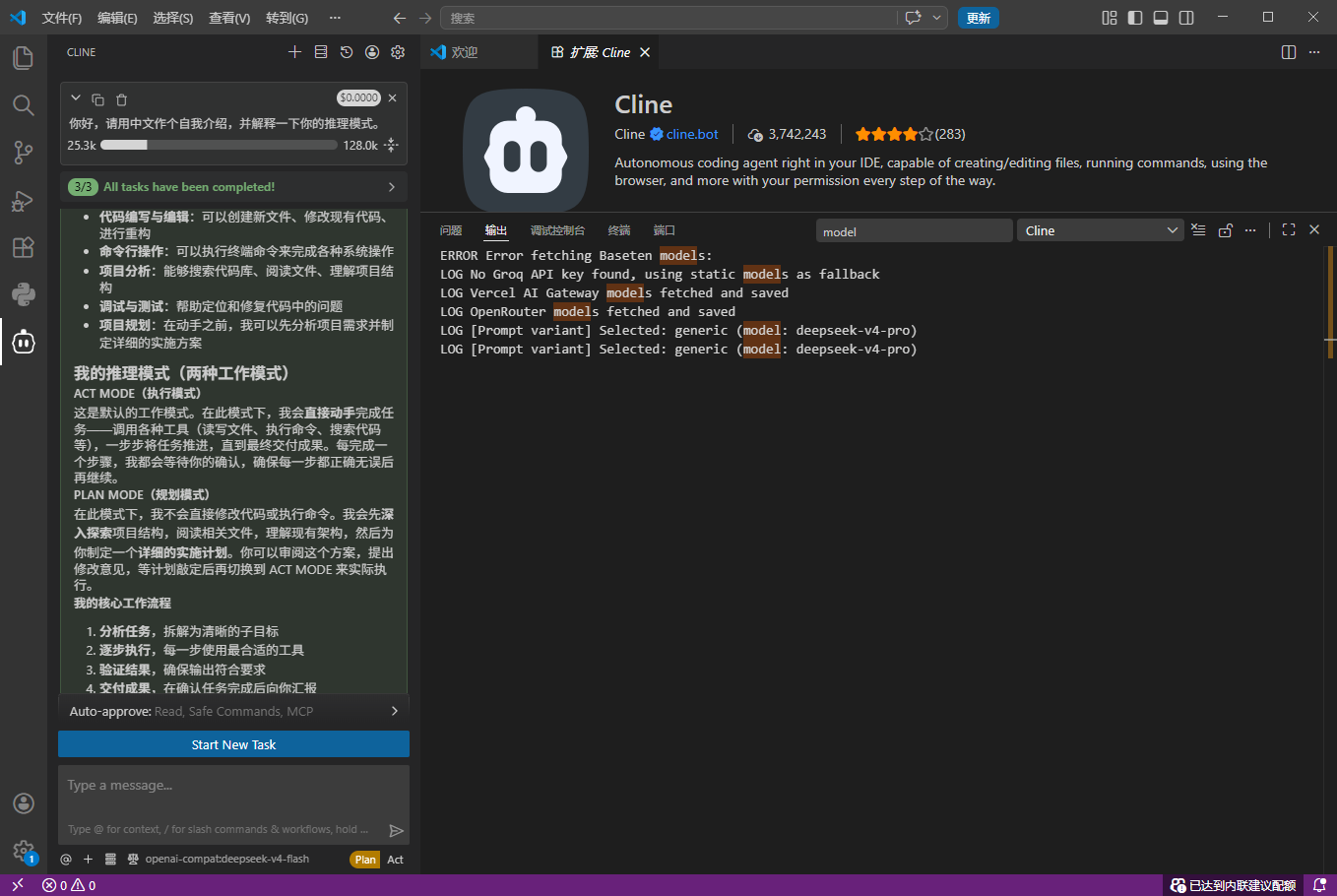 AI Visual Insight: This image shows the Cline request logs in the VS Code Output panel. Developers can inspect the
 model field in the JSON request body directly to confirm whether the actual request uses deepseek-v4-pro or deepseek-v4-flash, instead of relying on the UI display value.
The request body fields in the logs deserve the closest inspection
{
  "model": "deepseek-v4-pro",
  "messages": [
    {
      "role": "user",
      "content": "Hello, please introduce yourself in Chinese."
    }
  ]
}
This log snippet verifies the real model identifier sent in the request and provides the key evidence when the UI appears configured correctly but the actual call does not use the intended model.
The core value of this approach is giving VS Code a verifiable DeepSeek-V4 integration path
From an engineering perspective, the most common issue is not API availability, but that the extension UI does not keep up with newly released models. The fix is straightforward: try the native provider first, fall back to OpenAI-compatible mode if needed, and validate the final request body through logs.
FAQ
1. Why can’t I see deepseek-v4-pro in Cline?
Because the extension’s preset model list may lag behind the official API. First check whether Cline supports custom input. If not, switch to OpenAI Compatible and fill in modelId manually.
2. Do I have to use the official Base URL?
If you connect directly to the official API, use https://api.deepseek.com. You only need to replace it with a custom address when you are working behind an enterprise gateway or proxy.
3. How do I confirm whether the actual call uses Pro or Flash?
Do not rely only on the dropdown in the UI. You should search for the "model" field in the Cline logs inside the VS Code Output panel and verify the request body directly.
Core Summary: This guide reconstructs the core workflow for calling DeepSeek-V4 Pro/Flash API from VS Code through the Cline extension. It covers model overview, two configuration methods, log-based validation, and common pitfalls to help developers quickly build a high-quality AI coding environment.