document is a local document editor adapted from OnlyOffice. It uses a browser interface plus a local Node.js service to enable offline editing and export for DOCX, XLSX, and PPTX files, addressing common WPS pain points such as lag, intrusive ads, and privacy concerns. Keywords: OnlyOffice, local document editor, WPS alternative.
Technical specifications provide a quick snapshot
| Parameter | Description |
|---|---|
| Core Language | JavaScript / TypeScript (frontend web app + local Node.js service) |
| Runtime Model | Browser interface + local development service |
| Document Protocols / Formats | DOCX, XLSX, PPTX, PDF export |
| Upstream Capability | Trimmed and integrated OnlyOffice frontend capabilities |
| Startup Commands | npm install / npm run dev |
| Default Access URL | http://localhost:5173 |
| Remote Access Extension | cpolar HTTP tunneling |
| GitHub Stars | Not provided in the source content; refer to the live GitHub repository data |
| Core Dependencies | Node.js, OnlyOffice-related frontend assets, cpolar (optional) |
document offers a lighter local office alternative
For many users, the core requirement for office software is not a collaboration ecosystem. It is the ability to open files reliably, edit them quickly, and keep files local. The value of document lies in extracting OnlyOffice’s frontend editing capabilities and packaging them with a browser shell and a local Node.js service as the runtime foundation.
It has three key advantages: no dependency on third-party servers, offline availability, and compatibility with common Office formats. This means a shorter document-processing path, less performance variability, and a better fit for privacy-sensitive individuals or small teams.
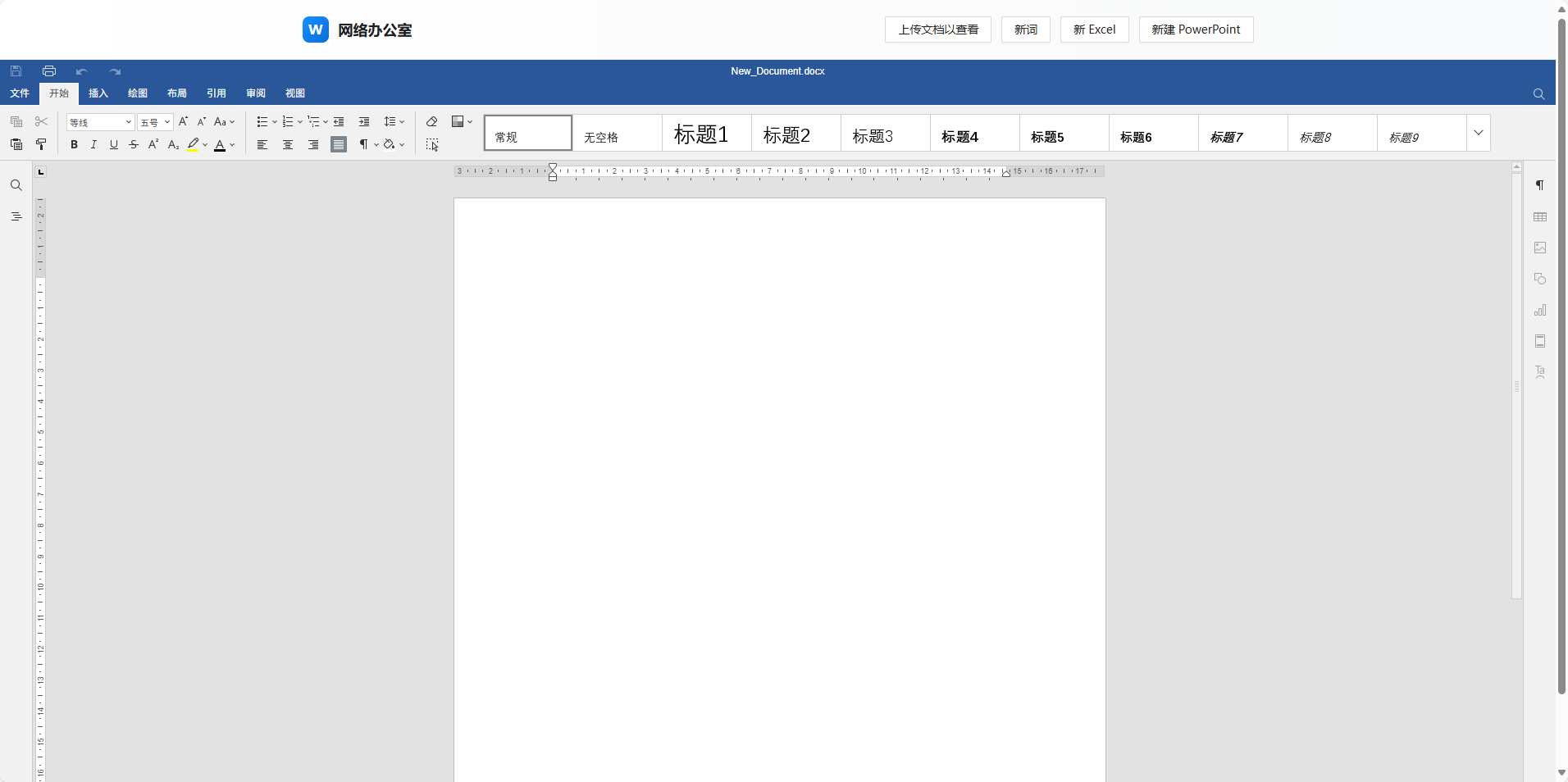 AI Visual Insight: This image shows document’s main editing interface as a browser-based document workspace. It indicates that the project is not a traditional native desktop app. Instead, it reuses document editing capabilities through a web UI, which makes it well suited for local deployment and lightweight access.
The technical essence of this solution is a frontend-based Office editing container
Rather than reinventing a document engine, document builds on top of OnlyOffice’s mature capabilities and adapts them for local use. This approach creates a practical balance among format compatibility, editor maturity, and development cost.
git clone https://github.com/ranuts/document.git  # Clone the project source code
cd document                                       # Enter the project directory
npm install                                       # Install dependencies
npm run dev                                       # Start the local development service
These commands clone the project, install dependencies, and launch the local service.
The Windows deployment process is simple and suitable for fast validation
The original workflow is straightforward: install Node.js, clone the repository with Git, then run npm install and npm run dev. After startup, open localhost:5173 to access the editor.
The advantage of this deployment model is transparency. Developers can directly inspect dependencies, ports, static assets, and local service behavior, which makes secondary customization, intranet integration, and tailored packaging much easier.
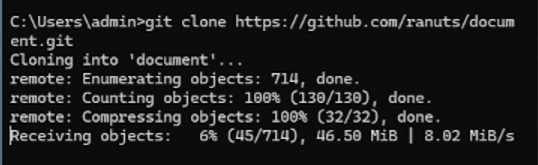 AI Visual Insight: This image shows the Git clone process in a Windows terminal, indicating that deployment relies on a standard development toolchain with a relatively low setup barrier for fast reproduction.
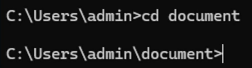 AI Visual Insight: This image shows the terminal state after switching into the project directory, suggesting that the project follows a conventional frontend engineering structure and is ready for dependency installation and script execution.
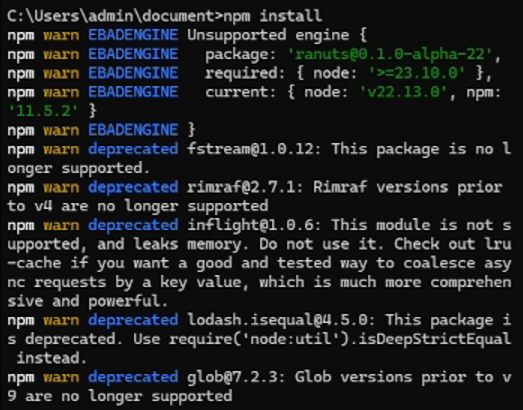 AI Visual Insight: This image shows the npm installation stage, which means the project manages dependencies through the Node.js ecosystem. Its deployment model closely resembles a standard frontend application and is easy to adopt on enterprise developer machines.
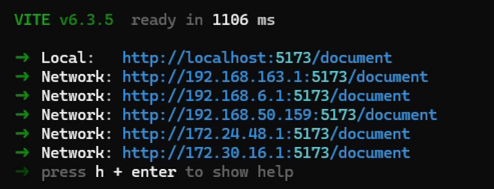 AI Visual Insight: This image shows the development server after a successful startup. It usually indicates that a local port is listening and accessible from the browser, confirming that document runs as a local web service rather than a cloud SaaS product.
The access path after deployment is very clear
# Access the local service
start http://localhost:5173  # On Windows, open it directly in the default browser
This command opens document’s local entry point in the browser.
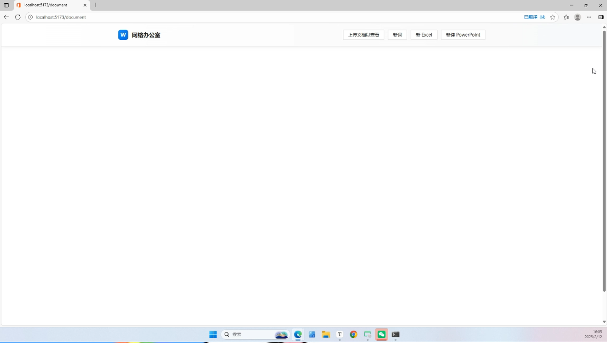 AI Visual Insight: This image shows the browser page after a successful deployment. The interface is clean and the primary actions are centralized, which indicates that the product focuses on document processing rather than memberships, ads, or complex navigation.
document is immediately usable for local document processing
Based on the source content, document supports uploading existing files, creating new Word, Excel, and PowerPoint documents, and exporting them in their original formats or as PDF. For personal productivity, this already covers most high-frequency needs.
It is particularly well suited for three scenarios: offline document revisions, lightweight office replacement, and private document preprocessing in internal environments. If you do not depend on macros, complex plugins, or deep collaboration, document is highly practical.
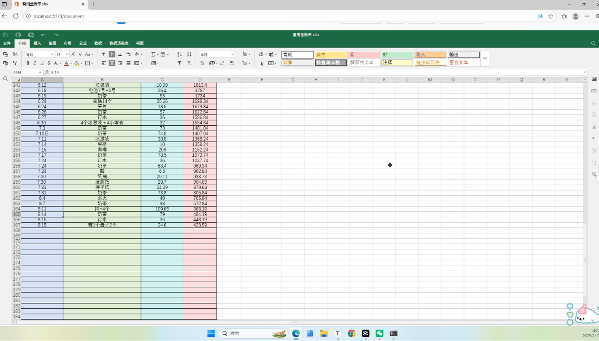 AI Visual Insight: This image shows the upload entry point, indicating that the system supports local file import. The typical workflow is that the user selects a file in the browser and enters editing mode directly, without routing data through an external server.
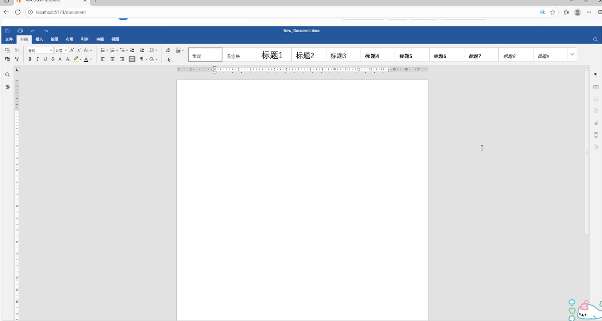 AI Visual Insight: This image shows the entry point for creating a new text document, demonstrating that document is not just a viewer but a complete editing environment for creating office documents from scratch.
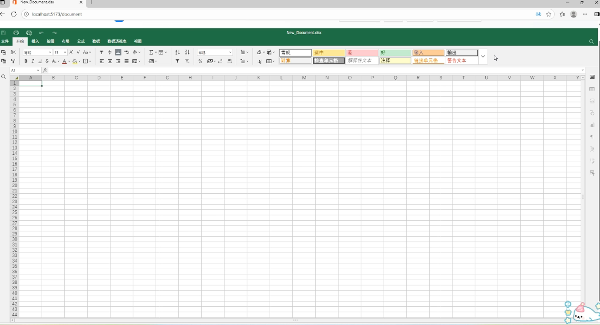 AI Visual Insight: This image shows the spreadsheet creation interface, confirming that the project handles multiple document types in a unified way and resembles a basic office suite structure.
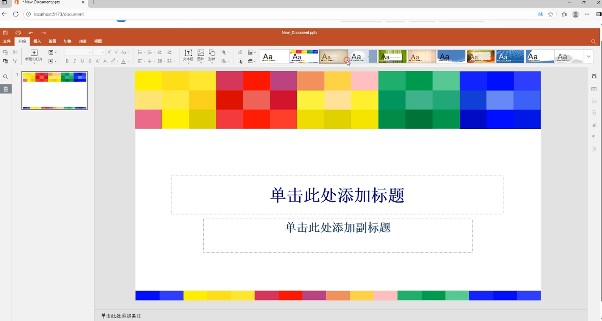 AI Visual Insight: This image shows presentation editing and template capabilities, along with export options. It suggests that document supports not only editing in presentation workflows but also output compatibility.
cpolar enables internet access for the local editor
By default, document is intended for local access. If you need to open the editor from a phone, tablet, or remote computer over an external network, you can use cpolar to create an HTTP tunnel. Its value is not in document editing itself, but in extending the access path.
This setup is useful for temporary remote work, home device access, and cross-network file viewing. Compared with building your own public-facing service, cpolar removes the need for a public IP, cloud server, and reverse proxy configuration.
# document local service port
localhost:5173

# cpolar web management entry
localhost:9200
These two ports are used for the document editing service and cpolar configuration management, respectively.
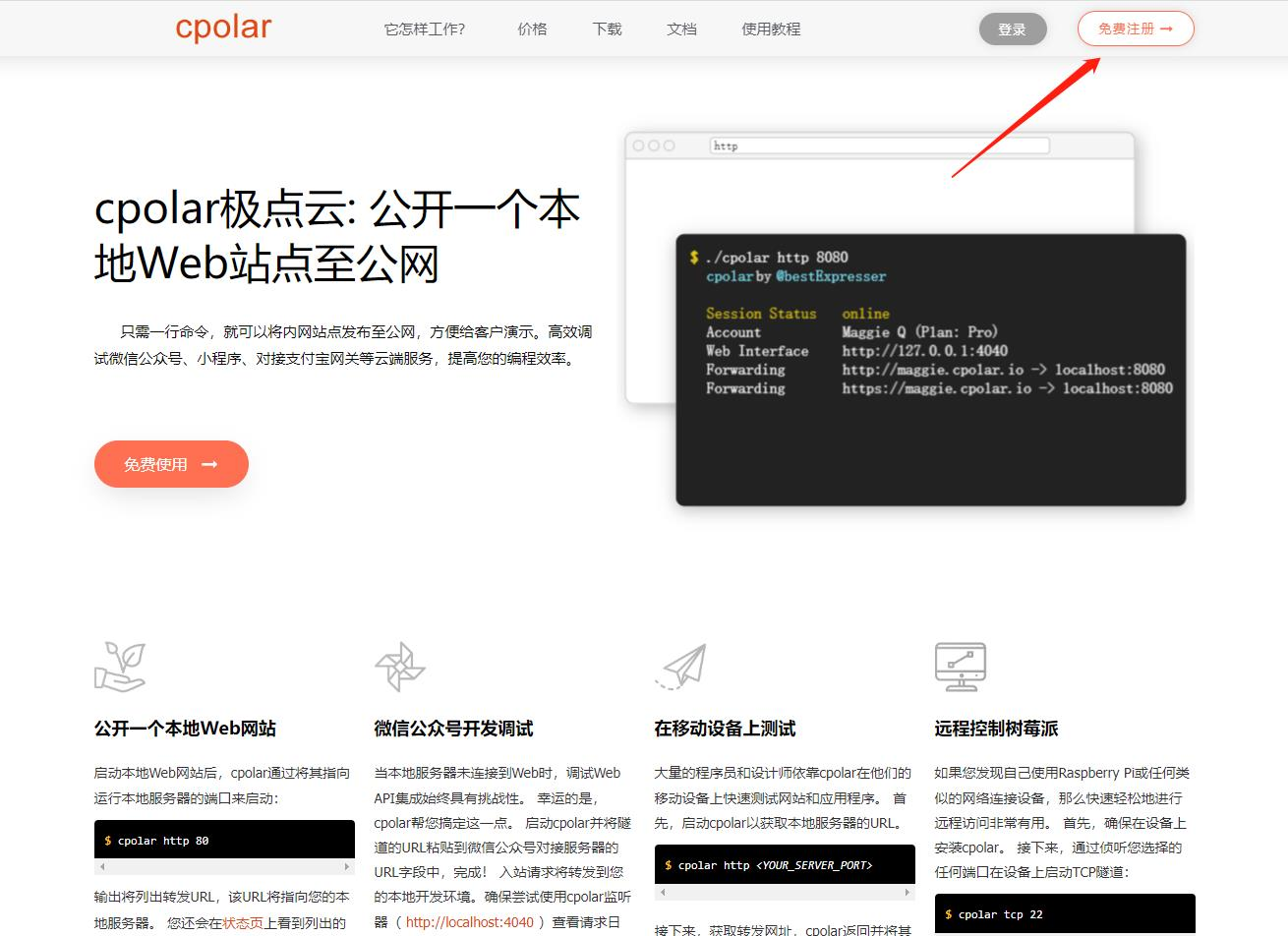 AI Visual Insight: This image shows cpolar’s official website and download area, indicating that its deployment model is primarily based on local client installation and is suitable for users without an operations background.
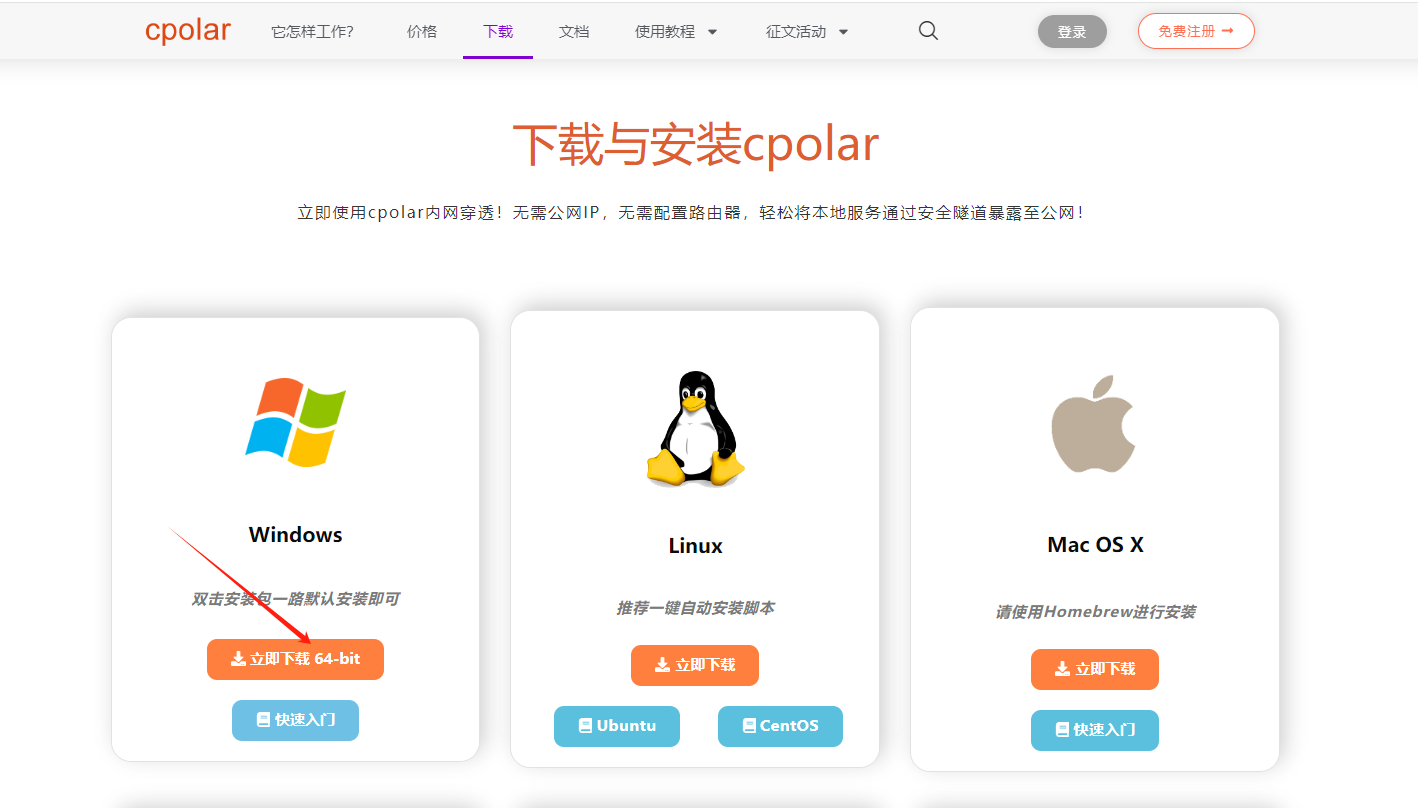 AI Visual Insight: This image shows the Windows installation interface, demonstrating that cpolar provides graphical distribution and a standard installation workflow that lowers the barrier to using network tunneling.
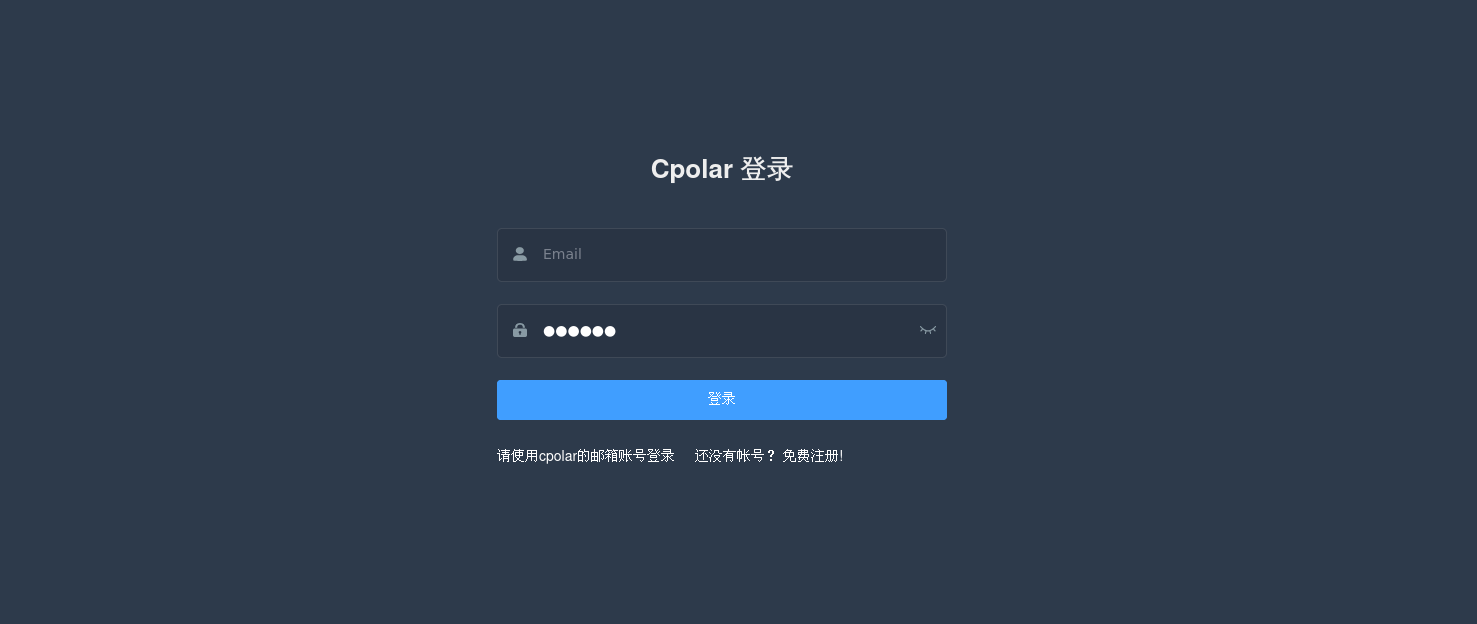 AI Visual Insight: This image shows the web UI after login, indicating that cpolar’s core configuration is completed through a visual console rather than handwritten tunnel configuration files.
Fixed public URLs determine remote access stability
The source content recommends reserving a second-level subdomain, then creating an HTTP tunnel in cpolar to expose local port 5173. The generated address is more stable and better suited for long-term use.
# Example of key mapping parameters
Protocol: http
Local Address: 5173
Domain Type: Second-level Subdomain
Region: China Top
This configuration defines the basic mapping relationship used to publish document to the public internet.
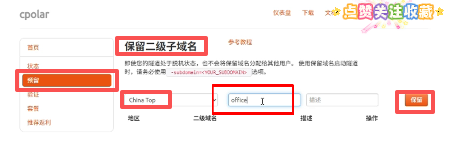 AI Visual Insight: This image shows the configuration page for reserving a fixed subdomain, indicating that the remote access solution is not limited to disposable random URLs and can provide a stable entry point for bookmarking or team sharing.
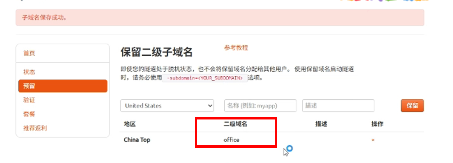 AI Visual Insight: This image shows that a fixed domain has already been generated, which means the public access address can be planned before tunnel creation and incorporated into a clear access convention.
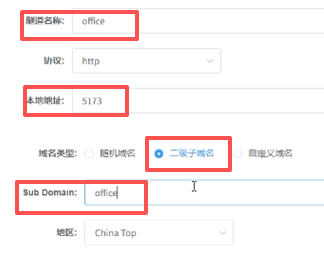 AI Visual Insight: This image shows the tunnel creation form. The key fields include protocol, local port, subdomain, and region, illustrating that cpolar’s mapping model explicitly binds a local service to a public entry point.
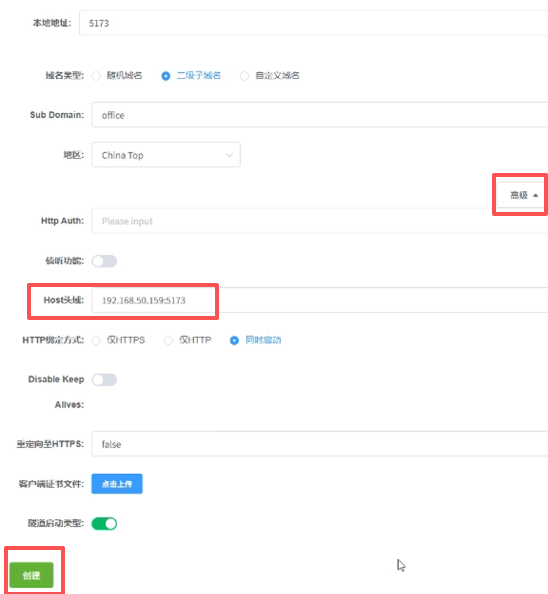 AI Visual Insight: This image shows that the tunnel parameters have been saved successfully, which means document’s local service now meets the prerequisite for public internet access.
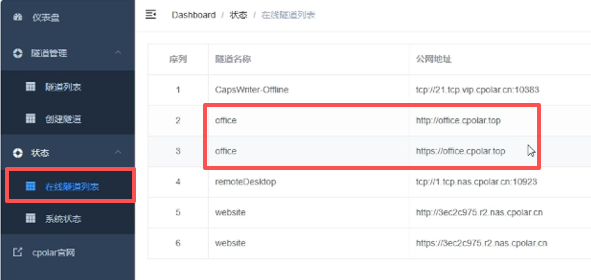 AI Visual Insight: This image shows the generated public access list, indicating that the system has assigned a directly usable external entry point and lets users manage multiple tunnels from one console.
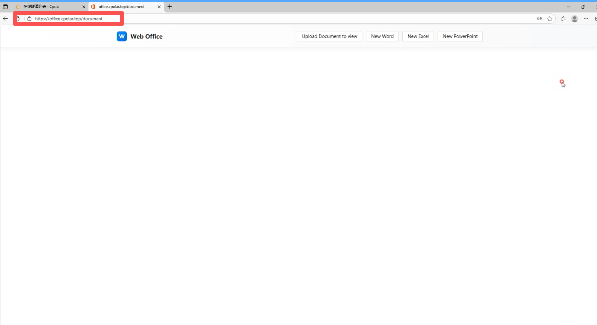 AI Visual Insight: This image shows the final result of opening document from an external network, proving that the local document editor has been extended from a LAN service into a lightweight remote office entry point accessible across networks.
This solution fits lightweight productivity better than heavy enterprise collaboration
If your goal is local document editing, fewer ads, and tighter control over data flow, document is a strong alternative. Its architecture is lighter, its usage model is more flexible, and it is easier to integrate into private environments.
However, if you need complex macros, a deep plugin ecosystem, real-time multi-user collaboration, and enterprise-grade permission systems, it still cannot fully replace large commercial office suites. A more accurate positioning is this: a local-first, privacy-first, lightweight web office container.
FAQ
Can document really replace WPS?
In lightweight productivity scenarios, yes. If your core requirement is to open, edit, and save DOCX/XLSX/PPTX files and you care more about localization and privacy, document is practical enough. If you rely on macros, premium templates, or heavy collaboration, it cannot fully replace WPS.
Why is document better suited for privacy-sensitive scenarios than traditional office software?
Because its runtime model centers on the local browser and local service, the document-processing path does not pass through a third-party cloud by default. As long as you do not intentionally expose the service, document data remains on the local machine.
Why use cpolar together with document?
Because document is only accessible locally or within the LAN by default. cpolar maps the local port securely to the public internet to solve remote access, rather than enhancing the editing functionality itself.
Core summary
This article reconstructs and analyzes the core capabilities of the document local editor, its Windows deployment workflow, and the cpolar-based remote access approach. It highlights the project’s OnlyOffice-based frontend architecture, offline editing experience, and privacy advantages, making it a strong option for developers and productivity users looking for a practical WPS alternative.