Define Projection and Batch Project in ArcGIS Pro serve two completely different purposes: one fixes spatial reference metadata, while the other performs real coordinate transformation. Used correctly, they systematically solve layer misalignment, area distortion, and failed spatial analysis. Keywords: ArcGIS Pro, Define Projection, Batch Project.
Technical Specification Snapshot
| Parameter | Description |
|---|---|
| Platform | ArcGIS Pro |
| Data Type | Vector data (points, lines, polygons, feature classes, feature datasets) |
| Core Tasks | Assigning coordinate systems, correcting coordinate systems, batch projection conversion |
| Target Objects | GIS layers with known or to-be-verified spatial references |
| Typical Standards | WGS84, CGCS2000, projected coordinate systems, geographic coordinate systems |
| Stars | Not provided in the source content |
| Core Dependencies | ArcGIS Pro Geoprocessing toolbox, Projection / Spatial Reference |
The Two Tools in ArcGIS Pro Handle Completely Different Coordinate Responsibilities
In GIS data processing, many issues do not come from geometry itself. They come from incorrect coordinate system descriptions. Common symptoms include shifted layer overlays, abnormal buffer analysis, and distorted area or length statistics.
Although Define Projection and Batch Project look similar, they operate at different stages. The former corrects the spatial reference declaration of the data, while the latter performs an actual coordinate transformation. Reverse the order, and you can easily ruin an entire batch of data.
Define Projection adds the correct spatial reference to the data
The essence of Define Projection is to write the correct coordinate system information into the dataset. It does not modify feature coordinate values. It only changes how ArcGIS Pro interprets the data.
The applicable scenarios are straightforward: field-collected data missing a .prj file, CAD imports with no spatial reference, or layers incorrectly declared as another coordinate system. In these cases, you should not run a projection conversion directly. You must correct the definition first.
Input coordinate values: Unchanged
Define Projection result: Only updates spatial reference metadata
Prerequisite: You already know the true native coordinate system of the data
This example highlights a key point: Define Projection changes the label, not the numbers.
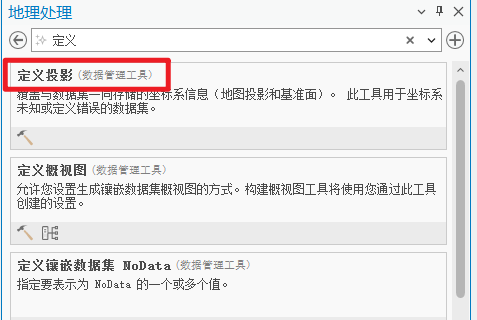 AI Visual Insight: This image shows the Define Projection entry point and parameter area in the ArcGIS Pro Geoprocessing pane. The key point is that the user must specify the input dataset and the target spatial reference. The UI structure indicates that this tool is designed for metadata correction rather than geometry recalculation.
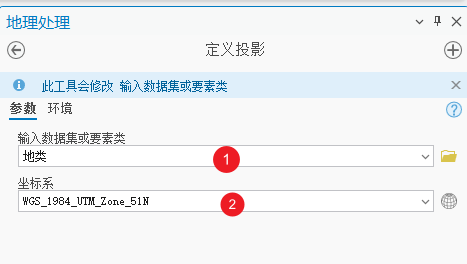 AI Visual Insight: This image shows the coordinate system selector and the Run button, emphasizing that the coordinate system is the only critical parameter. Technically, this means the result depends entirely on whether the user correctly identifies the true source coordinate system. A wrong choice will distort all subsequent map overlays and analysis results.
Batch Project converts multiple layers into a unified target coordinate system
Batch Project is intended for data that already has the correct spatial reference. It recalculates the coordinate values of each feature and outputs the results in a new target coordinate system.
If your task involves overlaying layers from multiple sources, standardizing them to a CGCS2000 projection zone, or building a consistent coordinate foundation for spatial analysis, use Batch Project instead of Define Projection.
# ArcPy example: batch project multiple feature classes
import arcpy

inputs = [r"D:\gis\road.shp", r"D:\gis\river.shp"]
out_gdb = r"D:\gis\output.gdb"
out_sr = arcpy.SpatialReference(4490)  # CGCS2000 geographic coordinate system

for fc in inputs:
    name = arcpy.Describe(fc).baseName
    out_fc = f"{out_gdb}\\{name}_cgcs2000"
    arcpy.management.Project(fc, out_fc, out_sr)  # Perform real coordinate transformation
This code demonstrates a batch workflow for converting multiple vector layers into a unified coordinate system.
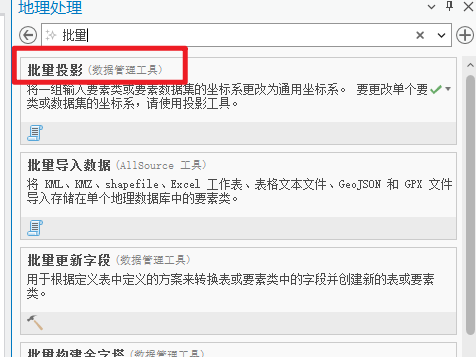 AI Visual Insight: This image shows that the Batch Project tool supports loading multiple input layers at once and requires an output workspace. The interface indicates that this is a production-oriented tool for batch processing, ideal for standardizing multi-source features during the project data normalization stage.
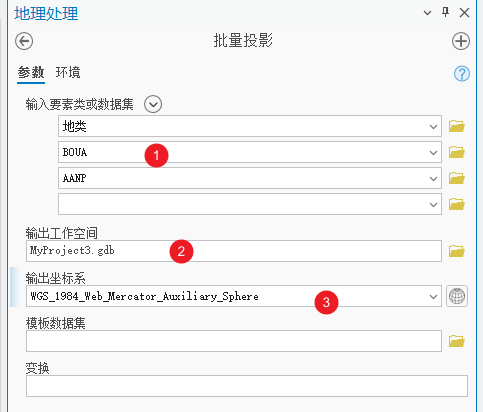 AI Visual Insight: This image highlights the output coordinate system configuration area, showing that the tool not only transforms coordinate values but also creates new output data. For GIS engineering, this means you can preserve the source data while using the converted output in a standardized analysis workflow, reducing the risk of accidental data loss.
Understanding the difference correctly is the prerequisite for avoiding coordinate disasters
First, Define Projection does not change coordinate values, while Batch Project recalculates them. Second, Define Projection answers the question of what the data is, while Batch Project answers where the data needs to go. Third, Define Projection is usually the first preprocessing step, while Batch Project is the standardization output step.
One common mistake is to run a projection directly on data with no defined coordinate system. The software may allow the operation, but the result has no credibility because the source coordinate interpretation is already wrong.
The practical workflow should validate first and transform second
In a production environment, you should first check the Spatial Reference property of the layer, then decide whether to use Define Projection or Batch Project. If the data sources are complex, sample the data and verify whether the positions align reasonably with a basemap before proceeding.
import arcpy

fc = r"D:\gis\parcel.shp"
desc = arcpy.Describe(fc)
print(desc.spatialReference.name)  # Output the current layer's coordinate system name

# If the result is Unknown, run Define Projection first instead of Project
This code quickly identifies whether a layer is missing a spatial reference and is a necessary check before batch processing.
You must avoid three high-frequency pitfalls in coordinate processing
The first pitfall is misidentifying the native coordinate system. For example, if you define projected coordinates as latitude and longitude, the entire dataset will jump far from its correct location. The second pitfall is selecting the wrong projection zone, especially in CGCS2000 3-degree and 6-degree zone scenarios, where the offset can be dramatic.
The third pitfall is mixed input. If one batch contains both properly defined layers and Unknown layers, the Batch Project result becomes unpredictable. The safest approach is to validate in groups first, then convert them uniformly.
Recommended minimum operations checklist
- Check layer properties first and confirm whether the spatial reference is Unknown.
- If the native coordinate system is known but the definition is missing, run Define Projection first.
- After all input layers are correct, run Batch Project.
- Output to a new workspace instead of overwriting the source data.
- After conversion, sample the output and verify it against a basemap or control points.
FAQ
1. Why can’t Define Projection and projection conversion be used interchangeably?
Define Projection only writes the correct coordinate system description and does not change coordinate values. Projection conversion recalculates coordinate values. If the source coordinate system is not defined correctly first, the projection conversion will calculate from a false premise, so the result will inevitably be wrong.
2. When must I run Define Projection first?
You should run Define Projection first when a layer displays as Unknown, when a .prj file is missing, when CAD or external data is imported without a spatial reference, or when you know the coordinate system declaration is wrong.
3. Why does offset still appear after Batch Project?
There are usually three reasons: the source layer was defined with the wrong coordinate system, the target projection zone was selected incorrectly, or the geographic transformation parameters were not matched properly. In particular, when converting between local coordinate systems in China and CGCS2000, you should carefully verify both the zone number and the transformation datum.
Conclusion
Define Projection and Batch Project in ArcGIS Pro form a two-step method for coordinate governance in vector data: first correct the spatial reference, then standardize the target coordinate system. As long as you strictly separate definition from transformation, you can solve most layer misalignment and analysis issues in GIS projects.
Core Summary: This article systematically reconstructs the usage logic, parameter differences, and practical pitfalls of Define Projection and Batch Project in ArcGIS Pro, helping developers quickly solve layer misalignment, coordinate system mismatch, and batch standardization problems. It is especially useful for GIS data preprocessing and pre-analysis validation.