How to Set Up an FTP Server on Windows Server 2022/2025: IIS, DNS, FTPS, and Troubleshooting Guide
This article focuses on IIS FTP deployment on Windows Server 2022/2025. It covers user creation, directory planning, permission control, DNS-based domain access, CMD validation, and FTPS expansion to solve the most common pain points: installing without configuring, connecting without transferring, and using without troubleshooting. Keywords: IIS FTP, DNS resolution, FTPS.
Technical specification snapshot
| Parameter | Description |
|---|---|
| Operating System | Windows Server 2022 / 2025, Windows 11 |
| Core Protocols | FTP, FTPS, DNS, TCP |
| Default Ports | TCP 21, with a customizable high-port range for PASV |
| Deployment Components | IIS, FTP Service, FTP Extensibility |
| Permission Model | IIS Authorization Rules + NTFS file permissions |
| Client Tools | File Explorer, CMD, FileZilla, Wireshark |
| Star Count | Not provided in the source |
| Core Dependencies | IIS FTP, Windows Defender Firewall, DNS services |
This lab’s core value is moving FTP from “installed” to “verifiable, explainable, and hardenable”
The real value of the source material is not just showing which IIS menu items to click. It builds a complete chain: service deployment, permission implementation, name resolution, client validation, security extension, and troubleshooting. For teaching and entry-level operations work, this capability matters more than simply getting the service running.
FTP is a classic dual-connection protocol. The control connection usually uses TCP 21 and handles commands such as USER, PASS, PWD, LIST, RETR, and STOR. The actual directory listing, upload, and download operations use a separate data connection. This is also the root cause behind a common beginner issue: logging in successfully but failing to open a directory.
# Install IIS and FTP role services
Install-WindowsFeature Web-Server, Web-Ftp-Server, Web-Ftp-Service, Web-Ftp-Ext -IncludeManagementTools
# Install required Web and FTP components in a single step
This command quickly installs the base IIS FTP roles.
FTP’s connection model means firewall and transfer mode settings are mandatory
In active mode, the server connects back to a high client port. In passive mode, the server opens a high port range, tells the client which port to use, and the client initiates the data connection. Modern LAN, NAT, and firewall environments are generally better suited for PASV, which is why graphical FTP clients typically prefer passive mode.
If you allow only port 21, you can usually reach the control connection, but not the data connection. The symptoms are predictable: login works, directory listing fails, and uploads or downloads break. When this happens, check the PASV port range and firewall rules first instead of rebuilding the site.
IIS Authorization Rules and NTFS permissions must both allow access
IIS Authorization Rules determine who can enter the site. NTFS permissions determine what they can do after they get in. Even if a user is allowed to log in through IIS, they still cannot upload if the directory does not grant write permission. Conversely, even if the folder permissions are correct, FTP access still fails if IIS authorization does not allow it.
# Create lab directories
New-Item -ItemType Directory -Path D:\FTPRoot,D:\FTPRoot\Public,D:\FTPRoot\ftpuser -Force
# Create the FTP root, a public directory, and a named-user directory
This command initializes the recommended FTP directory structure.
The recommended minimum viable deployment is a named user, isolated directories, and DNS-based access
Start by creating a local user named ftpuser, then plan two types of directories: D:\FTPRoot\ftpuser and D:\FTPRoot\Public. Use the first for read/write testing and the second for anonymous read-only comparison. This makes it easier to separate authenticated and anonymous access scenarios later.
At the site configuration level, begin with the server IP and port 21 binding. For a basic lab, set SSL to “No SSL,” enable Basic authentication, disable Anonymous authentication, and create authorization rules that allow only ftpuser to read and write. Then handle FTPS as an extension exercise.
netsh advfirewall firewall add rule name="FTP 21" dir=in action=allow protocol=TCP localport=21
:: Allow the control connection on port 21 first
This rule ensures that the baseline FTP connection is reachable.
Using DNS-based domain access makes the lab much more realistic
It is a good idea to add an A record that points ftp.lab.test to 192.168.10.10. This lets clients access the service using either ftp://192.168.10.10 or ftp://ftp.lab.test. A domain name is not a prerequisite for FTP, but it reflects a more realistic production-style access pattern.
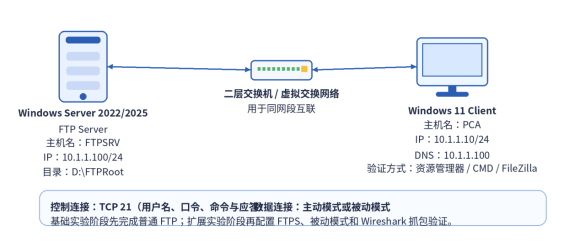 AI Visual Insight: This image shows a typical instructional LAN topology: Windows Server hosts the FTP service, and Windows 11 acts as the client. The two systems communicate over a switched network. The diagram highlights the separation between server and client roles, which is useful for demonstrating the dependencies among IP configuration, name resolution, and access validation.
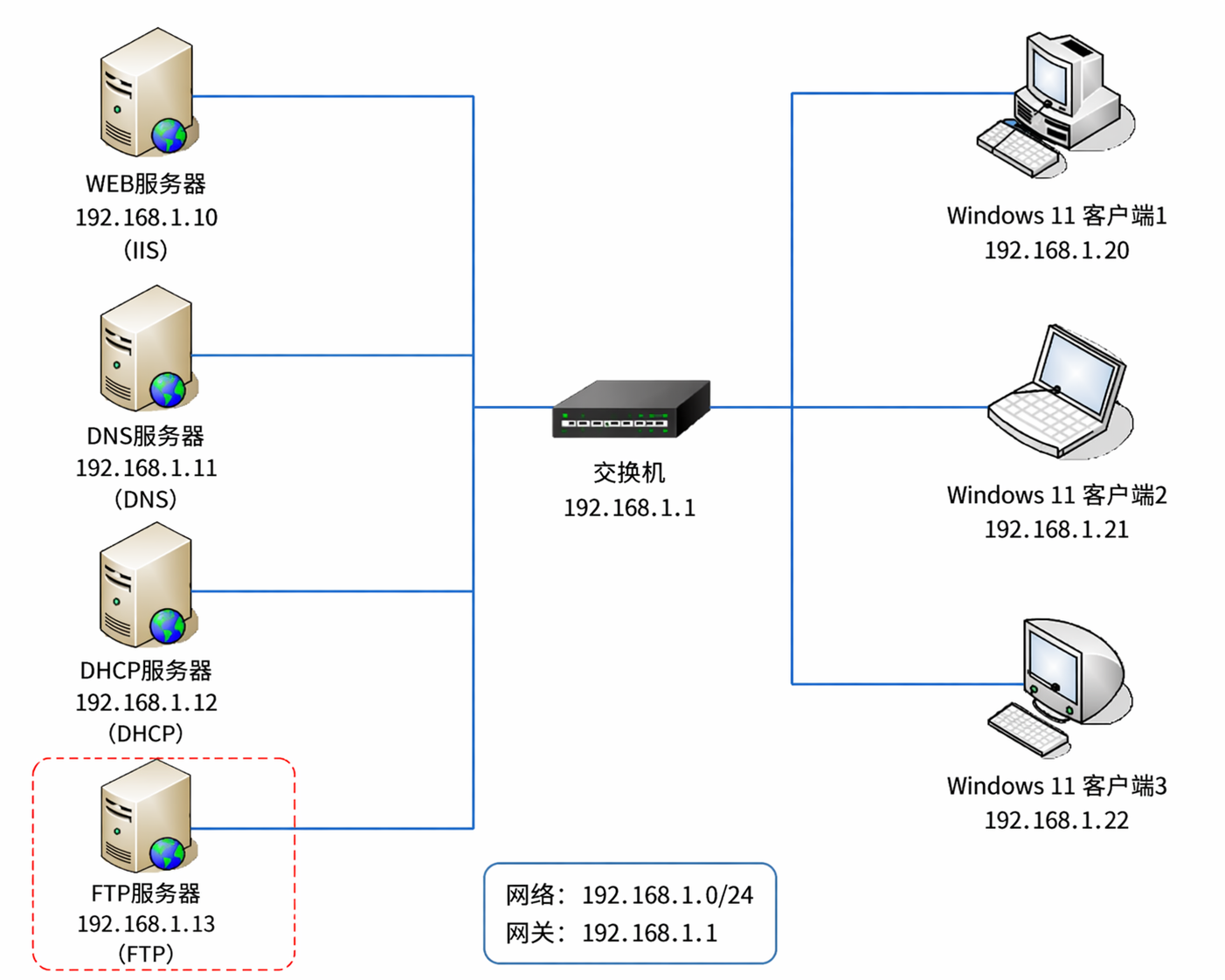 AI Visual Insight: This image expands the view to show multi-service collaboration. It illustrates that FTP is rarely deployed in isolation and often shares the same server or lab network with DNS, web, DHCP, and other services. This helps explain why service deployment, name resolution, and client access form a complete operational loop.
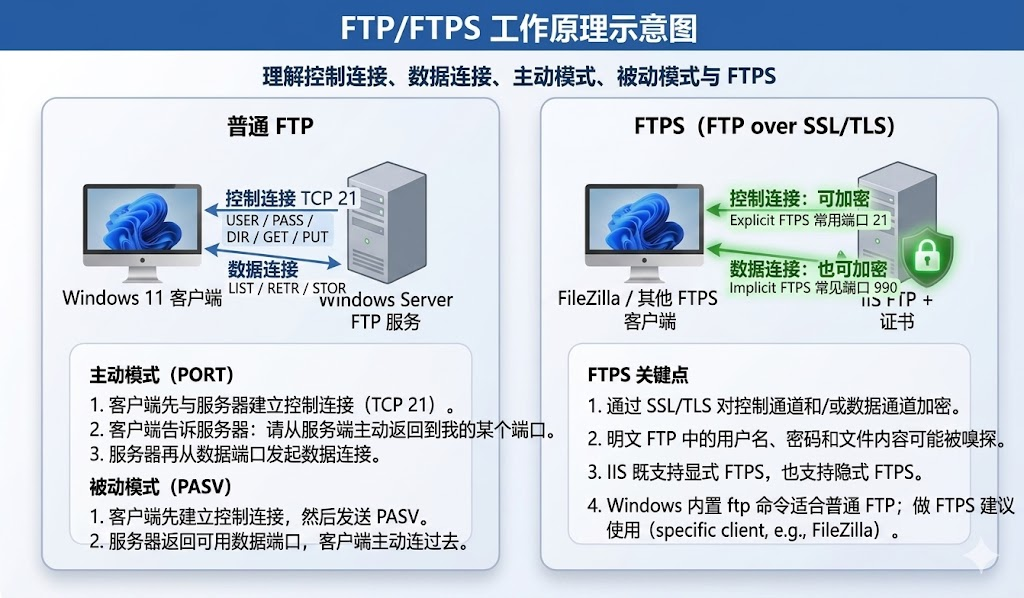 AI Visual Insight: This image compares the communication mechanisms of standard FTP and FTPS, emphasizing the differences among the control connection, data connection, and TLS encryption. Technically, it helps explain why standard FTP exposes usernames, passwords, and commands, while FTPS significantly reduces packet-capture disclosure risk.
The validation phase must cover both graphical and command-line paths
Graphical validation is useful for confirming whether the service is usable. A simple approach is to access ftp://ftp.lab.test through Windows 11 File Explorer. Command-line validation is better for understanding the differences among the remote directory, local directory, transfer mode, and batch commands, especially lcd, pwd, get, and put.
Many students do not understand where a downloaded file is actually saved. The root cause is that they do not realize an FTP session contains both a current remote directory and a current local directory. For that reason, command-line exercises should explicitly use lcd first to set the local path before running get or put.
ftp ftp.lab.test
# Connect to the FTP service by domain name
pwd
# Show the current remote directory
lcd C:\Users\Student\Desktop\FTPTest
# Change the local directory to control where downloads are saved
binary
# Use binary mode to avoid corrupting images and archive files
get hello.txt
put demo.jpg
bye
These commands demonstrate the minimum complete workflow: connect, inspect the directory, switch transfer mode, download, and upload.
Extension exercises should prioritize PASV, FTPS, and packet-capture comparison
If you want to deepen the lab, the three most valuable additions are the passive mode port range, FTPS encryption, and Wireshark packet capture. These map directly to three critical questions: why login works but transfer fails, why plaintext is insecure, and why enabling TLS is worthwhile.
In IIS FTP Firewall Support, you can configure a passive mode range such as 50000-50100 and then allow the same range in Windows Firewall. Without this configuration, graphical clients commonly fail with directory listing timeouts.
The correct troubleshooting order is connectivity first, permissions second, and protocol third
Use a fixed troubleshooting sequence: check IP connectivity and site status first, then verify that port 21 and the passive port range are allowed, then confirm DNS resolution, and finally review IIS Authorization Rules and NTFS permissions. This helps prevent network problems from being misdiagnosed as account issues.
If access works by IP but not by domain name, the problem is usually DNS rather than FTP. Start with ipconfig /all to verify the DNS server used by the client, then run nslookup ftp.lab.test to validate the A record. If login works but uploads fail, check write permission and the current remote directory first.
nslookup ftp.lab.test
:: Verify that the domain resolves to the correct IP address
ping ftp.lab.test
:: Use this as a quick resolution check; note that ICMP may be blocked by the firewall
These commands help quickly determine whether a domain-based access issue is caused by the DNS resolution path.
FAQ
FAQ 1: Why can’t FTP rely on port 21 alone?
Because port 21 handles only the control connection. Directory listings, uploads, and downloads all depend on a separate data connection. If the PASV high-port range is not allowed, you get the classic “can connect but cannot transfer” failure.
FAQ 2: Why can IIS allow login, but file uploads still fail?
Because IIS authorization and NTFS permissions are two separate control layers. The first decides whether the user can log in. The second decides whether the user can write. You need both.
FAQ 3: Why should a teaching lab still include FTPS?
Because standard FTP uses plaintext by default, which makes credentials and commands easy to observe in packet captures. FTPS lets students directly see the security value of TLS encryption and better reflects real production requirements.
Core summary
This article reconstructs a Windows Server FTP lab suitable for teaching and entry-level operations work. It systematically explains IIS FTP deployment, control and data connections, active and passive modes, NTFS permissions and authorization rules, DNS-based domain access, CMD validation, FTPS encryption, and common troubleshooting practices.