[AI Readability Summary] shared_preferences is Flutter’s official lightweight key-value storage solution. On OpenHarmony, it safely persists user preferences such as nicknames and toggles, preventing state loss after app restarts. This article walks through dependency setup, page refactoring, build verification, and runtime checks end to end. Keywords: Flutter, OpenHarmony, local persistence.
The technical specification snapshot provides a quick overview
| Parameter | Description |
|---|---|
| Language | Dart / Flutter |
| Target Platform | OpenHarmony |
| Storage Model | Key-value storage |
| Typical Data Types | String, bool, int, double |
| Integration Command | flutter pub add shared_preferences |
| Build Command | hvigorw assembleApp |
| Star Count | Not provided in the source material |
| Core Dependencies | shared_preferences, flutter/material.dart |
Choosing shared_preferences is a safer local storage strategy for OpenHarmony
In Flutter for OpenHarmony scenarios, user preference settings usually do not require a relational database, and introducing a heavy storage layer is unnecessary. The main advantages of shared_preferences are its stable API, low integration cost, and minimal business-logic changes.
More importantly, it works well for small configuration items such as nicknames, theme mode, notification toggles, and onboarding status. For cross-platform projects, this means you can reuse the same Dart logic directly on OpenHarmony.
Dependency integration should begin with minimal validation
flutter pub add shared_preferences
flutter pub get
These two commands add the dependency and resolve the package version. Together, they form the smallest possible first validation loop for OpenHarmony adaptation.
If dependency resolution succeeds, the corresponding platform implementation will load automatically during the build stage. For most configuration-oriented requirements, this is sufficient and does not require additional native bridge code.
Page persistence refactoring should focus on initialization reads and real-time writes
If the original page is built with StatelessWidget, it usually cannot handle initialization loading and state write-back properly. A better approach is to convert it to StatefulWidget and read the local configuration in initState.
This prevents the page from rendering incorrect default values on first load and ensures the UI stays consistent with on-disk state after a cold start. Nicknames and notification toggles are the most typical examples.
Reading local configuration at initialization is the foundation of state consistency
import 'package:flutter/material.dart';
import 'package:shared_preferences/shared_preferences.dart';

class ProfileScreen extends StatefulWidget {
  const ProfileScreen({super.key});

  @override
  State
<ProfileScreen> createState() => _ProfileScreenState();
}

class _ProfileScreenState extends State
<ProfileScreen> {
  String _nickname = 'Default User';
  bool _notificationEnabled = true;
  late SharedPreferences _prefs;

  @override
  void initState() {
    super.initState();
    _loadConfig(); // Read local configuration during page initialization
  }

  Future
<void> _loadConfig() async {
    _prefs = await SharedPreferences.getInstance(); // Get the local storage instance
    setState(() {
      _nickname = _prefs.getString('user_nickname') ?? 'Default User'; // Read the nickname
      _notificationEnabled = _prefs.getBool('user_notification') ?? true; // Read the toggle state
    });
  }
}
This code establishes the configuration loading entry point and ensures the page’s initial visible state comes from locally persisted data.
Nickname editing logic should combine input validation with persistence writes
When users update a nickname, it is best to first show an input dialog and then handle empty-value validation, storage writes, and UI updates in the confirm action. This reduces state divergence.
At the same time, calling setState immediately after a successful write keeps visual feedback synchronized with the persisted result, so users do not assume the update failed.
The nickname edit dialog can be reused directly in profile pages
Future
<void> _editNickname() async {
  final controller = TextEditingController(text: _nickname);

  showDialog(
    context: context,
    builder: (context) => AlertDialog(
      title: const Text('Edit Nickname'),
      content: TextField(
        controller: controller,
        maxLength: 10,
        decoration: const InputDecoration(
          hintText: 'Enter a new nickname',
        ),
      ),
      actions: [
        TextButton(
          onPressed: () => Navigator.pop(context),
          child: const Text('Cancel'),
        ),
        TextButton(
          onPressed: () async {
            final newName = controller.text.trim();
            if (newName.isNotEmpty) {
              await _prefs.setString('user_nickname', newName); // Write the new nickname
              setState(() {
                _nickname = newName; // Refresh the UI state in sync
              });
            }
            if (mounted) Navigator.pop(context);
          },
          child: const Text('OK'),
        ),
      ],
    ),
  );
}
This code implements the full loop of nickname editing, disk persistence, and UI feedback.
Notification toggle persistence works well with SwitchListTile and real-time write-back
Boolean configuration fits naturally with SwitchListTile. Its interaction model is simple, it matches the setBool storage pattern directly, and it improves code readability.
When the user toggles the switch, you should write to local storage first and then update the in-memory state. This ensures the last selection remains intact even after page navigation or an app restart.
The UI build code should bind directly to local state fields
@override
Widget build(BuildContext context) {
  return Scaffold(
    appBar: AppBar(title: const Text('Me')),
    body: ListView(
      children: [
        ListTile(
          leading: const CircleAvatar(child: Icon(Icons.person)),
          title: Text(_nickname),
          trailing: IconButton(
            icon: const Icon(Icons.edit),
            onPressed: _editNickname, // Trigger the nickname edit flow
          ),
        ),
        SwitchListTile(
          title: const Text('Notifications'),
          subtitle: const Text('Enable to receive app push notifications'),
          value: _notificationEnabled,
          onChanged: (value) async {
            await _prefs.setBool('user_notification', value); // Persist the toggle state
            setState(() {
              _notificationEnabled = value; // Update the page state in real time
            });
          },
        ),
      ],
    ),
  );
}
This code maps the nickname and notification toggle to the UI and ensures interaction results are saved immediately.
OpenHarmony build verification quickly confirms whether plugin adaptation works
After integrating the code, you should run the OpenHarmony build command directly. If the output shows BUILD SUCCESSFUL, the plugin is at least compatible with the current OpenHarmony SDK version at compile time.
hvigorw assembleAppThis command generates the OpenHarmony build artifact and serves as the key verification step for plugin adaptation success.
After that, complete three checks on a real device or in an emulator: verify that the nickname remains after re-entering the page, verify that the toggle state stays consistent after restart, and verify that the configuration file is stored inside the application sandbox.
The runtime screenshots show that page interactions have been persisted successfully
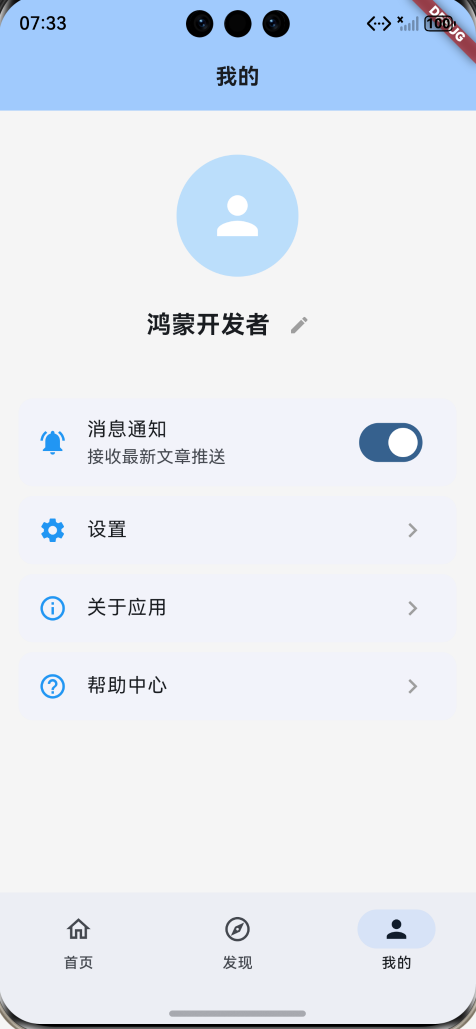 AI Visual Insight: This screenshot shows the profile page running on an OpenHarmony device. The interface includes an avatar entry point, nickname display, and a message notification toggle, which indicates that the Flutter widget tree renders correctly on OpenHarmony and that the configuration-oriented UI is fully interactive.
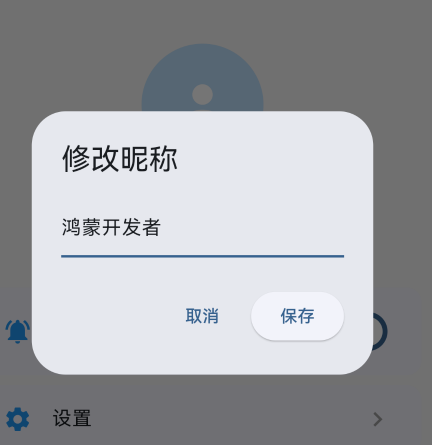 AI Visual Insight: This screenshot shows the interaction details of the nickname edit dialog, including the input field, character limit, and confirm button. It demonstrates that the shared_preferences write flow is wired into the Flutter dialog form, allowing user changes to be written back to local storage immediately after submission.
This approach fits lightweight configuration but not sensitive data
shared_preferences is designed for lightweight preference storage, not as a secure credential vault. For sensitive data such as tokens, keys, or privacy-related fields, you should prioritize a more secure encrypted storage solution.
For most settings pages, preference items, onboarding flags, and simple caches, this approach is stable enough and has very low cross-platform migration cost.
FAQ
1. Why prioritize shared_preferences on OpenHarmony?
Because it is Flutter’s officially maintained lightweight key-value storage solution. It is well suited for user preferences, easy to integrate, and highly compatible with OpenHarmony’s application sandbox model.
2. Can shared_preferences store sensitive information?
It is not recommended. It is better suited for non-sensitive, small-volume configuration data. If your app handles tokens, keys, or account privacy information, use an encrypted storage solution instead.
3. How can I tell whether the plugin has been adapted successfully for OpenHarmony?
First run flutter pub get to complete dependency resolution, then run hvigorw assembleApp. If the build succeeds and the data can still be restored after restarting on a real device, the adaptation is basically working.
Core summary: This article reconstructs the shared_preferences adaptation workflow in Flutter for OpenHarmony, covering the reasoning behind the technology choice, dependency integration, page persistence refactoring, build verification, and runtime validation, so developers can quickly implement lightweight local storage on OpenHarmony.