This guide focuses on cross-PC file sharing in Windows 10 on the same local network. The core approach is to use the built-in SMB sharing feature for fast large-file transfers without USB drives or third-party tools. It addresses common issues such as access failures, insufficient permissions, and password authentication. Keywords: Windows 10, LAN sharing, SMB.
Technical Specifications at a Glance
| Parameter | Description |
|---|---|
| Operating System | Windows 10 |
| Sharing Protocol | SMB/CIFS |
| Network Requirement | The same LAN under the same router |
| Access Methods | \\ComputerName / \\IPv4Address |
| Typical Permissions | Everyone: Read or Read/Write |
| Core Dependencies | File Explorer, Sharing Settings, cmd, ipconfig |
| Original Format | Illustrated tutorial |
| Stars | N/A |
This tutorial solves slow and unreliable file transfers between Windows 10 PCs
Windows 10 includes built-in LAN sharing, which works well for transferring large files between devices on the same Wi-Fi network. Compared with chat apps and removable storage, SMB sharing avoids repeated uploads and lets you copy files directly to the target machine.
To make sharing work reliably, the key is not just clicking the Share button. You must complete three things together: share the folder on the old PC, access it correctly from the new PC, and enable network discovery and file sharing on both computers.
Start by remembering the shortest path to success
# Enter either of the following paths in the Run dialog on the new PC
\\DESKTOP-XXXXXX   # Access by old PC name
\\192.168.1.105   # Access by old PC IPv4 address, usually more stable
These paths let the new PC open the shared folder on the old PC directly.
Creating the shared folder correctly is the first prerequisite for the entire process
On the old PC, select the target folder, open Properties, go to the Sharing tab, and click Share. For the user selection, it is usually best to add Everyone directly to reduce access failures caused by account differences within the LAN.
If you only need to copy files to the new PC, grant Read permission. If you want the other side to write back or modify files, set it to Read/Write. The broader the permission, the higher the risk, so write access is best limited to home or other trusted networks.
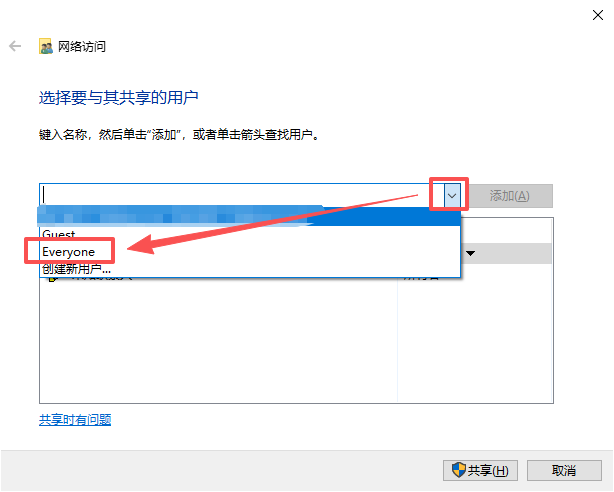 AI Visual Insight: This screen shows the user authorization step in the Windows sharing wizard. The key point is that the shared target is bound to the
 Everyone group, while the permission level controls whether access is read-only or writable. This reflects share-level permissions, not the full NTFS security model.
If Windows says the folder cannot be shared, switch to Advanced Sharing
Some folders may fail in the quick sharing wizard. If that happens, do not stop the process. Return to the Sharing tab, click Advanced Sharing, and manually check Share this folder. In most cases, keeping the default share name is fine.
# After sharing succeeds, Windows generates a network path similar to this
\\DESKTOP-XXXXXX\FolderName
This path is the direct reference for later access, so it is a good idea to record it immediately.
Using the IPv4 address is usually more stable than using the computer name
Windows name resolution depends on LAN broadcast, cache, and the state of network discovery. In more complex environments, \\ComputerName may fail, while \\IPv4Address often works on the first try. That makes it better for troubleshooting and first-time access.
On the old PC, press Win + R, enter cmd to open Command Prompt, and run ipconfig. Find the currently connected network adapter, typically Wireless LAN adapter Wi-Fi or the Ethernet adapter, and record its IPv4 address.
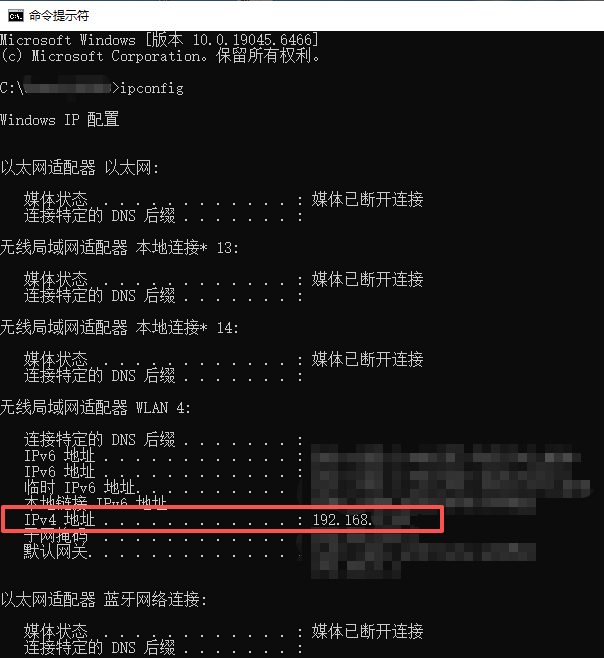 AI Visual Insight: This image shows the network interface details in the
 ipconfig output. The key field is IPv4 Address. It represents the host’s routable address inside the LAN and is the most stable target identifier for SMB access, with less dependency on broadcast-based discovery than host name resolution.
@echo off
ipconfig rem View local network configuration
rem Focus on the "IPv4 Address" field, for example 192.168.1.105
pause
This command sequence helps you quickly confirm the LAN IP address that the old PC can be reached at.
On the new PC, use the Run dialog for direct access to the shared folder first
On the new PC, press Win + R and enter the shared path directly. Try \\192.168.x.xxx first. If you have already confirmed that name resolution works, you can then try \\DESKTOP-XXXXXX. Once access succeeds, the shared directory appears like a normal folder.
If you can open it but cannot copy, delete, or write files, network connectivity is not the problem. The issue is most likely in the share permissions or NTFS permissions. In that case, go back to the old PC and recheck the permission level assigned to Everyone.
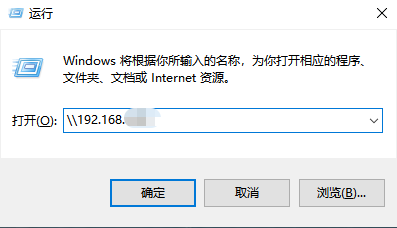 AI Visual Insight: This image shows the process of launching direct UNC path access from the Run dialog. In essence, it sends an SMB resource enumeration request to the target host. Using an IP address can bypass some NetBIOS and host name resolution issues, making it one of the most reliable entry points in SMB troubleshooting.
Network discovery and file sharing must be enabled on both PCs
This is the critical step that many people miss. It is not enough to share a folder only on the old PC. If network discovery or file sharing is disabled on either machine, Windows may report “Network path not found” or fail to discover the target host entirely.
On both computers, open Change advanced sharing settings and make sure Turn on network discovery and Turn on file and printer sharing are enabled under the Private network profile. On a trusted home network, you can also turn off Password protected sharing to avoid entering credentials every time.
Private: Turn on network discovery + Turn on file and printer sharing
Guest/Public: Usually keep network discovery off, enable file sharing only as needed
All Networks: You can turn off password protected sharing (trusted environments only)
These settings determine whether the sharing service can be discovered and whether it can be accessed anonymously or semi-anonymously.
Most common failures usually map back to three types of configuration errors
A network path not found error usually indicates a network-layer or discovery issue
First, confirm that both PCs are connected to the same router rather than one using a mobile hotspot and the other using home Wi-Fi. Next, verify that the current network type is set to Private, not Public. If it still fails, switch directly to \\IPv4Address.
Insufficient permissions usually mean the share-level authorization did not actually take effect
Check whether the old PC has shared the folder with Everyone and whether the permission entry is not blank. If the quick sharing method failed earlier, also verify that Share this folder is really enabled under Advanced Sharing.
A prompt for a username and password usually means password protected sharing is still enabled
If you are in a home or other trusted office environment, you can turn off Password protected sharing under All Networks. If you cannot disable it, use the Windows sign-in account and password from the old PC to authenticate.
The minimum viable workflow can be reduced to four steps
1. Connect both PCs to the same LAN
2. Share the target folder on the old PC and grant access to Everyone
3. Run ipconfig on the old PC and record the IPv4 address
4. On the new PC, run \\IPv4Address for direct access
These four steps cover the vast majority of file-sharing needs in homes and small offices.
FAQ
Q1: Why can I still not access the shared PC even when both devices are on the same Wi-Fi?
A1: Common causes include the network profile being set to Public, network discovery being disabled, or host name resolution failing. Try \\IPv4Address first and then check the advanced sharing settings on both computers.
Q2: I can open the shared folder, but I cannot copy files. What should I check?
A2: First check whether the Everyone permission on the old PC is set to Read only. If you need write access, change it to Read/Write. If necessary, also verify the NTFS security permissions on the folder itself.
Q3: Is it safe to turn off password protected sharing?
A3: Only in a home, lab, or other trusted office LAN. If the network environment is not controlled, keep password protected sharing enabled and use a dedicated account to access the shared folder to reduce the risk of anonymous access.
Core summary
This article reconstructs the original illustrated tutorial into a directly executable Windows 10 LAN file-sharing guide. It covers shared folder configuration, IPv4 lookup, access by computer name or IP address, network discovery and file sharing settings, and troubleshooting for common problems such as “Network path not found,” insufficient permissions, and credential prompts.