[AI Readability Summary] This guide helps Linux users choose the right PDF tool by comparing 11 mainstream editors and processors. It addresses common pain points such as limited native editing, fragmented annotation features, and the tradeoff between OCR convenience and privacy. Keywords: Linux PDF editor, OCR, self-hosted.
Technical specifications are easy to scan
| Parameter | Details |
|---|---|
| Domain | Linux PDF editing and processing |
| Target platforms | Ubuntu, Fedora, Linux Mint, Arch, ARM Linux |
| Languages involved | C++, Java, Python, JavaScript, depending on the project |
| Typical packaging and distribution | DEB, RPM, Snap, Flatpak, AppImage, Docker |
| Representative projects | ONLYOFFICE, Okular, LibreOffice Draw, Stirling PDF |
| Core dependencies | Qt, GTK, LibreOffice runtime, Docker, OCR engines |
| Open source coverage | Mostly open source, with a few commercial closed-source options |
| GitHub stars | Not provided in the source material, and not invented here |
PDF editing on Linux has evolved from “can open files” to “can complete workflows”
PDF remains the standard interchange format for contracts, academic papers, forms, and technical manuals. The challenge is not viewing files, but modifying them: revising text, redacting sensitive content, signing documents, running OCR, reorganizing pages, and converting formats often require multiple tools.
Linux used to lack a native option that came close to Acrobat, but the ecosystem is far more mature in 2026. The real question is no longer whether a tool exists, but which category of tool best fits your workload.
 AI Visual Insight: This image serves as an introductory cover for Linux PDF editing scenarios. It highlights document editing, format processing, and desktop office integration, setting the theme for the comparison rather than showing a specific software interface.
You should prioritize task type over feature checklists when choosing a tool
If your goal is to modify document body content, choose a tool that truly supports content-layer editing. If you only need review and markup, annotation-focused tools are lighter and more reliable. If you need batch processing and privacy isolation, self-hosted web tools provide clear advantages.
# Example: install common PDF tools on Ubuntu
sudo apt install okular libreoffice-draw pdfarranger xournalpp
# Install lightweight tools first to cover annotation, basic editing, and page organization
This command quickly sets up a basic PDF toolchain.
The 11 Linux PDF tools fall into four capability models
The first category provides true PDF content editing
ONLYOFFICE Desktop Editors is the most complete free option in this article. It does more than annotate. It can directly modify PDF text, layout, images, shapes, and page structure, while also covering forms, signatures, and AI-powered OCR. It fits users who want a single tool to handle the full workflow.
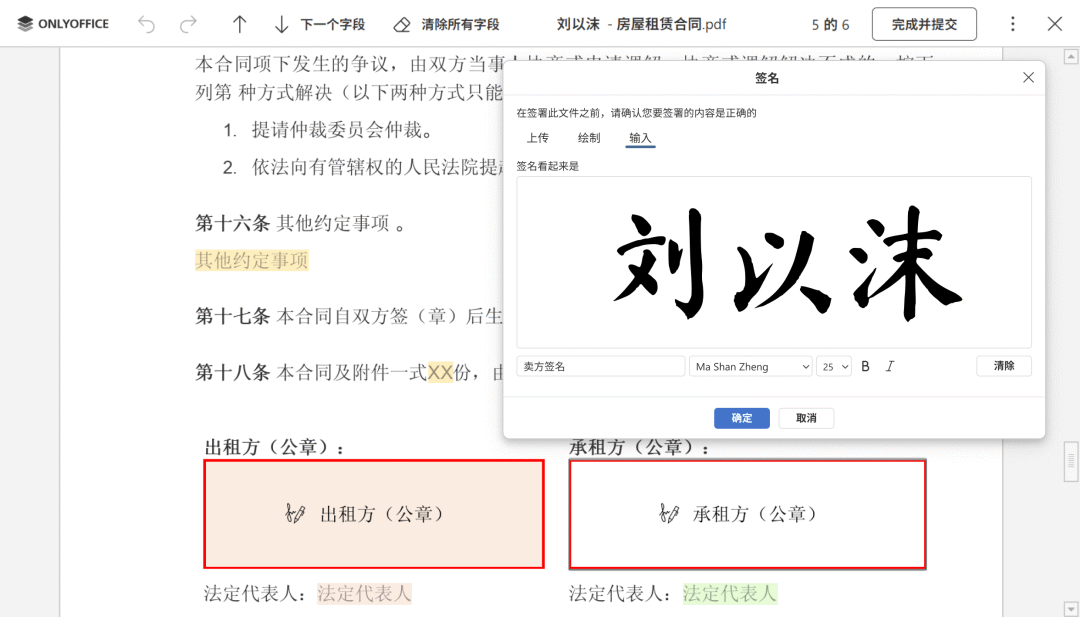 AI Visual Insight: The image shows an integrated PDF editing interface with a top ribbon, page preview area, and main document workspace. It makes clear that this tool is not a simple viewer, but a full workstation for layout-level editing, page management, and interactive operations.
LibreOffice Draw edits PDF files by importing them and converting elements into editable objects. It works well for correcting text, replacing images, and updating labels, but it is less reliable with complex layouts, multicolumn documents, and font consistency. It is better viewed as a practical fallback than a precision editor.
Master PDF Editor and Qoppa PDF Studio target commercial users. Both support OCR, forms, signatures, and complex page processing, but their free tiers are limited. They are better suited to teams with budget and a need for stable commercial support.
The second category focuses on annotation and review rather than body-text editing
Okular is one of the most mature annotation tools on Linux. It excels at highlighting, underlining, stamps, comments, and signature validation, but it does not modify body text. For code reviews, paper review, and commenting on requirements documents, it is often more efficient than heavyweight editors.
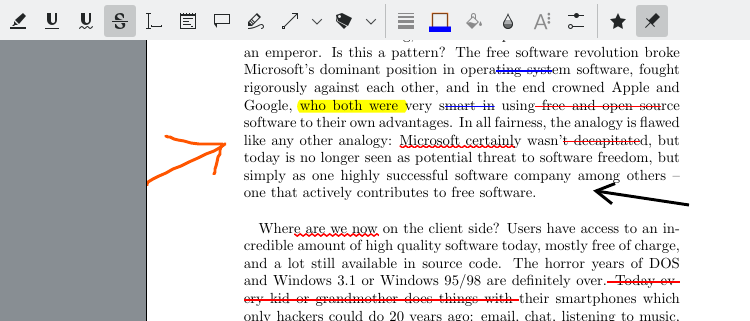 AI Visual Insight: The interface emphasizes a left-side navigation tree, a central document view, and a top annotation toolbar. This highlights its core value in long-document navigation, marking, and review rather than layout rearrangement or text-layer editing.
Xournal++ is a better fit for handwriting-centric workflows. It treats the PDF as a background layer and overlays handwritten notes and drawing layers on top, which makes it especially effective on tablets, stylus devices, and in teaching scenarios.
features = {
    "Okular": ["Highlighting", "Stamps", "Signature validation"],
    "Xournal++": ["Handwritten annotations", "Layered markup", "Pressure sensitivity support"],
}

for tool, items in features.items():
    print(f"{tool}: {', '.join(items)}")  # Print the core annotation capabilities of each tool
This code snippet abstracts the capability differences between annotation-focused tools.
The third category solves page-level reorganization and file assembly
PDF Arranger and PDFsam Basic do not emphasize body-text editing. Instead, they focus on merging, splitting, rotating, extracting, and reordering pages. They are especially efficient for organizing scanned files, archiving invoices, and assembling course materials.
The value of this category lies in its low learning curve and high predictability. You do not need to worry about font compatibility or layout shifts because you are working only with page objects. That makes these tools better suited to bulk organization tasks.
The fourth category covers graphical editing, self-hosting, and publishing workflows
Inkscape is ideal for working with charts, vector objects, and infographic-style PDFs. It offers strong control over graphics, but it is not friendly to long text-heavy PDFs. Scribus is not really a PDF editor. It is a publishing tool for redesigning content and exporting to PDF, which makes it suitable for print workflows.
Stirling PDF is the tool in this group that developers should watch most closely. It runs as a self-hosted Docker service and integrates more than 60 PDF operations, including compression, OCR, encryption, format conversion, and API support. It is a strong choice for private deployments and batch-processing environments.
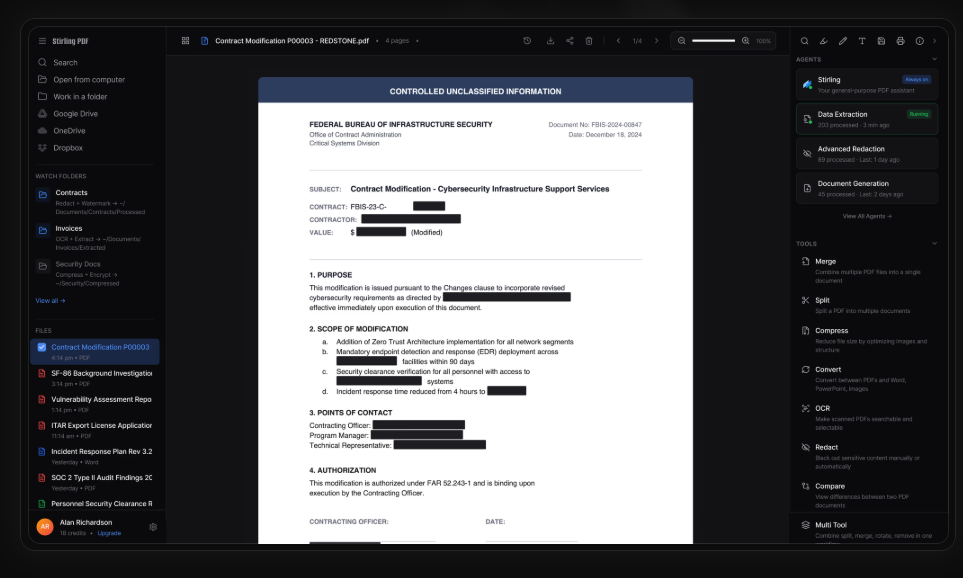 AI Visual Insight: The image shows a browser-based tool panel that is typically organized around multiple feature modules. This suggests a service-oriented, modular architecture that works well for delivering PDF capabilities across a local server or internal team network.
docker run -d \
  --name stirling-pdf \
  -p 8080:8080 \
  stirlingtools/stirling-pdf:latest
# Start a locally self-hosted PDF service for private processing of sensitive documents
This command quickly deploys a local PDF processing platform.
From an engineering perspective, ONLYOFFICE is the most balanced free all-in-one option
If you use content editing, forms, signatures, OCR, and broad packaging support as a unified benchmark, ONLYOFFICE delivers the strongest overall balance. It supports DEB, RPM, Snap, Flatpak, AppImage, and ARM, which matters in heterogeneous Linux environments.
Its weakness is also clear: it consumes more resources than lightweight tools. If you only need annotation or page assembly, Okular, PDF Arranger, and PDFsam are lighter and faster choices.
Developers can build a minimum viable tool stack around task flows
The best approach is not to choose a single tool, but to combine tools by workflow: use ONLYOFFICE or a commercial editor for content editing, Okular for review and markup, PDF Arranger for page organization, and Stirling PDF for self-hosted batch processing.
Content editing -> ONLYOFFICE / Master PDF Editor
Review and annotation -> Okular / Xournal++
Page reorganization -> PDF Arranger / PDFsam Basic
Private processing -> Stirling PDF
Graphics and publishing -> Inkscape / Scribus
This flowchart helps you match tools directly to task categories.
FAQ
Q1: Is there a truly free Linux tool that can edit PDF body text?
Yes. ONLYOFFICE is currently one of the most complete free and open-source options, supporting text, layout, image, and page-level editing. LibreOffice Draw can also handle basic changes, but it is less reliable with complex document fidelity.
Q2: What should I choose if I only want to annotate papers or technical manuals?
Choose Okular first. Its highlighting, comments, stamps, and navigation features are more mature, and it launches faster, which makes it ideal for long-document review. If you depend on pen input, Xournal++ is a better alternative.
Q3: How can I process sensitive PDFs without uploading them to a third-party platform?
A self-hosted tool such as Stirling PDF is the best choice. It runs locally with Docker and exposes PDF services in the browser while keeping files inside your local network, which makes it better suited to privacy-sensitive and compliance-driven teams.
Core takeaway
This article rebuilds the capability matrix for 11 Linux PDF tools across content editing, annotation, OCR, forms, merge and split operations, and self-hosted workflows. It helps developers choose tools quickly based on tasks, with a particular focus on representative options such as ONLYOFFICE, LibreOffice Draw, Okular, and Stirling PDF.