This article explains how the real-time object classification capability in a HarmonyOS 6 lightweight camera app works. At its core, MindSpore Lite performs on-device SSD detection, while NAPI dynamically switches AI modes, ArkTS overlays detection boxes, and OffscreenCanvas preserves the final composited image. This approach addresses common pain points such as complex AI integration in camera apps and inconsistencies between preview overlays and saved photos. Keywords: HarmonyOS 6, MindSpore Lite, Object Detection.
Technical specifications at a glance
| Parameter | Description |
|---|---|
| Platform | HarmonyOS 6 |
| Primary languages | ArkTS, C++ |
| AI inference engine | MindSpore Lite |
| Communication bridge | NAPI |
| Detection model | Quantized SSD |
| Input size | 320 × 320 |
| Output | Bounding boxes, classes, confidence scores |
| Rendering method | Canvas / OffscreenCanvas |
| Repository stars | Not provided in the source |
| Core dependencies | MindSpore Lite, HarmonyOS NDK, ArkTS UI |
This architecture decouples camera preview from AI inference
The key design in this article is not a single object recognition feature, but a general-purpose inference architecture that supports multiple modes in one camera pipeline. The C++ base class originally named FaceDetector actually acts as a generic AI inference engine.
It exposes switchAiMode to ArkTS, allowing the app to switch the model, input size, and output interpretation logic at runtime. As a result, the camera stack does not need a separate implementation path for every recognition task.
// Switch to the object detection model in the ArkTS layer
// Core logic: replace the model file and input resolution at runtime
CameraController.switchAiMode(
  "models/detect_regular_nms_quant.ms",
  320,
  320
)
This code upgrades the AI capability from a fixed function into a switchable runtime mode.
The underlying engine automatically rebuilds the inference context
After the model switch, the C++ layer reparses the input and output tensor dimensions and adjusts the memory pool and asynchronous inference workflow. The YUV data from the preview stream still follows the same capture path, but it is now fed into a different model.
This design reduces complexity in the camera business layer and makes future extensions—such as face detection, gesture recognition, and document detection—much more natural.
A quantized SSD model handles object detection across hundreds of categories
The model uses a quantized SSD detection network that returns both bounding boxes and class scores. The article notes that the label dictionary can cover more than 300 target categories, including Cat, Bottle, Mobile phone, and Cup.
The label mapping is typically defined in ObjectDetectionUtil.ets, where model output indices are converted into UI-friendly text. The value of a quantized on-device model is clear: faster inference, lower memory usage, and better fitness for real-time camera scenarios.
Coordinate decoding determines whether detection boxes land in the right position
SSD output is not the final screen coordinate system. Instead, it represents offsets relative to anchors. The ArkTS layer must decode the regression values into standard rectangles based on the anchors and the model input scale.
static decodeSSD(
  reg: number[],
  cls: number[],
  anchors: SSDAnchor[],
  scoreThresh: number
): DetectedObject[] {
  const results: DetectedObject[] = []
  for (let i = 0; i < anchors.length; i++) {
    // Core logic: apply Sigmoid to the classification output to get confidence
    const score = 1.0 / (1.0 + Math.exp(-cls[i]))
    if (score <= scoreThresh) continue

    const p = i * 4
    // Core logic: reconstruct the target center point using the anchor
    const cx = reg[p] + anchors[i].x_center
    const cy = reg[p + 1] + anchors[i].y_center
    const w = reg[p + 2]
    const h = reg[p + 3]

    // Core logic: convert to normalized rectangle coordinates
    results.push({ x1: cx - w / 2, y1: cy - h / 2, x2: cx + w / 2, y2: cy + h / 2, score, label: "object" })
  }
  return results
}
This code converts raw model tensors into drawable detection box data.
Non-maximum suppression ensures one primary box per object
SSD often generates multiple overlapping candidate boxes for the same object, so NMS is still required. The principle is straightforward: sort candidates by confidence, then discard boxes whose IoU with a higher-scoring box exceeds the threshold.
Without NMS, the preview layer may show multiple overlapping boxes that jitter on screen. With NMS, the visual result becomes more stable and the UI redraw workload decreases.
function applyNms(boxes: DetectedObject[], iouThresh: number): DetectedObject[] {
  // Core logic: sort by confidence from high to low
  const sorted = boxes.sort((a, b) => b.score - a.score)
  const kept: DetectedObject[] = []

  while (sorted.length) {
    const best = sorted.shift()!
    kept.push(best)
    // Core logic: filter out boxes that overlap too much with the best candidate
    for (let i = sorted.length - 1; i >= 0; i--) {
      if (calcIou(best, sorted[i]) > iouThresh) {
        sorted.splice(i, 1)
      }
    }
  }
  return kept
}
This code removes duplicate detection boxes and preserves only the most reliable results.
The ArkTS overlay layer returns recognition results to the user in real time
Recognition results are returned to the UI layer through a generic AI callback, and the main screen uses Canvas for overlay rendering. The important part here is not simply drawing boxes, but limiting redraws to moments when AI results actually change.
By using @Watch('onAIUpdate') to trigger renderAIOverlay, the app avoids blind redraws on every frame. This reduces CPU usage and keeps the preview smooth.
private renderAIOverlay() {
  if (!this.context) return
  this.context.clearRect(0, 0, this.compWidth, this.compHeight)

  if (this.aiMode !== 'object') return

  this.detectedObjects.forEach((obj) => {
    // Core logic: draw the detection box
    this.context.lineWidth = 3
    this.context.strokeStyle = '#22D3EE'
    this.context.strokeRect(obj.x1, obj.y1, obj.x2 - obj.x1, obj.y2 - obj.y1)

    // Core logic: draw the label background and text
    this.context.fillStyle = 'rgba(34,211,238,0.8)'
    this.context.fillRect(obj.x1, obj.y1 - 30, 120, 30)
    this.context.fillStyle = Color.Black
    this.context.fillText(`${obj.label} ${(obj.score * 100).toFixed(0)}%`, obj.x1 + 8, obj.y1 - 8)
  })
}
This code renders the class name, confidence score, and detection box on top of the live preview.
Offscreen compositing solves the problem of boxes appearing in preview but not in photos
Many camera apps draw overlays only in the preview layer, while the saved photo still contains the original image. As a result, AI boxes do not appear in the final output. The article fixes this disconnect with OffscreenCanvas.
The approach is to draw the original image first during the save phase, then overlay the current detection boxes using the image dimensions as the mapping reference, and finally export a PixelMap for encoding and storage. This keeps the preview state and the saved-photo state consistent.
// 1. Draw the original photo as the background
ctx.drawImage(bgPixelMap, 0, 0, imgW, imgH)

// 2. Overlay AI detection boxes using the saved image size
if (this.saveAIOverlays) {
  this.detectedObjects.forEach((obj) => {
    // Core logic: map normalized coordinates to real image dimensions
    ctx.strokeRect(obj.x1 * imgW, obj.y1 * imgH, (obj.x2 - obj.x1) * imgW, (obj.y2 - obj.y1) * imgH)
  })
}

// 3. Export the final pixel map and save it
const finalPixelMap = ctx.getPixelMap(0, 0, imgW, imgH)
This code makes the AI overlay part of the actual saved image file.
The screenshots show the final visual form of detection boxes and interaction entry points
 AI Visual Insight: This image shows the real-time object detection effect in the camera preview interface. Target objects are surrounded by colored bounding boxes, with class labels and confidence scores displayed nearby. It demonstrates that inference outputs from the on-device model have already been mapped into the UI coordinate system, and that the overlay layer refreshes in sync with the camera preview stream.
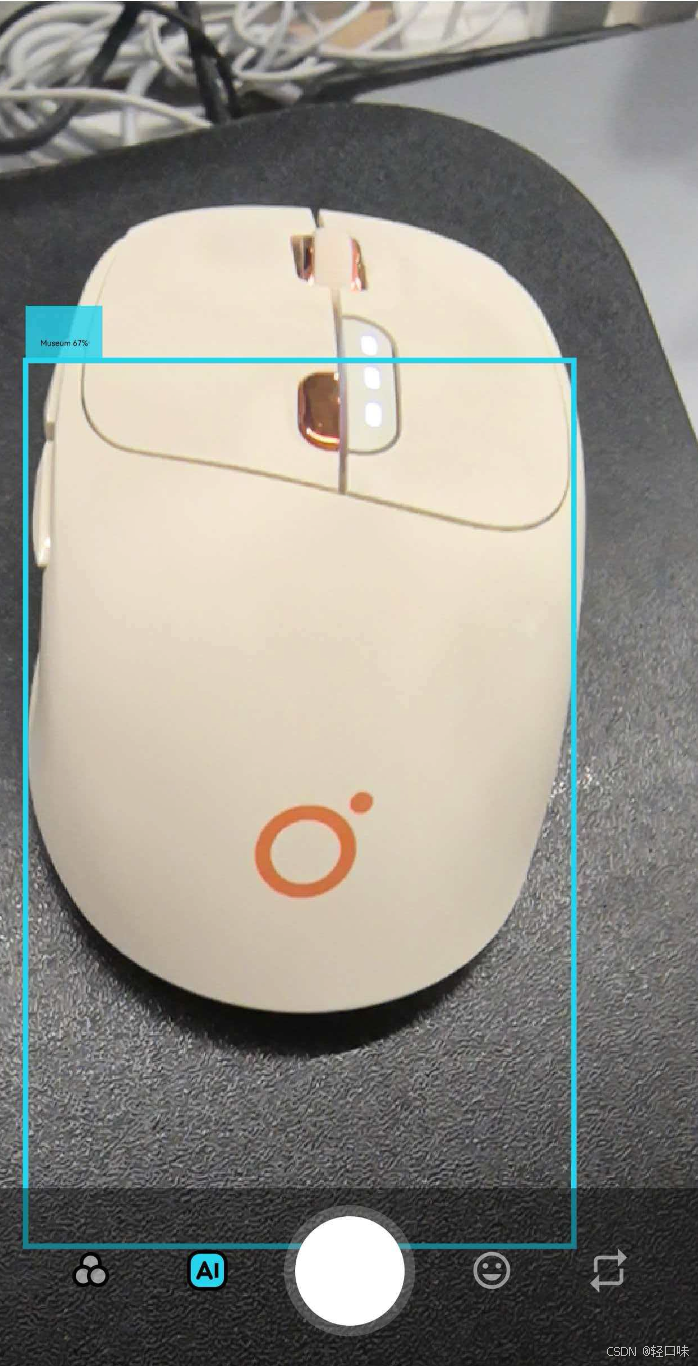 AI Visual Insight: This image further illustrates recognition performance in multi-object or visually complex scenes. The placement of detection boxes, text labels, and canvas overlay styling remains consistent, showing that the rendering layer can consume results reliably while also validating that NMS-filtered candidate boxes can be used directly for frontend visualization.
This implementation proves HarmonyOS 6 is well suited for on-device vision applications
The full pipeline covers model switching, inference execution, result decoding, candidate filtering, UI rendering, and final image compositing. Together, these steps form a complete closed loop. Its value goes beyond simply detecting objects—it establishes an extensible on-device vision framework.
For developers, the three most reusable ideas are dynamic model switching through NAPI, decoding and overlay rendering in ArkTS, and saved-image consistency through OffscreenCanvas. Together, they define a practical AI camera architecture for HarmonyOS.
FAQ
1. Why design model switching as switchAiMode instead of separate interfaces?
Because a unified entry point reuses the same capture pipeline, memory pool, and callback chain. When you add a new recognition task, you only need to replace the model and the output interpretation logic, which significantly lowers the cost of system expansion.
2. Why do detection boxes appear in preview but not in the saved photo?
Because preview boxes are usually drawn in a separate UI layer and are not part of the original image pixels. To write them into the final photo, you must perform a second compositing pass during saving with OffscreenCanvas or PixelMap.
3. How can you reduce the impact of real-time object detection on preview performance?
Use a quantized model first, limit the input resolution, trigger UI redraws only when results change, and keep the inference thread asynchronous and decoupled from the preview thread. This balances recognition speed and interface smoothness.
AI Readability Summary
This article reconstructs the object classification implementation used in a HarmonyOS 6 lightweight camera app. It focuses on MindSpore Lite on-device inference, dynamic model switching through NAPI, SSD coordinate decoding, NMS-based duplicate suppression, ArkTS canvas overlays, and OffscreenCanvas-based saved-image compositing. It is especially useful for developers who want to ship real-time object recognition in HarmonyOS camera applications.