This guide explains how to use FRP on Ubuntu to build a stable SSH tunneling path: run
frpson a public server, runfrpcon an internal host, access the target machine through the public IP and mapped port, and combinesystemdwith network checks to enable automatic reconnection. Keywords: FRP, Ubuntu, SSH.
Technical Specification Snapshot
| Parameter | Description |
|---|---|
| Core languages | Go (FRP), Shell (deployment scripts) |
| Target systems | Ubuntu server / Linux |
| Communication protocols | TCP, SSH |
| Typical scenarios | Remote access to campus network servers, VS Code Remote SSH |
| Core components | frps, frpc, systemd, openssh-server, nmcli |
| Example ports | FRP control port 7000, SSH mapped port 4070 |
| Upstream project | fatedier/frp |
| Star count | Not provided in the original article; use the live GitHub repository data |
This solution solves the problem that internal hosts cannot be accessed directly from the public internet
When the target Ubuntu server sits behind a campus network, lab network, or home router, it usually does not have a public IP address, so external devices cannot SSH into it directly. FRP addresses this by introducing a relay host with a public IP and using reverse proxying to securely map the internal port 22 to a publicly reachable port.
The value of this setup is not just that it works once, but that it keeps working over time. In the original implementation, systemd manages both frps and frpc, and a network check service automatically attempts recovery after Wi-Fi disconnects. This reduces connection interruptions in unattended environments.
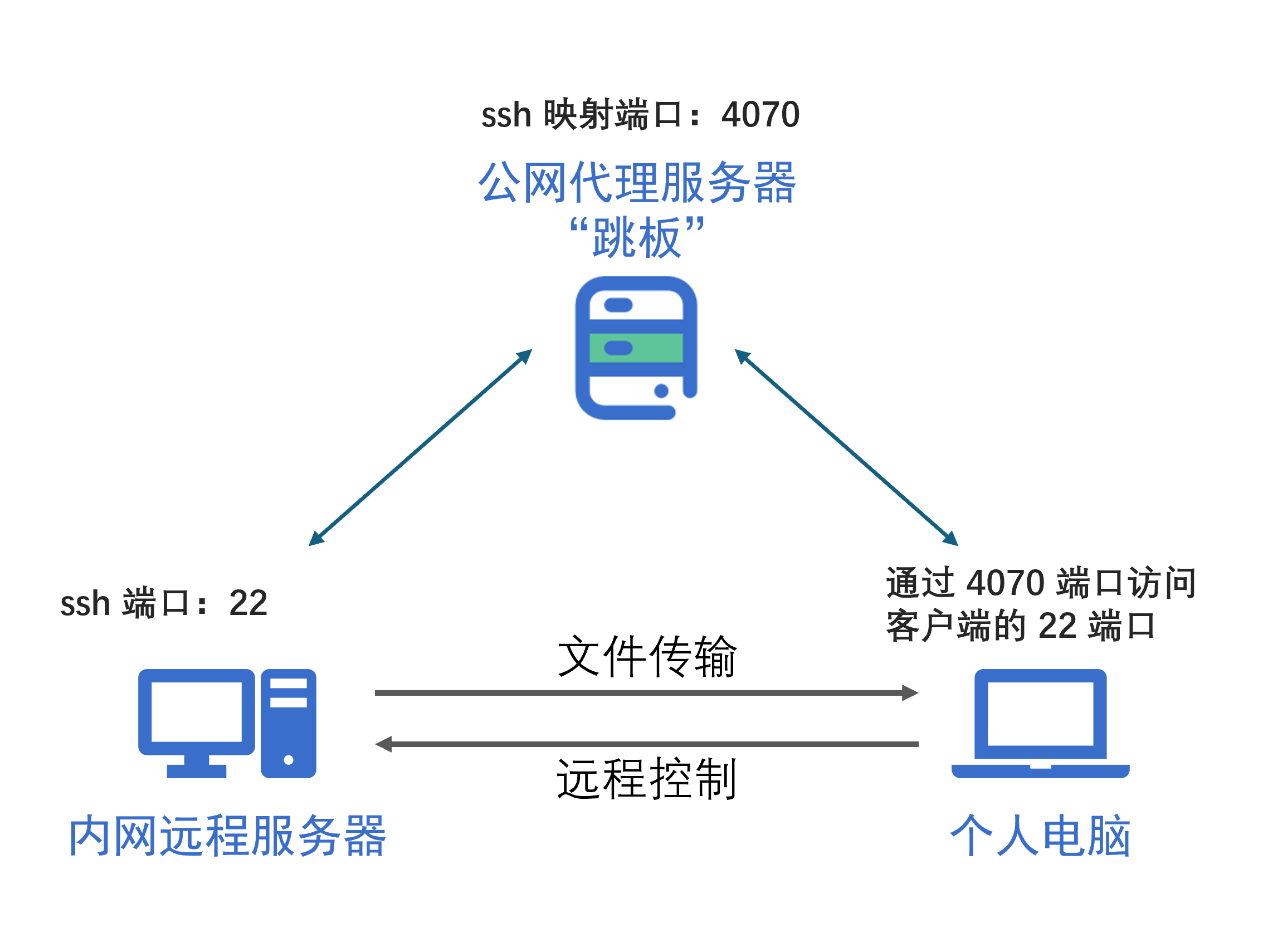 AI Visual Insight: This diagram shows a typical three-segment topology: a personal computer accesses the FRP server through a public IP and mapped port, and the server then reverse-forwards TCP traffic to port
 22 on the internal Ubuntu host. The core mechanism is a public relay plus active registration from the internal host.
The end-to-end path can be abstracted as a minimal viable topology
# Access the internal SSH service through the public relay from a local computer
ssh -p 4070 user@PUBLIC_SERVER_IP  # Enter the internal host through the mapped port
The essence of this command is that FRP forwards public port 4070 to port 22 on the internal host.
The public relay server must be configured with frps and firewall rules first
The first step is to rent a low-cost public cloud server, because it only handles traffic forwarding and does not run heavy workloads. After you obtain the public IP, open two key ports in either the cloud provider security group or the system firewall: 7000 for the FRP control channel and 4070 for exposing the SSH service.
 AI Visual Insight: This image shows the cloud server purchase entry point and emphasizes that the relay host does not need high-end specs. The FRP server mainly consumes resources for connection maintenance and lightweight forwarding, not compute-intensive tasks.
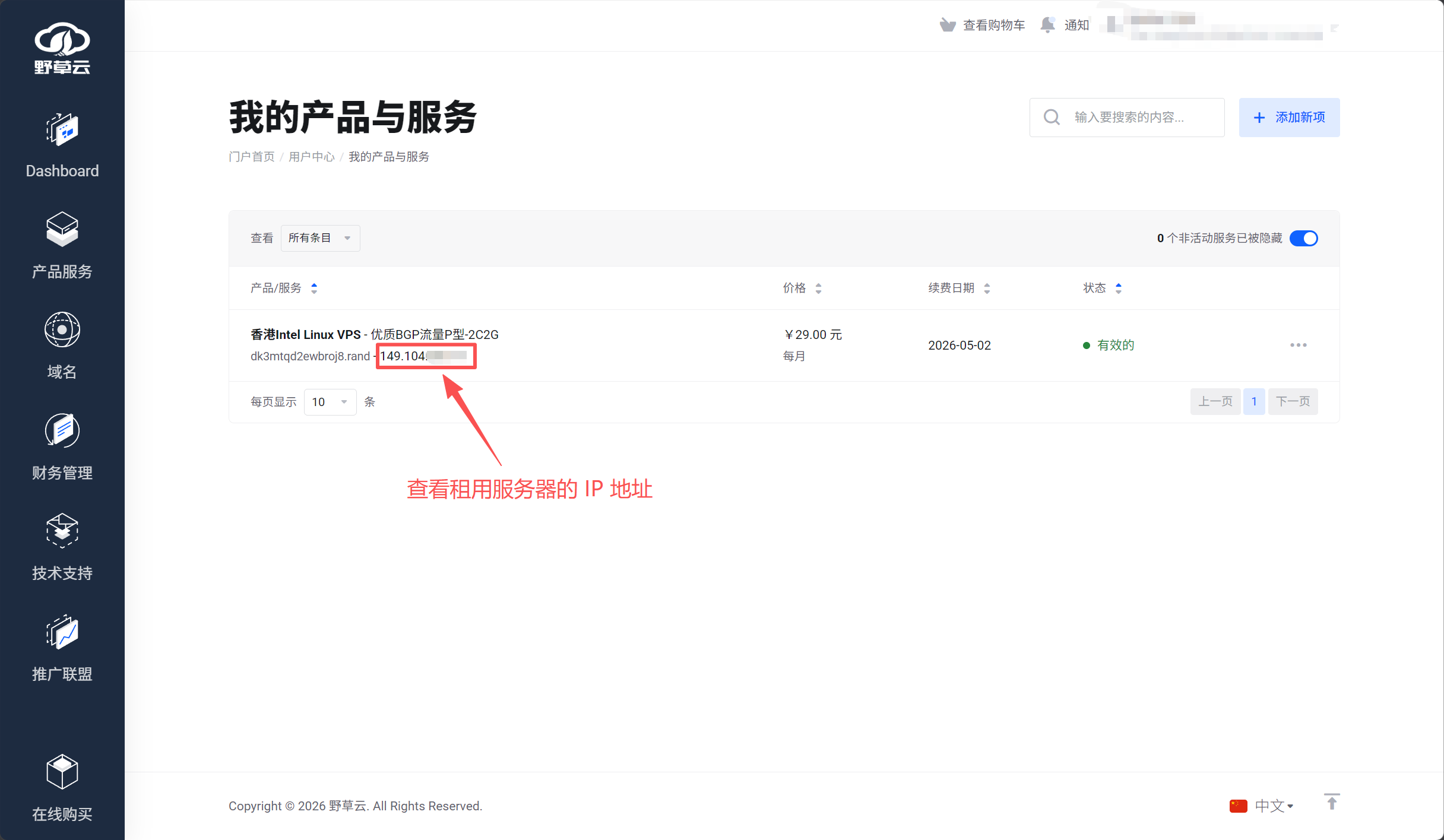 AI Visual Insight: This image corresponds to the instance details page in a cloud console. The key operation is confirming the public IP address, because this value will be used in both the
 frpc configuration and the local SSH client configuration.
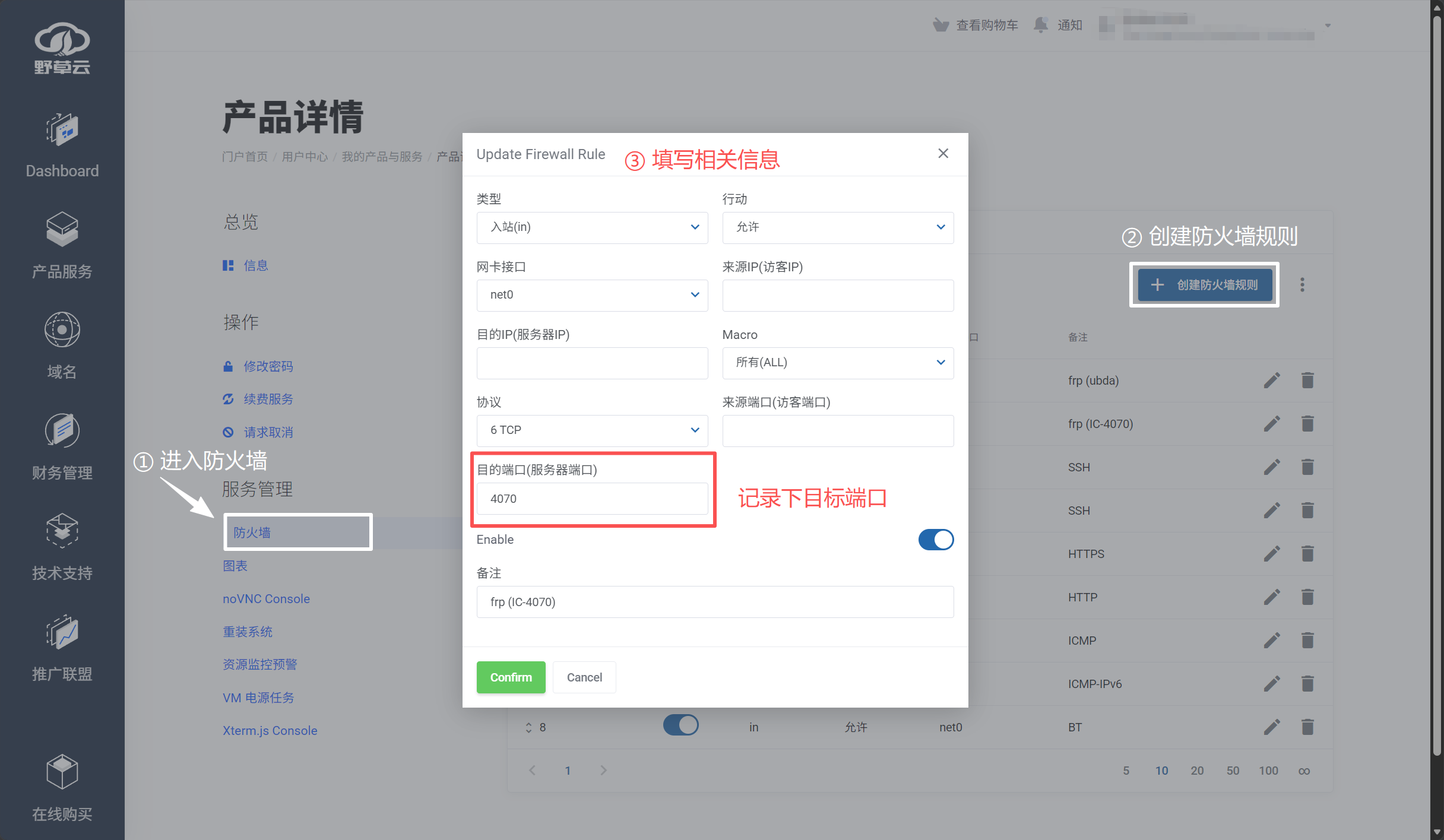 AI Visual Insight: This interface shows how to add security group or firewall rules. The technical focus is to open the FRP control port and the mapped service port separately. If you open only SSH port
 22, the FRP tunnel may come up successfully while application traffic still cannot reach the target.
Download the FRP archive that matches your server architecture from GitHub Releases. Most cloud hosts use amd64. After extraction, the server side uses frps and frps.toml.
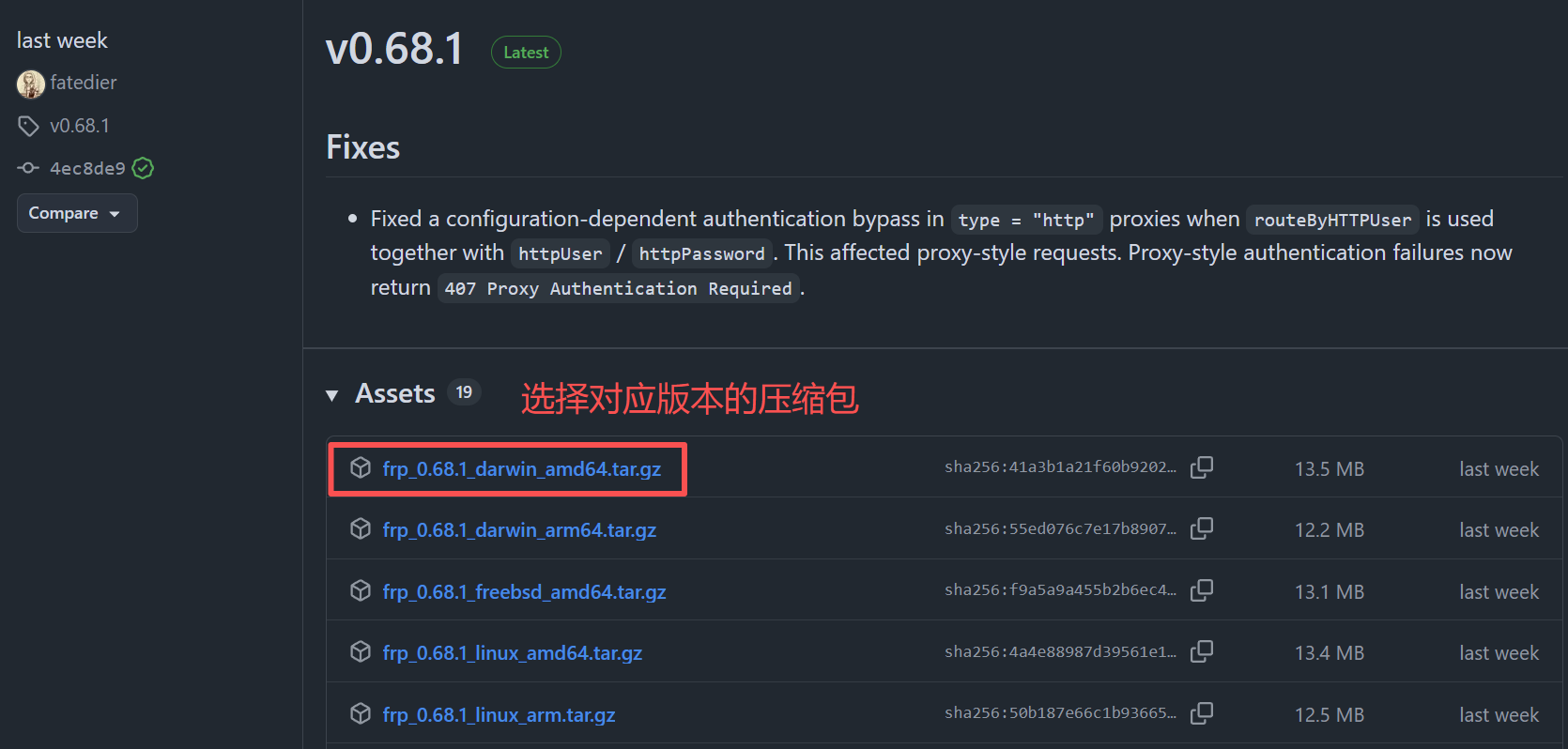 AI Visual Insight: The image illustrates selecting a release package based on CPU architecture. Technically, this step determines whether the binary can run on the target system. A common mistake is deploying an
 arm64 package to an x86_64 host, which prevents the program from starting.
Managing frps with systemd provides more reliable auto-start behavior
sudo mkdir -p /usr/local/bin/frp  # Create the FRP installation directory

sudo tee /etc/systemd/system/frps.service > /dev/null << 'EOF'
[Unit]
Description=frp server
After=network.target syslog.target
Wants=network.target

[Service]
Type=simple
ExecStartPre=/bin/sleep 5  # Delay startup until the network is stable
ExecStart=/usr/local/bin/frp/frps -c /usr/local/bin/frp/frps.toml  # Start the server
Restart=always  # Restart automatically after an unexpected exit

[Install]
WantedBy=multi-user.target
EOF

sudo systemctl daemon-reload  # Reload the systemd configuration
sudo systemctl enable --now frps  # Enable auto-start and start immediately
sudo systemctl status frps  # Check the service status
This configuration brings frps under systemd management and improves server availability through automatic restart behavior.
The internal Ubuntu host must install SSH and map port 22 to the public internet
The internal host must first provide an SSH service that FRP can proxy, so install openssh-server first. Then deploy frpc, let it actively connect to port 7000 on the public relay server, and declare a TCP proxy that maps local 127.0.0.1:22 to public port 4070.
sudo apt update
sudo apt install -y openssh-server  # Install the SSH service
sudo systemctl enable --now ssh  # Ensure SSH is running
This step ensures that the local SSH service actually exists. Otherwise, even if the FRP tunnel is established, you still will not be able to log in.
The frpc.toml file is the core configuration for the entire tunneling path
serverAddr = "x.x.x.x" # Replace with the public relay server IP
serverPort = 7000       # frps control port

[[proxies]]
name = "ssh"
type = "tcp"
localIP = "127.0.0.1"  # Forward to the local SSH service
localPort = 22          # Local SSH port
remotePort = 4070       # Publicly exposed port
This configuration defines a single-port SSH mapping from public port 4070 to internal port 22.
Next, create a systemd service for frpc so the client can recover automatically after a reboot or unexpected exit.
sudo mkdir -p /usr/local/bin/frp  # Create the client directory

sudo tee /etc/systemd/system/frpc.service > /dev/null << 'EOF'
[Unit]
Description=frp client
After=network.target syslog.target
Wants=network.target

[Service]
Type=simple
ExecStartPre=/bin/sleep 5  # Wait for network initialization to complete
ExecStart=/usr/local/bin/frp/frpc -c /usr/local/bin/frp/frpc.toml  # Start the client
Restart=always  # Restart the client automatically after disconnection

[Install]
WantedBy=multi-user.target
EOF

sudo systemctl daemon-reload
sudo systemctl enable --now frpc
sudo systemctl status frpc
This service definition ensures that frpc automatically registers with the public server after the internal host reboots.
The automatic reconnection mechanism can further improve reliability in unattended environments
If the internal host uses a wireless network, intermittent disconnections may not recover automatically. The original solution repeatedly uses ping against a public address to detect network status. Once the check fails, it calls nmcli to reset Wi-Fi.
sudo tee /etc/systemd/system/network-check.service > /dev/null << 'EOF'
[Unit]
Description=Network Manager Auto Reconnect
After=network.target

[Service]
Type=simple
ExecStart=/bin/bash -c 'while true; do \
  if ! ping -c 2 -W 3 8.8.8.8 > /dev/null 2>&1; then \
    echo "$(date): Connection lost, restarting network..."; \
    nmcli radio wifi off && sleep 2 && nmcli radio wifi on; \
  fi; \
  sleep 60; \
 done'
Restart=always  # Continuously monitor network health
User=root

[Install]
WantedBy=multi-user.target
EOF

sudo systemctl daemon-reload
sudo systemctl enable --now network-check
This service detects network loss and triggers local wireless reconnection. It is well suited to campus networks or unstable hotspot environments.
The local computer only needs SSH or VS Code Remote to access the target host
On the local development machine, you do not connect to the private IP of the internal host. Instead, you connect to the public relay server IP and the mapped port. For VS Code Remote SSH, add a host alias, public address, mapped port, and internal username to your SSH config.
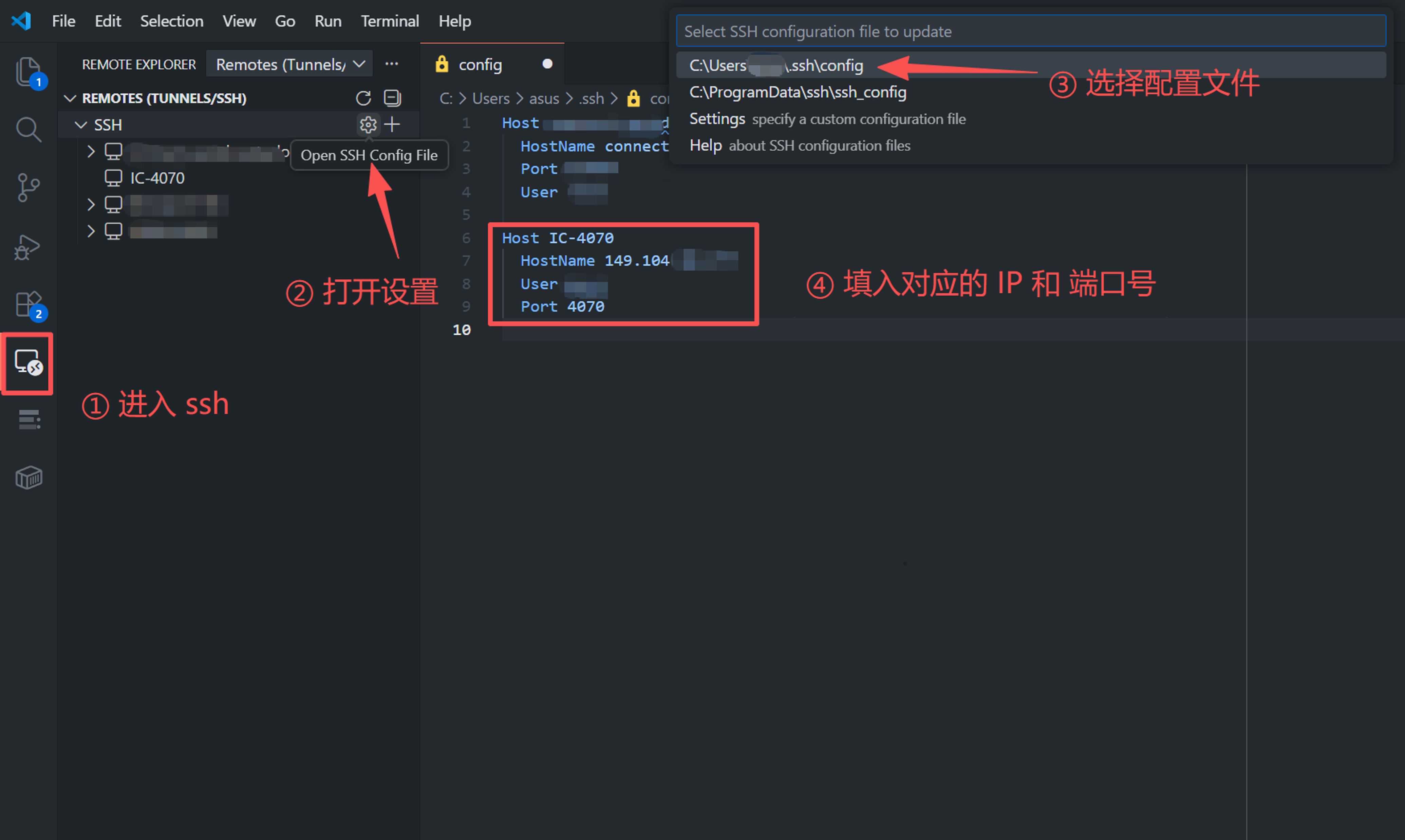 AI Visual Insight: The image shows the host configuration entry point in VS Code Remote SSH. The key fields map directly to the public egress address in the FRP topology, the service mapping port, and the Linux user identity used for the final login.
Host lab-server
    HostName x.x.x.x
    Port 4070
    User root
This SSH configuration wraps the public relay into a reusable development entry point that works for VS Code, terminal sessions, and automation scripts.
If you want passwordless login, generate a key pair locally and append the public key to ~/.ssh/authorized_keys on the target internal server.
ssh-keygen -t rsa -b 4096  # Generate a local SSH key pair
ssh-copy-id -p 4070 user@PUBLIC_SERVER_IP  # Copy the public key through the FRP mapped port
This step enables key-based authentication so you do not need to enter a password every time you log in through FRP.
Basic security hardening is still necessary for production use
Exposing an SSH port through FRP is simple, but any public-facing port will attract scans. At a minimum, use a nonstandard remotePort, enable strong passwords or key-based authentication, restrict source IPs in the cloud firewall, and track new FRP releases for authentication and encryption features.
If you plan to use this setup long term, add log inspection commands such as journalctl -u frps -f and journalctl -u frpc -f. These commands help you quickly determine whether a failure comes from the control connection, a blocked port, or a local SSH service that never started.
FAQ
Q1: Why is frpc running, but I still cannot connect over SSH?
A: Check these three items first: whether port 4070 is open on the public server, whether serverAddr in frpc.toml contains the correct public IP, and whether openssh-server on the internal machine is actually listening on port 22.
Q2: Why does the systemd service include ExecStartPre=/bin/sleep 5?
A: This addresses cases where the system boots before the network is fully ready. Delaying startup by a few seconds reduces the chance that frps or frpc fails because it starts before network initialization completes.
Q3: Does the automatic reconnection script work on all Ubuntu servers?
A: Not necessarily. This approach depends on nmcli for network management, so it fits environments that use NetworkManager and connect over Wi-Fi. For wired networks, netplan, or cloud instances, use the corresponding network management commands instead.
Core summary
This article reconstructs a complete FRP-based Ubuntu tunneling solution that covers the public relay server, the internal Ubuntu host, and local SSH or VS Code access. It also uses systemd and a network monitoring script to provide auto-start and automatic recovery after disconnections. The result is a practical setup for remote operations in campus networks, labs, and home networks.