Plex is a media server designed for personal and household use. Its core capabilities include automatically organizing local movies, TV shows, music, and photos, generating a poster-style library, and enabling multi-device access. It solves two common problems: disorganized media files and fragmented playback across devices. Combined with cpolar, Plex can also be exposed for secure remote access. Keywords: Plex, media library, intranet tunneling.
Technical Specifications Snapshot
| Parameter | Details |
|---|---|
| Core Project | Plex Media Server |
| Deployment OS | CentOS 7 |
| Access Protocol | HTTP |
| Default Port | 32400 |
| Remote Access Solution | cpolar intranet tunneling |
| Installation Method | Official YUM repository |
| Core Dependencies | systemd, yum, curl |
| GitHub Stars | Not provided in the source |
Plex is well suited for centralized personal media management
Plex is not fundamentally a media player. It is a media management and distribution platform. It scans local directories for movies, TV shows, music, or photos, then enriches them with metadata such as cover art, descriptions, categories, and subtitle information. The result is a streaming-like browsing experience built from otherwise disorganized files.
It addresses two high-frequency pain points. First, local files are often inconsistently named and difficult to search. Second, playback workflows across TVs, phones, tablets, and computers are usually fragmented. Once everything is connected through Plex, the media library becomes a standardized content service, and the cross-device experience improves significantly.
 AI Visual Insight: This screen shows the Plex Web entry page on first access. It confirms that the server has started successfully on port 32400, but the frontend console must be accessed through the
 /web path. Otherwise, you will only reach the base service response instead of the full management interface.
Add the official repository and install Plex on CentOS 7
The deployment process is lightweight. The recommended approach is to use the official RPM repository directly. This avoids version drift caused by manually downloading packages and also simplifies future updates.
# Write the official Plex YUM repository configuration
sudo tee /etc/yum.repos.d/plex.repo << 'EOF'
[plexrepo]
name=Plex RPM Repository
baseurl=https://downloads.plex.tv/repo/rpm/$basearch/
enabled=1
gpgcheck=1
gpgkey=https://downloads.plex.tv/plex-keys/PlexSign.key
EOF

# Clear the cache and rebuild metadata
sudo yum clean all
sudo yum makecache

# Install Plex Media Server
sudo yum install plexmediaserver -y
These commands register the repository, refresh the cache, and install the Plex server package.
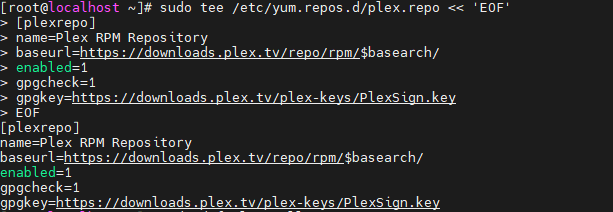 AI Visual Insight: This screenshot shows CentOS retrieving Plex repository metadata through YUM. The key point is that the repository source has been recognized by the system, so subsequent installation will pull the RPM package directly from the official source, reducing integrity risks associated with third-party mirrors.
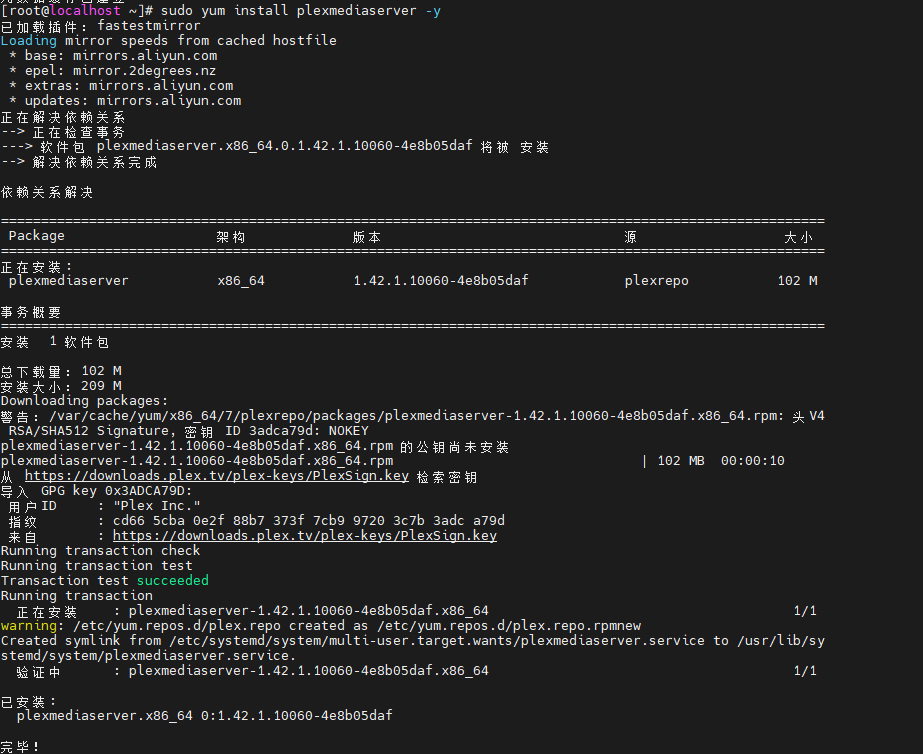 AI Visual Insight: This screen indicates that the RPM installation transaction has completed. At the system level, Plex service files and executable components are now in place. The next step is systemd-based service management, where you can verify availability through service status and port checks.
Start the Plex service and verify the Web console
After installation, enable the service at boot and start it immediately. The Plex Web management entry point is not the root path but /web, which is one of the most common access mistakes during a first deployment.
# Enable the service at boot and start it now
sudo systemctl enable plexmediaserver
sudo systemctl start plexmediaserver

# Check service status
sudo systemctl status plexmediaserver
These commands keep Plex running persistently and confirm whether startup succeeded.
http://your-server-ip:32400/webUse this URL to open the Plex Web management interface.
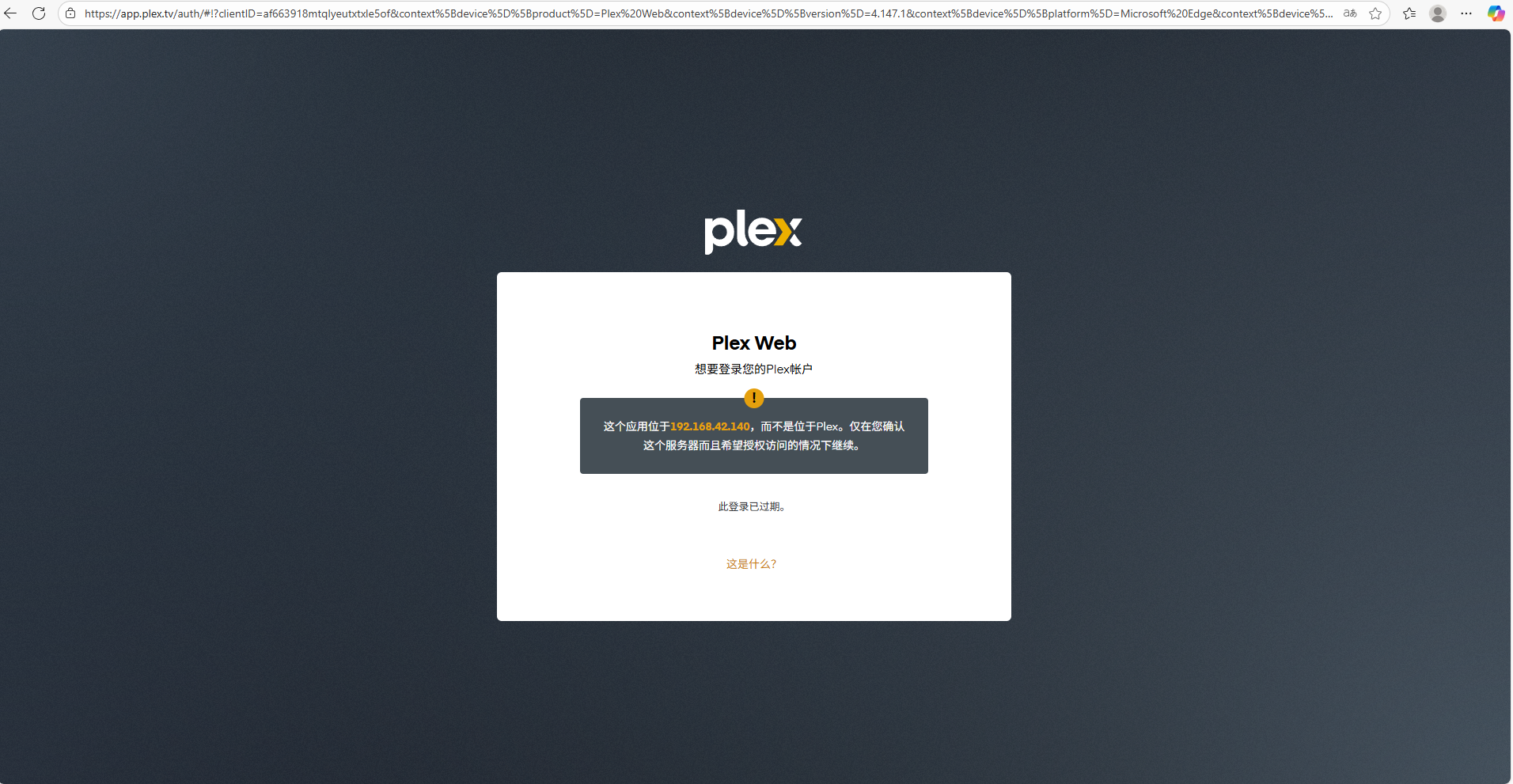 AI Visual Insight: This image shows the unexpected page returned when you access the root path on port 32400 directly. It indicates that the service is responding, but the frontend route was not matched. It highlights that the Plex console is hosted under a Web subpath rather than the root URL.
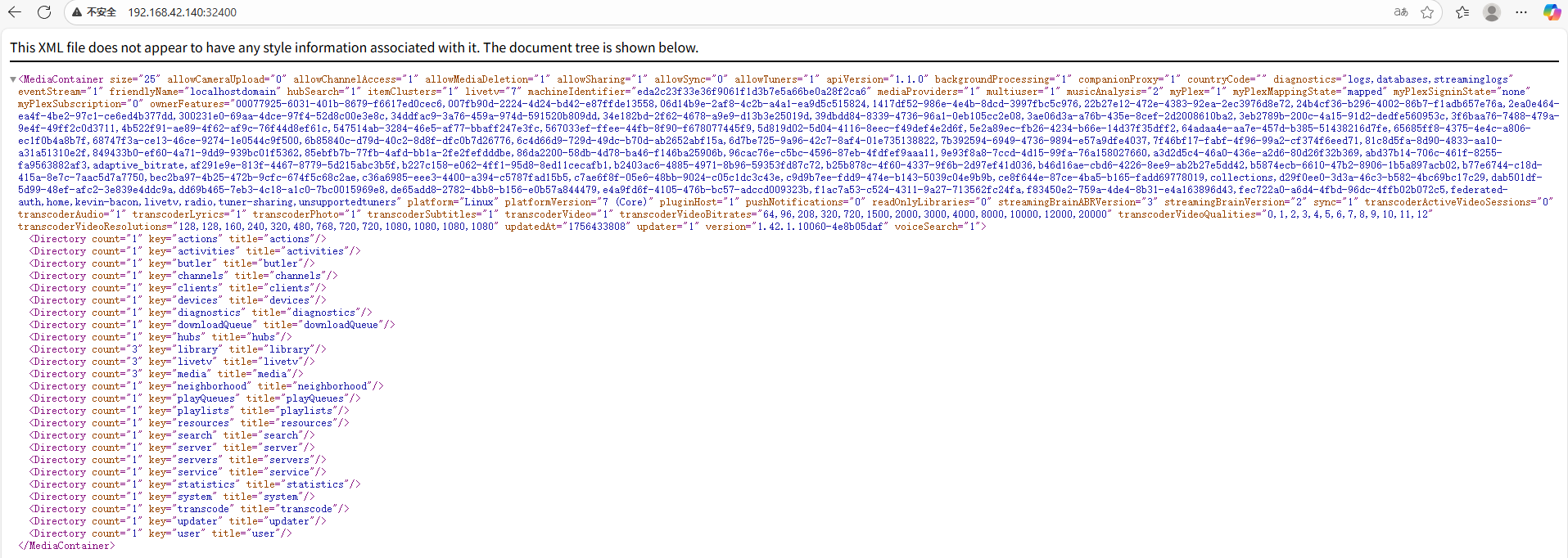 AI Visual Insight: This screenshot shows the normal console entry page after adding
 /web, confirming that the HTTP service, frontend static assets, and login flow are all available. Deployment has now entered the initialization phase.
Plex initialization is primarily about modeling your media libraries
After your first login, Plex asks you to bind an account and set a server name. This name is used not only for local identification but also for distinguishing nodes in multi-device environments. A practical convention is to name it after the server room, NAS device, or physical room location.
Next comes library creation. You can create separate libraries for movies, TV shows, music, and photos, then map each one to an actual directory on the server. Plex uses these mappings to scan content, build indexes, and match metadata.
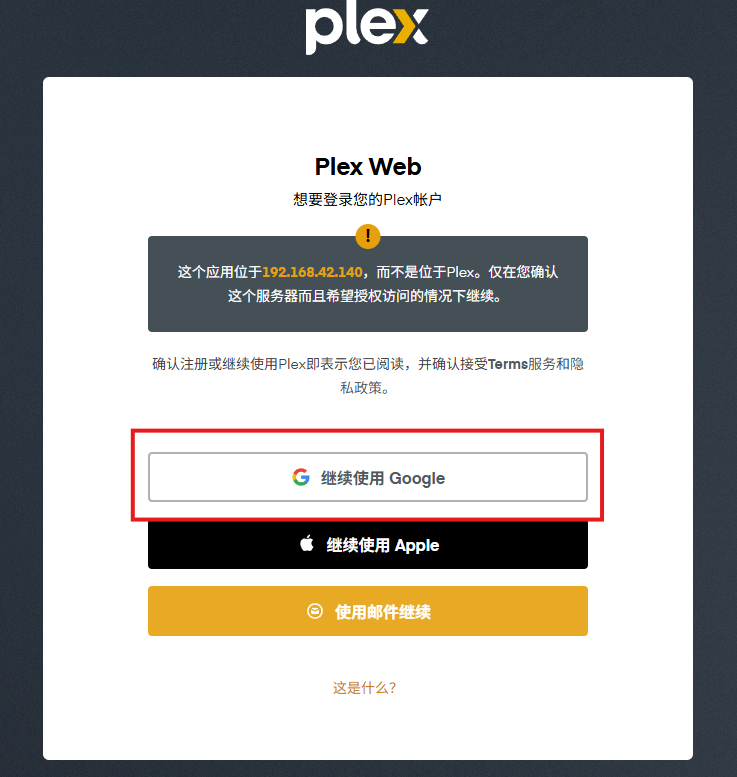 AI Visual Insight: This image shows the unified Plex authentication entry point, indicating that the server-side configuration is tightly coupled with the account system. After login, the server is associated with a cloud account to enable client discovery, synchronization, and certain remote capabilities.
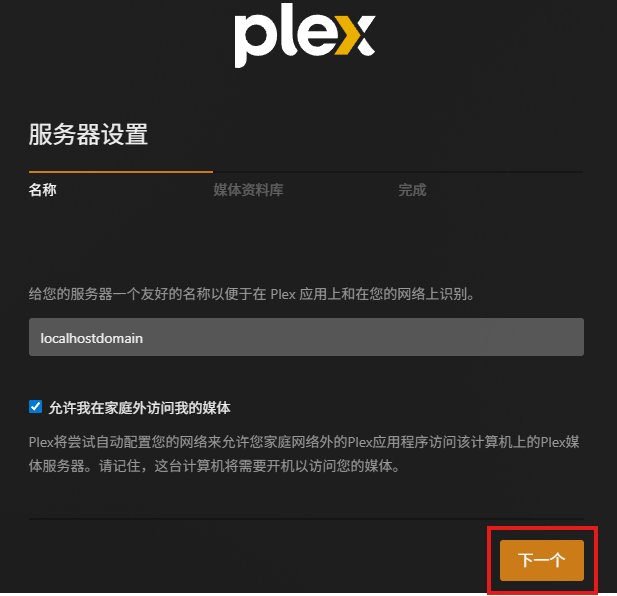 AI Visual Insight: This screen is used to define the logical identity of the Plex Server. For users with multiple servers, clear naming significantly reduces the chance of selecting the wrong node during client discovery and also improves remote access management later.
# Example: create media directories in advance and assign permissions
sudo mkdir -p /app/media/photos
sudo chown -R plex:plex /app/media
These commands prepare a readable and writable media directory for Plex.
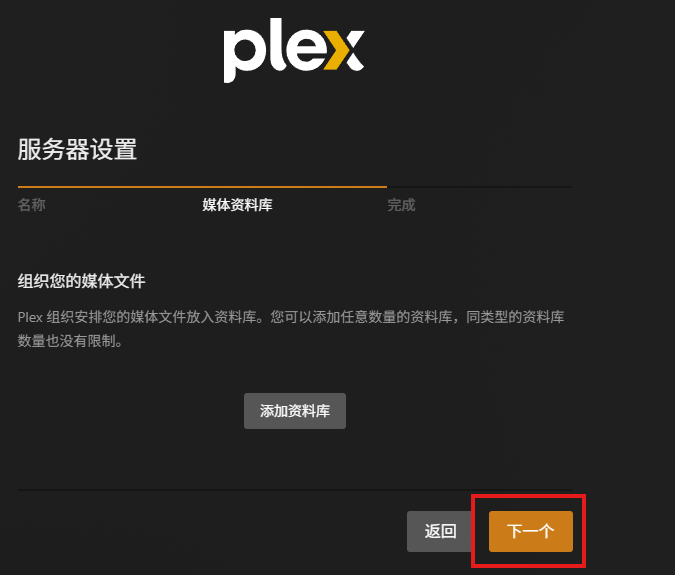 AI Visual Insight: This image shows the media library type selector, illustrating that Plex switches metadata retrieval strategies and presentation models based on content type. For example, movies and photos differ in classification fields, preview methods, and indexing logic.
 AI Visual Insight: This interface shows the process of mapping local server directories into Plex libraries, which is the core step for content onboarding. The clearer the directory granularity, the more stable the results for scanning, permission control, and metadata matching.
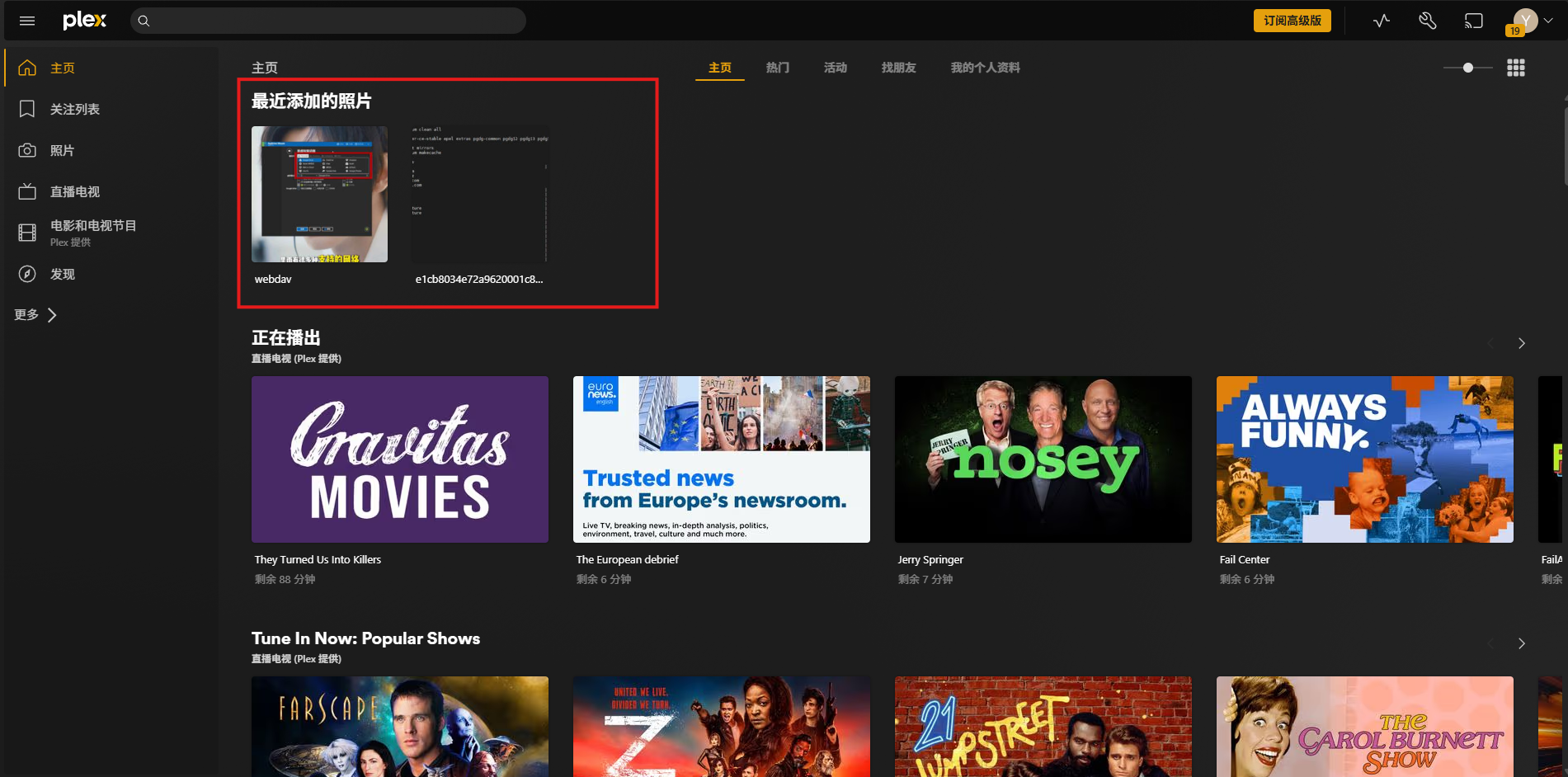 AI Visual Insight: This screenshot indicates that Plex has completed an initial content scan and generated visual entries, meaning the file system, media indexing, thumbnail generation, and frontend rendering path are all working together successfully.
Expose local port 32400 to the public internet with cpolar
Plex works very well on a LAN, but much of its value comes from remote access. If you do not have a public IP address or do not want to manually configure router port forwarding, you can use cpolar to create a reverse tunnel and expose local port 32400 as a public endpoint.
# Install cpolar
sudo curl https://get.cpolar.sh | sh

# Check service status
sudo systemctl status cpolar
These commands install cpolar and verify that its service is running normally.
 AI Visual Insight: This image shows the result of running the cpolar one-click installation script, indicating that the local node has completed client deployment and now has the basic capability to register tunnels with the cpolar cloud.
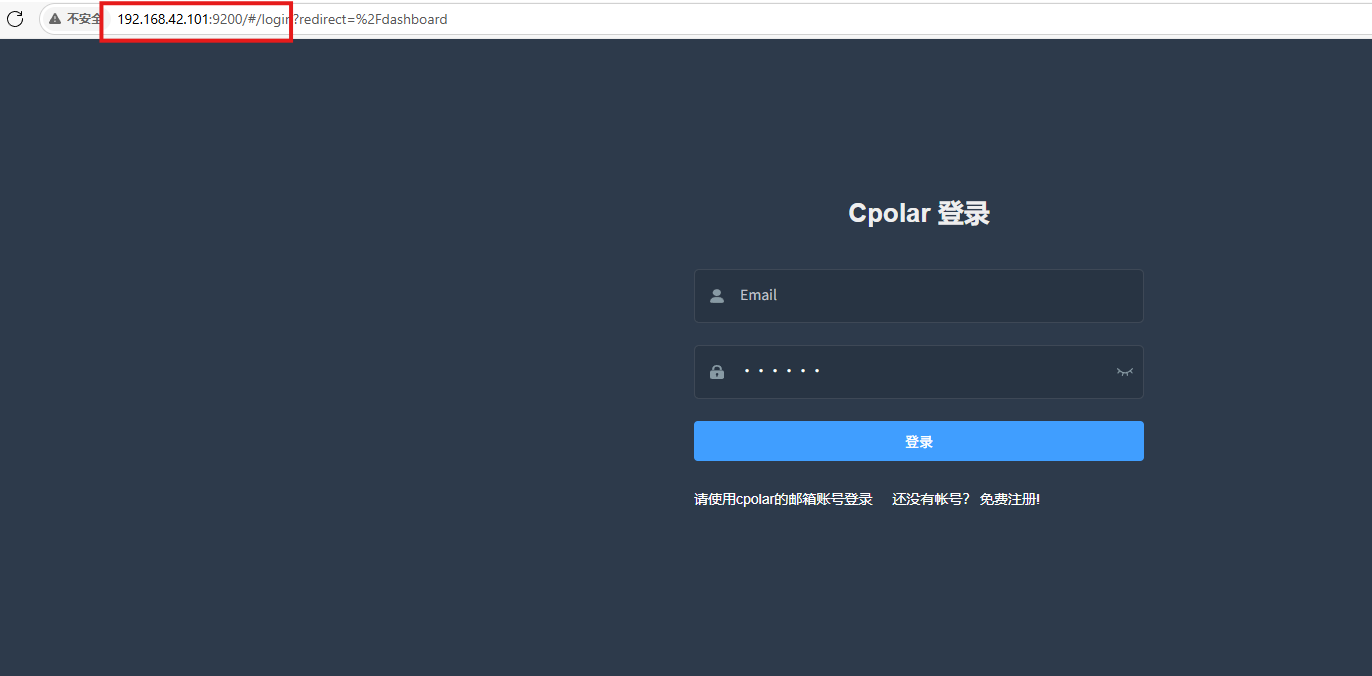 AI Visual Insight: This interface is the local management plane of cpolar, where users can create HTTP tunnels, view active connections, and modify domain policies. It serves as the configuration entry point for mapping internal services to public endpoints.
When you create the tunnel in the console, the core parameters are simple: choose HTTP as the protocol, set the local address to 32400, select a random domain for initial testing, and choose the region based on your network environment. After the public URL is generated, you can access the Plex page directly from external devices.
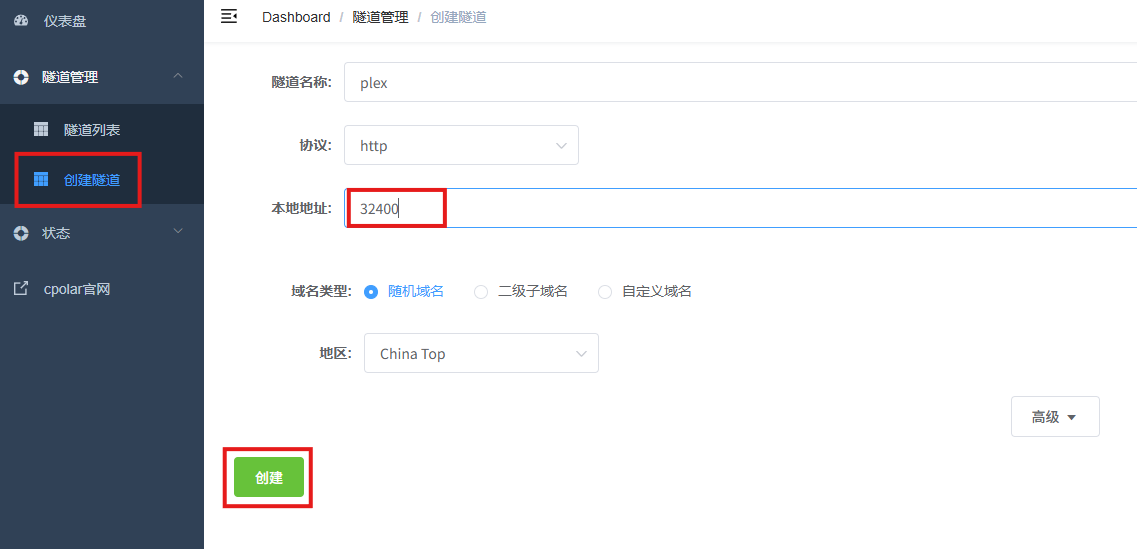 AI Visual Insight: This screenshot shows the key configuration for mapping the local Plex service into a public HTTP tunnel. The explicit binding between local port 32400 and the public domain is the critical step that creates the remote access path.
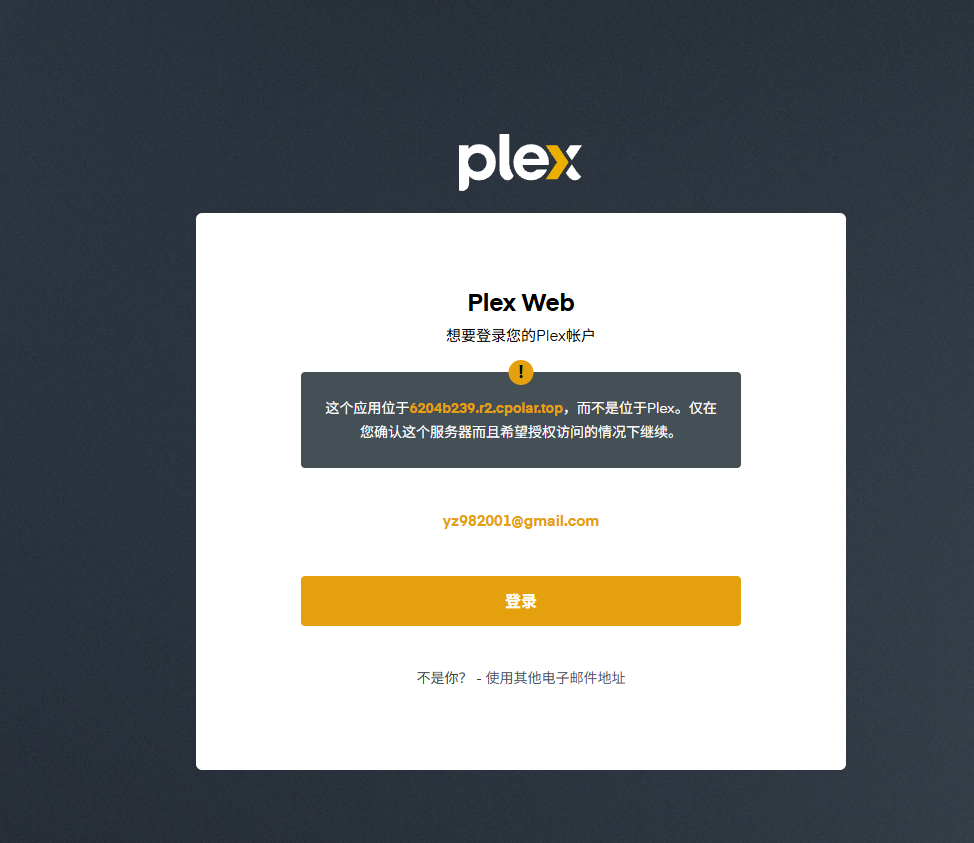 AI Visual Insight: This image confirms that the tunnel is online and externally reachable, which means the connectivity path between local Plex, the cpolar client, and the cloud forwarding node is fully established.
A fixed subdomain improves availability and sharing stability
A random domain works for validating connectivity, but it is not ideal for long-term use. If you want a stable link for TVs, phones, or shared access with friends, bind a reserved subdomain to the Plex tunnel.
The practical flow is straightforward: first reserve a subdomain on the cpolar side, then return to the tunnel edit page, switch the domain type to a second-level subdomain, and enter the reserved value. After the update, the previous random URL is replaced with a fixed address.
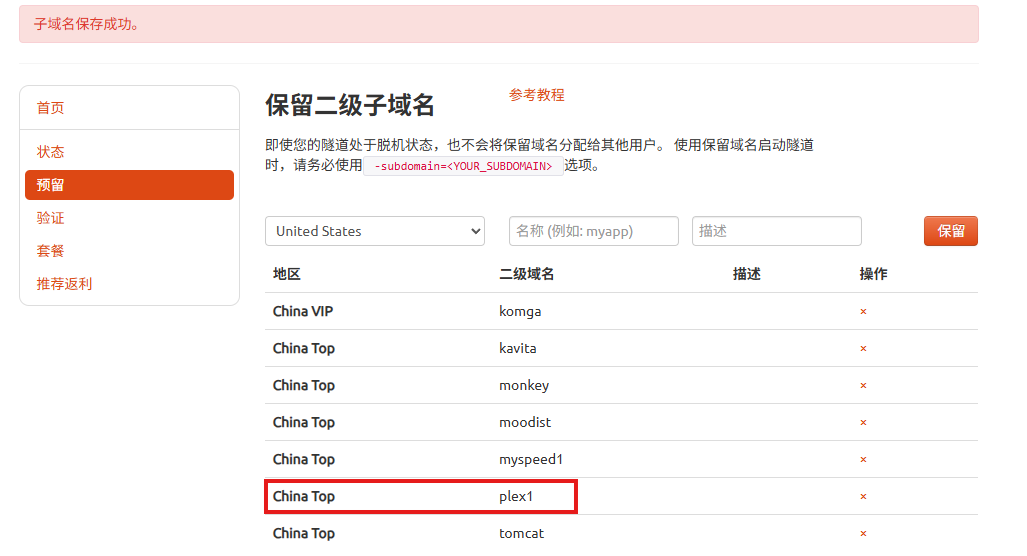 AI Visual Insight: This interface is used to reserve a fixed subdomain. In essence, it upgrades a temporary public entry point into a reusable named address, which is better for bookmarks, automation, and cross-device synchronization.
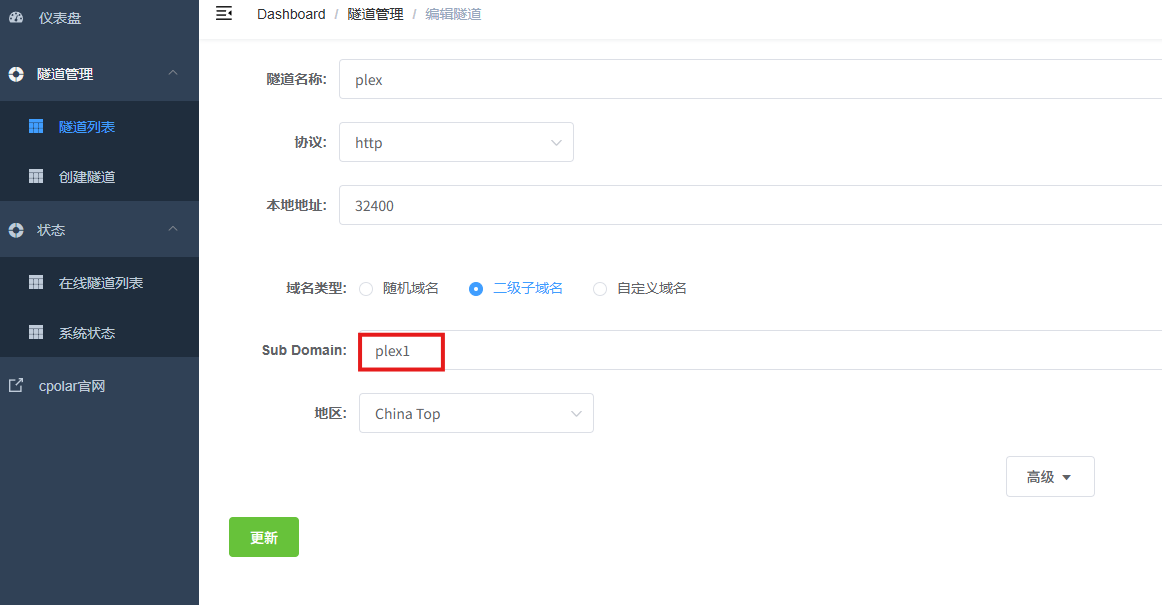 AI Visual Insight: This screenshot shows the process of applying the reserved subdomain to an existing tunnel, demonstrating that cpolar can smoothly migrate forwarding from a random address to a fixed domain without redeploying Plex itself.
Whether Plex is worth deploying depends on your media scale and network conditions
If you have a NAS, an old PC, or a lightweight server, and you have accumulated a meaningful collection of movies, TV shows, or photos, Plex offers clear benefits: centralized management, automatic organization, multi-device access, and a polished interface that is far better than browsing files manually.
That said, Plex is not a zero-cost solution. First, metadata quality depends on both internet connectivity and consistent media naming. Second, the free tier has limitations, and advanced features may require Plex Pass. Third, public streaming quality is ultimately constrained by uplink bandwidth and tunnel quality, especially for high-bitrate 4K content.
FAQ
Q1: Why does accessing 32400 not open the Plex management interface?
A: The Plex Web console is hosted under the /web path by default. The correct URL is http://server-ip:32400/web.
Q2: What advantages does Plex have over ordinary file sharing?
A: Plex provides more than file access. It adds metadata scraping, poster-wall presentation, categorized search, and a unified playback experience across devices.
Q3: Is accessing Plex through cpolar suitable for streaming full-bitrate 4K remux files?
A: Not necessarily. Smooth playback mainly depends on the server’s uplink bandwidth, tunnel route quality, and whether transcoding is enabled. High-bitrate 4K scenarios are especially likely to hit bottlenecks.
Core summary
This article reconstructs the deployment workflow for Plex Media Server on CentOS 7, covering YUM-based installation, media library initialization, cpolar-powered public exposure, and fixed subdomain configuration. It also objectively evaluates the platform’s advantages, limitations, and best-fit scenarios so you can decide whether building a private media server is worth it.