Technical Specifications at a Glance
| Parameter | Details |
|---|---|
| Tool Name | OpenCode |
| Primary Form Factor | CLI / TUI / IDE Integration |
| Compatible Editors | VS Code, Cursor, Windsurf, VSCodium |
| Integration Method | Run opencode in the IDE integrated terminal |
| Required Commands | opencode, code / cursor / windsurf / codium |
| Environment Variable | EDITOR |
| Interaction Features | Shortcut invocation, shared context, file references |
| Source of Facts | Original Markdown content |
OpenCode keeps AI capabilities inside the IDE instead of in browser tabs
A developer’s highest-frequency workspace is not a chat window, but the editor. The value of OpenCode is not just that it lets you “ask AI.” It keeps AI anchored inside the IDE workflow and removes the need to constantly jump between a browser, desktop apps, and code windows.
This design directly solves two common pain points: attention loss caused by context switching, and communication overhead caused by manually copying code snippets. OpenCode runs in the terminal, but the interaction still happens inside the editor, which makes it both lightweight and close to a native experience.
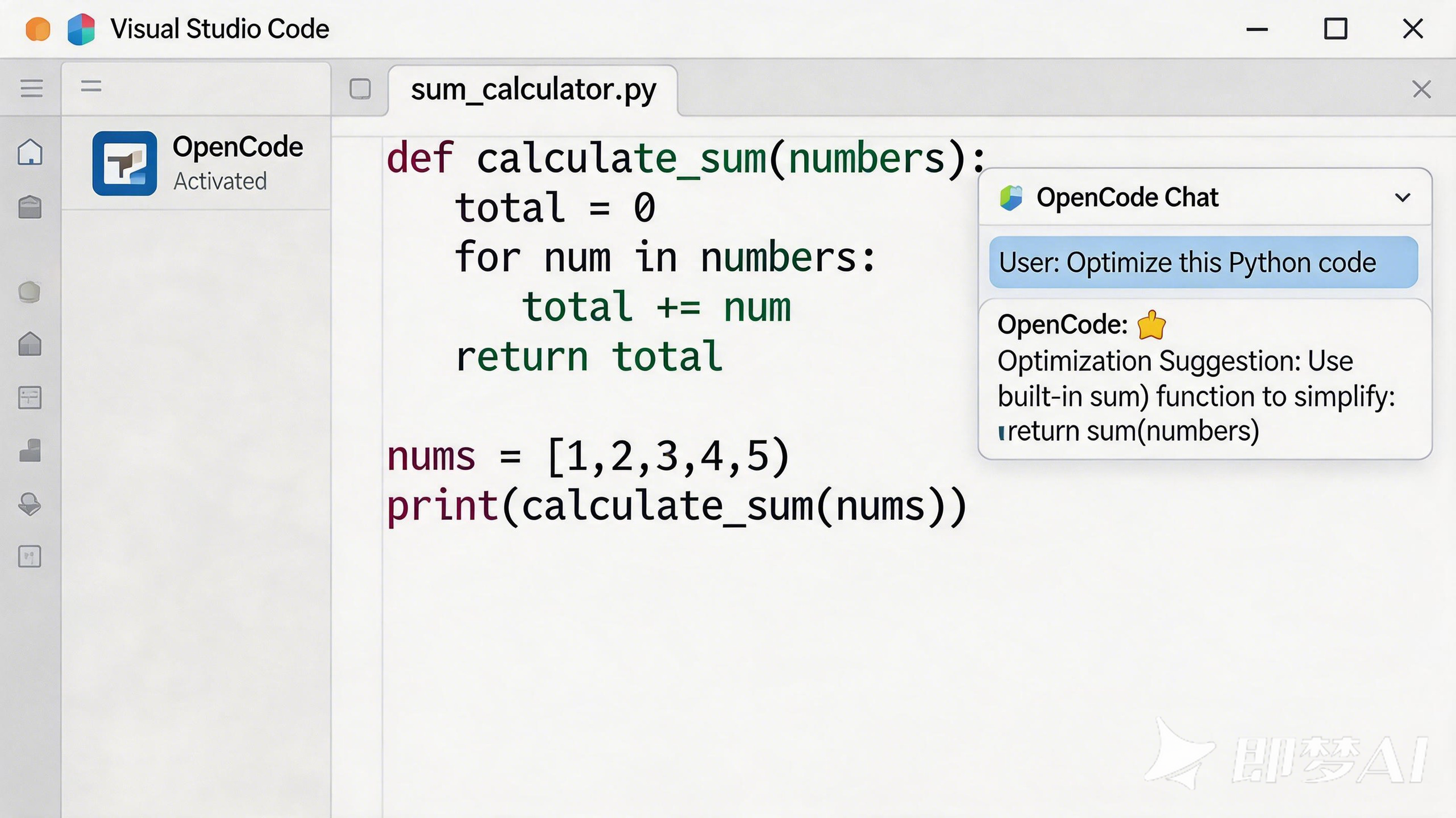 AI Visual Insight: This interface shows the typical way OpenCode is embedded into an IDE as a split pane or bottom panel. The left side contains the file tree and code editor, while the bottom or side panel hosts a terminal-style AI conversation area. This makes it clear that OpenCode is not a standalone GUI, but a low-interruption collaboration layer built on the editor’s existing layout.
Keyboard shortcuts are the key entry point for bringing OpenCode into your daily coding flow
After integration, the most common action is not installation, but invoking and switching sessions. OpenCode provides a consistent shortcut model across operating systems, which reduces the cost of rebuilding muscle memory.
# Start OpenCode in the IDE integrated terminal
opencode  # Enter the AI interaction environment directly
This command starts OpenCode in place inside the editor, rather than launching a separate workflow in an external terminal.
Shortcut-based interaction makes OpenCode feel like a resident agent instead of a temporary tool
Mac users can press Cmd + Esc, while Windows and Linux users can press Ctrl + Esc, to focus the current OpenCode session directly. If an active session already exists, the system does not create a duplicate instance, which is especially important for long-running tasks.
If you need a clean thread for a new question, use Cmd + Shift + Esc or Ctrl + Shift + Esc to create a new session. This lets you separate refactoring, debugging, and architecture discussions to avoid context contamination.
Automatic context awareness reduces prompt overhead
One of OpenCode’s highest-value features is its ability to read the currently selected text or the file tab you are viewing. When developers ask a question, they no longer need to paste large blocks of code. The model can access local context directly, which reduces ambiguity and omissions.
File-level precise references are also critical. By pressing Cmd + Option + K or Alt + Ctrl + K, you can insert references such as @File#L37-42 to anchor the discussion to exact line numbers.
@src/auth/login.ts#L37-42
@server/api/user.py#L88-120
These references let the AI pinpoint the exact code range, which makes them ideal for targeted fixes, localized refactoring, and code review explanations.
The installation flow is designed so a single command completes the integration
For VS Code, Cursor, Windsurf, and VSCodium, the recommended approach is to run opencode in the IDE integrated terminal. The logic is simple: after the CLI starts, it triggers automatic installation of the corresponding editor extension and then enters the interactive environment.
This means developers do not need to manually search the extension marketplace first or configure separate launch entries. The first run handles both installation and startup, while later runs take you directly into the working state.
# Run this in the IDE integrated terminal during first-time setup
opencode  # Automatically trigger extension installation and start a session

# Set the default editor for /editor or /export
export EDITOR="code --wait"  # Tell OpenCode which IDE to use when opening files
The first line initializes IDE integration, while the second ensures that TUI commands can dispatch files to the correct target editor.
Manual installation still fits users who prefer a more controlled workflow
If you value determinism more than automation, you can also open the extension marketplace, search for “OpenCode,” and install it manually. This follows the standard plugin installation pattern and works well in restricted networks, managed environments, or enterprise devices.
Troubleshooting should begin with the terminal environment and CLI bridge availability
If automatic installation fails, the first thing to check is not whether you need to reinstall the plugin, but whether opencode is running inside the IDE integrated terminal. If you run it in a system terminal outside the editor, the extension installation hook usually does not fire.
The second thing to check is whether the editor’s CLI tool is available in your PATH. VS Code depends on code, Cursor depends on cursor, Windsurf depends on windsurf, and VSCodium depends on codium.
# Check whether the editor CLI is available
code --version        # VS Code
cursor --version      # Cursor
windsurf --version    # Windsurf
codium --version      # VSCodium
These commands confirm whether the IDE command-line bridge exists, which is a prerequisite for the automatic installation chain to work.
If the command is missing, you should restore the PATH setup through the command palette
In VS Code, you can run Shell Command: Install 'code' command in PATH from the command palette. Other compatible editors usually provide an equivalent option. After that, restart the terminal and run opencode again to verify the fix.
If it still fails, check write permissions for the extension directory. On enterprise devices, security software or organization policies may block plugin writes. In those cases, the issue usually reflects host environment restrictions rather than an OpenCode-specific error.
OpenCode’s core value lies in preserving development flow rather than delivering a flashy interface
The original material makes OpenCode’s positioning very clear: it is not another AI window you need to manage separately, but an on-demand terminal agent that stays loosely attached to your IDE and is always ready when you need it. It takes up very little space while preserving both contextual awareness and instant invocation.
For high-frequency coding scenarios, this design is often more effective than adding another graphical interface. Developers do not need to shift their mental model. They only need to treat opencode as an intelligent partner that understands the current file, supports precise references, and can join the workflow at any moment.
FAQ
Q1: Why doesn’t running opencode automatically install the extension?
A: The most common reason is that you ran the command in an external terminal instead of the IDE integrated terminal. Another common cause is that code, cursor, or another editor CLI is not available in your PATH.
Q2: What is the relationship between OpenCode and VS Code or Cursor?
A: OpenCode itself can run independently as a CLI/TUI, but inside compatible IDEs it can integrate seamlessly through the built-in terminal to provide shortcut invocation, shared context, and extension installation capabilities.
Q3: What does the EDITOR environment variable do?
A: When you use /editor or /export inside OpenCode, EDITOR determines which editor opens the target file. A common setting is export EDITOR="code --wait".
Core summary
This article reconstructs how OpenCode integrates with VS Code, Cursor, Windsurf, and VSCodium. It focuses on terminal-based startup, shortcut-driven invocation, context awareness, file references, and installation troubleshooting, helping developers get a continuous, low-interruption AI coding experience without leaving the IDE.