OpenArm is an open-source robotic arm platform designed for physical AI and bimanual collaboration research. This article provides a minimum viable deployment path based on WSL2, Ubuntu 22.04, and ROS 2 Humble, and addresses common issues such as version mismatches, rosdep network failures, and inconsistent simulation launch arguments. Keywords: OpenArm, ROS 2, bimanual simulation.
The technical specification snapshot clarifies the baseline
| Parameter | Details |
|---|---|
| Project | OpenArm |
| Core focus | Bimanual robot simulation, motion planning, control validation |
| Languages | Python, C++, Bash |
| Runtime environment | Ubuntu 22.04 on WSL2 |
| Middleware | ROS 2 Humble |
| Planning component | MoveIt 2 |
| Build tool | colcon |
| Dependency management | rosdepc |
| Source license | Open-source project; refer to the repository declaration for the exact license |
| GitHub stars | Not provided in the source material; check the live GitHub repository page |
| Core dependencies | openarm_description, openarm_bringup, openarm_bimanual_moveit_config |
This deployment path gives developers the shortest viable route
The value of OpenArm is not simply rendering a robot model on screen. Its real value comes from using a unified ROS 2 control interface to connect bimanual modeling, controller loading, planning debugging, and motion validation into one reproducible workflow.
The source material spreads the key information across multiple places, but only three factors materially affect deployment success: the operating system version must match, dependency installation must avoid network-related failures, and launch arguments must use use_fake_hardware:=true.
The source tree and package layout should be clear first
The project source code comes from the official OpenArm repository:
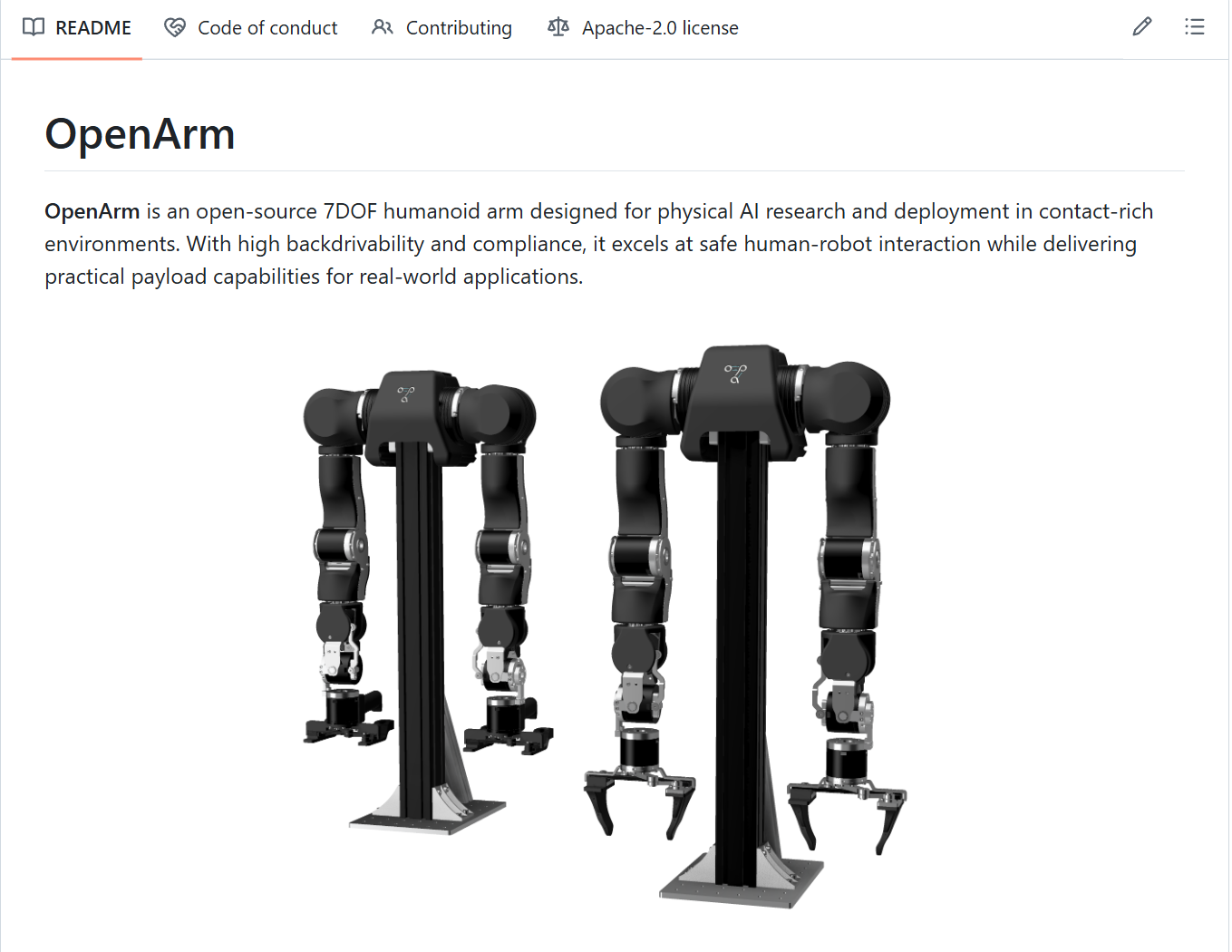
AI Visual Insight: This screenshot shows the OpenArm project repository entry point, making it clear that deployment should start from the official GitHub source rather than a third-party port. For developers, this means package names, parameters, and launch files should follow the current repository branch to avoid outdated tutorials.
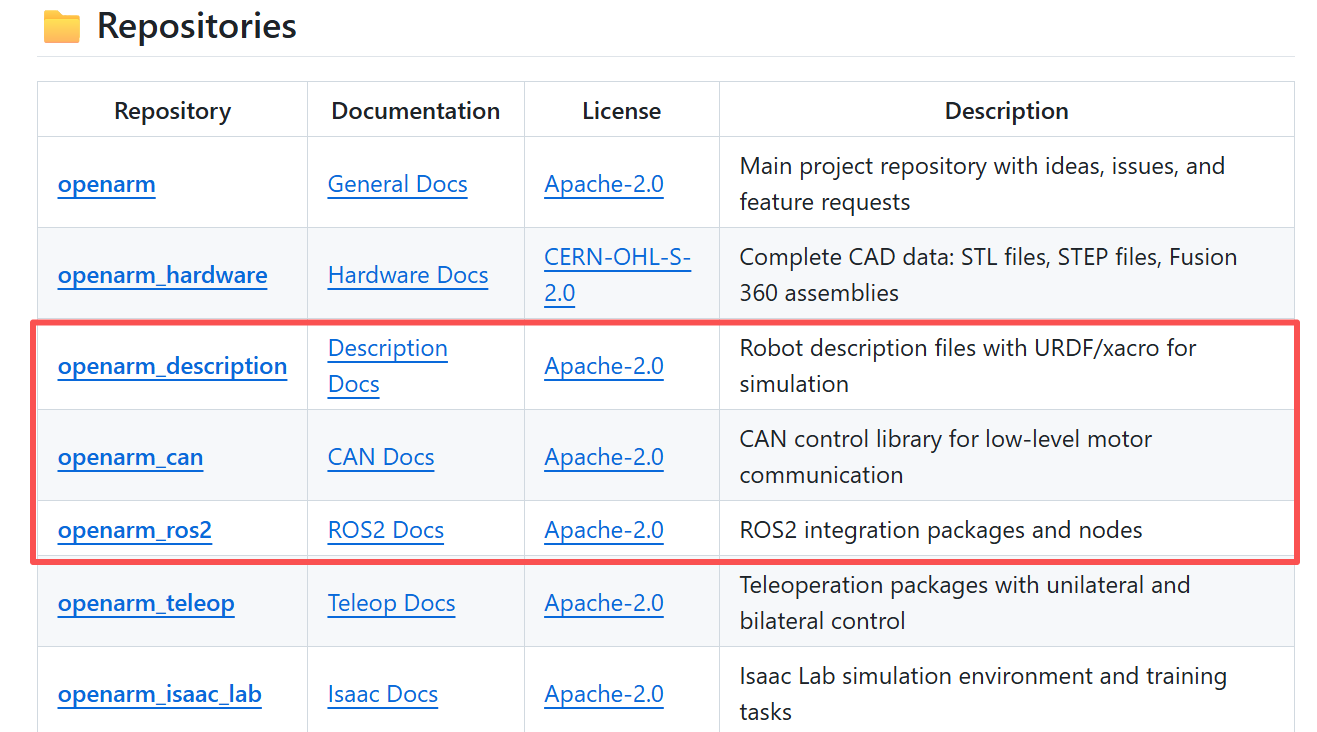
AI Visual Insight: This image highlights the core package set required for simulation, especially the description package, the bringup package, and the bimanual MoveIt configuration package. It reflects the typical ROS 2 layering in OpenArm: model description, system bringup, and planning configuration working together.
If your goal is to run the simulation as quickly as possible, prioritize these three packages: openarm_description, openarm_bringup, and openarm_bimanual_moveit_config. These packages are sufficient for model loading, controller initialization, and bimanual planning demos.
mkdir -p ~/openarm_ws/src  # Create the workspace
cd ~/openarm_ws/src        # Enter the source directory
git clone https://github.com/enactic/OpenArm.git  # Clone the official repository
These commands create a minimal ROS 2 workspace and fetch the official repository.
The environment must stay pinned to Ubuntu 22.04 and WSL2
OpenArm simulation depends on ROS 2 Humble, and Humble targets Ubuntu 22.04 as its stable platform. If you are currently using Ubuntu 24.04, the safest option is not to force compatibility but to switch directly to 22.04.
On a Windows host, WSL2 is the lowest-cost option. It provides isolation, solid developer productivity, and smooth remote IDE connectivity, which makes it well suited for simulation, debugging, and lightweight secondary development.
wsl --list --verbose                  # List installed distributions
wsl --unregister Ubuntu-24.04         # Remove the old version if needed
wsl --set-default-version 2           # Set WSL2 as the default
wsl --install -d Ubuntu-22.04         # Install the target system
These commands check WSL distributions, clean up older versions, and install Ubuntu 22.04.

AI Visual Insight: This screenshot shows the WSL distribution list and runtime state, which helps verify the current Ubuntu version, the WSL generation, and the default distribution. It is the first place to check when troubleshooting ROS version incompatibility.

AI Visual Insight: This image shows the command output for uninstalling an older Ubuntu distribution, indicating that the user cleaned the environment before deployment. This step helps eliminate stale dependencies, path contamination, and version leftovers.

AI Visual Insight: This screenshot shows the result of setting the default WSL version to 2, emphasizing that the simulation depends on more complete virtualization support and filesystem performance rather than the older WSL1 compatibility layer.
ROS 2 Humble installation should prioritize stability over manual detail
For most beginners, manual ROS 2 installation tends to fail on repository configuration, dependency resolution, and shell environment initialization. The source material recommends the FishROS installation script, which is a high-success-rate option in Chinese development environments.
wget http://fishros.com/install -O fishros && . fishros # Install the ROS environment with a one-click scriptThis command downloads and runs the one-click installation script and is suitable for quickly deploying ROS 2 Humble.
After installation, verify that /opt/ros/humble exists before moving on to dependency initialization. Do not skip this check, or later errors will be harder to diagnose because you will not know whether the failure came from the ROS installation or the workspace itself.
rosdepc should replace rosdep in mainland China network environments
Many tutorials assume that you will run rosdep init, but in mainland China, access to GitHub Raw frequently fails. A more reliable option is to use rosdepc, which is effectively an alternative optimized for mirrored dependency sources.
sudo apt update                     # Update package indexes
sudo apt install -y python3-pip     # Install pip
sudo pip3 install rosdepc           # Install a rosdep alternative that works in local network conditions
sudo rosdepc init                   # Initialize dependency sources
rosdepc update                      # Update the dependency database
These commands fix dependency index initialization issues and prevent official rosdep failures from blocking deployment.
Build and launch should revolve around the minimum closed loop
After entering the workspace, do not compile every package at the start. Build only the three core packages directly related to simulation first. This narrows the error surface and works better for teaching and lab reproduction.
cd ~/openarm_ws
rosdepc install --from-paths src --ignore-src -r -y   # Install missing workspace dependencies
source /opt/ros/humble/setup.bash                     # Load the ROS 2 environment
colcon build --symlink-install \
  --packages-select openarm_description openarm_bringup openarm_bimanual_moveit_config  # Build only the core packages
These commands install dependencies and build the minimum package set, which is the key dividing line for whether the simulation will launch successfully.
Every new terminal session must reload the environment variables. Many cases where a package was clearly built but still cannot be found are simply caused by forgetting source install/setup.bash.
cd ~/openarm_ws
source /opt/ros/humble/setup.bash   # Load the system-level ROS environment
source install/setup.bash           # Load the workspace environment
These commands allow the current shell to recognize the built OpenArm packages and launch files.
The correct simulation launch argument is use_fake_hardware
The source material explicitly notes that the current source code and official instructions use use_fake_hardware:=true rather than the older hardware_type argument commonly seen in outdated materials. This is a critical version-difference detail.
Three launch modes map to three validation goals
Single-arm mode is best for confirming that the control chain is intact. Basic bimanual mode is better for controller-level debugging. Bimanual mode with MoveIt is the best option for demonstrating end-effector dragging, trajectory planning, and collision avoidance.
ros2 launch openarm_bringup openarm.launch.py arm_type:=v10 use_fake_hardware:=true  # Single-arm simulation
ros2 launch openarm_bringup openarm.bimanual.launch.py arm_type:=v10 use_fake_hardware:=true  # Basic bimanual simulation
ros2 launch openarm_bimanual_moveit_config demo.launch.py use_fake_hardware:=true  # Bimanual MoveIt simulation
These commands correspond to three simulation entry points: single-arm, basic bimanual control, and bimanual planning demo.
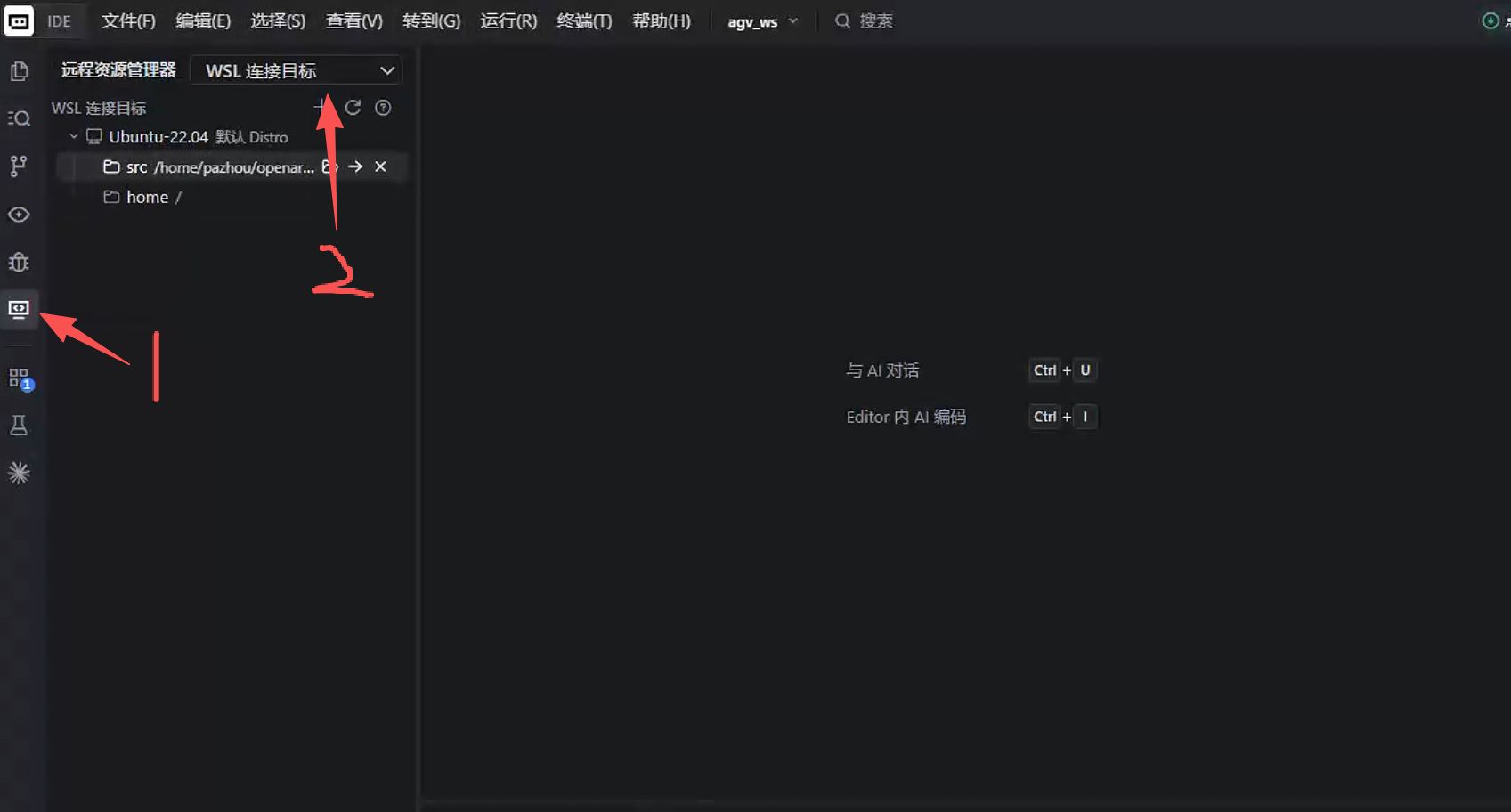
AI Visual Insight: This image shows an IDE connecting to the target WSL system through a remote explorer, demonstrating that code editing, terminal execution, and the Linux workspace can all live in the same development interface, reducing context switching across environments.
Motion tests can directly verify that the controller is online
If RViz or the simulation UI is already running but you are not sure whether the controller chain is actually usable, the most direct method is to send a simple goal to the trajectory controller. If the joints move in sync, the controller, message type, and namespace are all basically functioning.
cd ~/openarm_ws
source /opt/ros/humble/setup.bash
source install/setup.bash
ros2 action send_goal /joint_trajectory_controller/follow_joint_trajectory \
  control_msgs/action/FollowJointTrajectory \
  '{trajectory: {joint_names: ["openarm_joint1", "openarm_joint2", "openarm_joint3", "openarm_joint4", "openarm_joint5", "openarm_joint6", "openarm_joint7"], points: [{positions: [0.15, 0.15, 0.15, 0.15, 0.15, 0.15, 0.15], time_from_start: {sec: 3, nanosec: 0}}]}}'  # Send a test trajectory
This command verifies whether the single-arm trajectory controller can receive and execute a motion goal correctly.
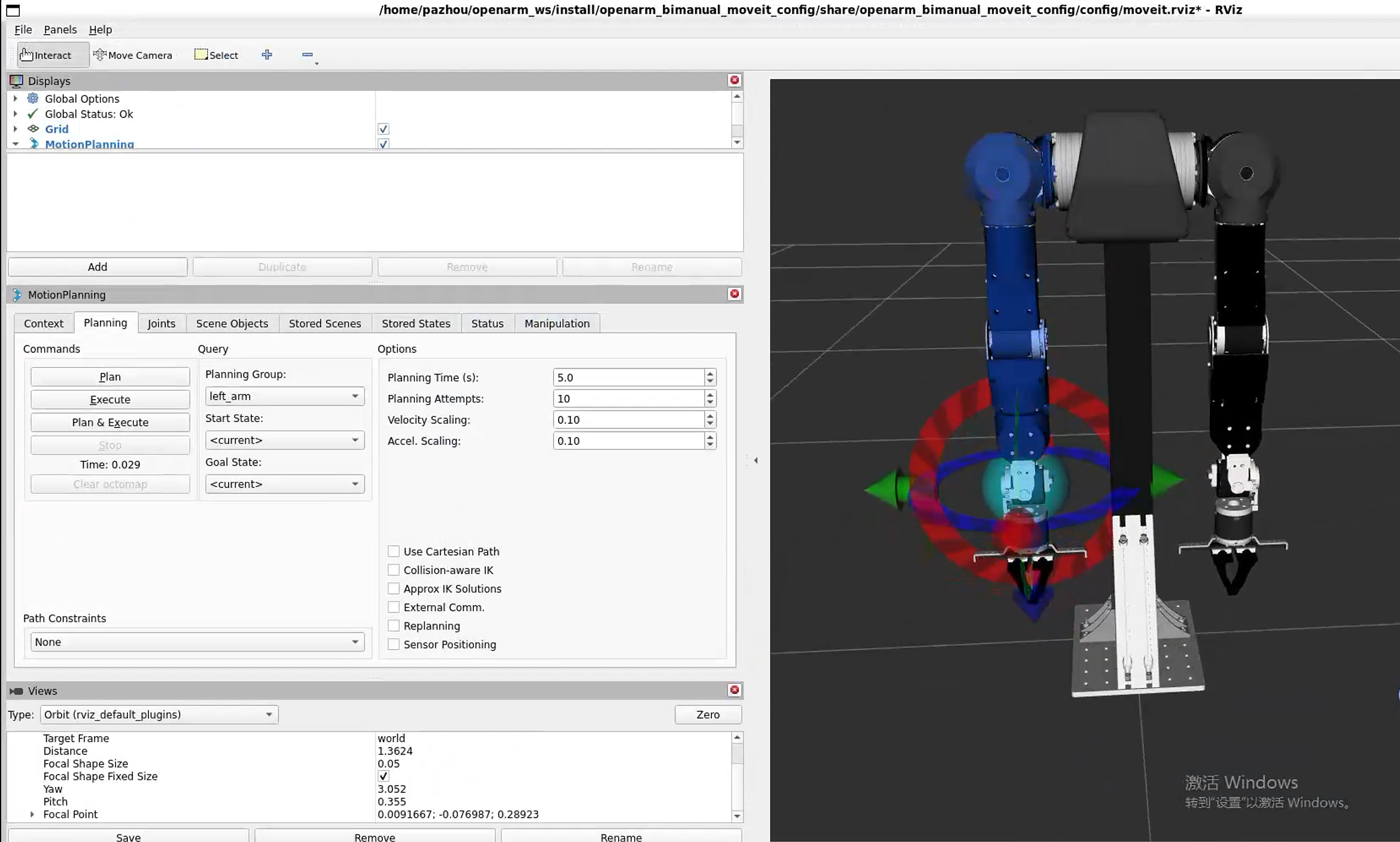
AI Visual Insight: This image shows the final running state of OpenArm simulation in the visualization interface. The bimanual robot model, scene coordinate frames, and interactive UI are all loaded successfully, indicating that model description, controllers, and planning configuration have completed at least a basic end-to-end integration.
This deployment workflow resolves three typical pain points
First, it fixes the version mismatch between Ubuntu 24.04 and ROS 2 Humble. Second, it avoids rosdep initialization failures in mainland China network conditions. Third, it corrects the mismatch between older simulation parameter documentation and the current source tree.
For future extensions, you can continue by integrating a depth camera, hand-eye calibration, visual grasping, or custom control scripts. But regardless of the next step, the prerequisite is always to make this minimum simulation workflow stable first.
FAQ provides structured answers to common deployment issues
Q1: Why is Ubuntu 22.04 recommended instead of 24.04?
Because OpenArm simulation currently depends on ROS 2 Humble, and Humble primarily targets Ubuntu 22.04. If you use 24.04 directly, you will often hit dependency mismatches, missing packages, or binary compatibility issues.
Q2: Why use rosdepc instead of official rosdep?
In mainland China network environments, official rosdep init often fails because GitHub Raw is unreachable. rosdepc provides a more stable mirrored dependency index workflow and is better suited for rapid deployment and teaching environments.
Q3: What should I check first if bimanual simulation fails to start?
Check these three items first: whether you ran source /opt/ros/humble/setup.bash and source install/setup.bash, whether the three core packages built successfully, and whether the launch argument uses use_fake_hardware:=true.
The AI readability summary captures the core workflow
This article reconstructs the OpenArm bimanual robot simulation deployment workflow end to end, covering source retrieval, WSL2 Ubuntu 22.04 environment preparation, ROS 2 Humble installation, dependency repair with rosdepc, colcon build steps, and MoveIt-based bimanual simulation launch. It is well suited for robotics development and teaching validation.