OpenWebUI transforms Ollama from a command-line tool into a visual AI workspace, solving common pain points such as cumbersome model switching, hard-to-manage chat history, and fragmented multi-backend access. It supports local models, OpenAI-compatible APIs, knowledge bases, and remote access. Keywords: OpenWebUI, Ollama, DeepSeek R1.
Technical specifications are easy to review at a glance
| Parameter | Description |
|---|---|
| Primary Language | Python |
| Interaction Protocols | HTTP, OpenAI Compatible API, Ollama API |
| Community Popularity | About 110K stars (as mentioned in the original source) |
| Core Dependencies | Python 3.11, open-webui, Ollama, cpolar |
OpenWebUI significantly improves the usability of local models
For many developers, Ollama solves the problem of running models locally, but it does not solve the problem of using those models efficiently. Model names, parameters, context, and session state all remain scattered across the terminal, which makes switching costly.
The value of OpenWebUI lies in bringing model management, chat interaction, knowledge bases, and external API integration into a unified web console. Instead of memorizing commands, you can switch models and configure backends directly in the browser.
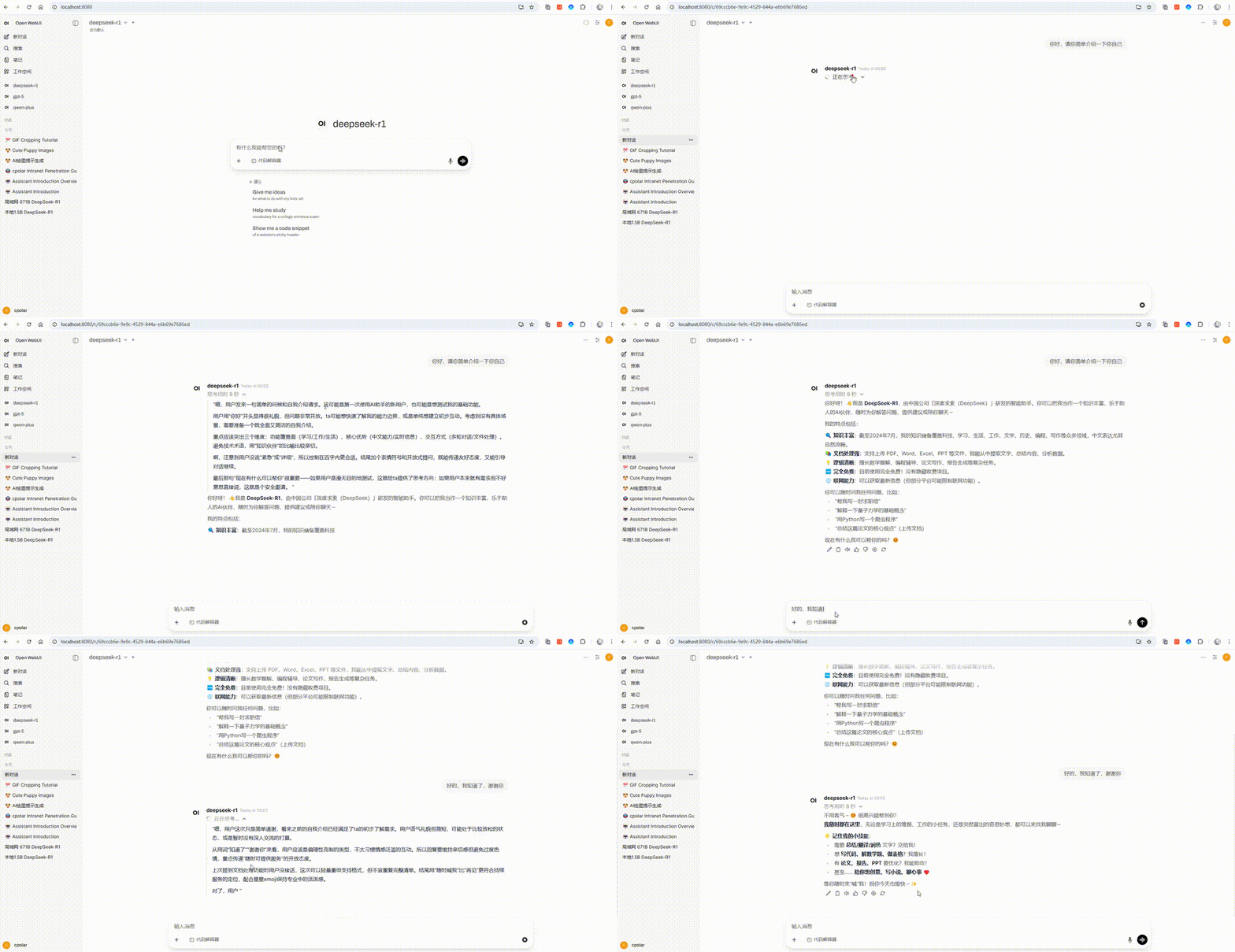 AI Visual Insight: This animation shows real-time chat streaming, message rendering, and interaction feedback inside the web interface. It highlights OpenWebUI’s core value: replacing terminal input with a browser-based workflow, lowering the barrier to model invocation, and moving continuous session management into the UI layer.
It works more like a unified control plane for local and cloud models
The original content shows that OpenWebUI does more than serve Ollama. It can also manage local models, other Ollama instances on the LAN, and OpenAI-compatible endpoints from one place. In practice, that means the same interface can connect to DeepSeek R1, Qwen, and other inference backends at the same time.
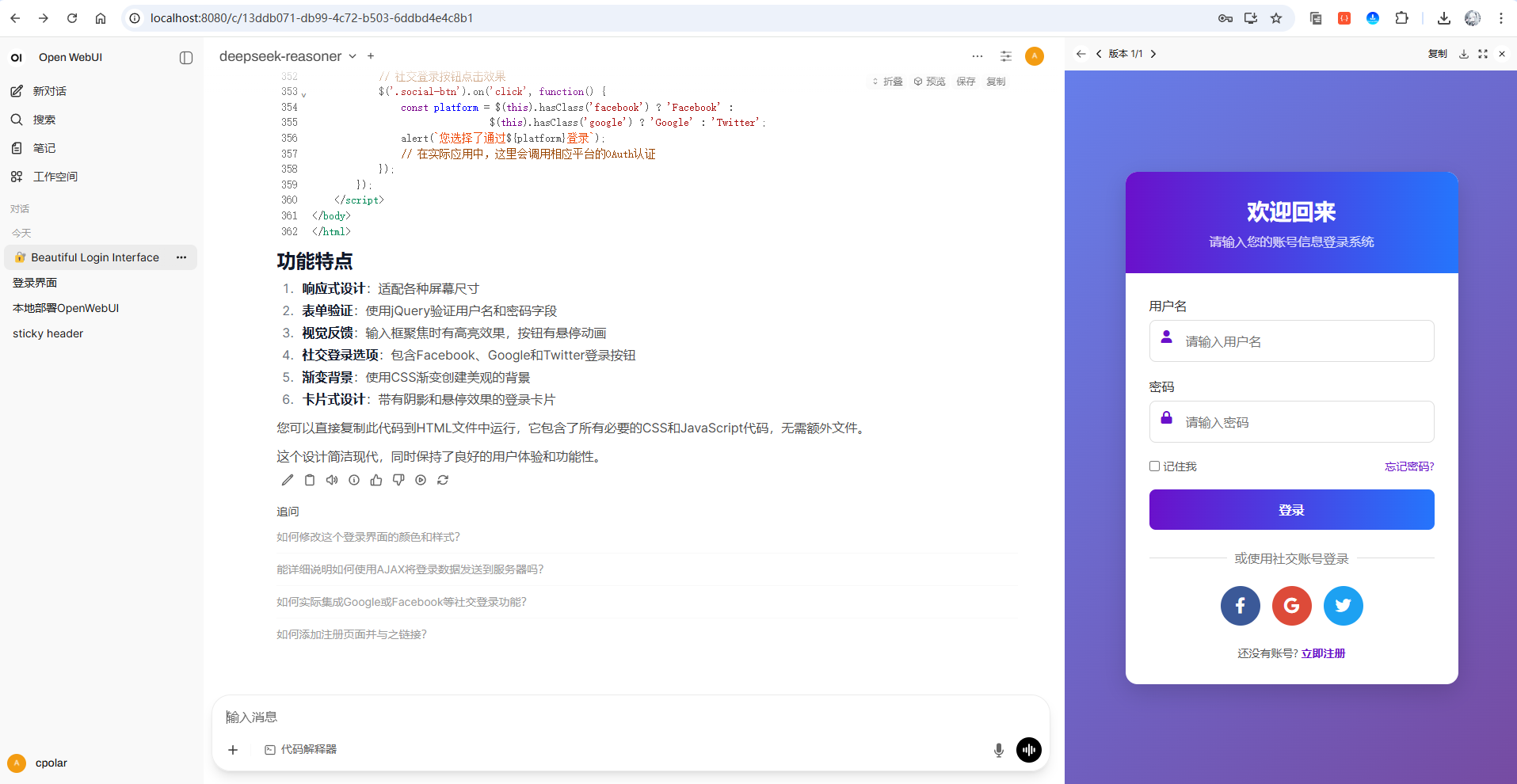 AI Visual Insight: This image shows a typical chat workspace layout, including a model selector, message panel, and code preview area. It demonstrates that OpenWebUI’s interaction pattern is already close to mainstream AI chat applications, making it well suited for code generation and multi-turn Q&A scenarios.
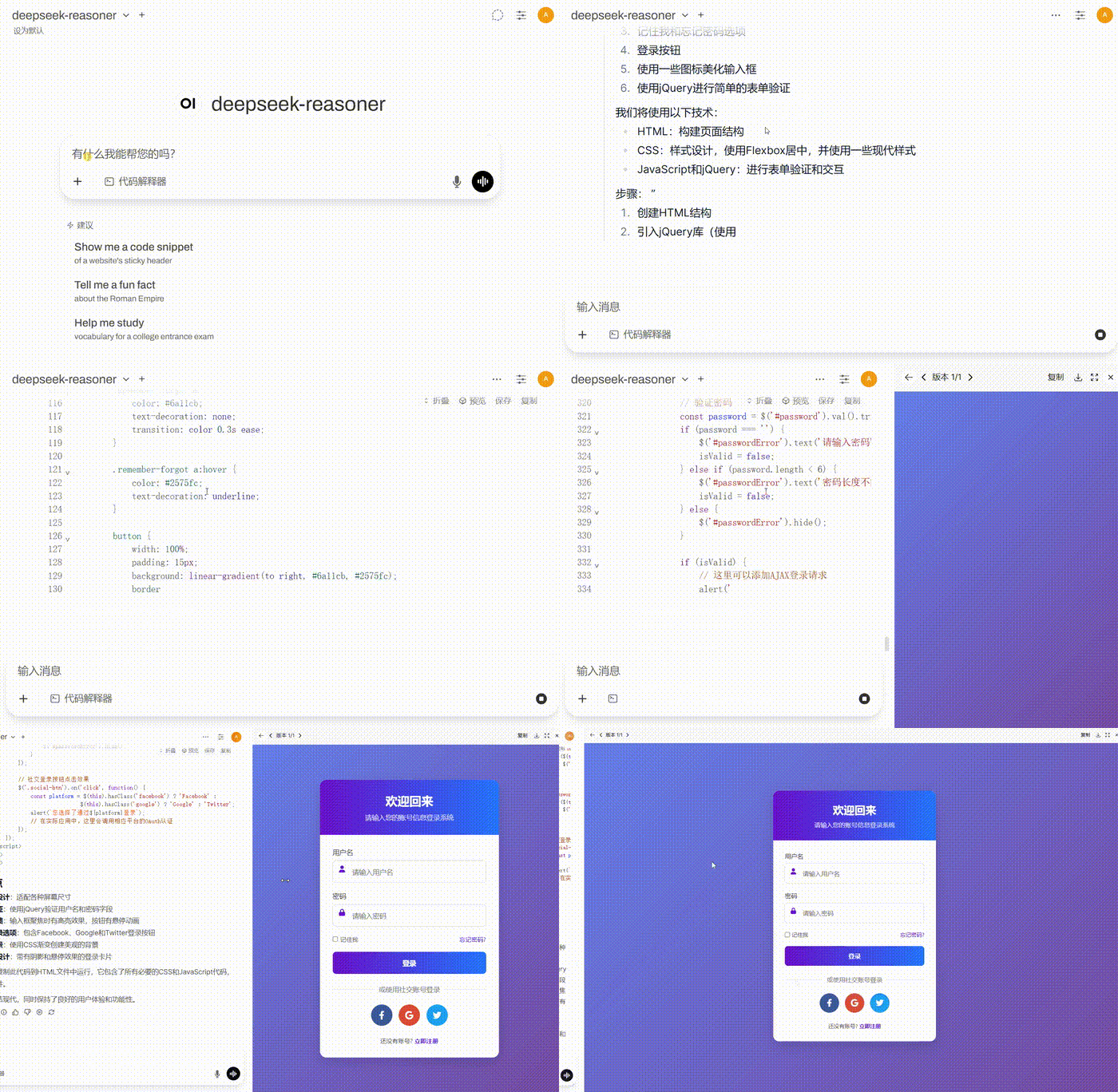 AI Visual Insight: This animation emphasizes token-by-token HTML generation, code formatting, and result preview. It shows that the interface is especially useful for developers who want a fast prompt-to-code validation loop.
# Install OpenWebUI
pip install open-webui

# Start the service
open-webui serve
These commands install OpenWebUI and launch it locally using the shortest deployment path.
Python 3.11 is a critical prerequisite for a successful deployment
The original tutorial makes it clear that Python 3.11 is a hard requirement. If the version does not match, dependency installation and runtime compatibility may both fail. You should verify the interpreter version first, then configure a mirror if you want faster package downloads.
# Verify the Python version
python --version

# Configure the Tsinghua mirror to speed up dependency downloads
pip config set global.index-url https://pypi.tuna.tsinghua.edu.cn/simple
These commands confirm the runtime environment and reduce installation wait time.
The default port and initialization flow are straightforward
After startup, the default access URL is http://localhost:8080/. On the first visit, you need to create an administrator account, and then you can enter the main interface. This workflow is far more user-friendly than manually stitching APIs together, building a frontend from scratch, or repeatedly using the CLI.
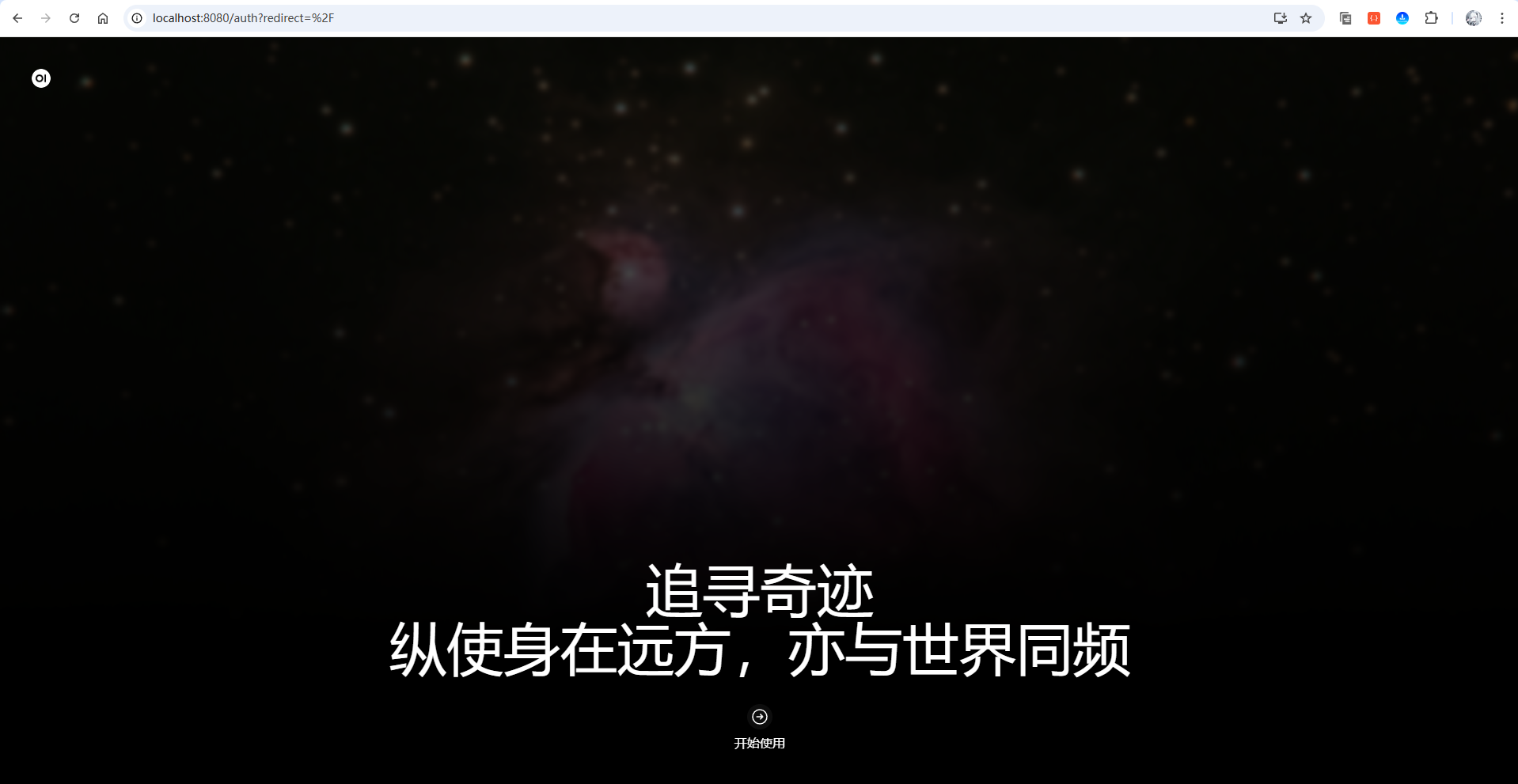 AI Visual Insight: This image shows the default OpenWebUI welcome page, indicating that the service exposes a standard web entry point immediately after startup. That makes it easy to validate deployment status on a local machine or inside a LAN.
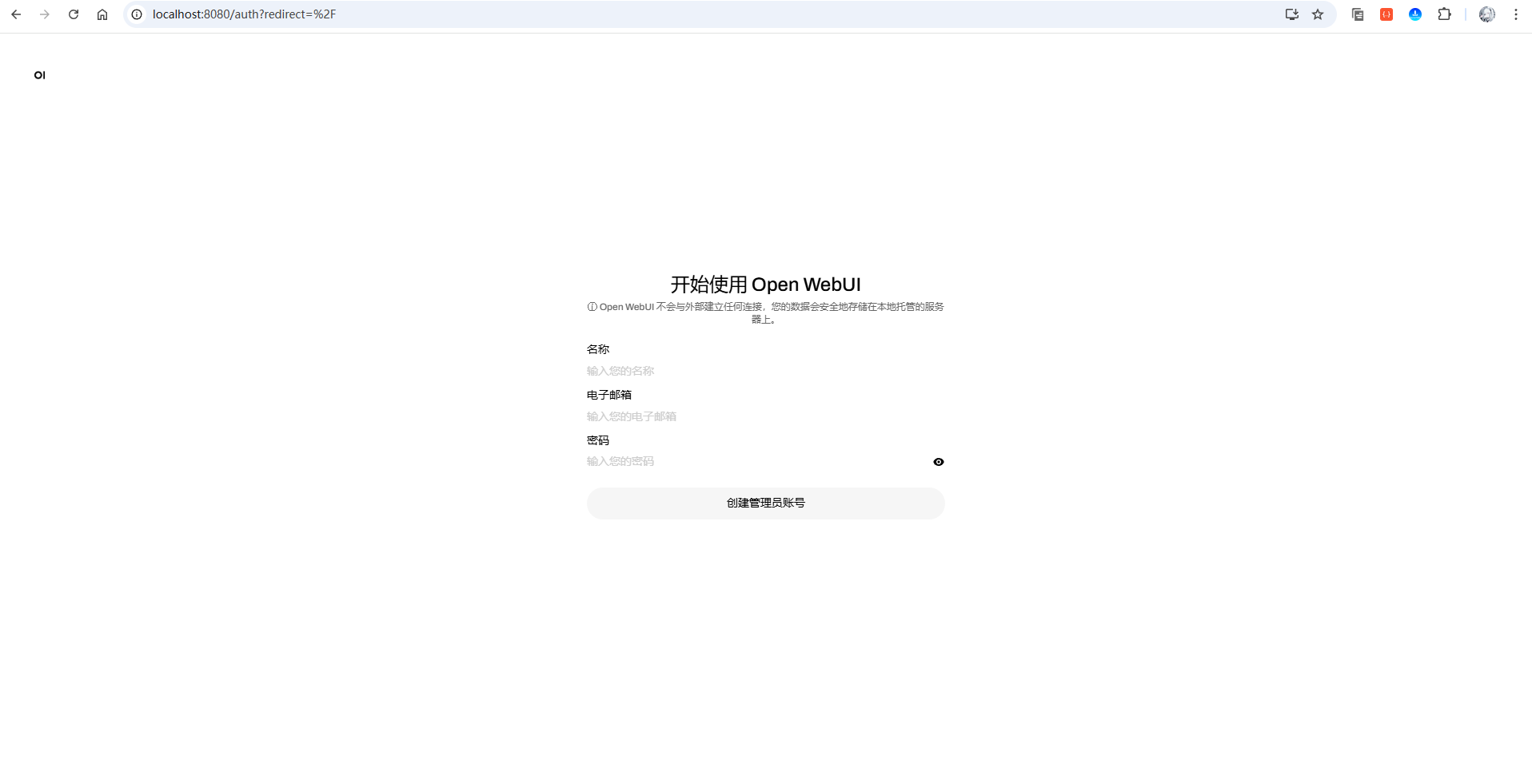 AI Visual Insight: This image shows the administrator initialization page, indicating that the system uses a first-login account creation flow to initialize the instance. This is a common security entry pattern in self-hosted applications.
Connecting Ollama unlocks visual management for local models
If you already installed Ollama, OpenWebUI will usually detect the locally available models automatically. Compared with the one-shot invocation style of ollama run, a visual interface makes it much easier to compare multiple models, preserve historical context, and manage separate task windows.
# Start the local service after installing Ollama
ollama serve

# Verify that the command is available
ollama
These commands start the local inference service and verify that Ollama was installed successfully.
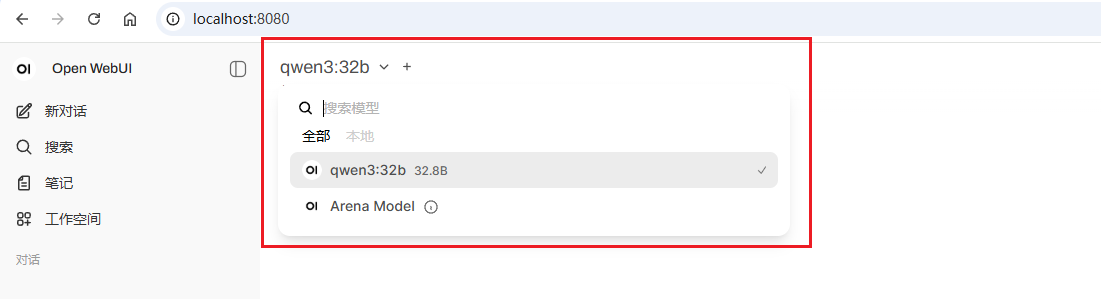 AI Visual Insight: This image shows the model selection area in the upper-left corner listing local models, which indicates that OpenWebUI has successfully read the available model inventory from Ollama and mapped it into the UI.
Small models are ideal for testing workflows, while large models are better for validating reasoning limits
The tutorial uses deepseek-r1:1.5b to demonstrate quick download and interaction, which is ideal for validating the service path. It then connects to deepseek-r1:671B over the LAN to demonstrate the practical difference in output quality from a high-parameter model. This layered usage strategy is highly practical.
# Pull this model from the model search box
deepseek-r1:1.5b
This model identifier is used to pull the lightweight DeepSeek R1 variant from the Ollama ecosystem.
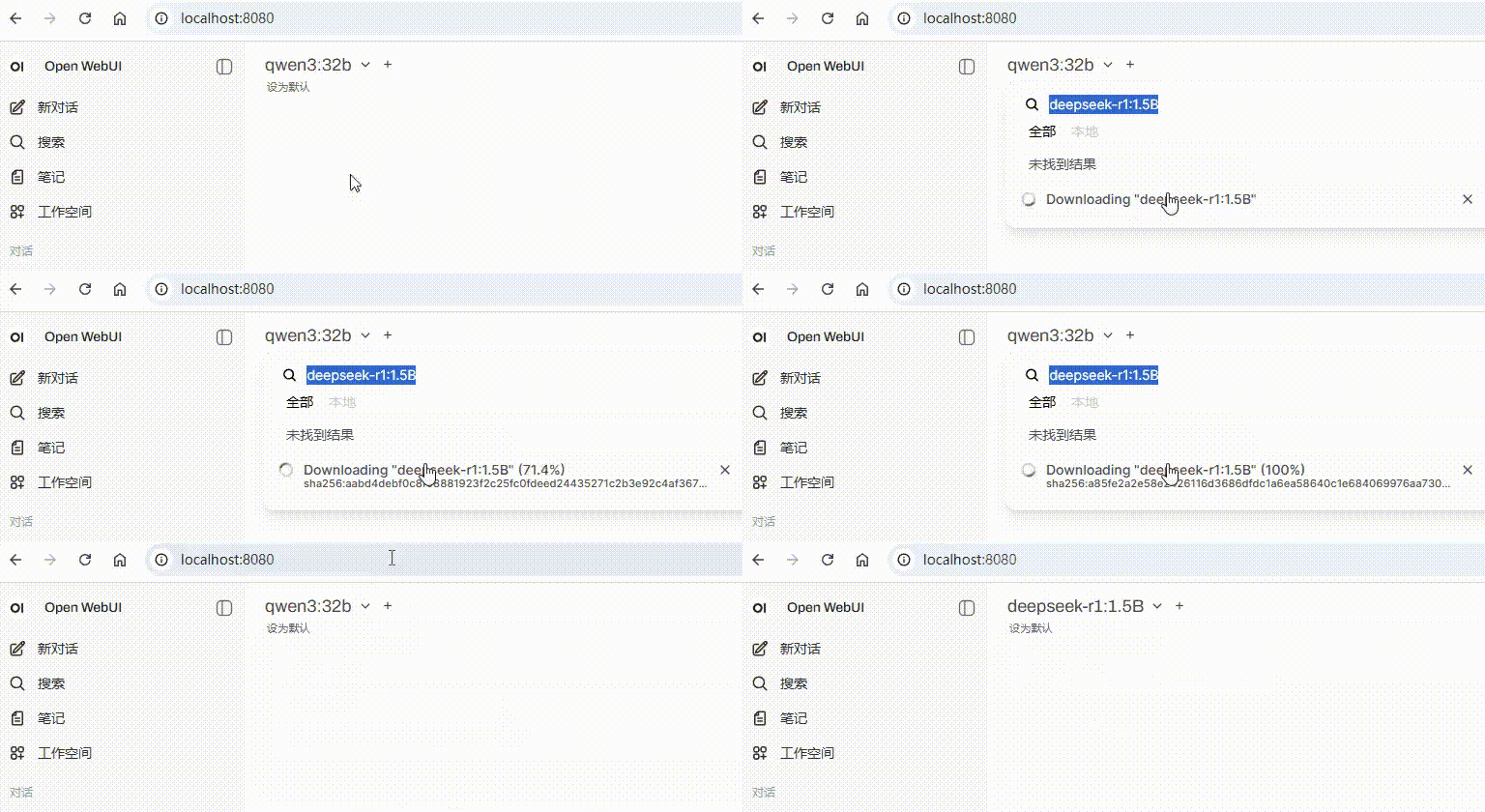 AI Visual Insight: This animation shows the process of searching for and pulling a model directly through the UI. It demonstrates how OpenWebUI moves model downloads from the command line into a graphical workflow, lowering the learning curve for new users.
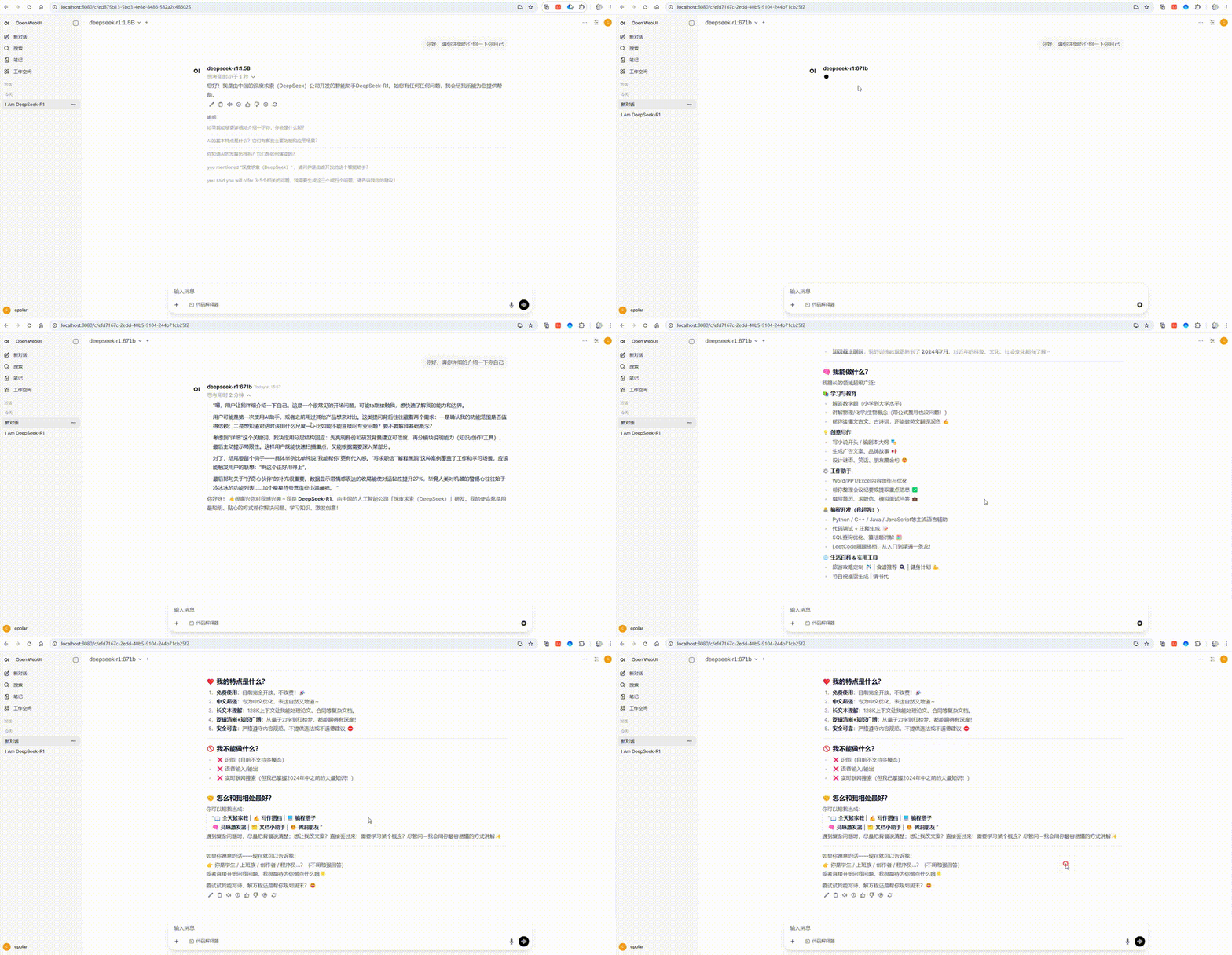 AI Visual Insight: This animation shows the frontend performing inference and returning answers after connecting to a large Ollama service on the LAN. It proves that OpenWebUI can act as a unified entry point for remote inference nodes, not just for local calls.
OpenAI-compatible APIs let ordinary devices use large models
Running a 671B model locally is unrealistic, so the tutorial provides a second path: connect Alibaba Cloud Bailian’s OpenAI-compatible API inside OpenWebUI. With this setup, the frontend experience stays the same, while the actual inference runs in the cloud.
# Alibaba Cloud Bailian endpoint compatible with OpenAI
https://dashscope.aliyuncs.com/compatible-mode/v1/
Add this endpoint to the OpenAI API connection settings in OpenWebUI to map a cloud model into your local workspace.
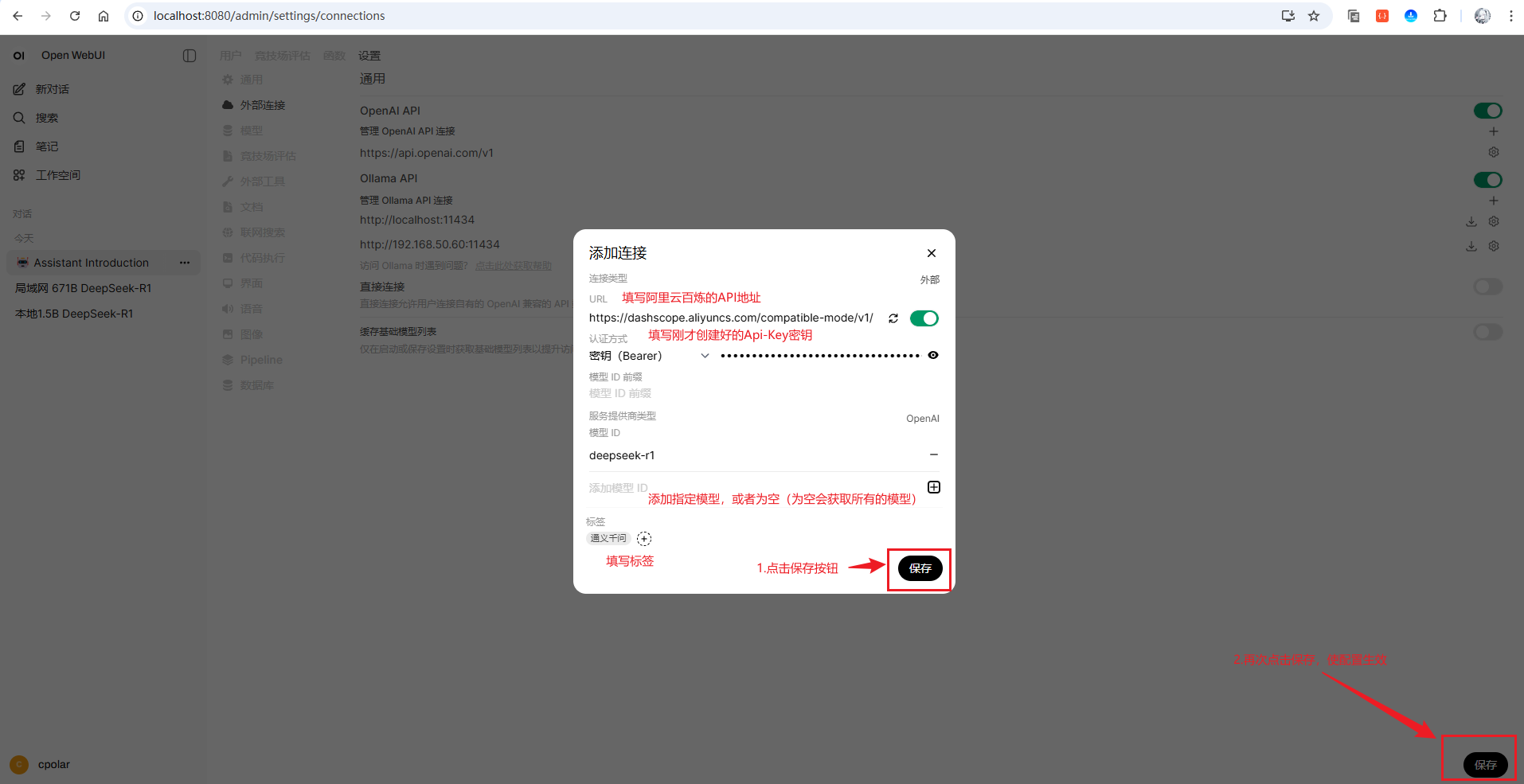 AI Visual Insight: This image shows the form used to add a new OpenAI API connection. The key fields include the Base URL, API key, and connection name, reflecting how OpenWebUI abstracts compatible endpoints.
A unified frontend with interchangeable backends is OpenWebUI’s real advantage
Whether you connect a local Ollama instance or Alibaba Cloud Bailian, OpenWebUI treats both as switchable models in the same interface. That lets developers focus on the task itself rather than constantly switching tools.
cpolar extends the local workspace into a remote access point
If you only access OpenWebUI on a LAN, your workspace still depends on device location. The tutorial uses cpolar to map local port 8080 to a public URL, enabling remote access. This is a common lightweight solution for individual developers.
# Verify the cpolar installation
cpolar version

# Access the local admin dashboard
# http://127.0.0.1:9200
These commands confirm that cpolar is available and let you open its web admin panel to create a tunnel.
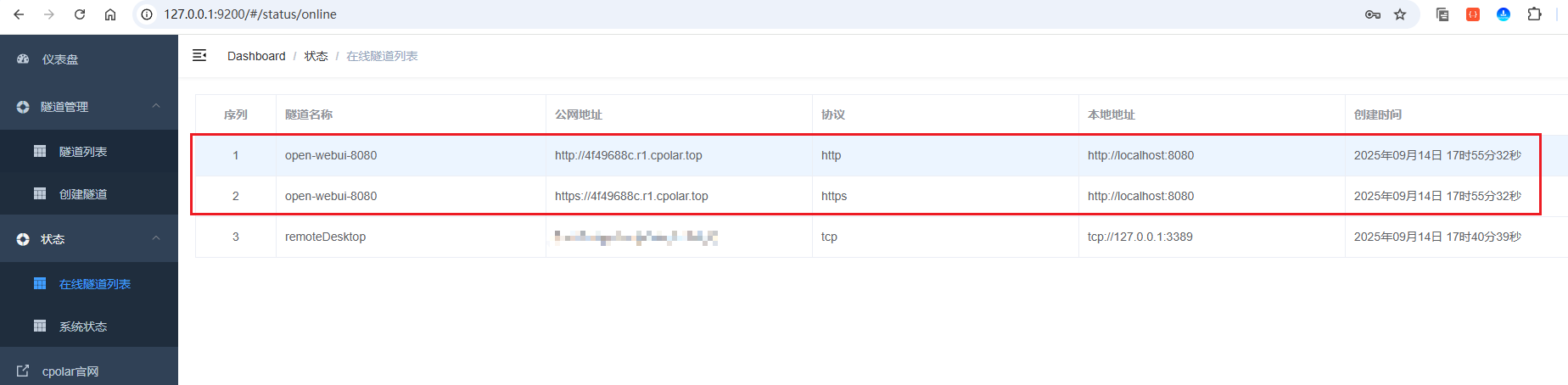 AI Visual Insight: This image shows both HTTP and HTTPS public endpoints generated in the online tunnel list, indicating that cpolar has wrapped the local web service on port 8080 into a secure tunnel that external users can reach.
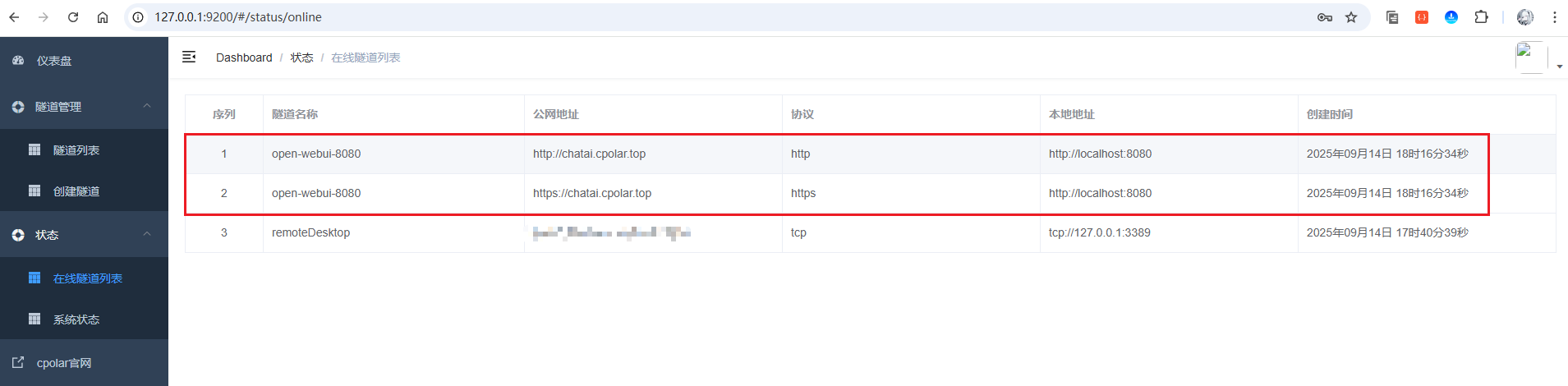 AI Visual Insight: This image shows the public URL after a fixed subdomain takes effect, reflecting the ability to move from temporary tunnels to a stable domain. That makes the setup more suitable for team sharing and long-term use.
The developer experience improves far beyond the command line
The conclusion is straightforward: OpenWebUI does not replace Ollama’s inference capability, but it significantly improves model usage efficiency. It upgrades the experience from simply being able to run a model to being able to use models continuously, frequently, and with low friction.
For individual developers, it becomes a local AI workspace. For teams, it becomes an extensible model access layer. If you already use Ollama, OpenWebUI is almost certainly the missing piece worth adding.
FAQ answers the most common deployment questions
Which users benefit most from OpenWebUI?
It is ideal for developers who already use Ollama and want to move away from frequent command-line operations. It is also well suited for individuals and small teams that want one place to manage both local models and cloud APIs.
Why is Python 3.11 emphasized so strongly?
Because the original deployment flow was validated on that version. Older or different versions may trigger dependency conflicts and runtime errors, which reduces the success rate of installation.
How should you choose between local models and API-based models?
For lightweight tasks, prioritize small local models because they respond quickly and keep data private. For complex reasoning or limited local compute, prefer an OpenAI-compatible API so you can gain stronger capabilities without changing the interface.
Core summary: This article reconstructs the OpenWebUI deployment and integration workflow, focusing on the experience upgrade from command-line local LLM usage to a visual workspace. It covers Python 3.11 installation, OpenWebUI startup, Ollama local model integration, DeepSeek R1 API configuration, and remote access through cpolar. It is a strong fit for developers who need a unified way to manage both local and cloud models.