Safari’s core value on Mac lies in lower memory usage, better battery life, stronger privacy protections, and seamless sync with iPhone and iPad. This guide focuses on the migration path from Chrome to Safari, key settings, and compatibility boundaries so developers can restructure their browser stack at the lowest possible switching cost. Keywords: Safari migration, Mac browser, privacy optimization.
Technical Specifications at a Glance
| Parameter | Description |
|---|---|
| Target Platforms | macOS, iOS, iPadOS |
| Migration Path | Google Chrome → Safari |
| Core Technologies | iCloud Sync, WebKit, Chromium fallback |
| Key Metrics | Memory usage, battery life, privacy, extension ecosystem, compatibility |
| Document Type | Migration guide / usage strategy / developer recommendations |
| Core Dependencies | Built-in Safari importer, Apple ID, Mac App Store extensions |
| Original Tags | macOS, Chrome, Safari |
| What You Gain | Data migration, default browser switching, and feature alignment |
The primary reason to switch to Safari on Mac is system-level efficiency
For Mac users, a browser is not an isolated app. It is a long-term consumer of system resources. Chrome’s strengths are its rich extension ecosystem and broad compatibility, but those benefits often come at the cost of higher memory usage and greater battery drain. Safari, by contrast, benefits from Apple’s in-house optimization and is more likely to deliver consistent gains under Apple Silicon and the macOS scheduling model.
 AI Visual Insight: The image frames the migration choice between Chrome and Safari. The key takeaway is not the UI detail, but the difference in resource usage, experience design, and ecosystem positioning between a high-consumption general-purpose browser and a system-native browser.
Developers usually notice four changes first: lower memory usage, longer battery life, less tracking, and stronger ecosystem integration. If your workflow centers on documentation, admin dashboards, knowledge retrieval, and cross-device continuity, Safari is often closer to the default best-fit option than Chrome.
You can validate the migration decision with a minimal evaluation model first
# Open Activity Monitor and compare resource usage across browsers
# Focus on memory, energy impact, and CPU wakeups
open -a "Activity Monitor"
This step helps you quantify your motivation for switching instead of relying on subjective impressions.
Safari’s built-in import tools make core browsing data migration low-cost
Safari includes a built-in browser import tool that can directly take over Chrome bookmarks, history, and passwords. For general users, this means migration is not a rebuild but a relocation. For developers, it means you can preserve your existing knowledge assets and login context.
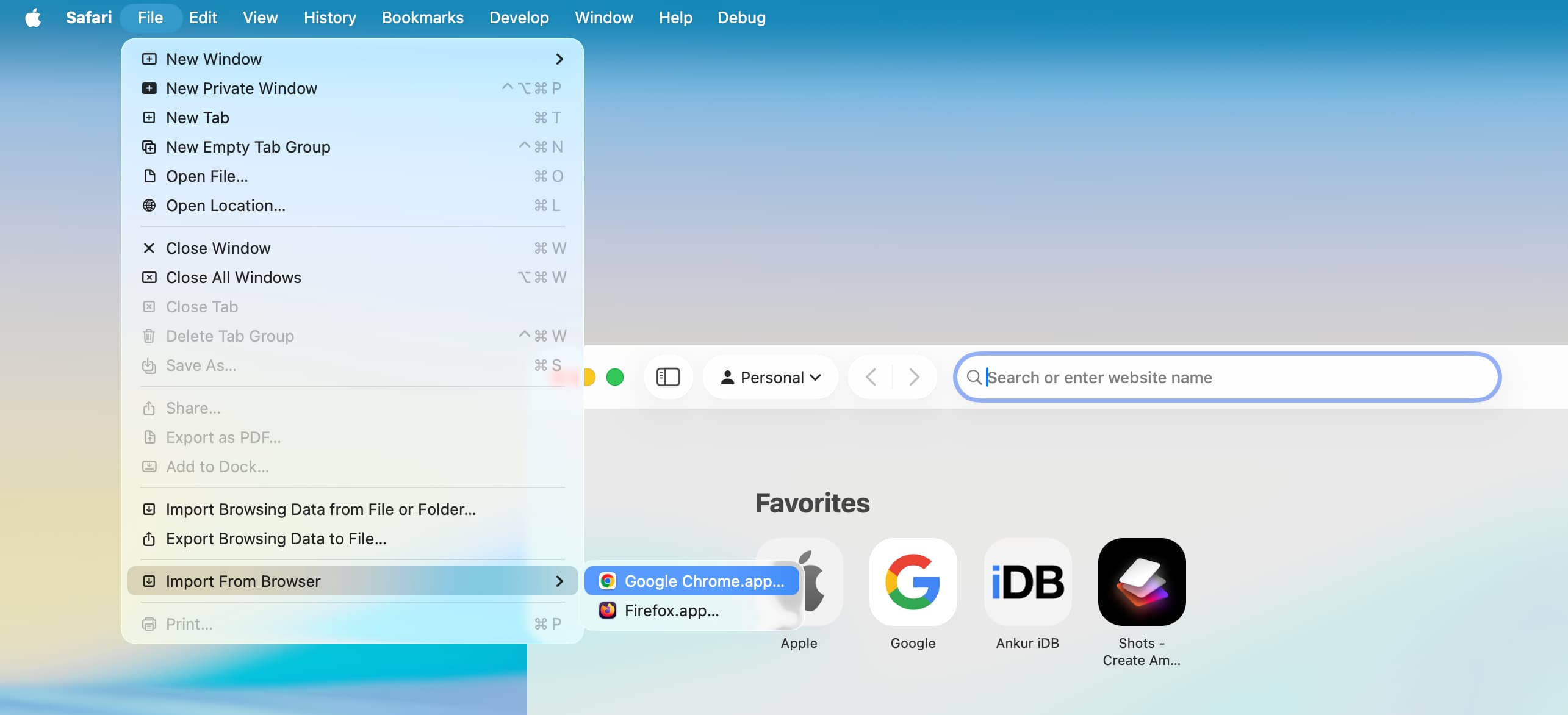 AI Visual Insight: The image shows the import entry within Safari’s menu hierarchy, indicating that migration is designed as a native system flow rather than a third-party script or external plugin. This reduces both operational complexity and the risk of data loss.
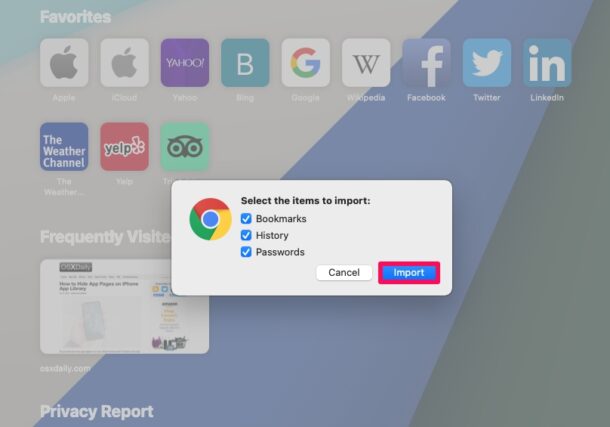 AI Visual Insight: The image shows the import panel’s checkbox-based data selection model, typically including bookmarks, history, and passwords. It reflects Safari’s data-type-oriented migration approach, making it easier to retain or clean browsing assets selectively.
The recommended migration order is import first, clean up later
File -> Import From -> Google Chrome
File -> Import From -> File or Folder
This workflow prioritizes recoverability first, then gradually moves into account and bookmark cleanup with the lowest risk.
Re-signing into accounts and filling extension gaps determines post-migration usability
After the import is complete, the biggest factor in continuity is not browsing history, but account state and extension coverage. Prioritize signing back into high-frequency services such as Gmail, YouTube, GitHub, Amazon, and Steam, then verify password strength and two-factor authentication settings.
Safari’s extension ecosystem is smaller than Chrome’s, but it usually covers mainstream needs such as password management, ad blocking, grammar checking, and a limited set of developer utilities. The real difference is not whether an extension category exists, but whether long-tail scenarios are fully covered.
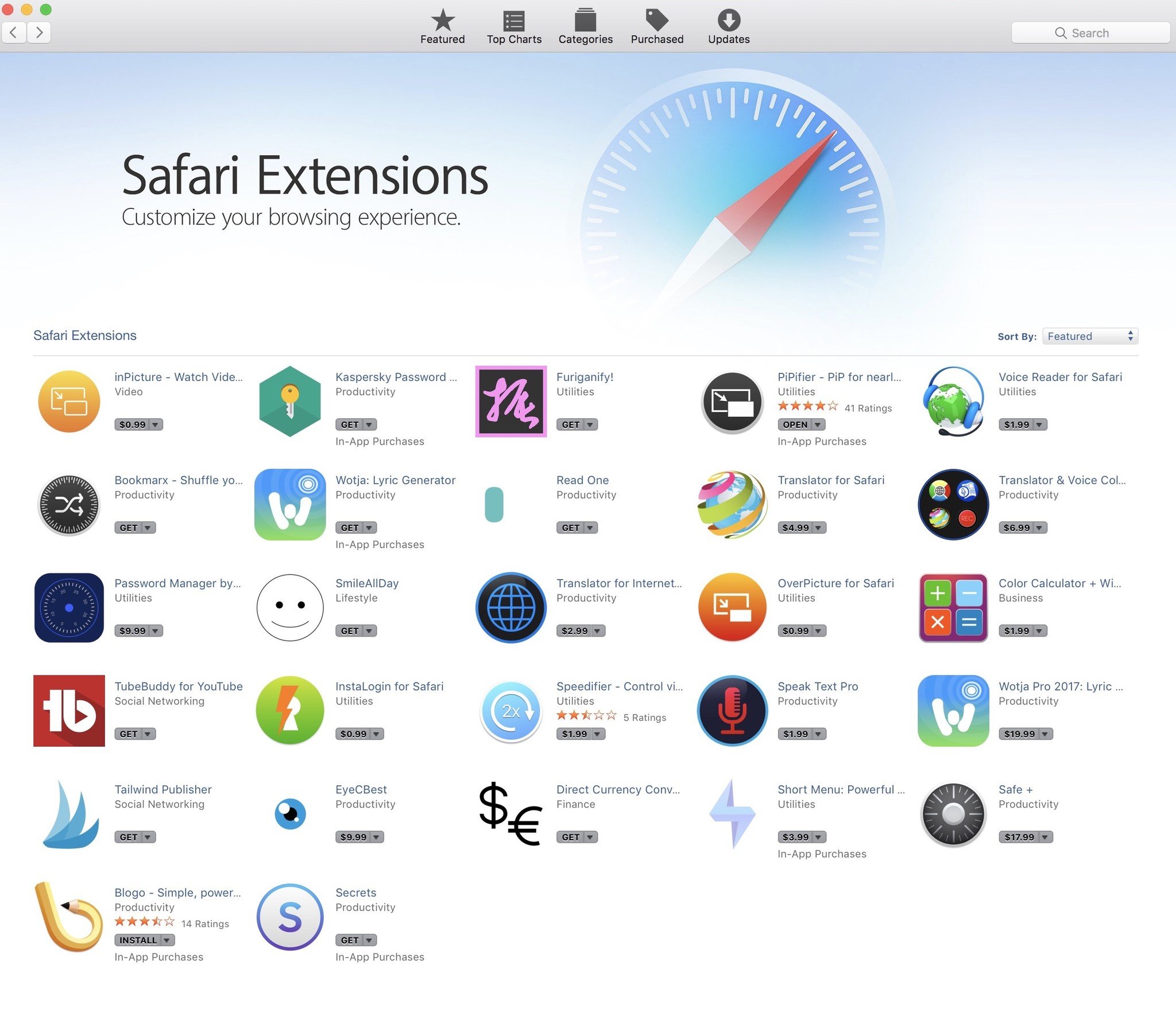 AI Visual Insight: The image shows Safari’s extension discovery entry point and App Store-based distribution model. This indicates that Safari extensions depend on Mac App Store review and distribution pipelines. The ecosystem is smaller, but often more secure and controllable than an open plugin marketplace.
Build an extension replacement list before committing
- Accounts and passwords: 1Password / iCloud Keychain
- Ad blocking: AdBlock-style extensions
- Writing assistance: Grammarly
- Developer debugging: Keep Chrome as a supplement
This lets you quickly determine whether Safari is suitable as your primary browser.
You only unlock Safari’s ecosystem value after setting it as the default browser
The default browser setting affects more than how links open. It directly shapes consistency across system-level workflows. On macOS, switch back to Safari through System Settings -> Desktop & Dock -> Default web browser. On iPhone or iPad, you should also change the default browser so behavior remains consistent across devices.
The real gain comes from iCloud Sync. Once bookmarks, tabs, Reading List items, and browsing state are shared across Mac, iPhone, and iPad, Safari stops being just a browser and becomes a unified access layer across the Apple ecosystem.
iCloud Sync should be your first post-migration priority
# This illustrates the workflow only; it is not an executable command
# 1. Make sure all devices are signed in with the same Apple ID
# 2. Enable Safari in iCloud settings
# 3. Turn on modules such as iCloud Tabs on Safari’s start page
Once configured, cross-device reading handoff, tab continuation, and bookmark sync can noticeably improve daily efficiency.
Safari’s built-in features cover most everyday use and light development scenarios
Safari’s core feature set does not aim for complexity. It aims for low friction. Common capabilities include Private Browsing windows, full URL display in the status bar, toolbar customization, Reading List, multiple profiles, and the Develop menu.
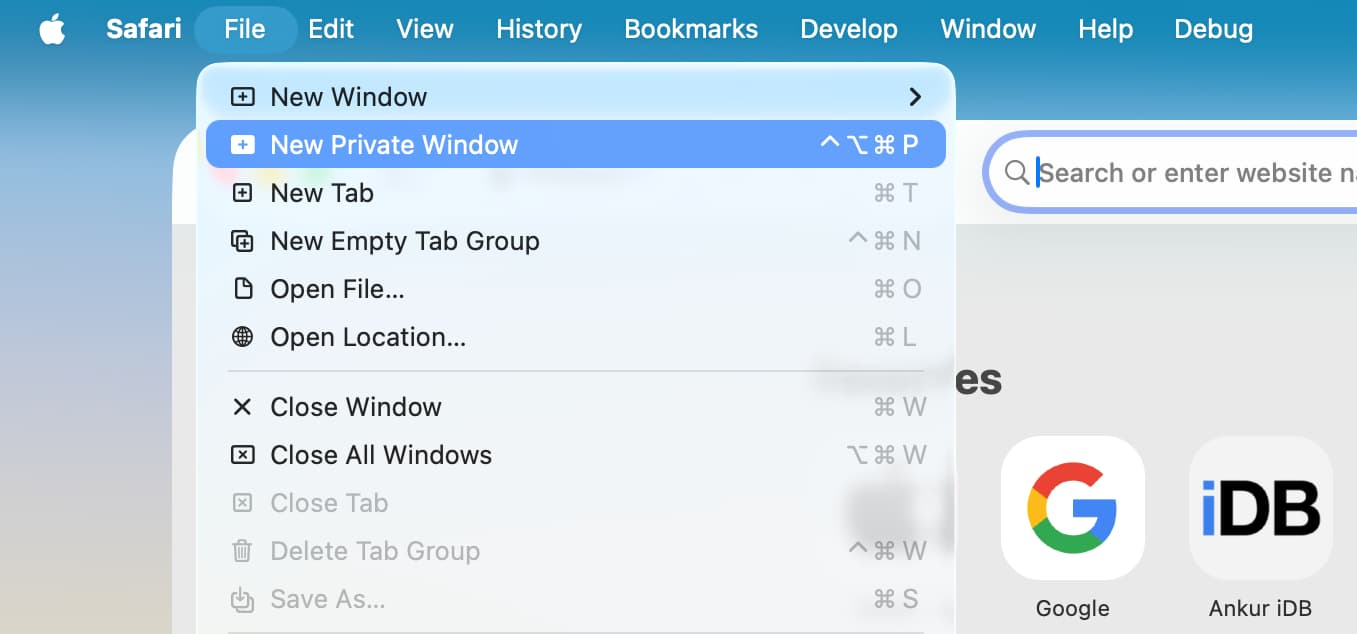 AI Visual Insight: The image shows the entry point for Safari’s Private Browsing window, indicating that the privacy mode is triggered through an explicit menu action and is well suited for temporary logins, cookie isolation, and sensitive searches.
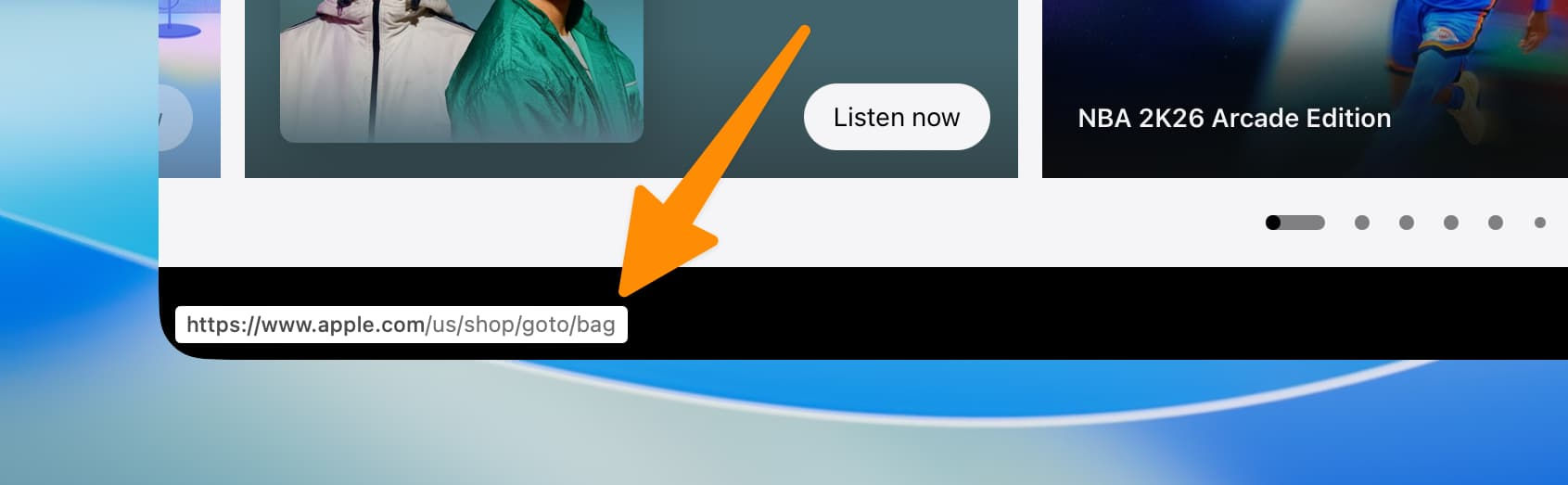 AI Visual Insight: The image highlights status bar-related settings, especially the ability to view the full URL when hovering over a link. This is critical for identifying redirect chains, phishing links, and suspicious domains.
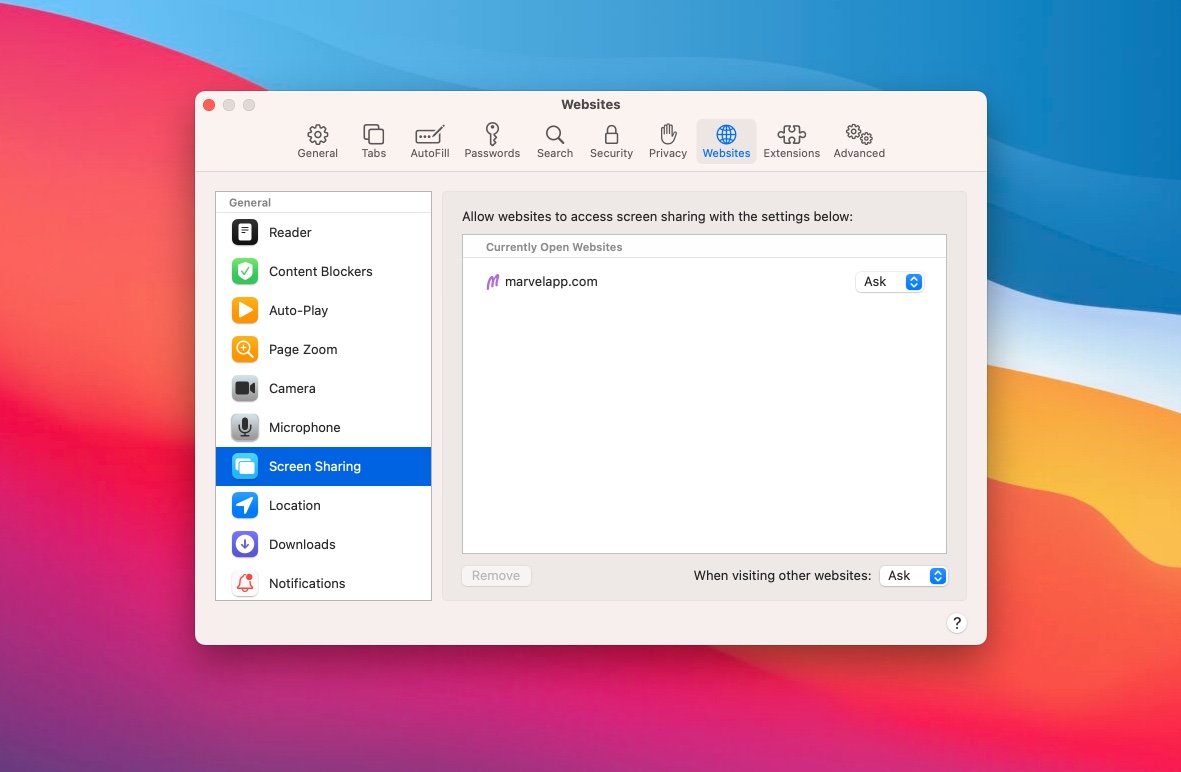 AI Visual Insight: The image shows Safari’s settings or toolbar customization interface, reflecting a simplified information architecture with concentrated access to common features and a relatively low learning curve.
Developers should enable the Develop menu first
Safari -> Settings -> Advanced -> Show features for web developersOnce enabled, you can quickly clear caches, switch the User Agent, and debug pages, which is highly practical for frontend troubleshooting.
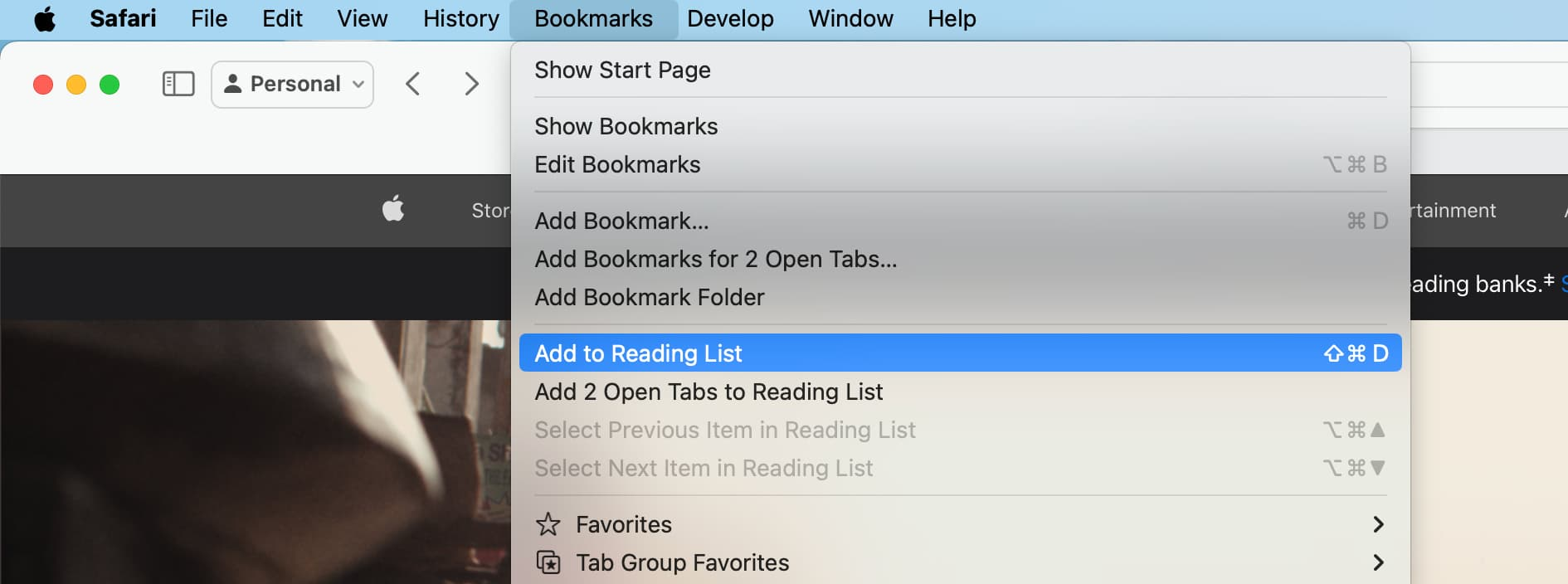 AI Visual Insight: The image shows the entry point for adding a page to the Reading List, which is useful for offline reading and deferred content processing. It demonstrates Safari’s native optimization for content consumption workflows.
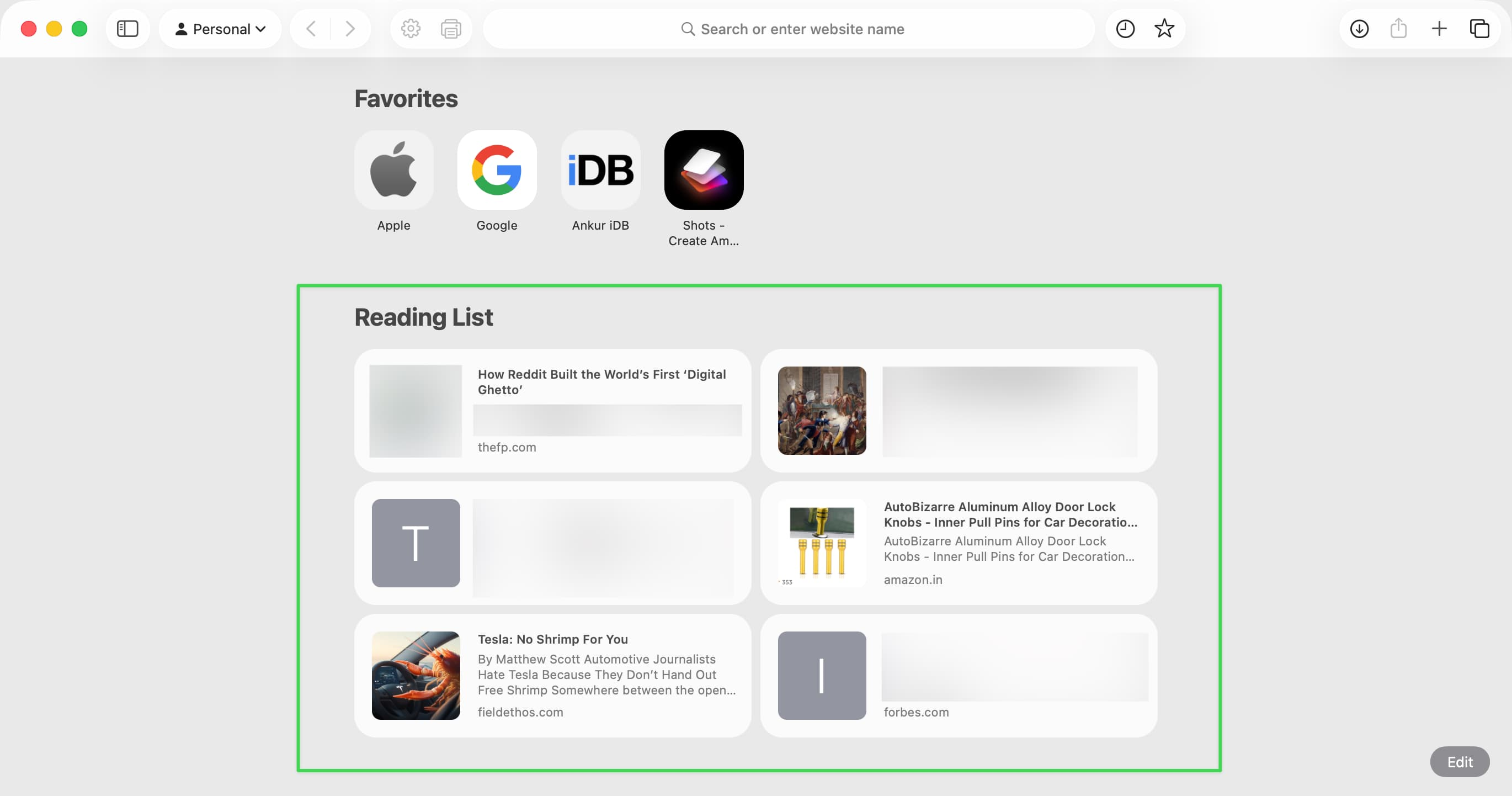 AI Visual Insight: The image shows the aggregated Reading List view on Safari’s home page, reflecting that the feature is more than one-off bookmarking. It provides a unified revisit mechanism for delayed consumption.
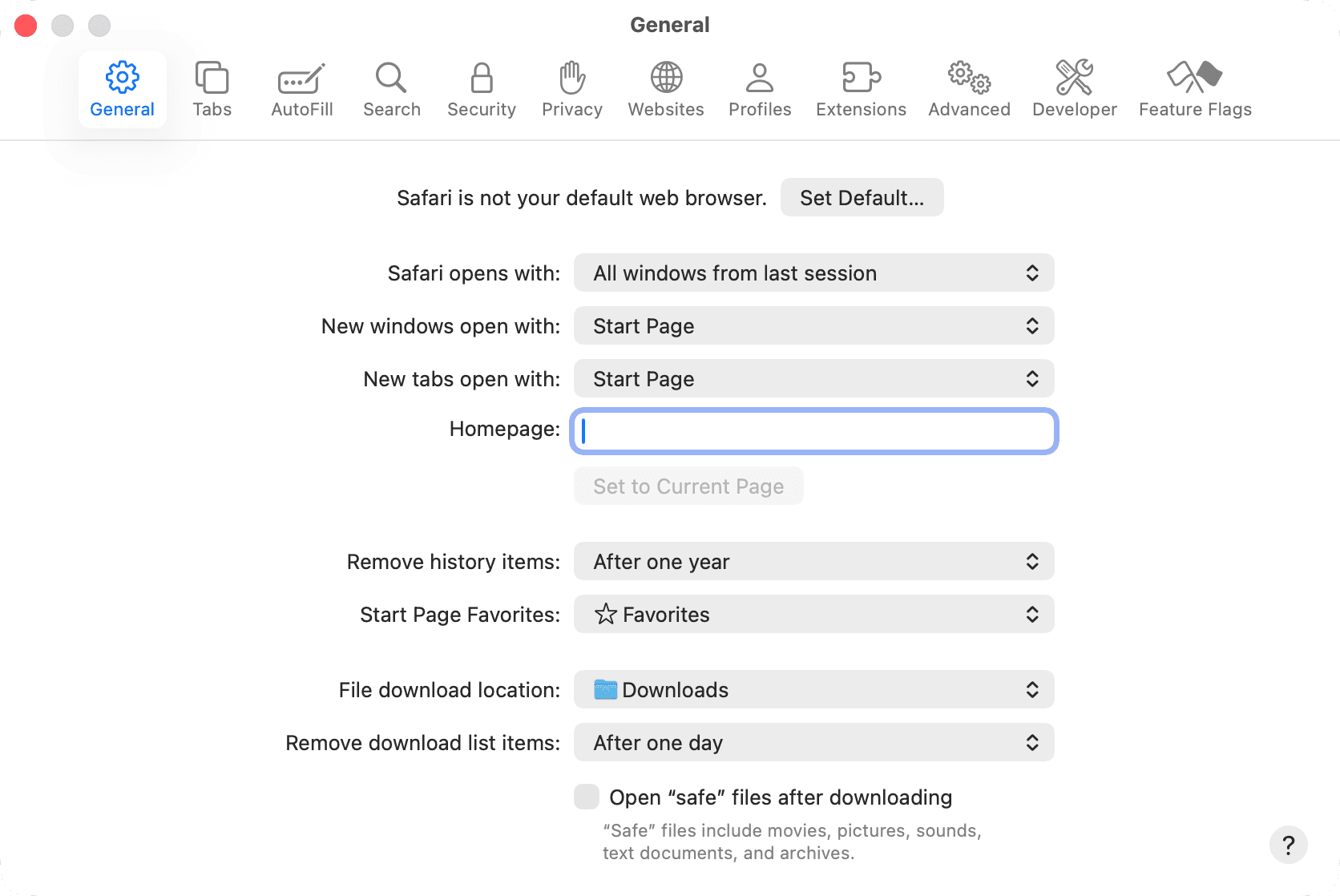 AI Visual Insight: The image shows Safari’s general settings panel, indicating that browser behavior, search, tabs, security, and related configurations are centralized in a single location for deeper personalization.
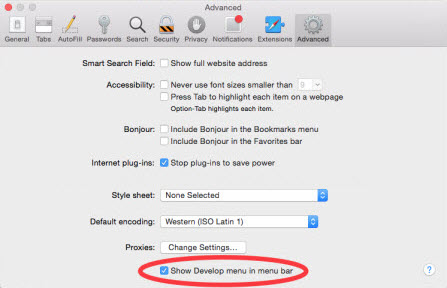 AI Visual Insight: The image shows Safari’s advanced settings interface. The key technical point is access to the Develop menu and lower-level debugging capabilities that support frontend testing, compatibility validation, and cache control.
Keeping a Chromium browser as a compatibility fallback remains the practical strategy
Safari works well as a primary browser, but it should not be idealized. Some banking, government, campus, or legacy video sites may still provide insufficient WebKit support. For developers, this is not a Safari flaw so much as a long-term consequence of fragmented web compatibility.
That is why the safest strategy is not full replacement, but Safari first, Chrome or Brave as backup. Let Safari handle high-frequency daily work, while a Chromium browser covers edge-case compatibility and deeper DevTools workflows. This two-browser model usually delivers the best cost-benefit ratio.
A practical browser role split looks like this
daily_default: Safari   # Daily browsing, reading, cross-device sync
privacy_first: Safari   # Private access and tracking prevention
compat_fallback: Chrome # Banking, government, and legacy system compatibility
frontend_debug: Chrome  # Scenarios that require more complete DevTools
This prevents workflow interruptions caused by relying on a single-browser strategy.
Choosing a browser is fundamentally choosing a resource model and an ecosystem model
Chrome is closer to a feature-dense platform. It fits users with heavy extension dependencies and high compatibility demands. Safari is closer to a system-native component. It fits users who prioritize battery life, privacy, and multi-device continuity. The two are not absolute substitutes, but optimal choices under different workloads.
If you already rely heavily on Mac, iPhone, and iPad, and your daily work does not depend on many long-tail extensions, Safari is well worth making your primary browser. If you still need to handle complex site compatibility, automation testing, or heavy frontend debugging, keep Chrome as your engineering fallback.
FAQ
Is Safari really more memory-efficient and battery-efficient than Chrome?
Usually, yes. Especially on Apple Silicon devices, Safari benefits from system-level optimization and often delivers lower memory usage and better battery life under the same number of tabs. Actual results still depend on page types and the number of installed extensions.
Will I lose bookmarks or passwords when moving from Chrome to Safari?
Normally, no. Safari supports direct import of Chrome bookmarks, history, and passwords. The safer approach is to import first, then clean up old data, and confirm that key websites still allow normal sign-in.
Should developers abandon Chrome completely?
No. Safari is well suited as a daily primary browser, but Chrome still has advantages in website compatibility, depth of developer tools, and support for some enterprise systems. The best practice is usually Safari as primary and Chrome as backup.
Core summary: This guide reconstructs the migration path for Mac users moving from Chrome to Safari, covering performance differences, privacy gains, data import, extension replacements, iCloud Sync, and compatibility boundaries, while providing a mixed-browser strategy suitable for developers.