This article focuses on a production-ready Unity hot update workflow built with YooAsset and UOS CDN. It addresses the limitations of local asset servers in real release environments, improves version publishing discipline, and completes the end-to-end hot update validation path. Core keywords: Unity hot update, YooAsset, UOS CDN.
| Technical Specification | Details |
|---|---|
| Programming Language | C# |
| Engine/Framework | Unity + YooAsset |
| Transport Protocol | HTTP/HTTPS |
| Deployment Model | UOS CDN cloud asset distribution |
| Star Count | Not provided in the source |
| Core Dependencies | Unity, YooAsset, UOS Console |
This solution upgrades a local demo-style hot update workflow into a cloud-based asset delivery pipeline ready for release
YooAsset handles asset manifests, version management, and download logic, while UOS provides CDN storage and distribution capabilities. Together, they allow the client to stop depending on a local test server and instead fetch assets and version metadata directly from the cloud.
This combination works especially well for Unity projects that iterate continuously, particularly mini-games, mobile titles, and split-package delivery scenarios. It solves three core pain points: fixed asset update paths, controllable release versions, and hot update testing that closely matches a real production environment.
 AI Visual Insight: This image serves as the article cover and highlights the combined deployment of YooAsset and UOS CDN in a Unity project. It emphasizes a complete cloud-based asset hot update workflow rather than simple local debugging.
A minimal production hot update loop consists of four steps
First, create a project and a Bucket in UOS so you have a real, externally accessible asset storage space. Second, replace the YooAsset request URL in your local Unity project and adjust the version request strategy. Third, upload the built CDN assets. Fourth, create a release version and validate it on the client.
// Example CDN root URL configuration
string cdnHost = "https://uos-cdn.unity.cn/{bucketId}/DefaultPackage/"; // Replace with the real BucketId
string packageName = "DefaultPackage"; // Asset package name
string requestURL = $"{cdnHost}{packageName}/"; // Build the final asset access prefix
This code configures the cloud asset root path used by YooAsset.
Creating a project in UOS is the prerequisite for cloud-based hot updates
After entering the UOS console, create a project and enable the service first. The original article uses the CDN free trial plan, which is suitable for learning and small-scale validation and usually includes a limited traffic quota.
Next, create a Bucket. A Bucket is essentially an asset container. Your manifest files, Bundle files, and version files will all be uploaded there. The Bucket ID is also the key parameter that you must replace in your local configuration.
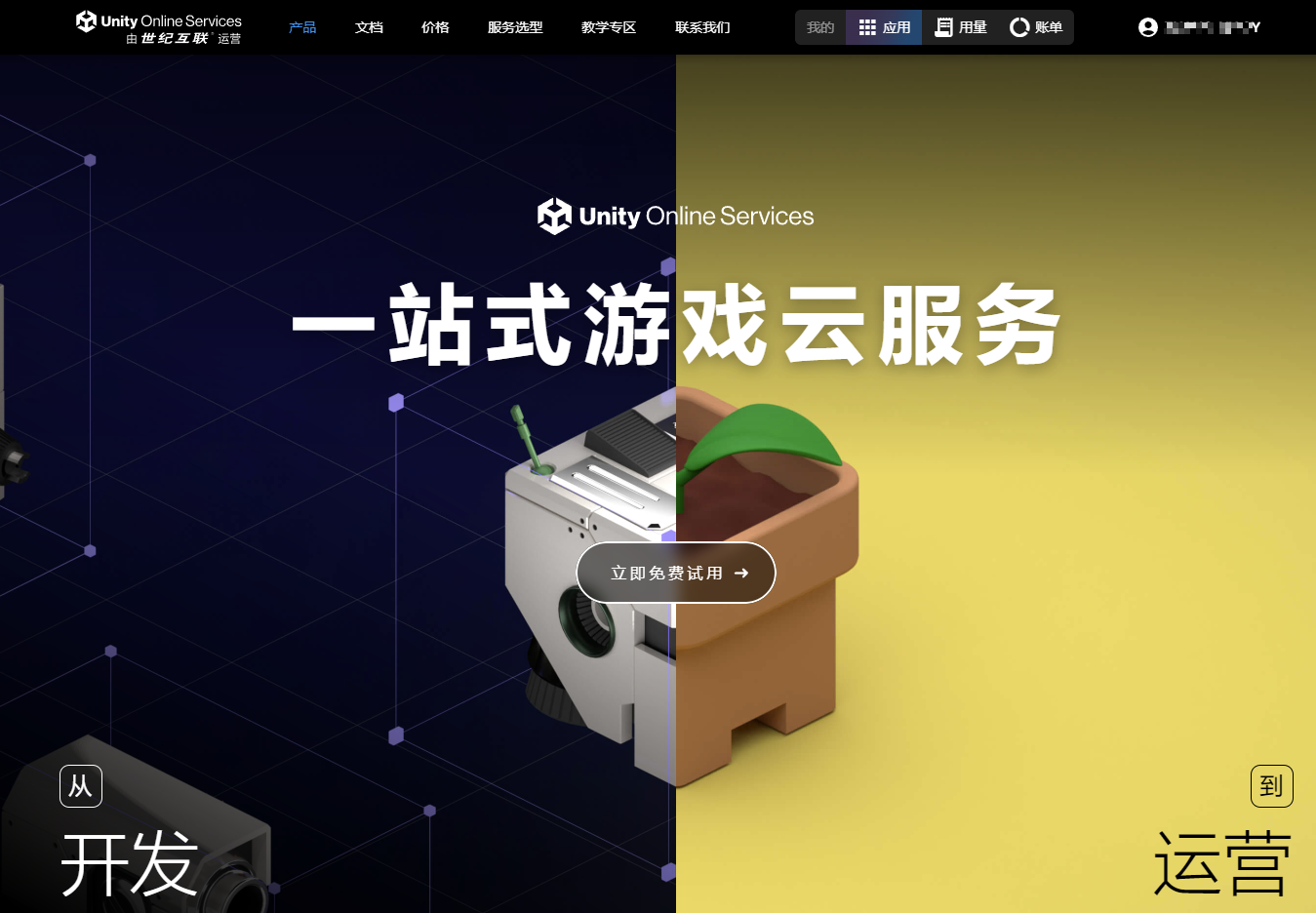 AI Visual Insight: This image shows the entry point for enabling a project in the UOS console. It makes it clear that the deployment workflow starts on the cloud service side rather than inside the Unity Editor, emphasizing account, project, and service initialization.
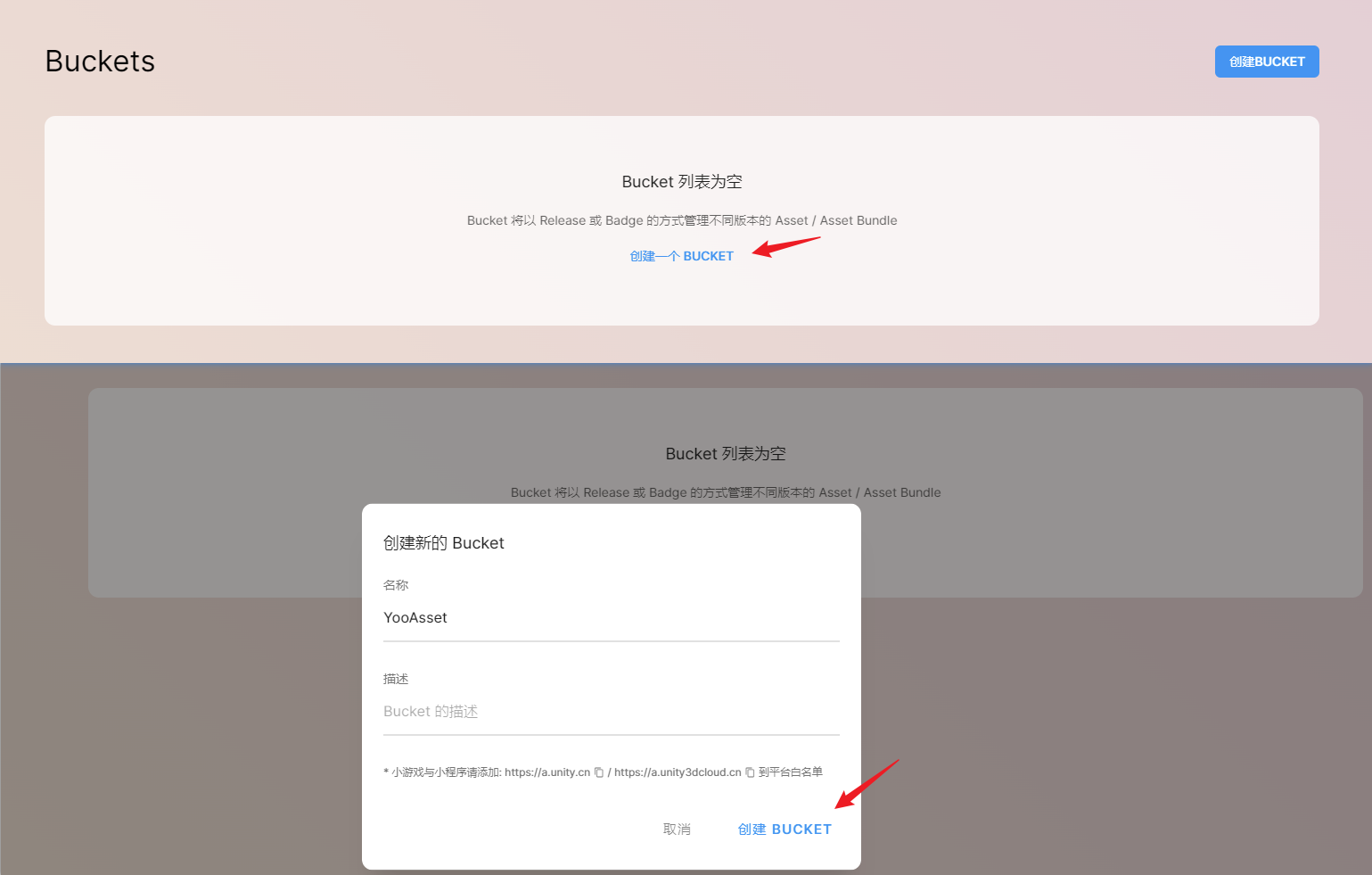 AI Visual Insight: This image shows where to create a Bucket, reflecting that CDN assets are organized in an object-storage style model. For hot updates, the Bucket is the unified container for version files, asset bundles, and manifests.
Map the official sample URL to your own Bucket
The original article recommends first referencing the YooAsset sample from the UOS documentation, copying the request URL into your project, and then replacing {bucketId} with your actual value. In essence, this step switches the testing template into your real project environment.
If the URL replacement is wrong, the client will usually fail when requesting the version number, manifest, or asset bundles. For that reason, you should verify early that the URL is directly accessible.
public string GetHostServerURL()
{
    string bucketId = "your-bucket-id"; // Fill in the real BucketId from the UOS console
    return $"https://uos-cdn.unity.cn/{bucketId}/"; // Return the CDN root URL
}
This code centralizes the hot update resource server URL, making environment switching easier.
Disabling the timestamp at the end of the URL is a key compatibility requirement for UOS CDN
The original article specifically emphasizes that you need to modify the UpdatePackageVersion() method in FsmRequestPackageVersion.cs and disable the automatic behavior that appends a timestamp to the end of the URL. The reason is that under certain CDN path rules or caching strategies, extra query parameters may cause version requests to behave unexpectedly.
From an engineering perspective, this is not a universal rule, but it is a critical compatibility setting for this UOS integration. If you do not handle it, common symptoms include changed version file request URLs, abnormal cache behavior, or even a complete interruption of the update flow.
public void UpdatePackageVersion()
{
    bool appendTimeTicks = false; // Disable the timestamp at the end of the URL to avoid conflicts with the current CDN strategy
    string url = versionFileURL;
    if (appendTimeTicks)
    {
        url = $"{versionFileURL}?t={System.DateTime.Now.Ticks}"; // Enable this if you need to bypass cache
    }
    StartRequest(url); // Start the version file request
}
This code shows how to explicitly disable the timestamp appended to version requests.
You only enter the formal release stage after uploading CDN assets and creating a release version
After building the CDN folder locally with YooAsset, upload it to UOS as a whole. Once the upload finishes, verify the file structure, asset count, and paths in the console to ensure everything is complete.
Next, create a release version in the RELEASES module. This step is very important because it elevates the process from simple static file upload to a manageable release record, making rollback, version distinction, and online content verification possible.
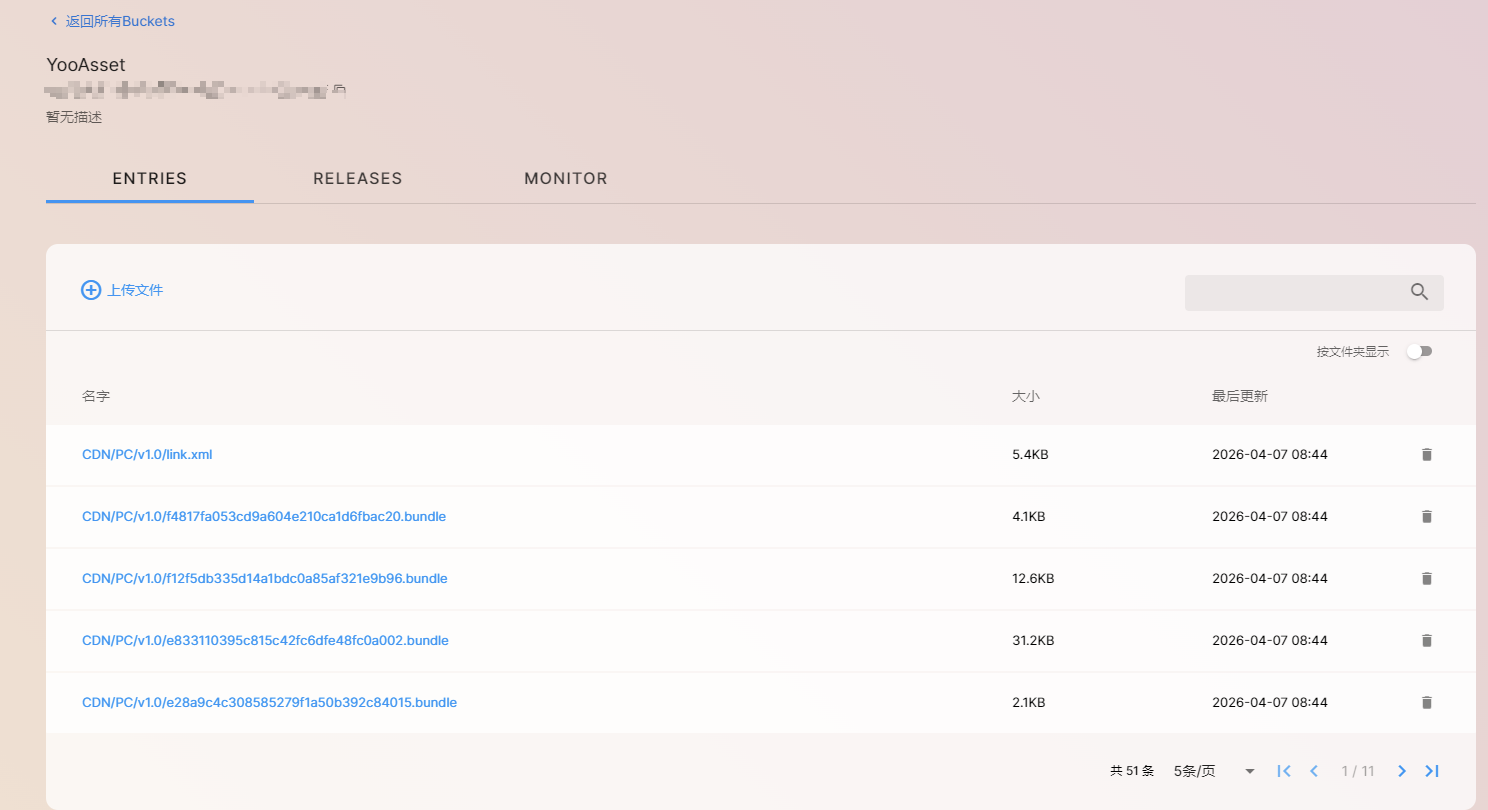 AI Visual Insight: This image shows the UOS file view after the assets are uploaded. It confirms that the bundles, manifest files, and version files have entered CDN storage, which is direct evidence that the hot update process is actionable.
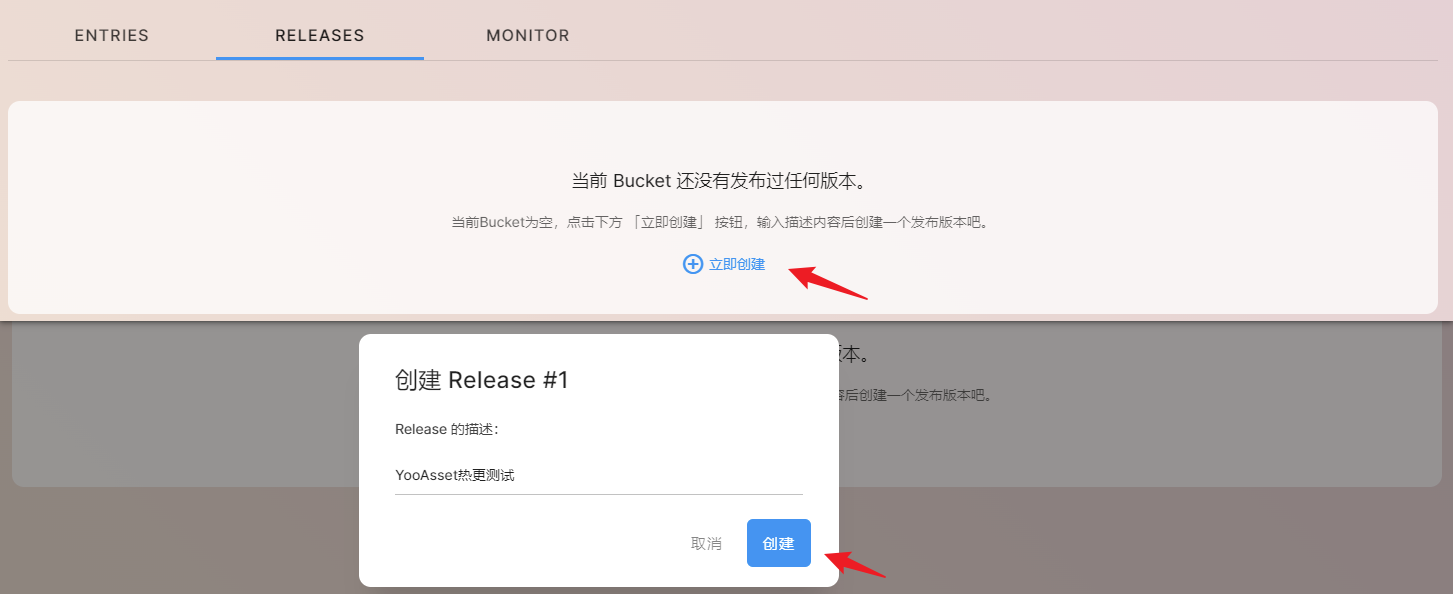 AI Visual Insight: This image shows the entry point for creating a release version. It demonstrates that UOS does more than host files—it also provides release governance, giving asset updates a versioned management model.
Client-side validation should cover both the initial pull and the second update cycle
In the first test round, build an installable package and run it directly to verify that the initial version can successfully pull assets from UOS. If the project enters the game normally, the CDN URL, version request flow, and base asset download pipeline are all working.
In the second test round, modify game content, rebuild the assets, upload them again, and run the client once more to verify that the delta or incremental update is triggered. The original article validated this by changing the visual effect in the game, proving that the online asset replacement had taken effect.
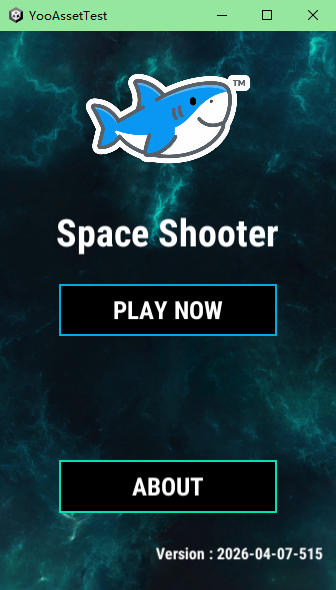 AI Visual Insight: This image shows the game screen after the first package runs successfully, indicating that the client can already locate and load assets based on the current configuration and that the basic hot update pipeline is valid.
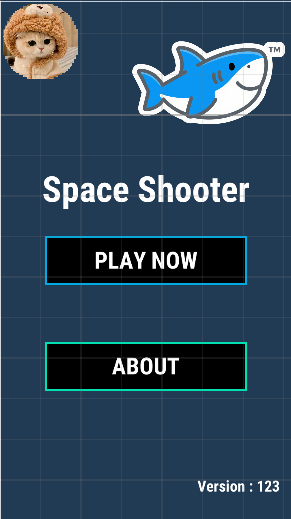 AI Visual Insight: This image shows the resource change scenario after a second modification to the game interface. It is used to verify whether the client correctly fetches the new asset version after the updated files are uploaded to the CDN.
This practice works well as a standard starter template for Unity asset hot updates
Its value is not complexity, but completeness: cloud project setup, client URL configuration, version requests, asset upload, release management, and runtime validation are all connected into one end-to-end flow. For most teams, this is the key step from a demo to a formal release environment.
As you continue to evolve this workflow, you can introduce CLI-based automated uploads, CI/CD build pipelines, gray releases, and code hot update frameworks to build a more complete production-grade update system.
FAQ
Q1: Why must I disable the timestamp at the end of the version request URL?
A: In the current UOS CDN integration example, this parameter can affect the consistency of version file requests. Disabling it keeps the behavior closer to the official sample and makes validation more stable.
Q2: Why is uploading the CDN folder not enough? Why do I also need to create a Release?
A: Uploading files only completes storage. A Release is the actual publishing action. It gives your assets version management capabilities and makes rollback, comparison, and operations easier.
Q3: How do I know the hot update workflow is truly working end to end?
A: At minimum, complete two validation rounds: the first package must run successfully, and after modifying assets and uploading again, the client must show the updated result. Only when both conditions are true can you say the workflow is complete.
[AI Readability Summary]
This article rebuilds a practical asset hot update deployment workflow around Unity, YooAsset, and UOS CDN. It covers project creation, CDN URL configuration, timestamp removal, asset upload, release version creation, and validation testing, helping developers move from a local demo setup to a formal cloud-based hot update process.