This guide explains how to enable the Gemini AI sidebar early on Windows by modifying Chrome local configuration and experimental flags, helping you bypass limited rollout and regional restrictions that can hide the feature. Core keywords: Chrome Gemini, Local State, GLIC Flags.
Technical specifications at a glance
| Parameter | Details |
|---|---|
| Platform | Windows 10 / 11 |
| Software | Google Chrome Stable |
| Feature codename | GLIC / Gemini in Chrome |
| Configuration file | Local State |
| Protocol / mechanism | Local JSON configuration, Chrome Flags |
| Regional requirement | U.S. region is more likely to trigger the feature |
| Language requirement | English (United States) |
| Third-party dependencies | No extensions and no additional software required |
| Star count | Not applicable, not an open-source project |
This method unlocks the feature by rewriting local configuration
Chrome has started integrating Gemini into the browser sidebar for page summarization, Q&A, and assisted browsing. However, this capability is usually gated by three factors: staged rollout, region, and language. As a result, many users never see the entry point.
The core idea in this guide is not to install an extension, but to directly adjust Chrome’s local state file so the browser passes the eligibility checks for Gemini in Chrome, then enable the related experiments in chrome://flags.
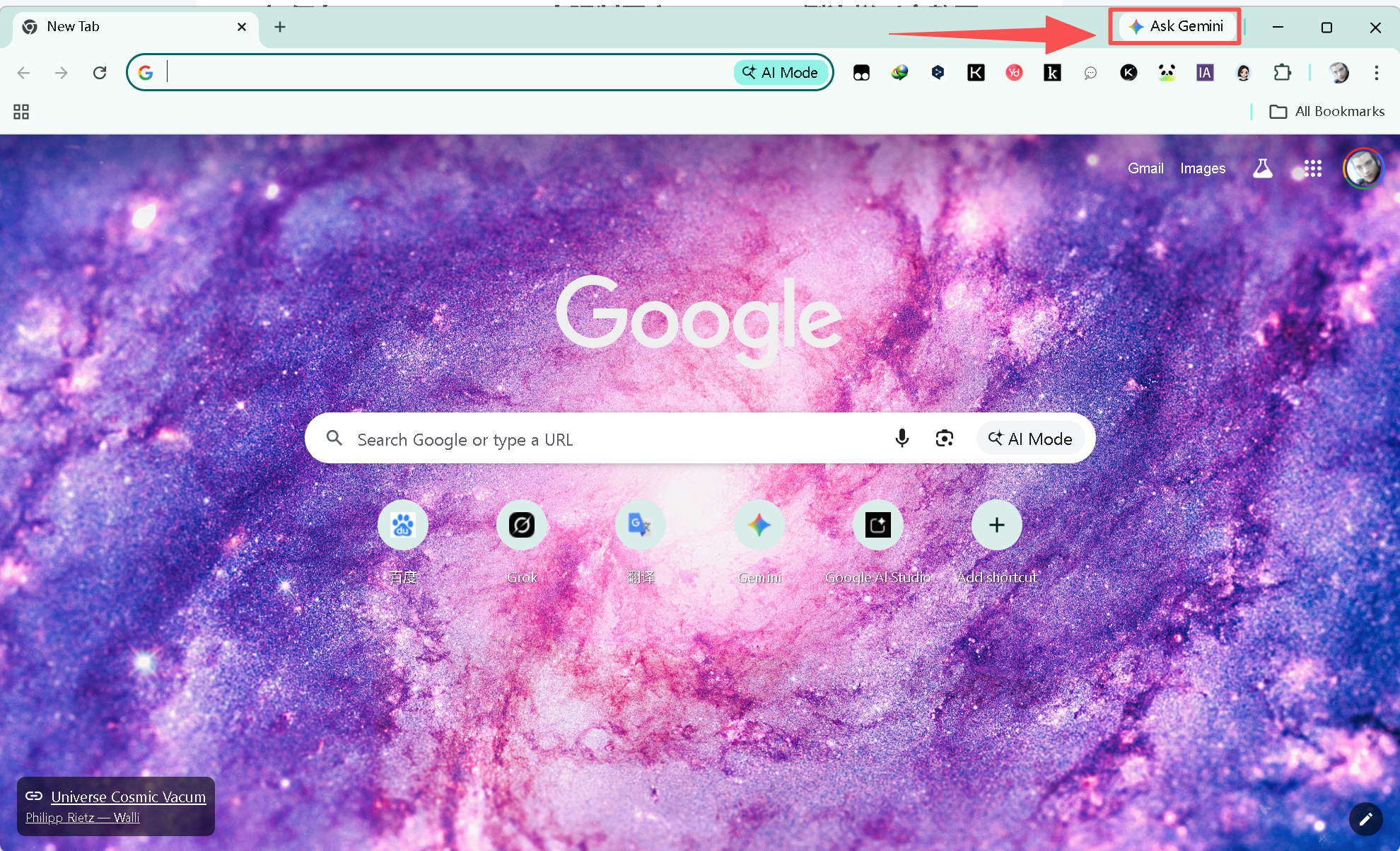 AI Visual Insight: This image shows the Gemini entry point appearing on the right side of Chrome or in the toolbar. It indicates that the browser UI has already loaded GLIC-related components, which usually means the eligibility checks, flags, and language settings are at least partially effective.
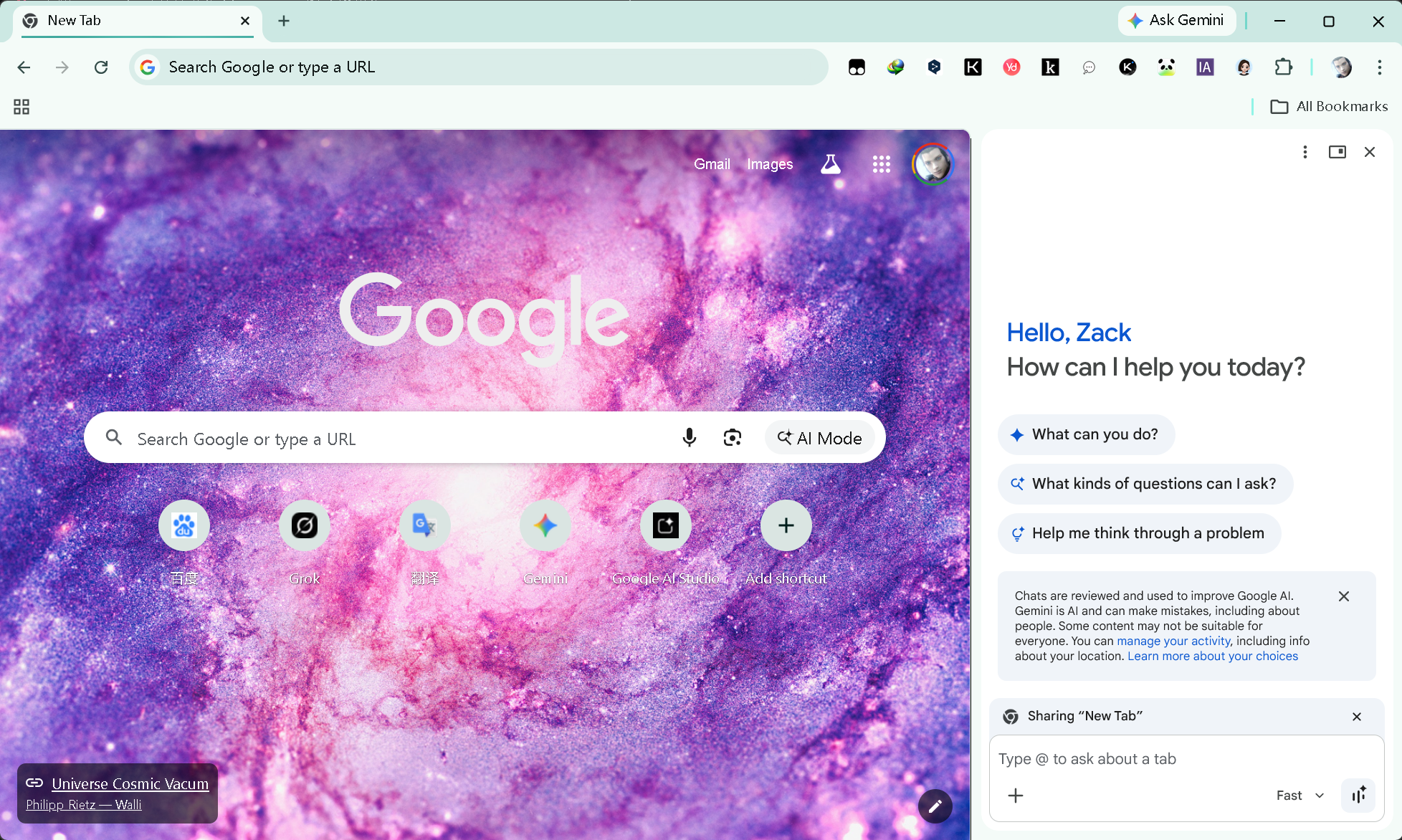 AI Visual Insight: This image shows that the sidebar can already host a conversational AI panel. Technically, it indicates that Chrome has completed sidebar container rendering, feature injection, and the user-consent interaction chain.
You must meet three prerequisites before you begin
First, keep Chrome as up to date as possible. Second, your network environment should ideally support U.S. region access. Third, always back up Local State before making changes, because it is a JSON configuration file and syntax damage can cause Chrome to behave abnormally.
# Close all Chrome processes to prevent background overwrites of the configuration
Get-Process chrome -ErrorAction SilentlyContinue | Stop-Process -Force

# Fully terminate chrome.exe so subsequent edits can be written persistently
This command ends all Chrome processes at once in Windows PowerShell.
Modifying Local State is the key step that triggers the eligibility check
The configuration file is typically located in the following directory:
C:\Users\YourUsername\AppData\Local\Google\Chrome\User DataFind the extensionless file named Local State, copy it first, and rename the copy to Local State.bak. This is the safest rollback method.
The three core fields determine region and eligibility
You need to search for and modify three parameters: is_glic_eligible, variations_country, and variations_permanent_consistency_country. In essence, they correspond to feature eligibility, regional variations, and persistent region consistency.
{
  "is_glic_eligible": true,
  "variations_country": "us",
  "variations_permanent_consistency_country": ["132.0.6834.111", "us"]
}
This example shows the most important target state. In the original file, the last field may appear twice, and you should change both instances to us.
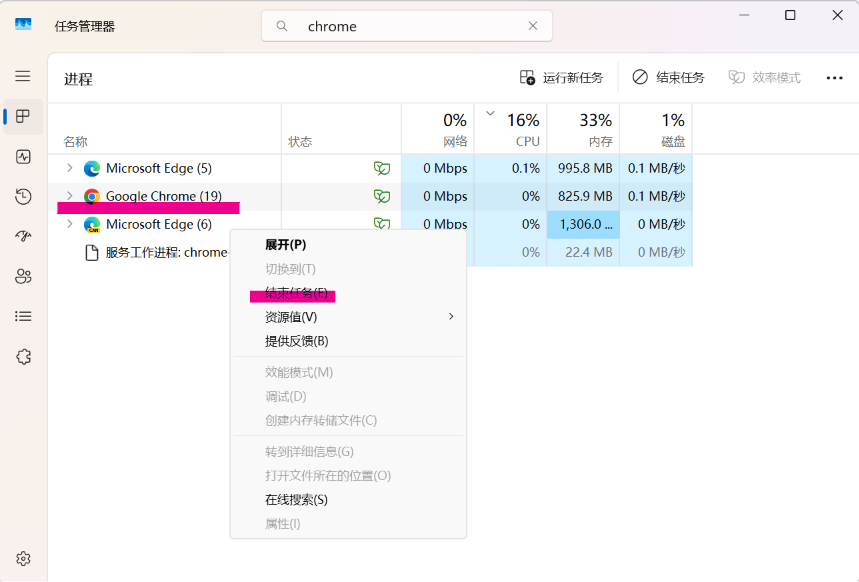 AI Visual Insight: This image shows how to filter and terminate Chrome-related processes in Task Manager. The technical purpose is to prevent the browser from holding file handles or writing the old configuration back on exit.
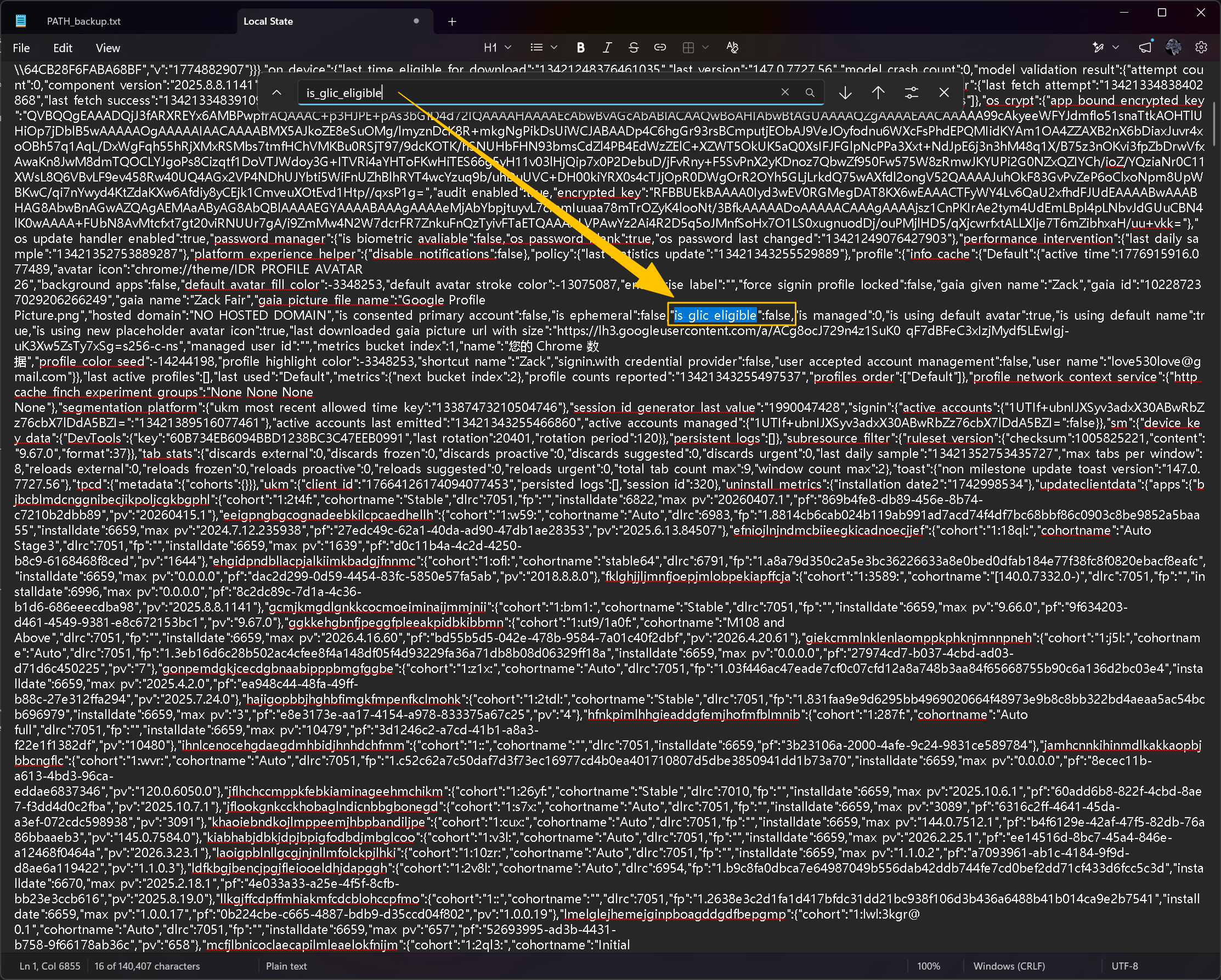 AI Visual Insight: The image highlights the original Boolean value of
 is_glic_eligible, showing that Chrome records AI feature eligibility in local state. This is not a purely server-side switch; local and remote checks jointly determine access.
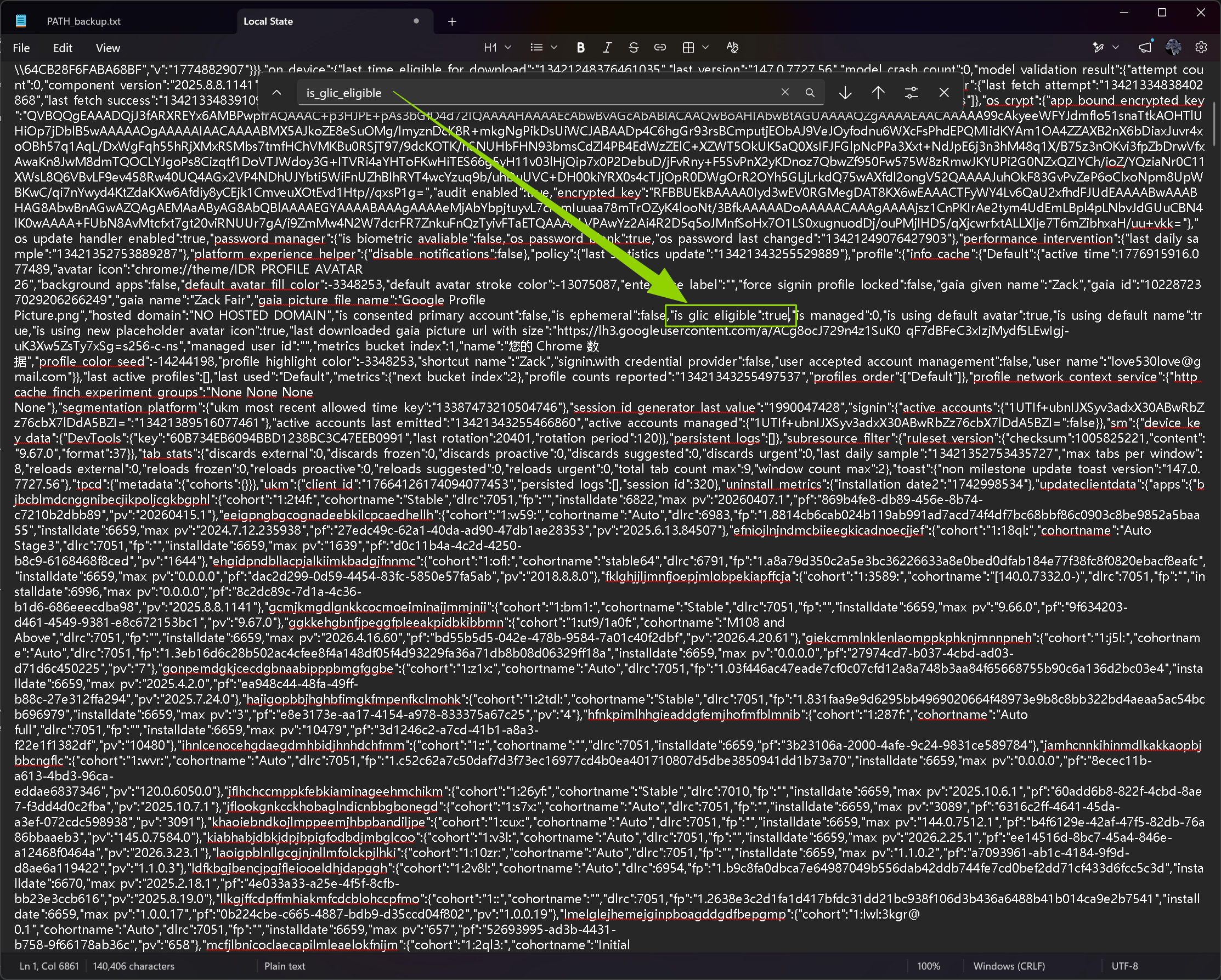 AI Visual Insight: After setting it to
 true, Chrome treats the current user as a candidate for the GLIC path on the next launch and attempts to render Gemini-related entry points.
You must update the region field and the consistency field together
Changing variations_country alone is often not enough, because Chrome also uses the persistent consistency country field to validate roaming state. If the two values do not match, the configuration may be automatically corrected after launch.
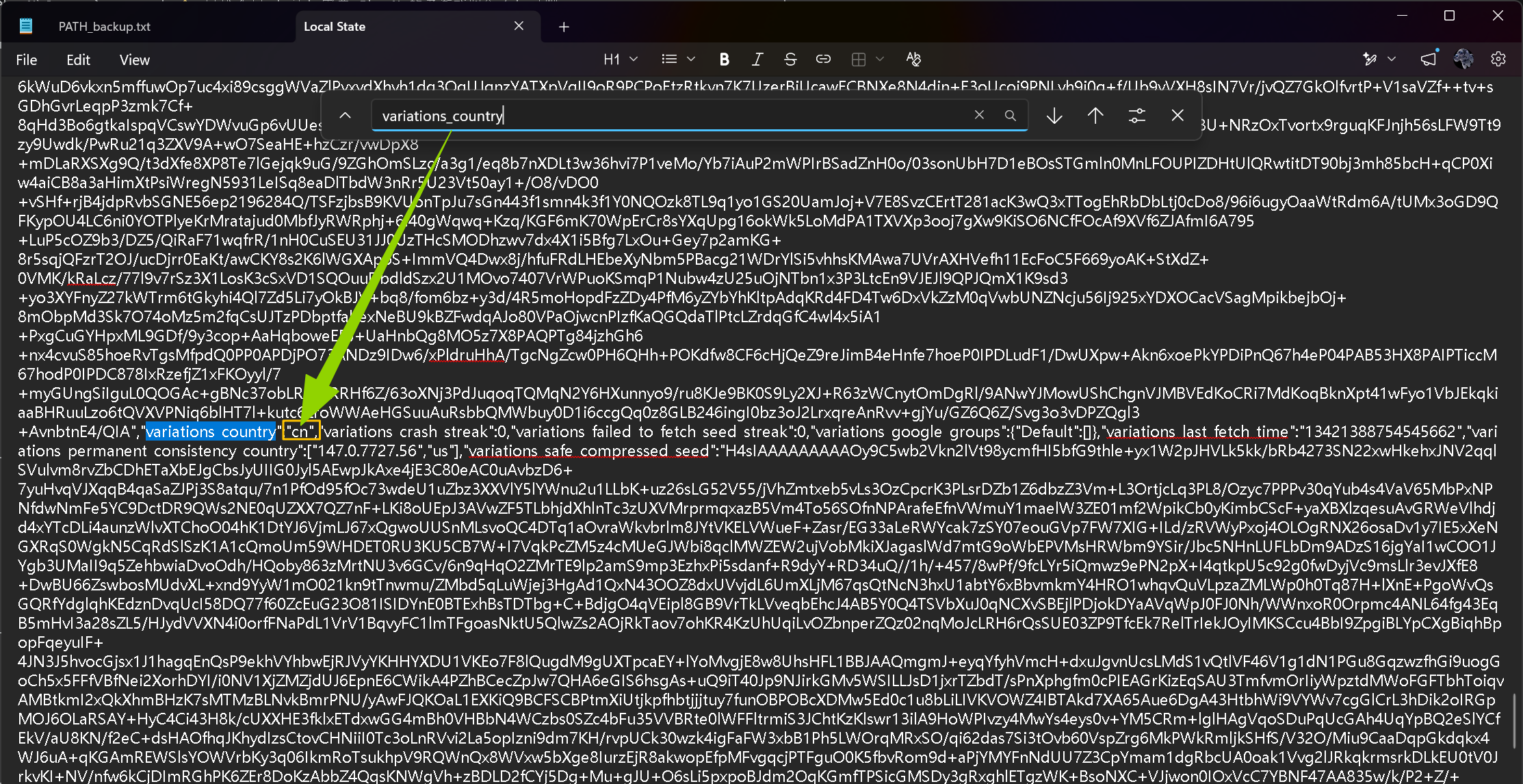 AI Visual Insight: This image shows the current region code still set to
 cn, which indicates that Chrome’s variation system uses country codes to decide whether to deliver certain experimental capabilities and UI entry points.
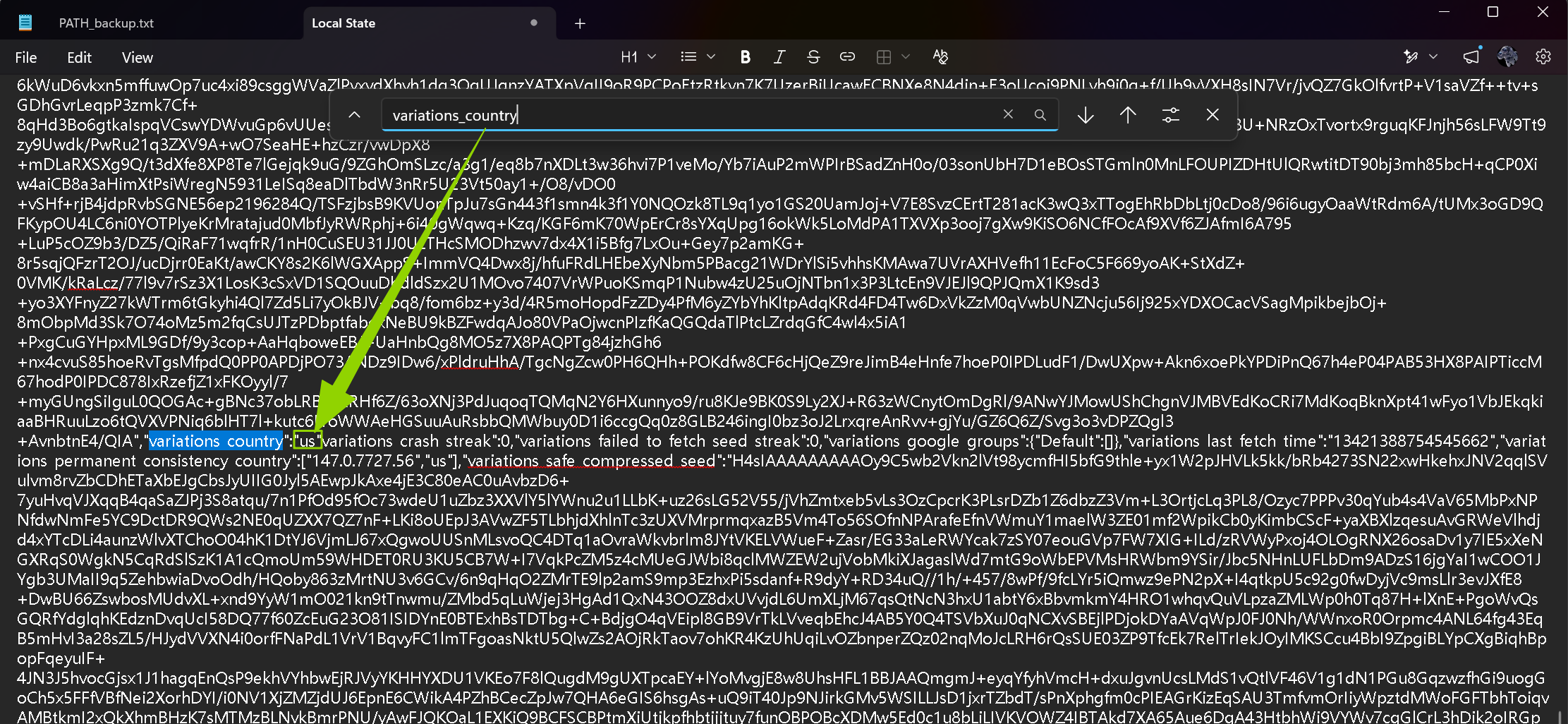 AI Visual Insight: After changing it to
 us, Chrome is more likely to match U.S. experiment routing rules and load Gemini in Chrome-related variations.
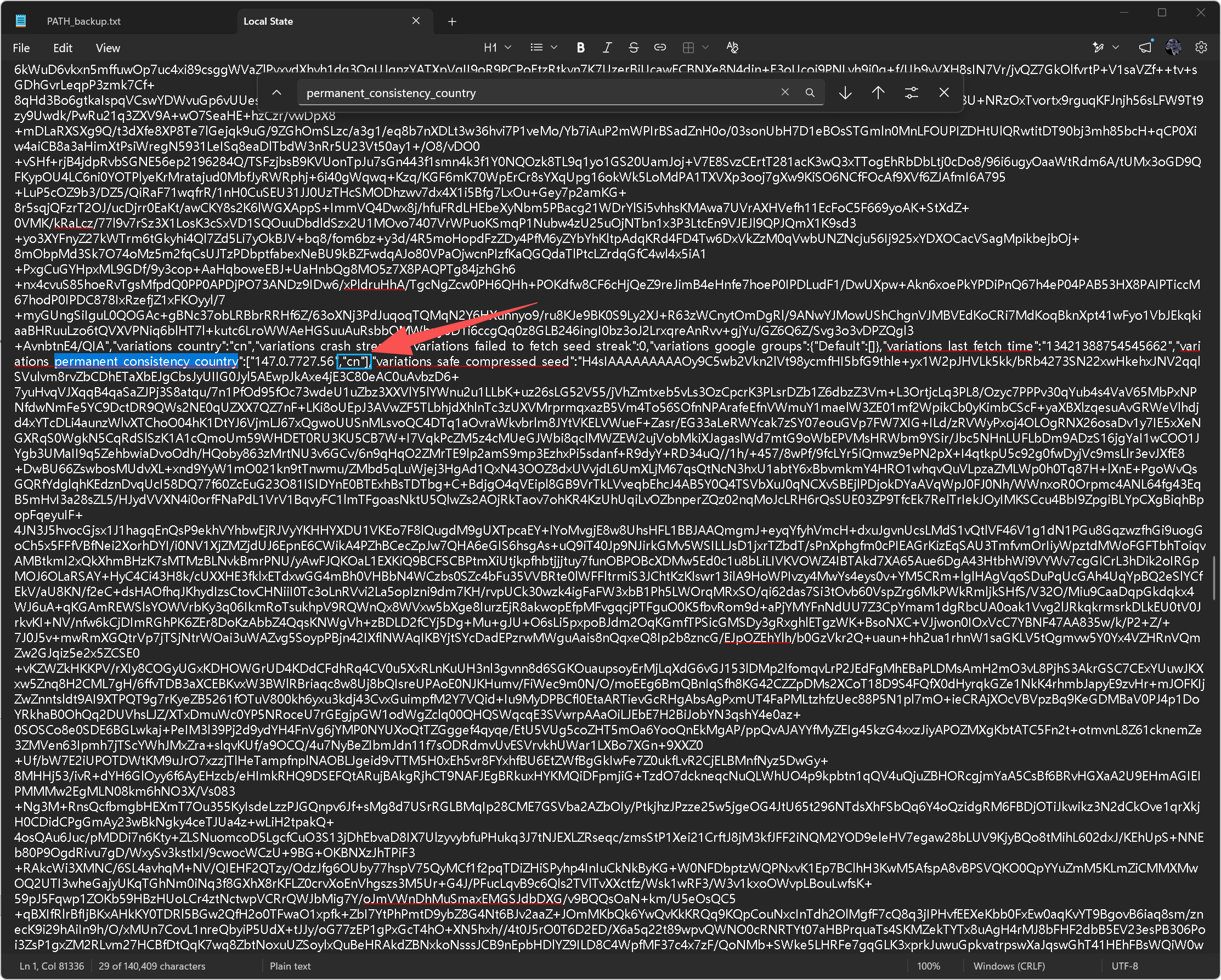 AI Visual Insight: This image shows that the field is an array structure with a version number, indicating that it stores not only the country code but also a version or variation snapshot used for startup consistency validation.
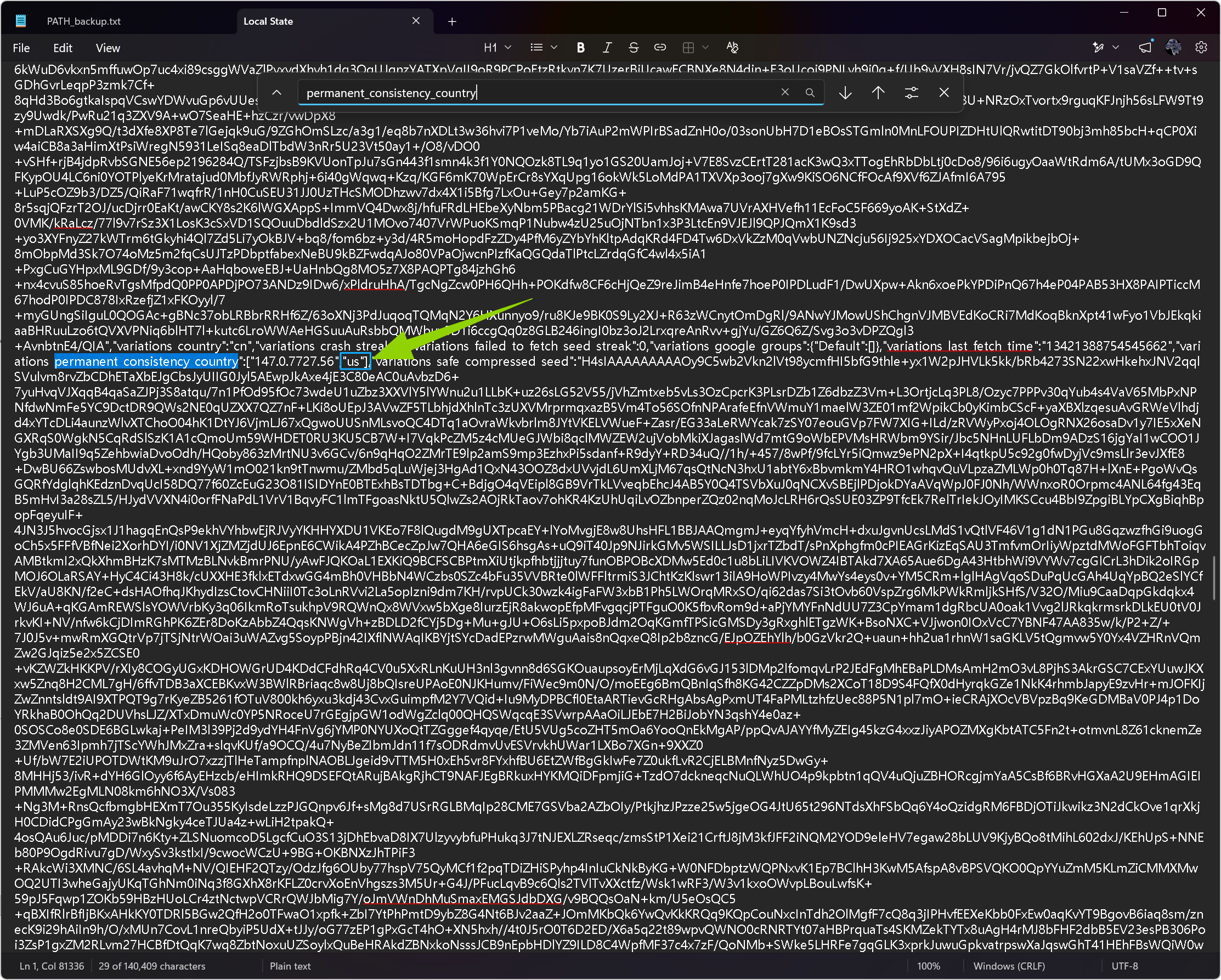 AI Visual Insight: In the updated array, the final element becomes
 us, which keeps the persistent consistency region aligned with the temporary region and reduces the chance of automatic rollback after startup.
Enabling GLIC flags is what actually loads the sidebar components
After modifying the configuration, reopen Chrome and go to chrome://flags, then search for glic. Set Glic, Glic side panel, and any visible entries such as Glic actor, Glic Pre-Warming, and Glic Z Order Changes to Enabled.
chrome://flags
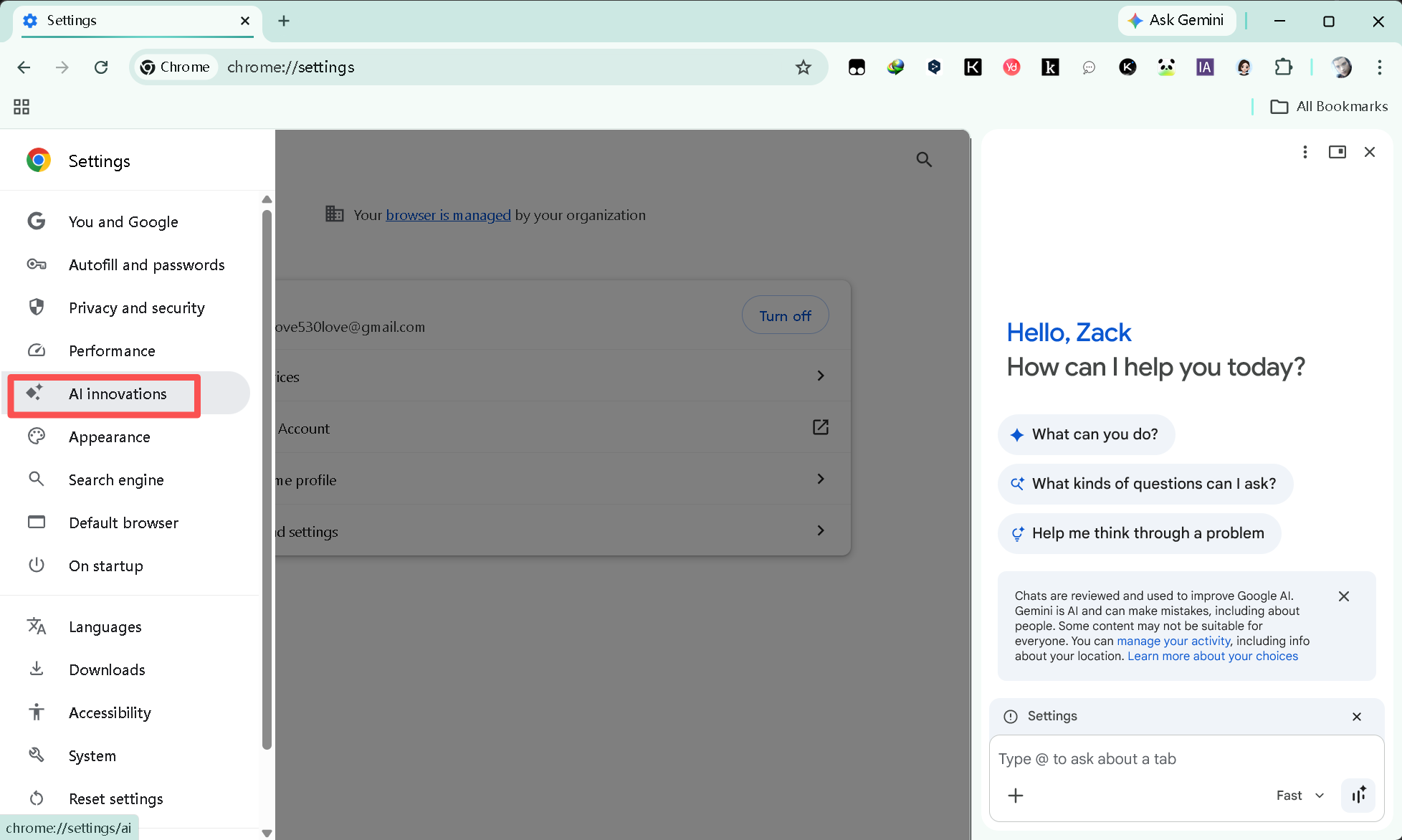
chrome://settings/ai
These two internal URLs are used to enable experimental features and verify whether the AI settings page now shows Gemini-related options.
If you change only the local configuration without enabling the flags, the common outcome is that eligibility passes but the UI does not appear. That is because the sidebar container and feature entry point are still controlled by experimental switches.
Switching Chrome to English is one of the required conditions for the entry point to appear
At this stage, Gemini in Chrome is sensitive to the browser UI language. You should move English (United States) to the top of the language list, select it as Chrome’s display language, and then restart the browser.
 AI Visual Insight: This image shows the language priority order and the display language switch entry. Technically, it suggests that some AI feature visibility logic depends on language-environment gating, not just regional checks.
Check three signals first when validating the result
First, check whether a Gemini icon appears in the top-right corner. Second, open chrome://settings/ai and see whether related settings are available. Third, try the shortcut Alt + G to confirm whether the sidebar can open.
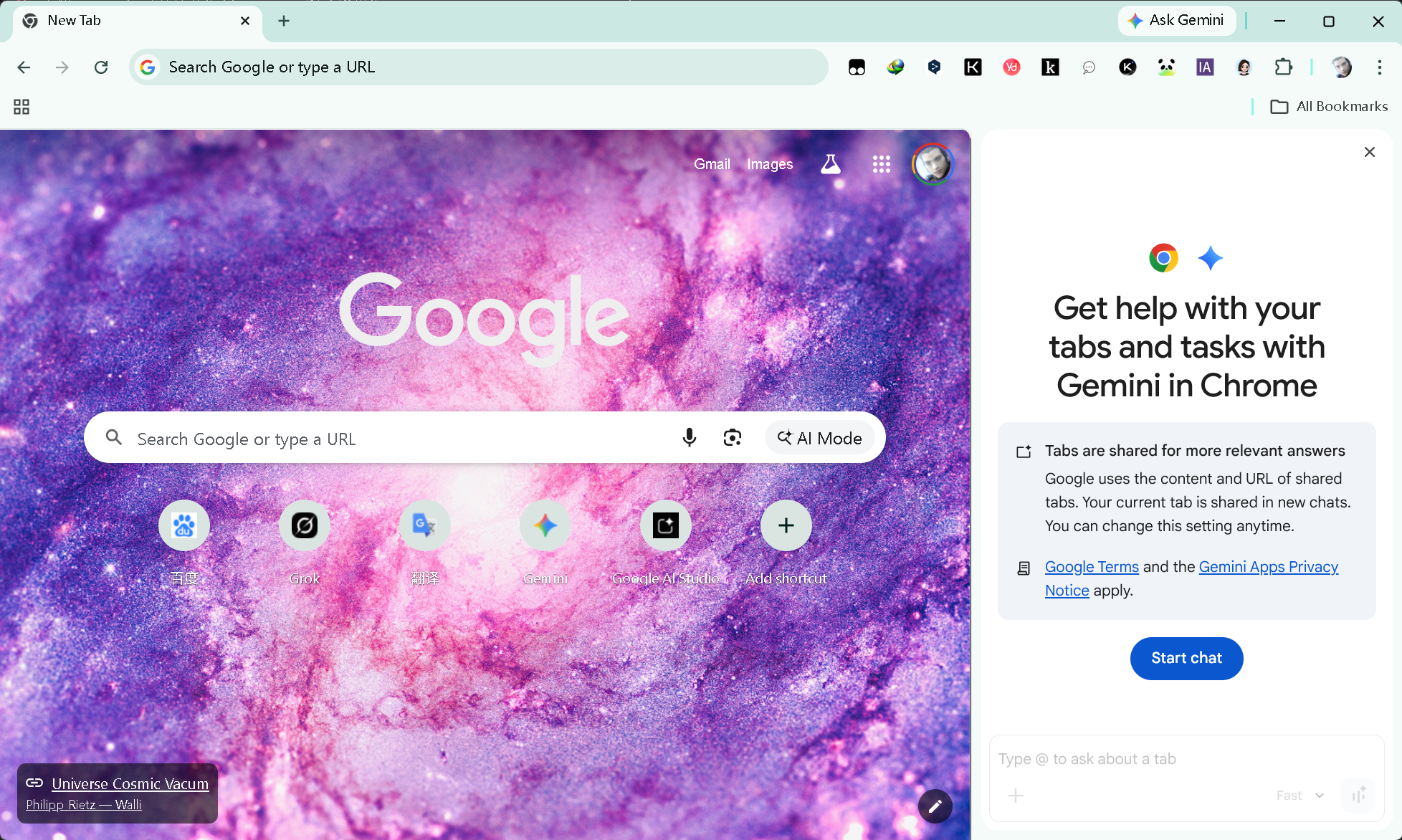 AI Visual Insight: This image shows the entry point or settings feedback after the feature is enabled, which means the browser has completed eligibility evaluation, experiment loading, and front-end entry injection.
import json
from pathlib import Path

# Locate Chrome's Local State file
path = Path(r"C:\Users\YourUsername\AppData\Local\Google\Chrome\User Data\Local State")

# Read and parse JSON so you can automatically inspect key fields
config = json.loads(path.read_text(encoding="utf-8"))

print(config.get("is_glic_eligible"))
print(config.get("variations_country"))
print(config.get("variations_permanent_consistency_country"))
This script helps you quickly verify whether the key configuration values were written correctly.
Reset configuration is the most common and easiest-to-misdiagnose issue
If the Gemini icon disappears after a reboot, the problem usually is not that the method failed. More often, Chrome re-detects the region during startup and overwrites Local State. In that case, close the browser again and check whether the three fields have reverted.
If Chrome cannot start after you modify the file, the most likely cause is broken JSON syntax. Delete the current file and restore the backup Local State.bak.
Restoring the original setup only requires rolling back the backup file
If you no longer want to keep this state, close Chrome, delete the current Local State, and rename Local State.bak back to the original filename. If you also changed the language and flags, restore those defaults as well to reduce later behavior drift.
FAQ
Q1: Why is there still no Gemini icon after changing the three fields?
A: There are usually three causes: Chrome did not fully exit, not all glic flags were enabled, or the UI language is not English. Recheck them in that order first.
Q2: Does this method affect system or account security?
A: Based on the information in this guide, it only modifies local browser configuration and does not involve system files or extension injection. The main risks are configuration rollback or feature failure, not system damage.
Q3: Does the same principle apply to macOS and Linux?
A: Yes. The only difference is the path to Local State. The underlying method remains the same: modify the eligibility field, region field, and consistency field, then combine them with experimental flags and language requirements.
AI Readability Summary: This guide walks through a complete method for force-enabling the Chrome Gemini AI sidebar on Windows. It covers Local State edits, GLIC flag activation, switching Chrome to English, validating the feature, troubleshooting resets, and restoring defaults. It is well suited for developers and advanced users who want early access to Chrome’s native AI features.