After adding a port mapping rule in UU Remote, you can securely map a local TCP service on the target computer to your current device and access the internal application directly through
127.0.0.1:local-port. The core value is simple: no public Internet exposure, no command line, and no complex configuration. Keywords: UU Remote, Port Mapping, Internal Network Access.
The technical specification snapshot clarifies the feature at a glance
| Parameter | Description |
|---|---|
| Product / Feature | UU Remote / Port Mapping |
| Primary use case | Remotely access local services on a company development machine |
| Supported protocol | TCP |
| Currently supported controller platform | Windows |
| Access method | Local loopback address 127.0.0.1:local-port |
| Requires a public IP | No |
| Requires extra tools | No |
| Core dependency | UU Remote client and the target device must be online |
| Reference popularity | About 2K reads in the original article |
| Star count | Not provided |
This feature productizes a traditionally complex internal access workflow
In traditional remote work setups, remote desktop lets you operate another machine, but it does not seamlessly bring that machine’s local services onto your current computer for direct use.
UU Remote port mapping essentially takes a TCP port on the target host and exposes it as a locally accessible port on your current device through an established remote channel. For the user, it feels like turning remote localhost:8080 into local 127.0.0.1:18080.
Local laptop 127.0.0.1:18080
        │
        │ Through the UU Remote mapping tunnel
        ▼
Company development machine 127.0.0.1:8080
This diagram highlights the core idea of the mapping: the access entry point is local, while the actual service still runs on the remote host.
This feature fits lightweight development and operations scenarios especially well
When a development machine runs a backend system, test page, database admin panel, or internal API service, users often do not want to open a full remote desktop session every time just to interact with it.
Port mapping solves the problem of direct service access, not desktop takeover. It is conceptually similar to an SSH tunnel or frp port forwarding, but packaged as a graphical configuration flow.
Typical scenarios where it works well
- Access a project backend on your company computer from home
- Debug a remote web service from your local browser
- Temporarily connect to a development database or admin panel
- Provide low-barrier internal access for users without networking expertise
mapping_config = {
    "name": "公司后台",          # Mapping name, used only for identification
    "target_host": "127.0.0.1", # Remote service address, usually a local service on the target machine
    "remote_port": 8080,         # Actual listening port of the remote service
    "local_port": 18080          # Local access port, user-defined and should avoid conflicts
}
This configuration example corresponds to the four key fields in the graphical UI. At its core, it defines a TCP port forwarding rule.
The setup process is compressed into four low-cognitive-load steps
First, find the target computer in the UU Remote device list, open More, and then open the Port Mapping panel.
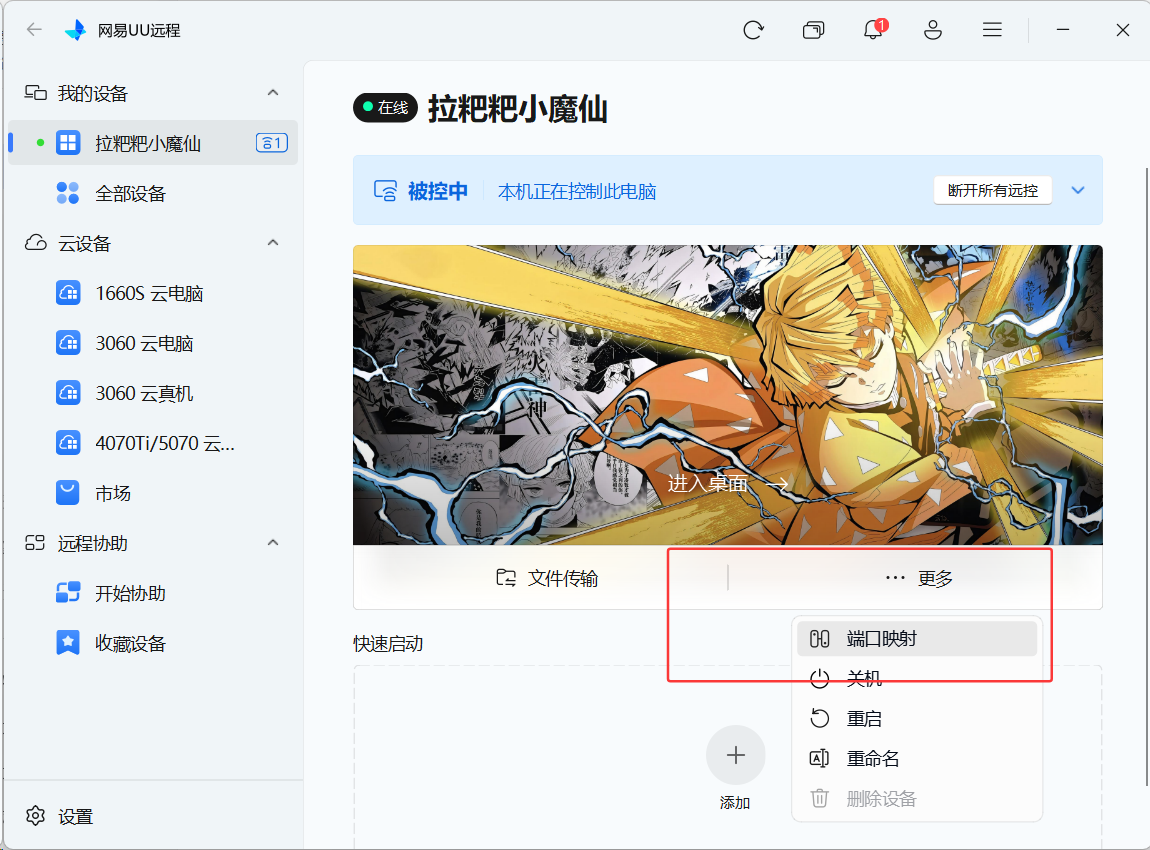 AI Visual Insight: This screen shows where to enter the Port Mapping feature. It indicates that the capability is integrated into the device-level action menu rather than exposed as a standalone tool page, which implies it reuses the existing device connection and identity management system.
After opening the panel, first confirm that the target device is online. Online status means the client can establish a usable channel to the remote host.
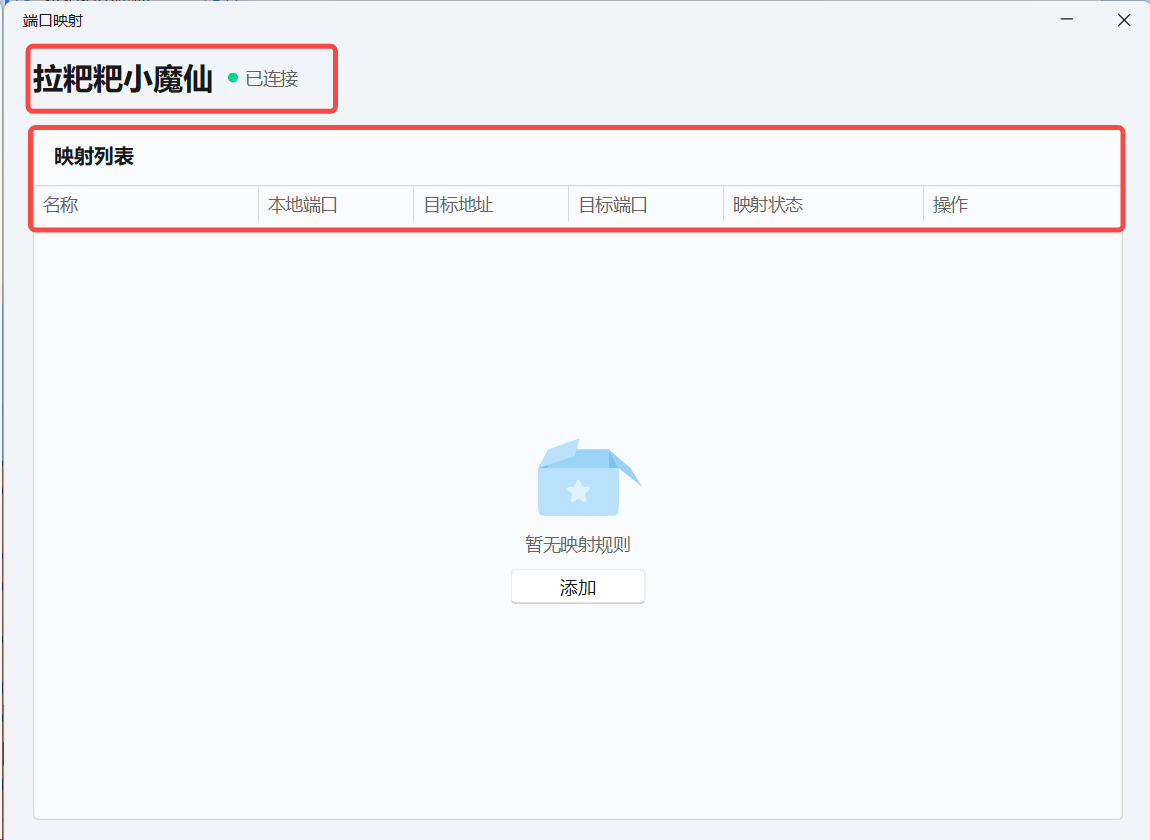 AI Visual Insight: The image highlights the device name and online indicator. This is a prerequisite for port mapping to work. Technically, it means the control channel is reachable, so mapping rules can then be delivered and activated.
You must understand the meaning of each mapping rule field
When creating a new mapping, you need to fill in four items: mapping name, target service address, remote port, and local port.
| Field | Meaning | Example |
|---|---|---|
| Mapping Name | Label for the rule | Company Backend |
| Target Service Address | Service address on the remote machine | 127.0.0.1 |
| Remote Port | Actual listening port of the service | 8080 |
| Local Port | Port used on the current device for access | 18080 |
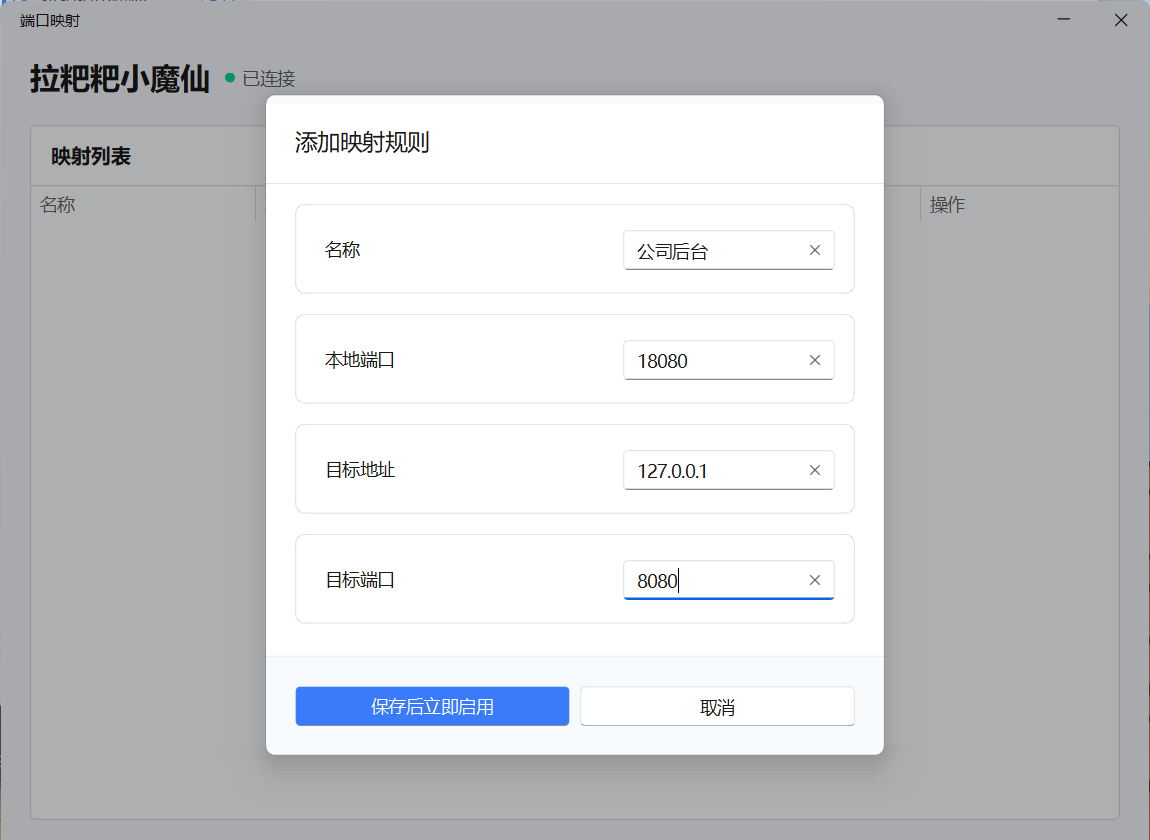 AI Visual Insight: This image shows the rule creation form, which directly maps to the minimum configuration set required for TCP forwarding. It does not expose complex network parameters, which suggests the product deliberately hides tunnel, NAT, and routing details.
# Example of how to access the service after the configuration takes effect
# Open the mapped port in a local browser
http://127.0.0.1:18080
This access URL shows that the user ultimately interacts with a local loopback port, not the real address inside the company network.
After the connection is established, the local access experience feels nearly native
Once the rule is saved and enabled, the system automatically initiates the connection. After the status changes to Connected, you can open the target page directly in your local browser.
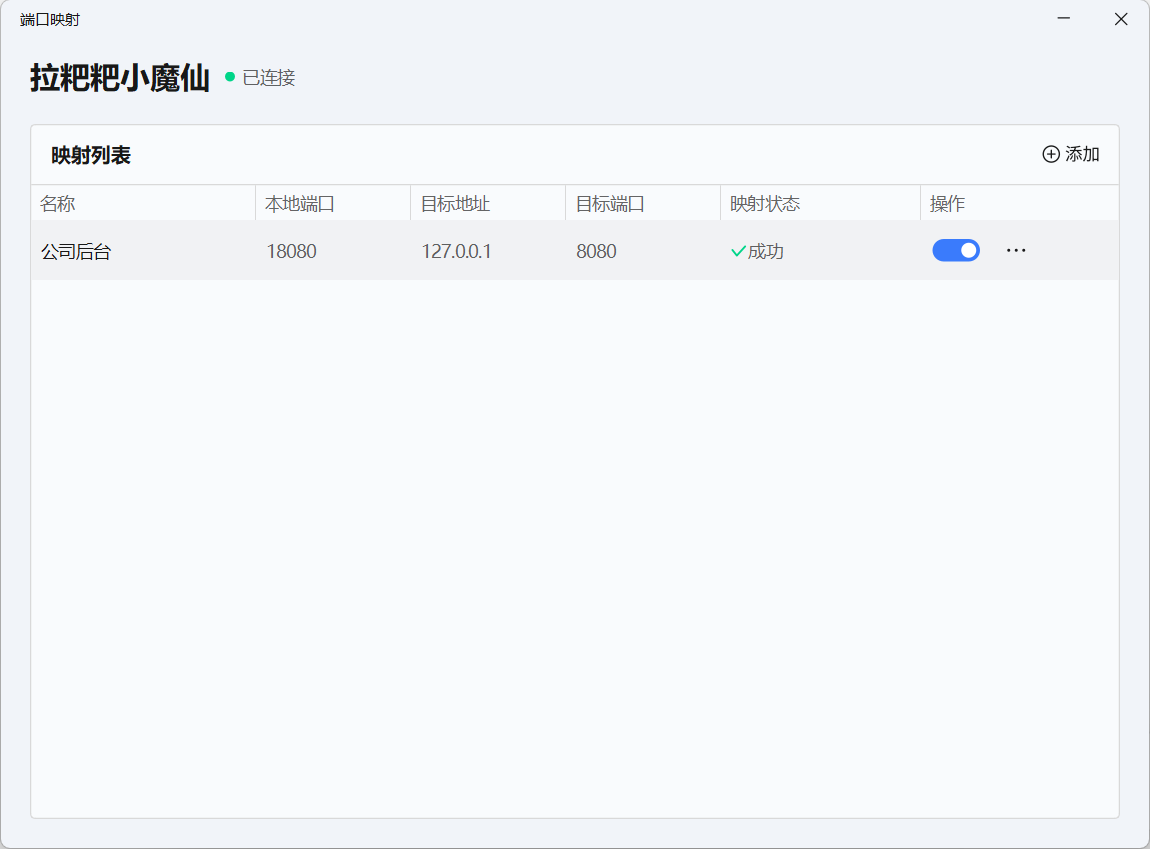 AI Visual Insight: The green connection status indicates that the mapping tunnel has been established successfully. In practice, this usually means the control path, data forwarding path, and target port checks have all passed, and the user can begin forwarding real requests.
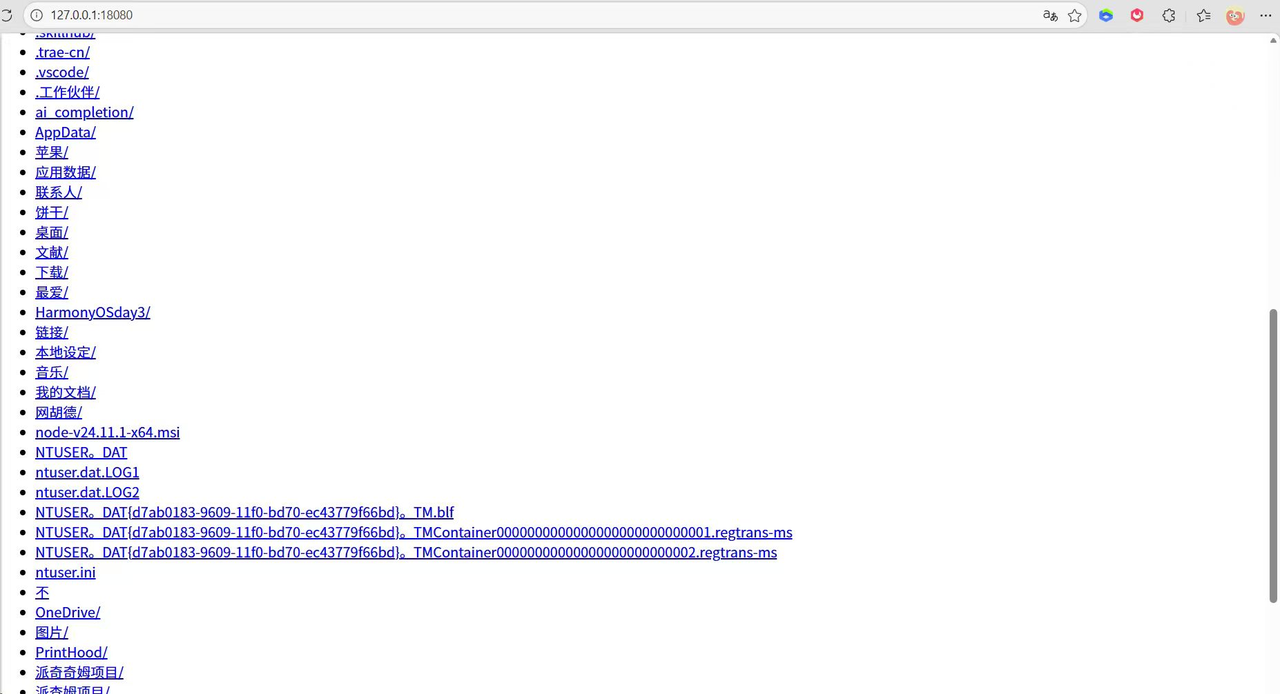 AI Visual Insight: This image shows the final access result: the remote service is now presented in the browser through a local port. That means the HTTP request originates from the local machine, while the response content actually comes from the service process running on the remote development machine.
Reusable rules are a key advantage over temporary command-based solutions
Mapping rules remain persistently stored in the list, so you do not need to re-enter them every time. If you do not need a rule temporarily, you can simply turn it off. Disabling a rule is not the same as deleting it.
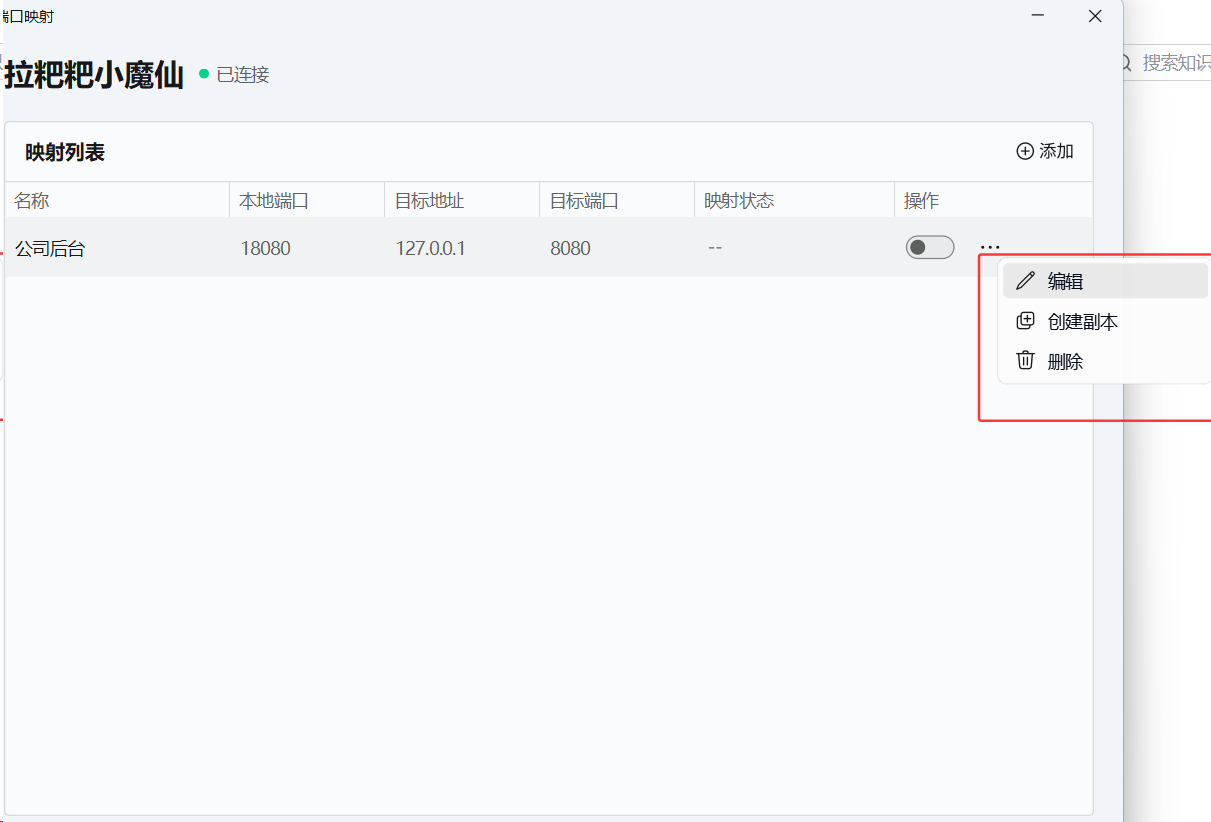 AI Visual Insight: This image emphasizes per-rule start and stop control, which shows that each mapping has its own lifecycle management. This is useful when multiple services coexist and you want to enable them only when needed, reducing unnecessary exposure.
If you have multiple services, such as a backend, API, and database admin page, you can directly duplicate an existing rule and modify only the port, which significantly reduces repeated configuration.
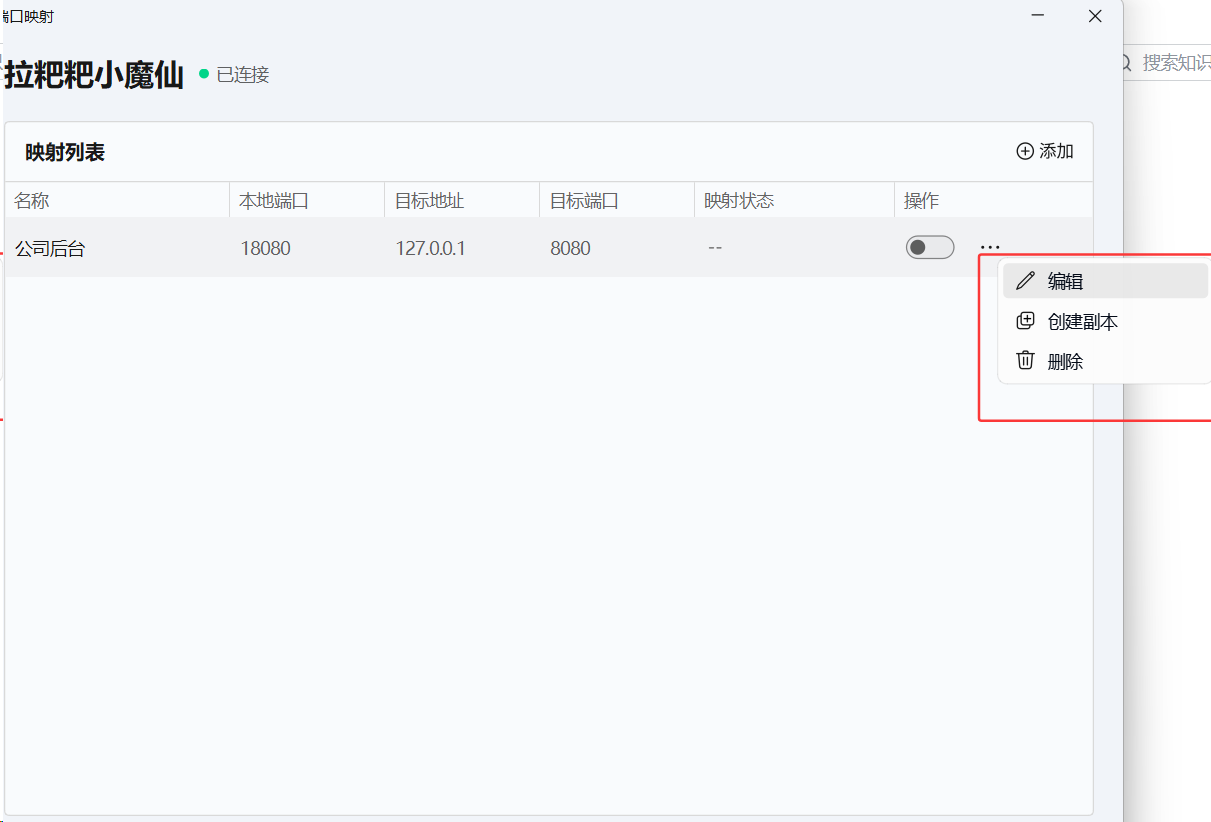 AI Visual Insight: This screen shows the rule duplication capability. Its technical value lies in reusing the target host and connection context, so you only need to change the service port to create multiple forwarding rules in batches.
services = [8080, 8081, 3307]
local_start = 18080

for index, remote_port in enumerate(services):
    local_port = local_start + index  # Assign a different local port to each remote service
    print(f"127.0.0.1:{local_port} -> remote:{remote_port}")
This example shows that multiple remote services can be mapped to different local ports, creating stable personal access endpoints.
Its real advantage is replacing high-barrier traditional solutions
Compared with frp, ZeroTier, or a self-hosted reverse proxy, the main advantage of this graphical mapping approach is not stronger capability, but lower delivery and operational cost.
Users do not need to buy a cloud server, modify a router, write configuration files, or understand NAT, reverse connections, or tunnel multiplexing. For small teams and individual developers, this low learning curve is itself a productivity gain.
The current boundaries are also important to understand
- Current information indicates that only the Windows controller side is supported
- Only TCP port mapping is currently supported
- The target device must be online and running UU Remote
- It is better suited to lightweight service access such as web apps and admin backends
FAQ
1. What is the difference between UU Remote port mapping and remote desktop?
Remote desktop is for operating the remote system interface, while port mapping is for directly accessing a remote service port. The former solves the problem of controlling the computer; the latter solves the problem of using the service.
2. Can this feature replace frp?
For lightweight office and personal development scenarios, it can partially replace frp, especially for users who do not want to maintain a server or configuration files. However, if you need public distribution, multi-user sharing, or fine-grained routing, frp remains more flexible.
3. Why does accessing 127.0.0.1:local-port open a company service?
Because UU Remote listens on a local port and forwards the traffic on that port through a tunnel to the specified TCP port on the remote target host. As a result, the local address becomes a proxy entry point for the remote service.
Core Summary: This article reconstructs the core usage of UU Remote port mapping and explains how to map a local web service running on a company computer to a personal computer without a public IP, without configuring frp, and without changing router settings. It also summarizes the best-fit scenarios, limitations, and common questions.