This article focuses on the collaborative development model built around GitHub CLI and Claude Code. It explains how to complete repository management, authentication, commits, reviews, and pull request workflows inside the terminal, reducing the friction of constantly switching between the browser and the command line. Keywords: GitHub CLI, Claude Code, AI-assisted development.
The technical snapshot highlights the toolchain
| Parameter | Description |
|---|---|
| Core tools | GitHub CLI (gh), Claude Code |
| Primary languages | Shell / Bash / PowerShell |
| Interaction protocols | Git, HTTPS, GitHub API |
| Common use cases | Repository management, Issues/PRs, Actions, AI review |
| Star count | Not provided in the source |
| Core dependencies | Git, GitHub account, terminal environment, browser authorization |
GitHub CLI brings GitHub operations into the terminal context
GitHub CLI is GitHub’s official command-line tool, exposed through the gh command. Its value is not just “opening one fewer web page.” It unifies repositories, Issues, PRs, Actions, and authentication into a single terminal workflow.
For developers, this means the browser no longer interrupts context. You can reuse the same commands across local repositories, shell scripts, and CI environments, and directly feed the output into automation pipelines.
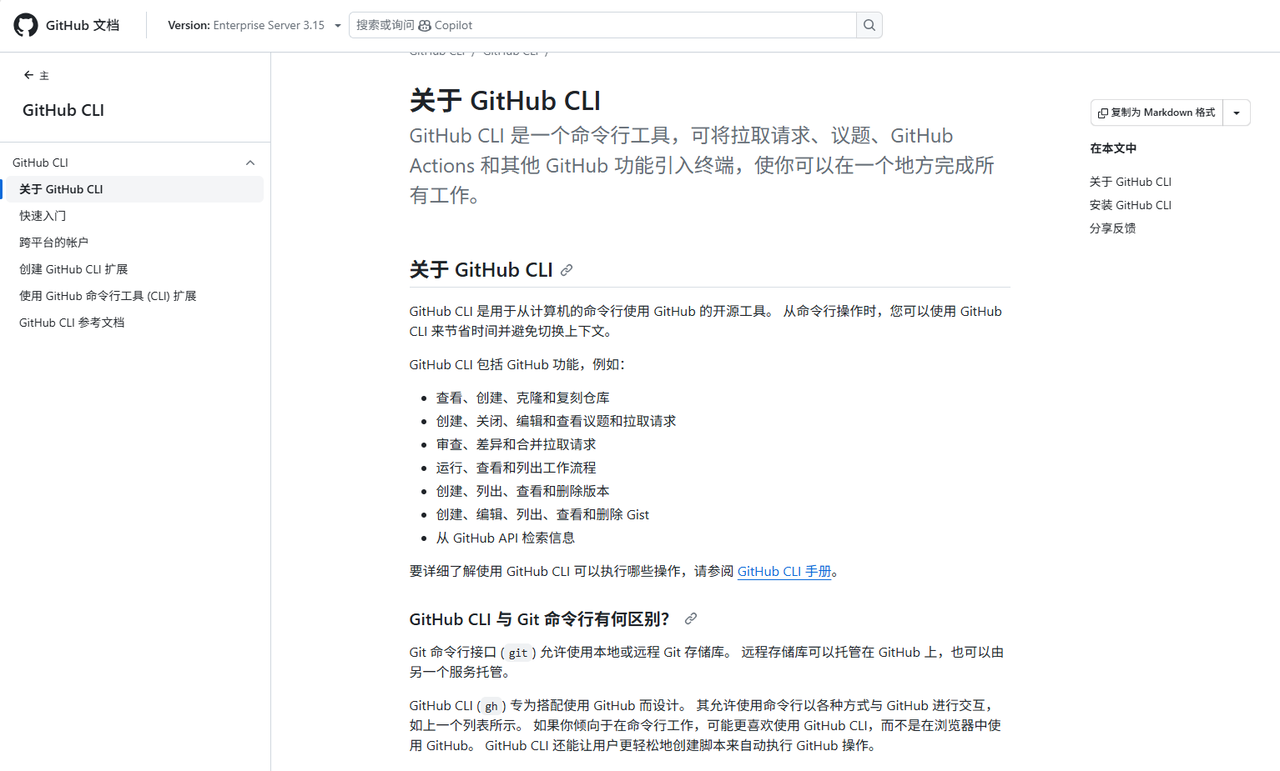 AI Visual Insight: This image shows the official GitHub CLI interface and entry point. The key message is that
 gh maps repositories, Issues, PRs, and other GitHub resources into command-line objects, emphasizing a workflow that completes platform interactions entirely in the terminal.
GitHub CLI is better suited for high-frequency collaboration tasks
In day-to-day development, the most common use cases for gh include cloning repositories, creating repositories, retrieving PRs, checking Actions results, and quickly opening the repository page when visual context is still useful.
It is especially effective for remote development, low-bandwidth environments, automation scripts, and terminal-driven teams. The tradeoff is that you need to understand the command structure, and complex visual comparisons are still easier to read in the browser.
# Check the current authentication status
gh auth status

# List pull requests in the current repository
gh pr list

# View recent workflow runs
gh run list
These commands help verify authentication status, inspect the PR queue, and check CI execution status. They are the most common entry points for terminal-based collaboration.
The core capabilities of GitHub CLI cover repositories and the main collaboration path
Along the main development path, the five most important command groups to learn are repo, pr, issue, run, and auth. Together, they cover almost the entire workflow from pulling code to merging changes.
Common commands are easiest to understand by task type
| Command group | Purpose | Typical scenarios |
|---|---|---|
gh repo |
Manage repositories | Create, clone, view, and delete repositories |
gh pr |
Manage pull requests | Create PRs, check status, merge PRs |
gh issue |
Manage issues | Create, filter, and view Issues |
gh run |
Manage Actions runs | View logs, rerun jobs |
gh auth |
Sign-in and credential configuration | Sign in, validate auth, configure Git credentials |
# Clone a remote repository
gh repo clone owner/repo

# Create a public repository
gh repo create demo-project --public

# Create a pull request
gh pr create --base main --head feature/login --title "feat: add login support"
These commands map to pulling a project, initializing a repository, and starting a collaboration request. Together, they form the shortest practical GitHub terminal workflow.
Correct installation and authentication are prerequisites for using GitHub CLI
The source material shows the installation and browser-based authentication flow on Windows. In a real setup, you should first confirm that Git is installed locally and that your command line can reach both the network and GitHub.
For first-time users, the priority is not installation itself. The real goal is to let gh manage Git credentials so that future push and pull operations do not repeatedly prompt for authentication.
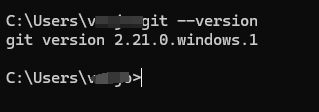 AI Visual Insight: This image shows the terminal environment before installation. The important point is that Git is already available locally, which makes it clear that GitHub CLI does not replace Git. Instead, it extends Git with GitHub platform-level operations.
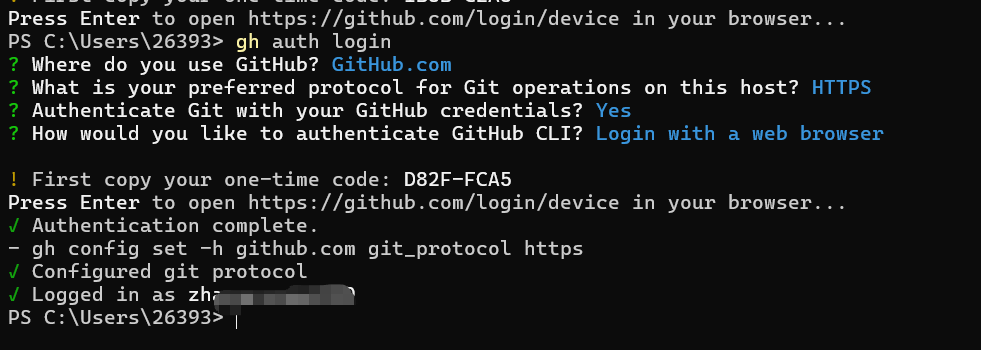 AI Visual Insight: This image shows the terminal output after
 gh auth login completes. It indicates that browser authorization, token acquisition, and local configuration are connected successfully, allowing the CLI to reuse the authenticated session for repository and PR operations.
# Check the installed version first
gh --version

# Sign in to your GitHub account
gh auth login

# Let gh manage Git credentials
gh auth setup-git
After this flow is complete, the terminal can reuse authentication data for most repository operations, which significantly reduces repeated sign-in overhead.
The combination of Claude Code and GitHub CLI amplifies AI execution
Claude Code is strong at understanding codebases, generating change plans, and executing commands. GitHub CLI is strong at connecting to GitHub platform objects. When combined, AI no longer stops at “giving suggestions.” It can actively participate in branches, commits, PRs, and review workflows.
The core value of this pairing is that it connects requirement understanding, code changes, version control actions, and collaborative delivery into a single executable chain, creating a closed loop inside the terminal.
The most common collaboration scenarios center on commits, retrieval, and review
One scenario is asking Claude Code to call gh to retrieve recent commits, PR status, and Issue lists. Another is automatically creating a branch, committing changes, and opening a PR after edits are complete. A third is performing an initial review based on commit history or diffs.
When the main branch is protected, AI can switch to a feature branch according to repository rules. This is especially important in team repositories because it aligns with modern GitFlow or trunk-based development constraints.
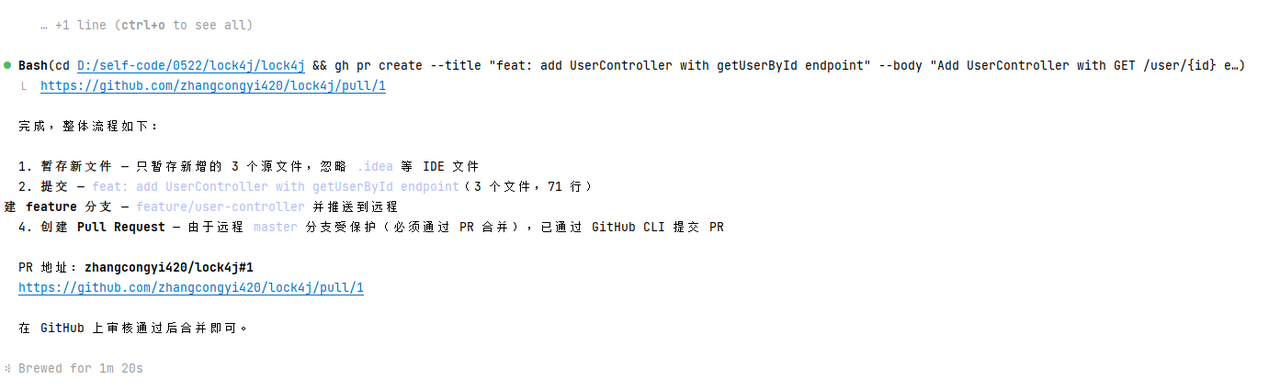 AI Visual Insight: This image shows Claude Code participating in a code commit workflow in the terminal. The key detail is that after detecting a protected main branch, the AI automatically selected a new feature branch for the commit, demonstrating its ability to adapt to repository branch policies.
# View recent commits
git log --oneline -5

# Check pull request status for the current branch
gh pr status

# Create a pull request for the latest changes
gh pr create --base main --head feature/ai-update --title "feat: AI automatically submits changes"
These commands show how AI can combine local Git with GitHub CLI: first understand the changes, then attach them to platform-level collaboration objects.
AI-driven code review works best as an automated first pass followed by human confirmation
One of the key scenarios in the source material is asking Claude Code to review commits from the last three days. This model is practical because it moves large-model capabilities earlier in the review process and uses them to scan structure, naming, boundaries, and risk.
However, it should not replace human review. A more effective model is to let AI provide the first-pass feedback, while humans make the final decisions on architectural constraints, business semantics, and release risk.
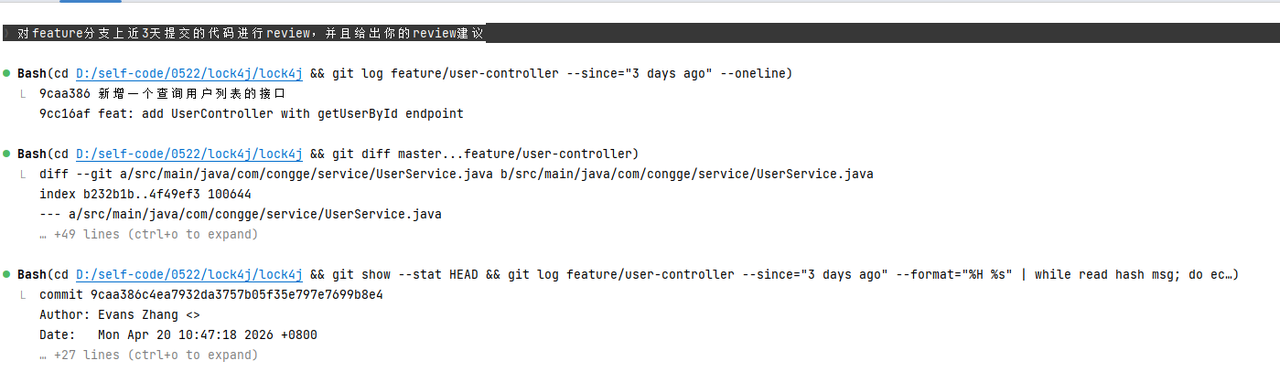 AI Visual Insight: This image shows Claude Code reading branch commits and change context. It highlights that AI review depends on code diffs, commit history, and repository state as input, rather than static question answering without context.
# Get commit history from the last 3 days
git log --since="3 days ago" --oneline

# View detailed information and diff for a specific pull request
gh pr view 123 --web

# Export the pull request list as JSON for automated analysis
gh pr list --json number,title,author,state
These commands work well in an AI analysis pipeline: fetch structured context first, then run review and recommendation generation.
Building an efficient terminal collaboration flow depends on command standardization
If a team wants to use GitHub CLI and Claude Code effectively, it should standardize three things first: authentication, branch naming, and PR templates. Without standards, AI can only “do things.” With standards, AI can “do the right things consistently.”
You can go further by wrapping high-frequency commands into scripts or aliases, then letting Claude Code call fixed entry points. This lowers the risk of mistakes and improves reproducibility across the team.
FAQ
Q1: Can GitHub CLI completely replace GitHub in the browser?
No. It is highly effective for high-frequency command-driven operations such as PRs, Issues, Actions, and repository management. But complex diff inspection, project boards, and analytical dashboards are still better in the browser.
Q2: What is the most valuable capability after integrating Claude Code with GitHub CLI?
It is not simply “automatic code generation.” The real value is connecting requirement understanding, code changes, branch switching, commit creation, and PR creation into a single terminal-based closed loop, which reduces manual switching costs.
Q3: What should teams standardize first during adoption?
Start with gh auth authentication, branch naming conventions, commit message templates, and PR templates. That ensures both AI and humans follow the same process, which makes collaboration more stable.
[AI Readability Summary]
This article reorganizes the collaboration model between GitHub CLI and Claude Code, covering tool positioning, installation and authentication, core commands, project collaboration scenarios, and code review practices. It helps developers manage repositories, handle pull requests, and use AI-assisted commits entirely in the terminal, creating a more efficient GitHub automation workflow.