Codex Desktop Pets turn AI coding task status into visual desktop feedback, solving the constant need to switch windows just to check progress. This guide covers how to enable them, install pets from Petdex, create custom pets with AI, and submit them to the community. Keywords: Codex, desktop pets, AI coding.
Technical specifications are easy to scan
| Parameter | Description |
|---|---|
| Product Name | OpenAI Codex Desktop Pets |
| Core Capabilities | Real-time task status display, community pet installation, AI-generated custom pixel pets |
| Supported Platforms | Windows, macOS |
| Interaction Model | Floating desktop overlay, click to open, right-click menu |
| Distribution Model | Distributed through the Petdex community; no explicit open-source license is provided in the source material |
| Installation Command | npx petdex install <pet-name> |
| Submission Command | npx petdex submit ~/.codex/pets/<pet-name> |
| Core Dependencies | Node.js, npx, Codex, Petdex, hatch-pet, Subagents |
| Community Size | 8 official built-in pets, hundreds from the community |
| GitHub Stars | Not provided in the source material |
Codex Desktop Pets act as a task status interface, not decoration
Codex has recently evolved from a simple AI coding chat window into a broader workbench that includes Computer Use, plugins, automation, and visual feedback. Desktop Pets are one of the most underrated parts of that shift.
Their value is not that they are cute. Their value is that they externalize status. When Codex runs tasks in the background, the pet uses animations and speech bubbles to show waiting, running, completed, and failed states, reducing the need to constantly switch back to the main window.
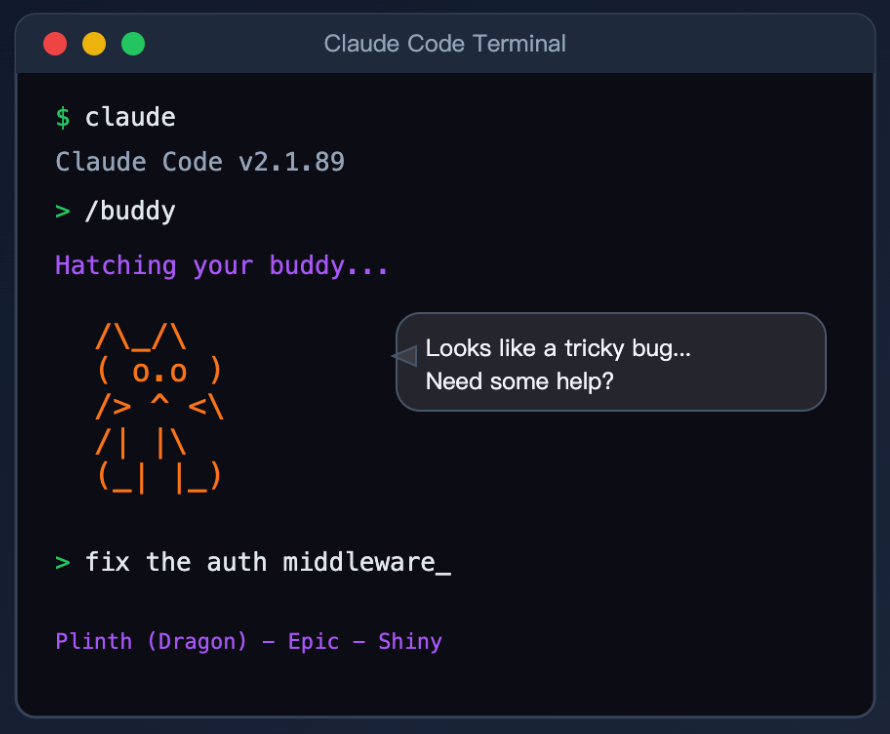 AI Visual Insight: This image shows the virtual pet style used by earlier competitors. It highlights the gap between expressive character design and the lack of task feedback, underscoring that visual presence alone is not enough unless it maps to real execution flow.
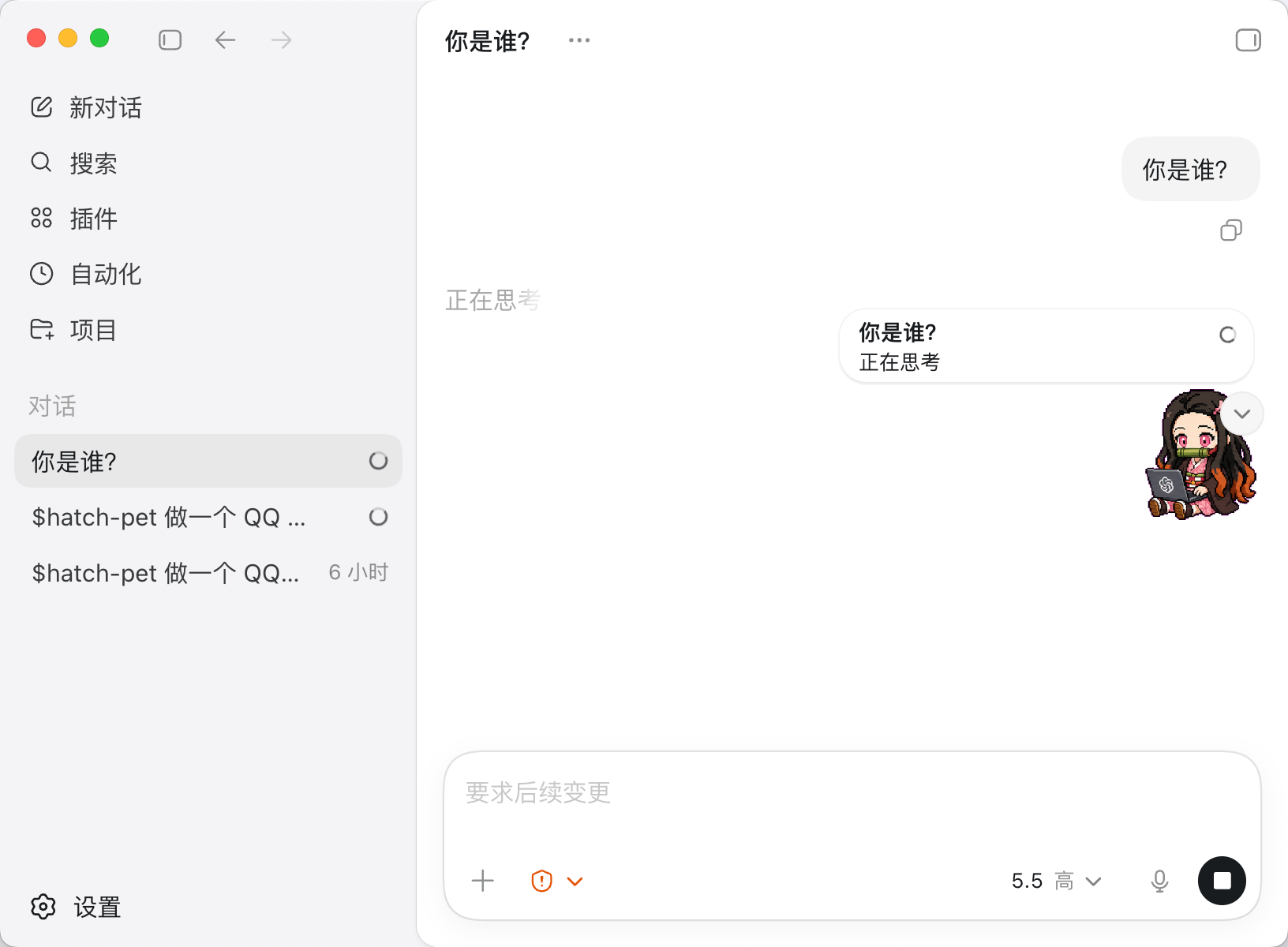 AI Visual Insight: This image shows Codex rendering a floating pixel pet at the desktop edge. It demonstrates that the pet does not live inside the IDE, but instead operates as a cross-application overlay, allowing developers to track task progress while moving between a browser, terminal, and editor.
You can think of it as a Dynamic Island for AI coding
The classic problem with AI coding interfaces is that execution status stays trapped inside the main window. Once you leave that window, you can no longer tell at low cost whether a task has finished, failed, or is waiting for confirmation.
Codex Pets lift those signals up to the desktop layer and turn them into a lightweight notification system. This design is especially effective for long-running tasks, web research, code generation, and background automation.
The path to enabling Desktop Pets is straightforward
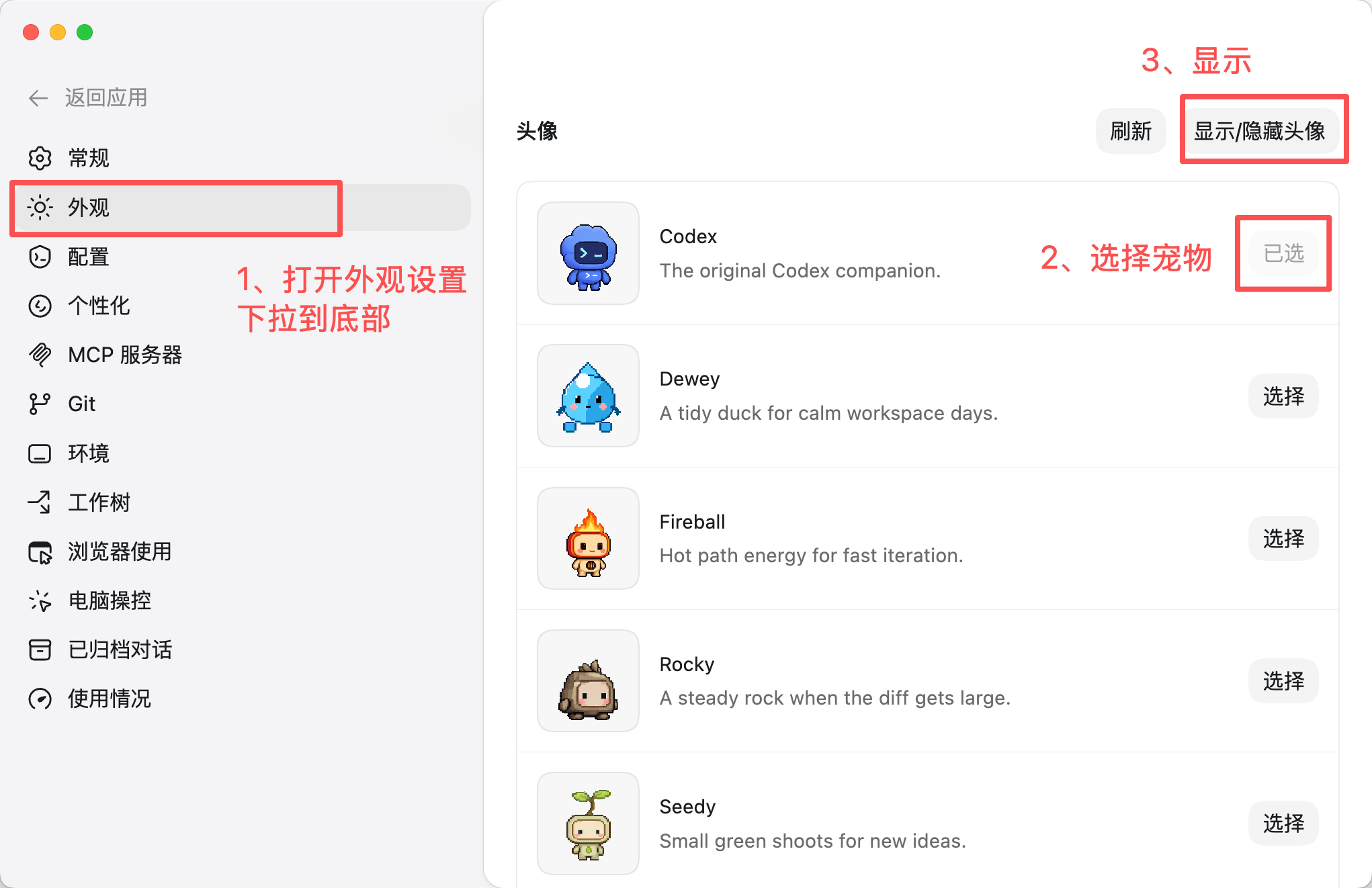
After you open the main Codex interface, go to Settings → Appearance. At the bottom of the page, find the avatar or pet section, then choose one of the official built-in characters and enable display.
Codex currently includes 8 built-in pixel pets, covering both brand characters and stylized personas. After you select one, click Show Avatar to place the floating pet on your desktop.
 AI Visual Insight: This image shows the Codex pet selection screen with multiple pixel character thumbnails. It indicates that the product already includes a ready-to-use asset library, lowering the barrier to first use and providing a consistent reference for animation and asset specifications in later custom pet creation.
 AI Visual Insight: This image provides a closer look at the official pet roster and character differences. It suggests that the system uses a unified pixel-art style and a standardized action set, which means pets can vary visually while still following the same state machine and animation asset structure.
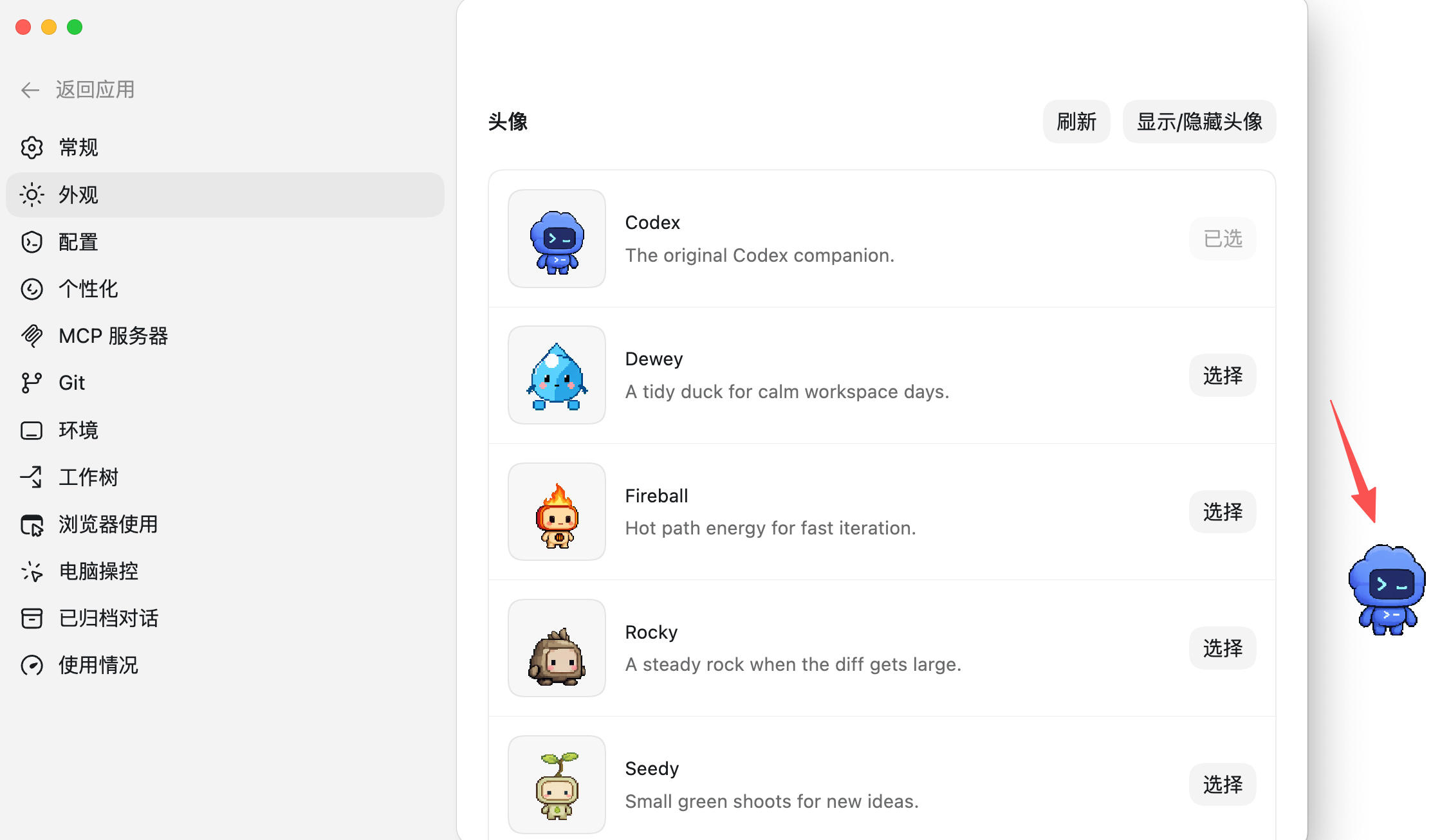 AI Visual Insight: This image shows the pet already floating on the desktop, confirming that the final presentation is a system-level overlay rather than an in-app panel. That makes it well suited to multi-window and multi-monitor workflows where developers need persistent AI status feedback.
# Open Codex and go to Settings
# Click in order: Settings -> Appearance -> Avatar/Pet
# Select a built-in pet and enable display
The core goal of this step is to subscribe to task state at the desktop level so AI execution results remain visible outside the main window.
Pet animation maps directly to task states
Once you start a task, the pet switches into a busy animation. When the task completes, it can notify you through a speech bubble or a posture change. If the task fails or waits for approval, it also presents matching feedback.
This mapping is more than visual flair. It creates a direct connection between the AI state machine and the user perception layer, allowing developers to judge task status with a quick glance.
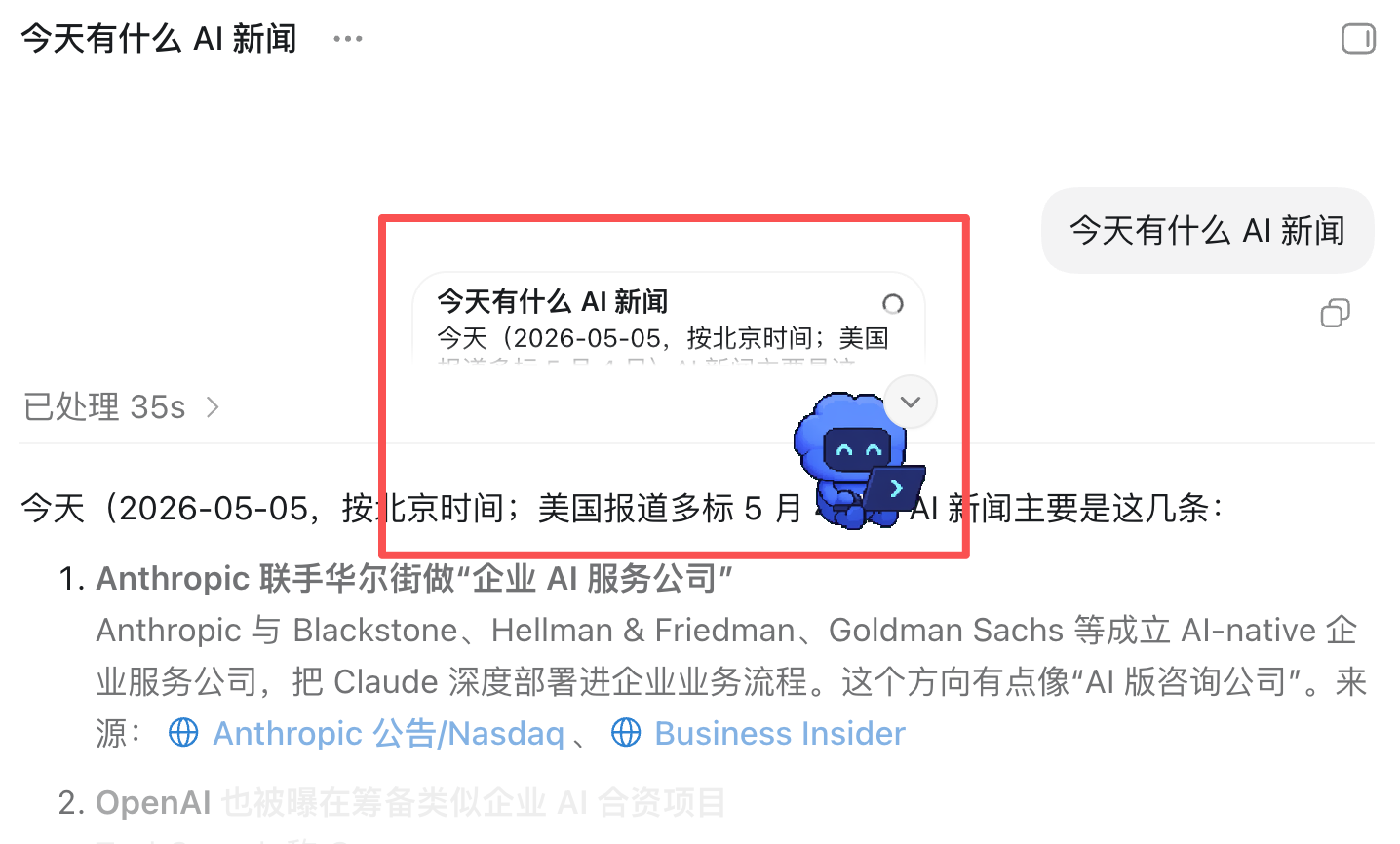 AI Visual Insight: This image shows textual task status appearing next to the pet. It demonstrates that the system does not rely on animation alone, but combines graphical cues with explicit labels to create a dual-channel feedback mechanism that improves interpretability.
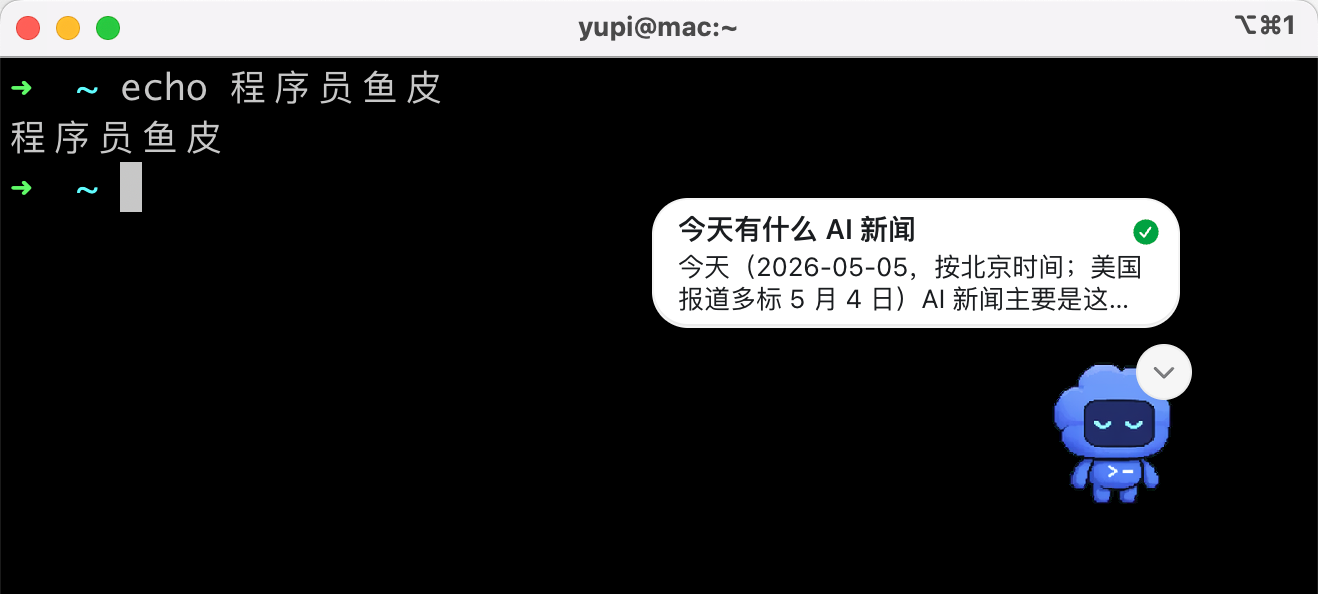 AI Visual Insight: This image shows a summary bubble after task completion, indicating that the pet does more than signal the end of execution. It also acts as a lightweight preview surface, so users can understand the result without immediately returning to the main Codex window.
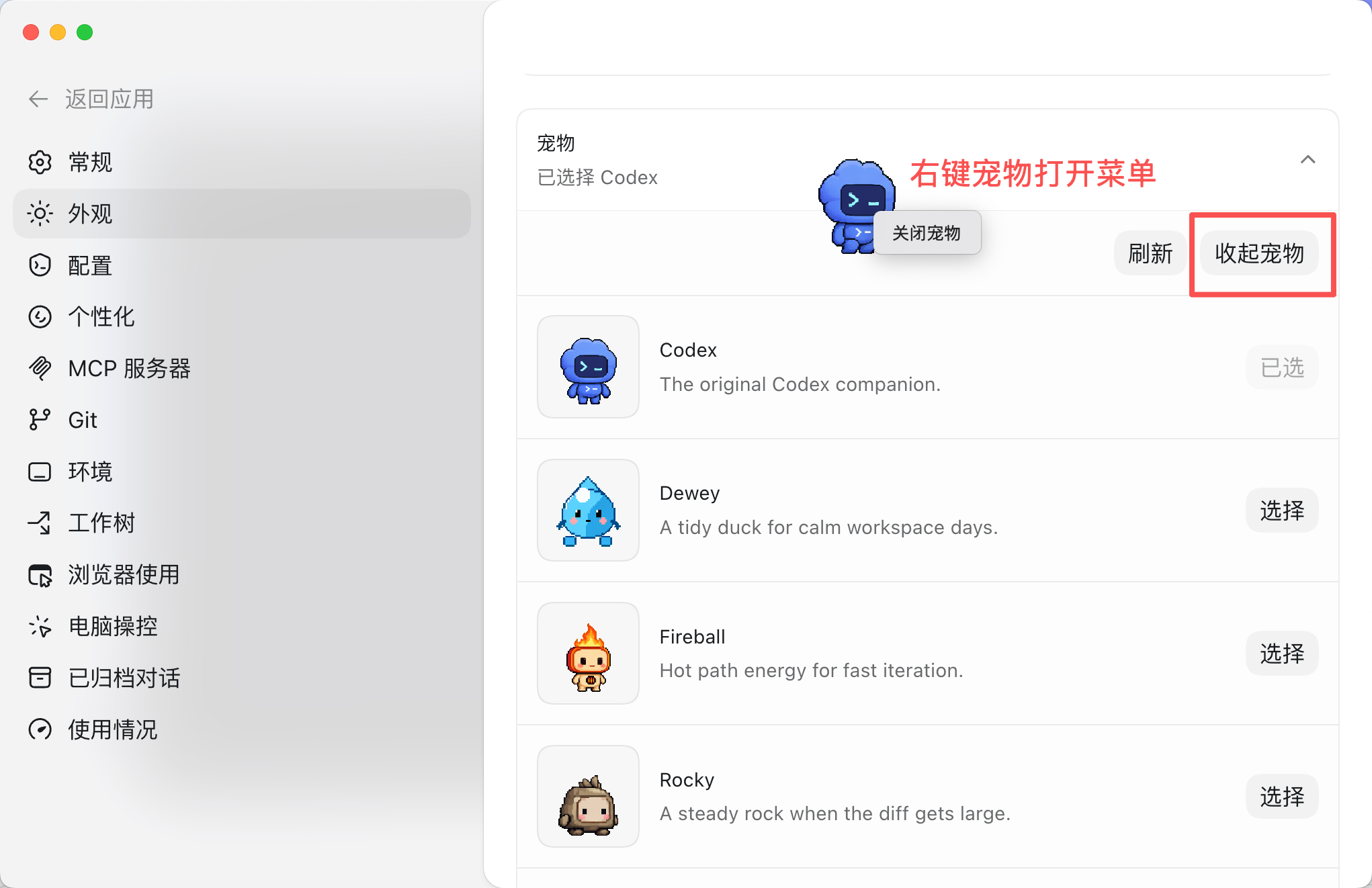 AI Visual Insight: This image shows a menu or settings entry for turning the pet off, indicating that the feature can be enabled or disabled on demand to avoid distraction during deep-focus coding or screen recording.
Turning it off is just as simple
You can right-click the desktop pet and close it from the menu, or return to the Appearance settings page and hide it there. The feature currently supports Windows and macOS, but not mobile platforms.
The Petdex community turns the pet ecosystem into an installable marketplace
Beyond the 8 official characters, Codex also connects to the Petdex community gallery. The core value here is not just a larger asset pool. It is the standardization, command-line distribution, and shareability of pet packages.
Developers can install pets the way they install packages. That gives pets a real distributable form instead of limiting them to manually imported UI skins.
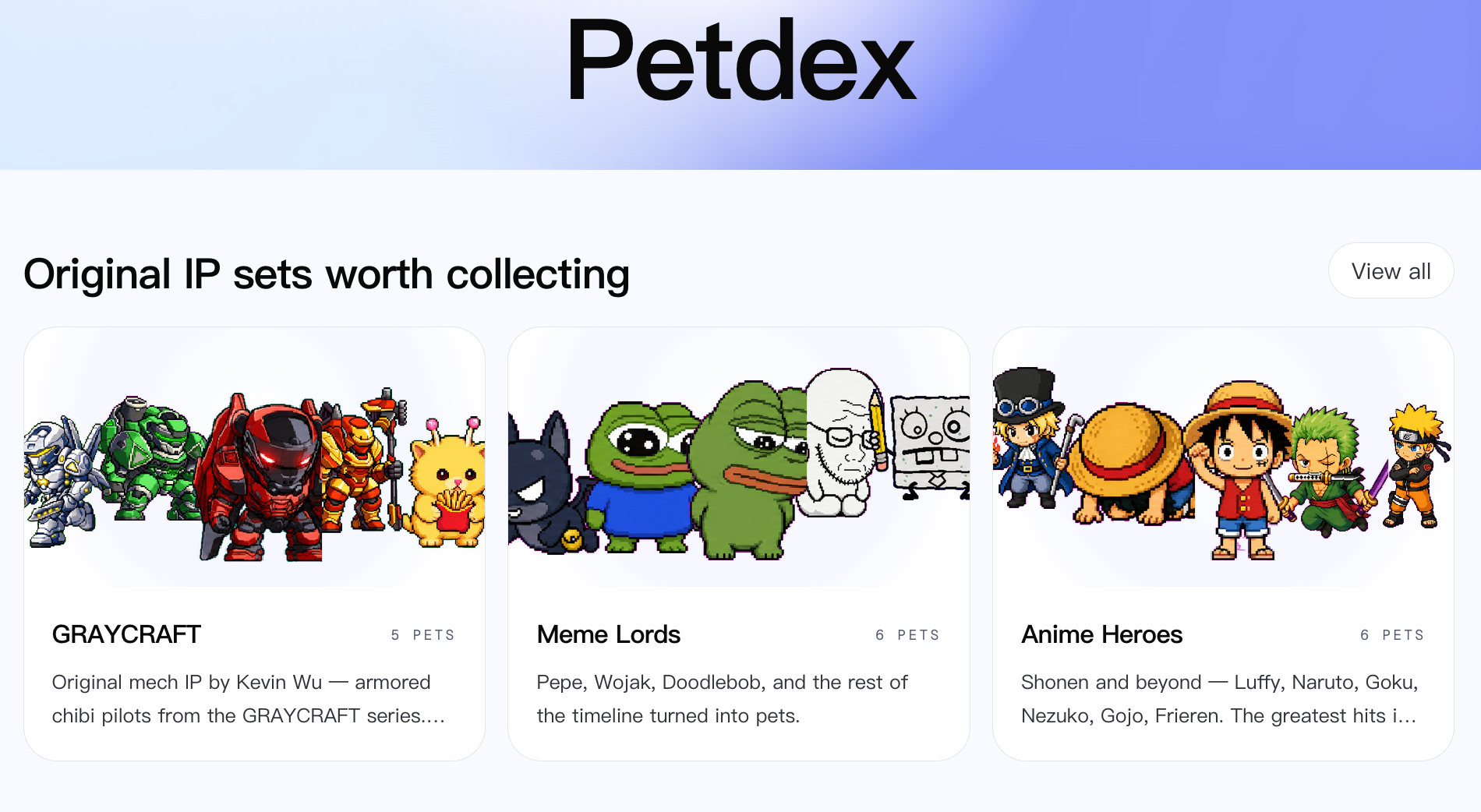
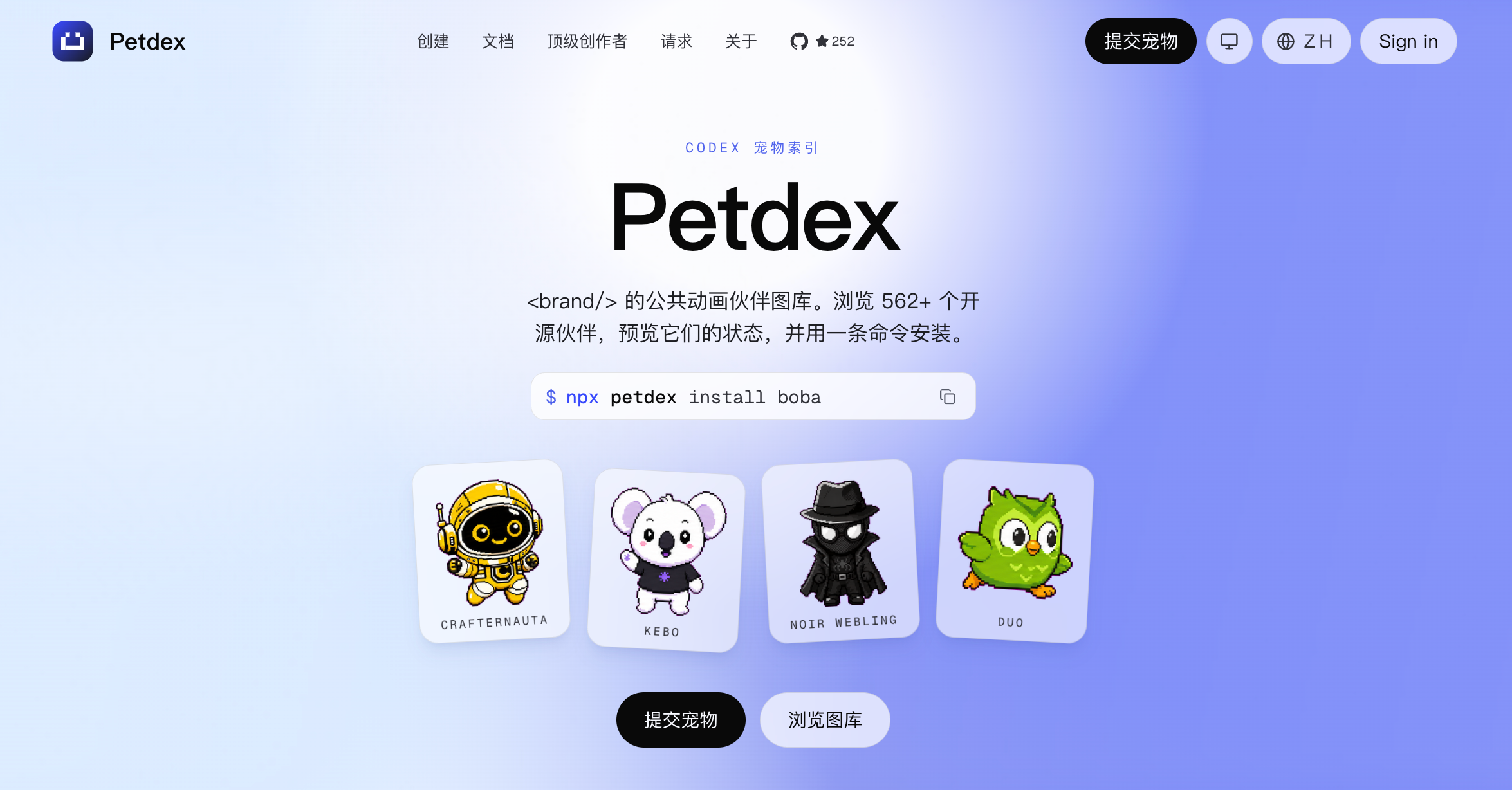 AI Visual Insight: This image shows the Petdex community gallery with categories, tags, and preview cards, suggesting that pet assets already have a marketplace-like structure that supports discovery, filtering, and distribution.
npx petdex install ikun # Install a specific community petThis command downloads the pet assets into the ~/.codex/pets/ikun/ directory. You can then select it from the Custom Pets section in Codex.
Community pets are standardized sprite asset bundles
The source material notes that each pet typically covers 9 animation states, such as idle, running, jumping, waving, failed, and waiting. In other words, Petdex maintains a set of pixel animation assets that the Codex state machine can drive directly.
The advantage of this structure is consistency in front-end rendering. Creators only need to produce assets around the required action set to get plug-and-play compatibility.
Custom pets bring generative AI into the UI asset pipeline
Codex does not only let you install pets made by others. It also lets you generate your own pixel pet through the hatch-pet skill. The most interesting part is not superficial reskinning, but the introduction of AI into the sprite production workflow.
A typical process starts by installing the skill, then running the /hatch-pet command. You can describe a character in text or upload an image, and the AI will generate the base reference image and action frames for different states.
/hatch-pet # Trigger the pet hatching workflow inside CodexThis command starts the AI workflow for creating a pet. It does not directly produce a final packaged asset in one step.
The custom workflow is fundamentally a multi-stage generation pipeline
The example in the source material uses the QQ Penguin character. The AI first extracts recognizable visual features, then creates base.png, and after you authorize Subagents, it generates 9 sets of motion frames in parallel before assembling them into a unified sprite sheet.
That means hatch-pet is not a one-shot text-to-image action. It is a pipeline of character abstraction, motion expansion, and asset orchestration. The reported runtime of about one hour also suggests that the system is performing a multi-agent asset production task behind the scenes.
# Example generation flow
# 1. Input a character description or image
# 2. AI generates the base.png reference image
# 3. Authorize Subagents to generate 9 animation frame sets in parallel
# 4. Output sprite assets that follow the Codex specification
The significance of this step is that it brings non-designers into the pet creation workflow and lowers the barrier to custom UI asset production.
Submitting to the community turns pets into reusable assets
Once you finish building a local pet, you can upload it to Petdex so other developers can install and use it. At that point, the pet evolves from a personal asset into a community resource.
First, sign in to the marketplace, then submit the local directory. In most cases, the submission still goes through administrator review. After approval, other users can discover and install your pet from the community gallery.
npx petdex login  # Sign in to the Petdex marketplace
npx petdex submit ~/.codex/pets/your-pet  # Submit a local pet directory
These two commands complete the loop from local customization to community publishing, giving the pet ecosystem creation, distribution, and reuse capabilities.
This feature improves the density of AI collaboration feedback
From an engineering perspective, Codex Pets do not improve model quality or reduce token cost. What they improve is another dimension that has long been overlooked: feedback efficiency while developers and AI work side by side.
As AI takes on more background tasks, users need a status layer that is low-interruption, always available, and glanceable. Codex Pets are effective precisely because they make waiting on AI feel more natural and more observable.
FAQ
Q1: What is the core technical value of Codex Desktop Pets?
A1: Their core value is not decoration. They map Codex execution states into desktop-level visual feedback, reducing the cost of constantly switching windows to check AI task progress.
Q2: What is the difference between community pets and official built-in pets?
A2: Official pets work out of the box. Community pets are distributed through Petdex, offer a much larger catalog, support search and filtering, and can be installed quickly through the command line into a local directory.
Q3: Why does generating a custom pet take so long?
A3: Because the system is not generating a single image. It must produce pixel animation frames for multiple states, and it often uses Subagents in parallel to build a complete sprite asset package.
Core Summary: This article systematically explains the Codex Desktop Pets feature, including its functional role, enablement flow, Petdex community installation, custom pet generation, and submission workflow. The key takeaway is how it visualizes AI coding status and improves feedback efficiency in multitasking development environments.