GodoOS brings documents, spreadsheets, Markdown, whiteboards, mind maps, and LAN collaboration into a browser-based cloud desktop, reducing app switching, fragmented file versions, and remote access barriers. When paired with cpolar, you can expose a stable access address even without a public IP. Keywords: GodoOS, Docker, cpolar.
The technical specification snapshot is straightforward
| Parameter | Description |
|---|---|
| Project Name | GodoOS |
| Deployment Environment | Ubuntu / Docker |
| Access Protocol | HTTP |
| Default Port | 56780 |
| Remote Tunneling | cpolar |
| Core Capabilities | Documents, Spreadsheets, Markdown, Whiteboard, Mind Mapping, LAN Chat |
| Footprint | About 65 MB |
| Data Strategy | Local-first storage, not third-party cloud first |
| GitHub Stars | Not provided in the source material |
| Core Dependencies | Docker, cpolar, Browser |
GodoOS solves the fragmentation problem in office tooling
The biggest pain point in traditional office workflows is usually not the lack of tools, but too many tools. Documents live in Word, spreadsheets in Excel, presentations in PowerPoint, while collaboration depends on IM apps, whiteboards, and mind-mapping tools. Constant window switching breaks focus, and file versions become difficult to control.
GodoOS addresses this by consolidating these high-frequency capabilities into a single web desktop. Users can enter one unified browser interface and handle document editing, spreadsheet work, Markdown writing, and lightweight collaboration in one place, reducing reliance on desktop applications.
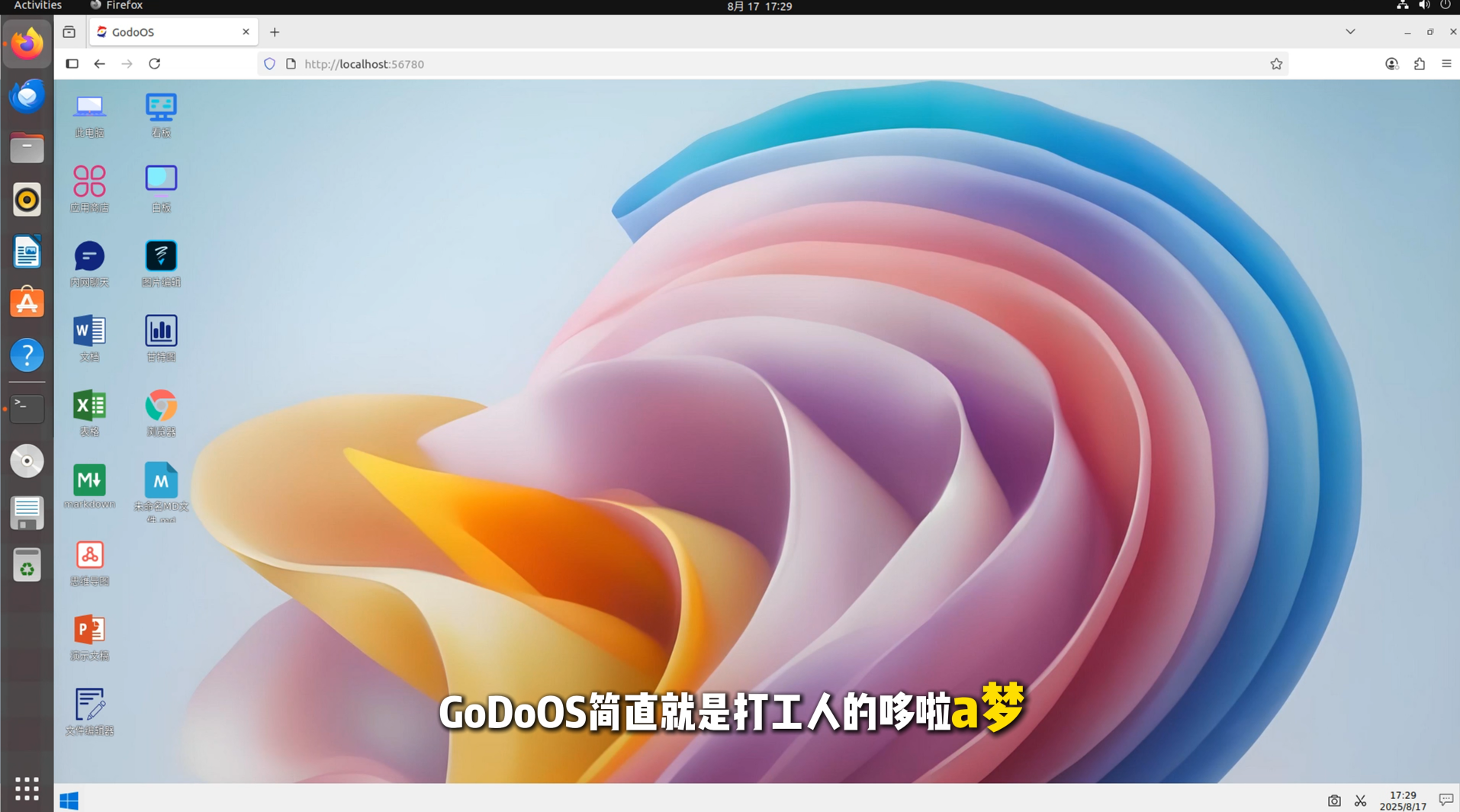 AI Visual Insight: The image shows GodoOS’s overall product landing interface, emphasizing a browser-hosted desktop-style workspace. The key message is its integrated positioning around documents, spreadsheets, and collaboration tools, making its use case boundaries easy to understand at a glance.
GodoOS has clearly defined capability boundaries
It is not a full operating system in the traditional sense. Instead, it is a desktop-style productivity workspace. Its strength does not come from replacing heavyweight professional software, but from covering common daily office tasks and reducing context-switching costs through a unified entry point.
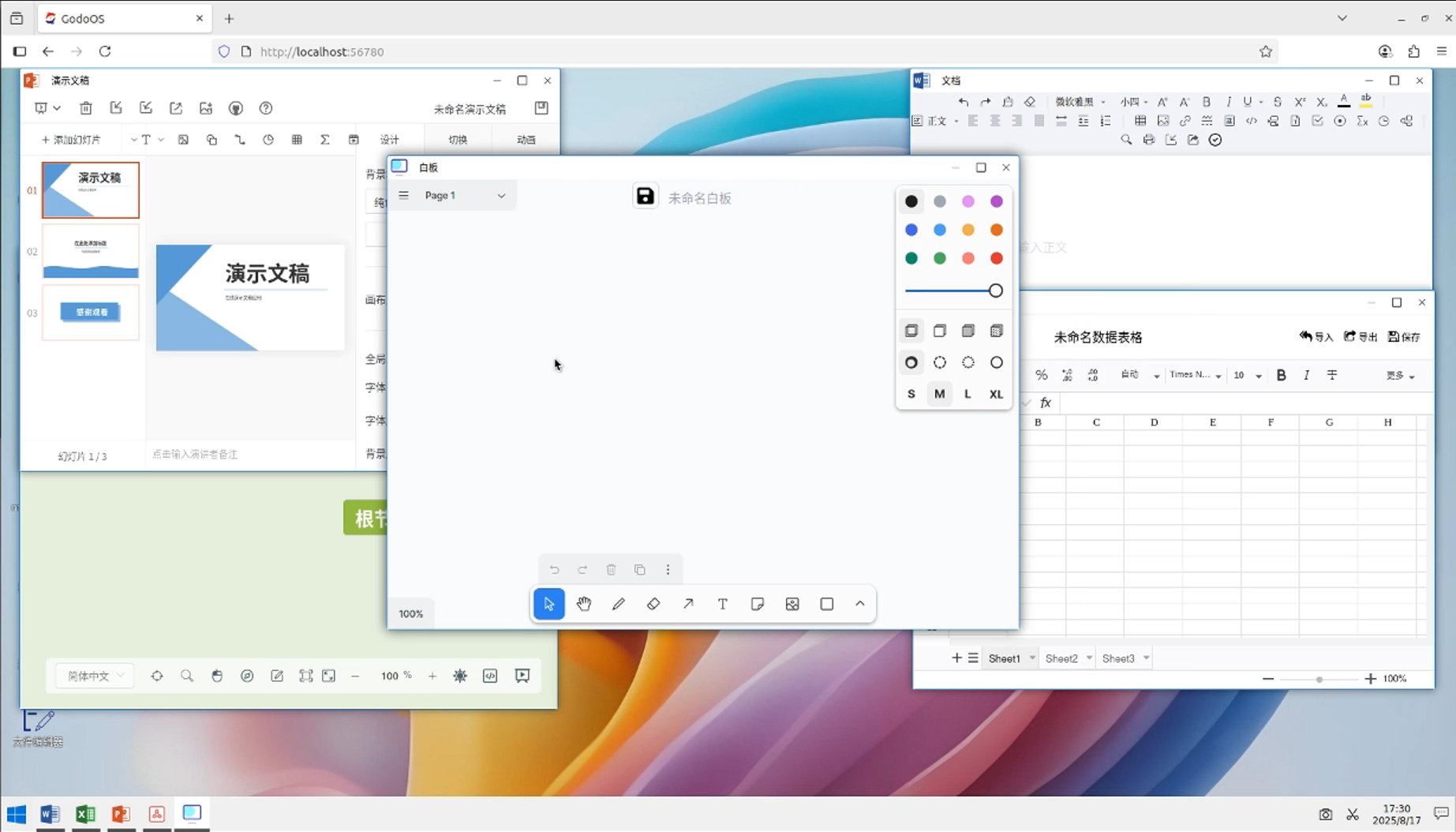 AI Visual Insight: The image presents GodoOS’s feature overview page. The main focus is on its lightweight footprint, open-source nature, zero-configuration approach, and local storage. The layout highlights a delivery model built around low deployment overhead and multi-tool integration.
Docker deployment keeps the launch cost of GodoOS low
The original workflow uses an offline image package import method, which works well in restricted-network environments or in scenarios where you want reproducible deployments. The full process includes downloading the archive, extracting the image, importing it into Docker, and starting the container with port mapping.
# Download the GodoOS offline image package
wget https://godoos.com/upload/godoos/1.0.4/docker/godoos_latest.tar.gz

# Extract the tar.gz archive to get the Docker image file
gzip -d godoos_latest.tar.gz

# Import the image into local Docker
sudo docker load -i godoos_latest.tar

# Run the container and expose port 56780
sudo docker run -d -p 56780:56780 --name godoos godoos/godoos:latest
These commands complete the containerized deployment of GodoOS and expose the service on local port 56780.
After deployment, visit http://localhost:56780 to enter the system. For personal evaluation, an internal team LAN workspace, or a demo environment, this step is already enough.
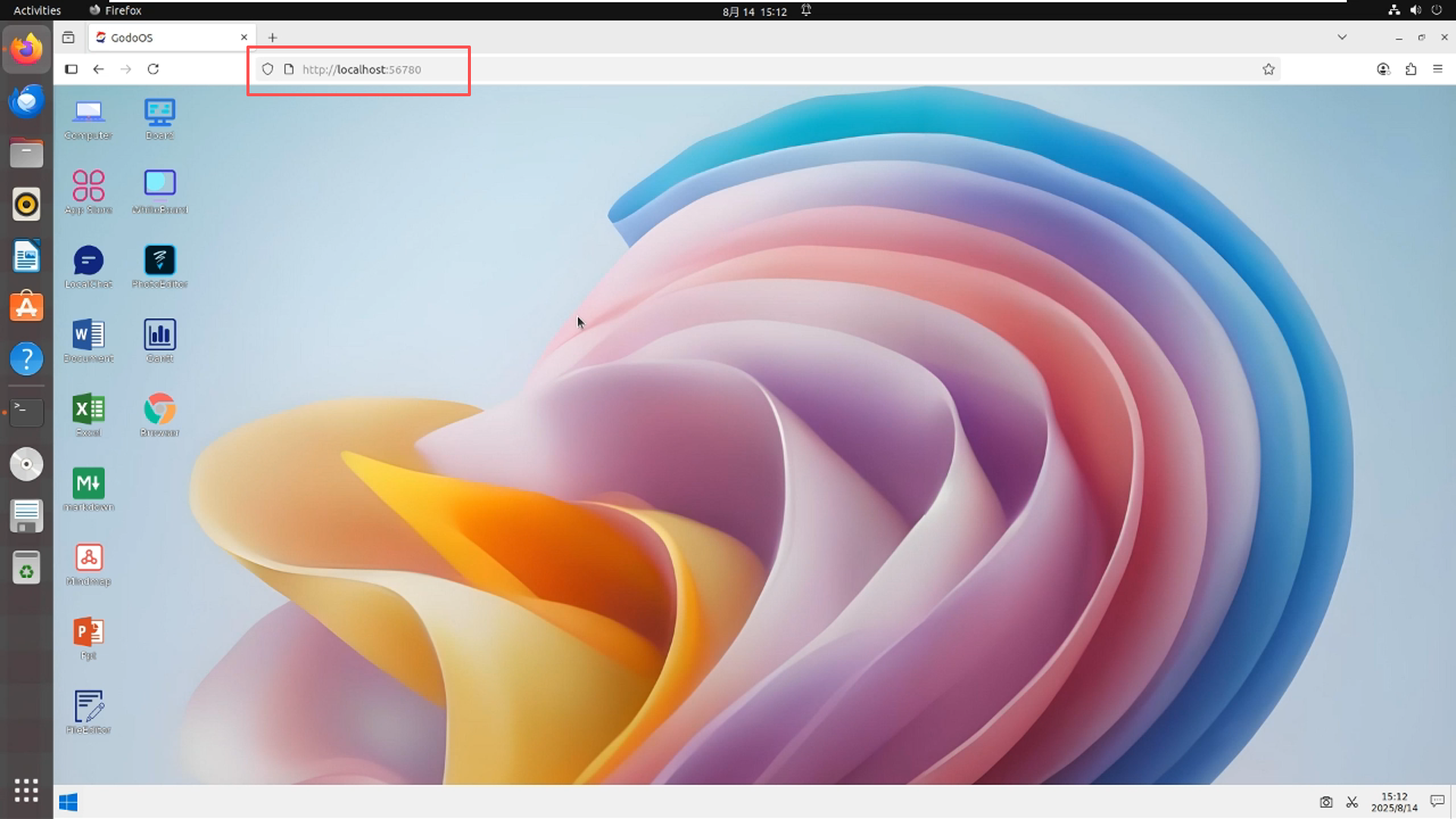 AI Visual Insight: The image shows the GodoOS web desktop right after first launch. Its interface resembles a Windows-style desktop, indicating that the system lowers migration friction through a familiar interaction model.
GodoOS covers lightweight office use cases well
From the desktop entry point, you can already see built-in applications such as documents, spreadsheets, Markdown, and mind mapping. This makes it suitable for knowledge organization, proposal writing, meeting notes, and lightweight internal collaboration.
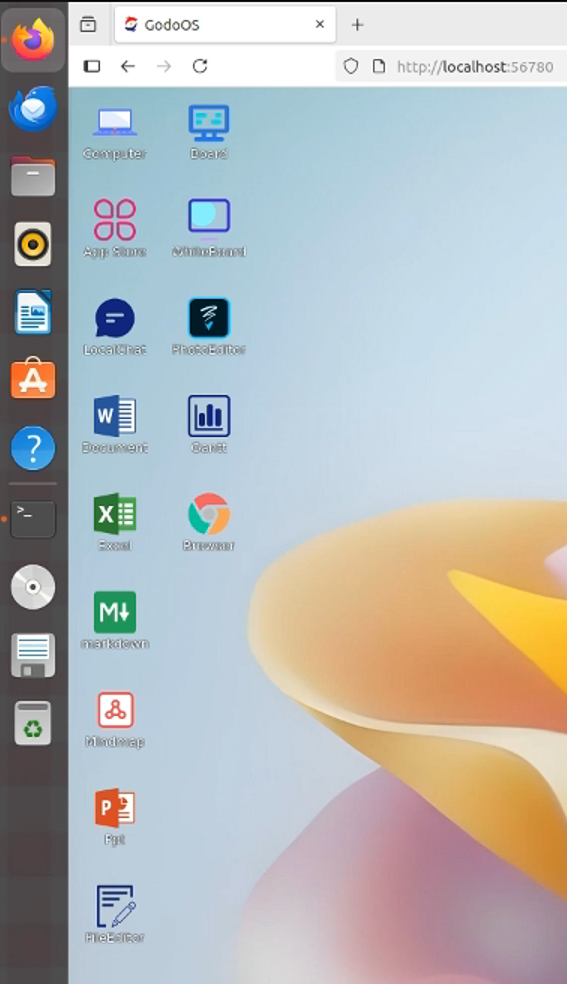 AI Visual Insight: The image shows the distribution of desktop applications in GodoOS. Multiple office app icons are placed directly on the desktop, indicating a classic desktop-style app launch model that makes frequently used modules easy to access.
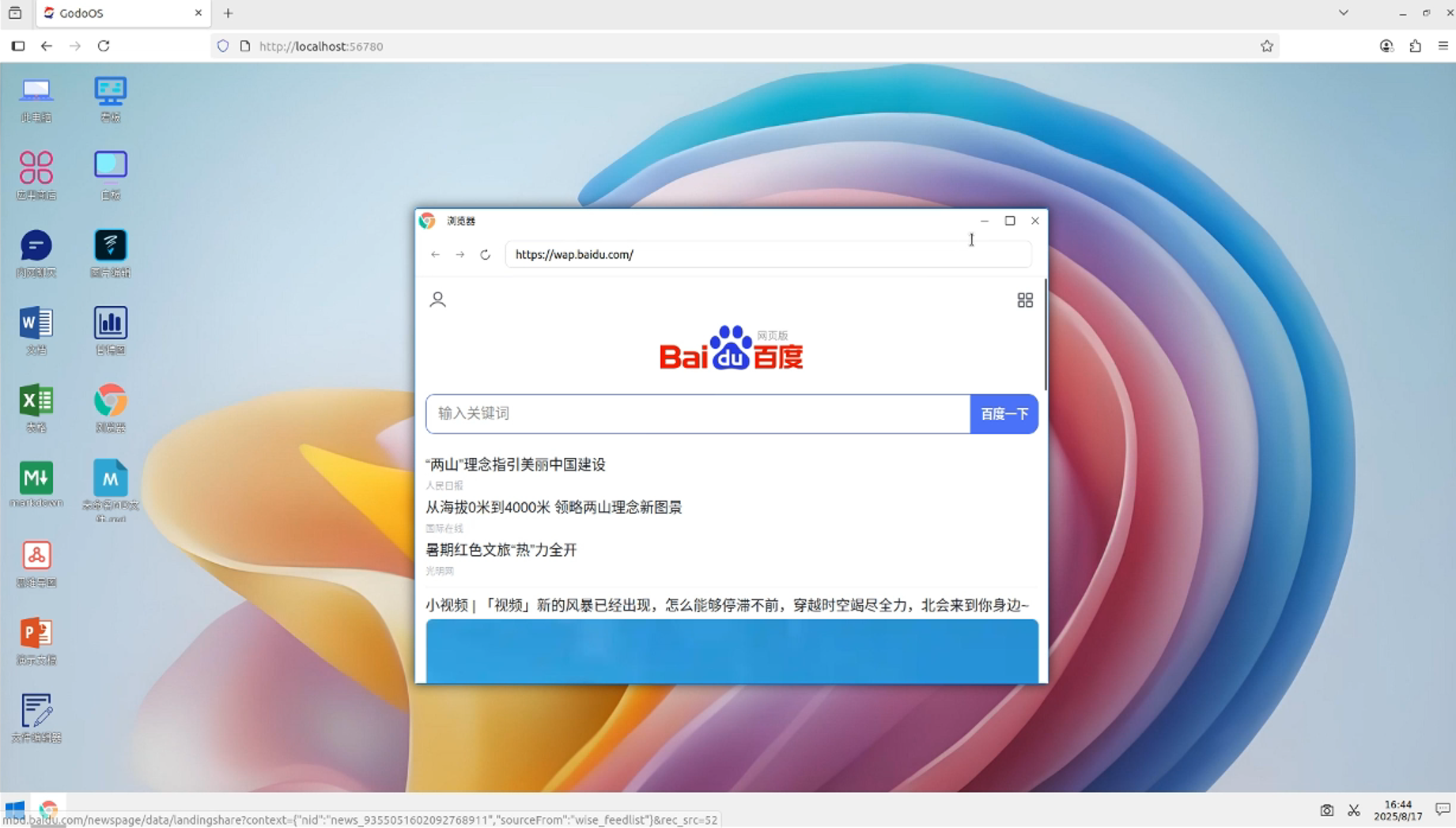 AI Visual Insight: The image shows GodoOS’s built-in browser component, indicating that the platform is not limited to document tools and also attempts to complete the web access layer for a more self-contained workflow.
cpolar makes LAN services reachable from the public internet
By default, GodoOS is only available on the local machine or inside the LAN. If you want continued access while traveling, working from home, or using mobile devices, you need to solve NAT traversal and public entry routing. cpolar maps the local port 56780 to a publicly reachable address.
The installation process is simple. The core steps are script-based installation and service status verification.
# Install cpolar with one command
sudo curl https://get.cpolar.sh | sh

# Check whether the cpolar service is running correctly
sudo systemctl status cpolar
These two commands install cpolar and verify that the background service has started successfully.
Then visit http://localhost:9200 to sign in to the cpolar web UI, where you can create tunnels and manage public mappings.
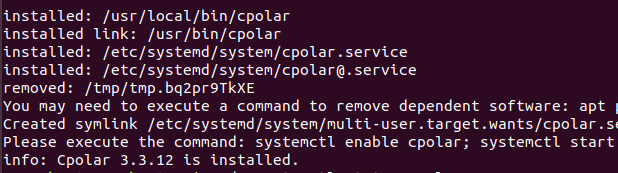 AI Visual Insight: The image shows the terminal output after running the cpolar installation script in a shell. The key technical point is that the official script enables rapid client deployment and reduces manual configuration complexity.
 AI Visual Insight: The image shows the output of checking the service state with
 systemctl, indicating that cpolar runs as a persistent system service, which supports auto-start behavior and long-term tunnel maintenance.
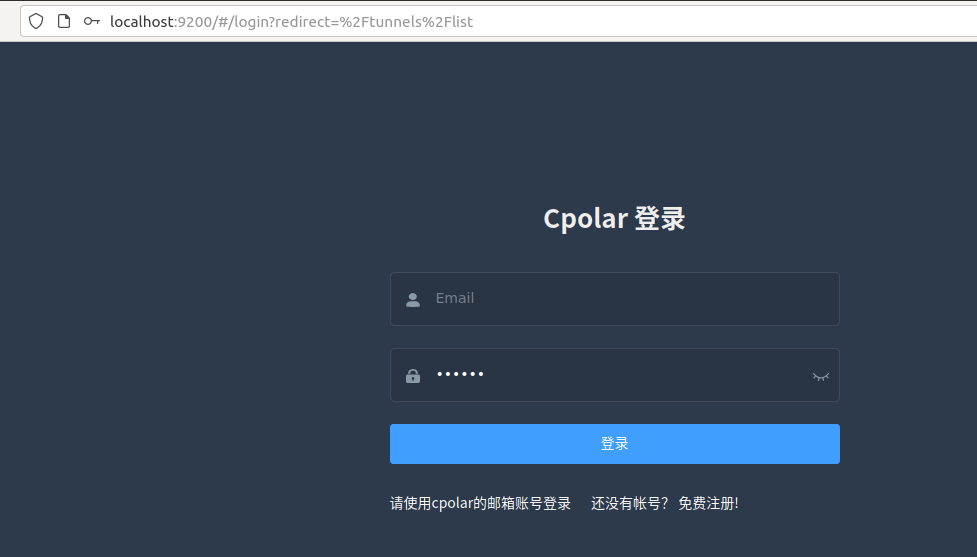 AI Visual Insight: The image shows the cpolar web management interface. The main takeaway is that it provides a visual entry point for tunnel configuration, so users do not need to handwrite complex proxy rules to complete public mapping.
A fixed subdomain makes the remote work URL more stable
A temporary random address works for testing, but it is not ideal for long-term use. A more reliable approach is to reserve a subdomain in cpolar and bind that subdomain to GodoOS’s local port 56780.
When creating the tunnel, the key parameters are as follows: choose HTTP as the protocol, set the local address to 56780, choose subdomain as the domain type, and bind the reserved fixed subdomain. This ensures that the remote entry point does not change frequently.
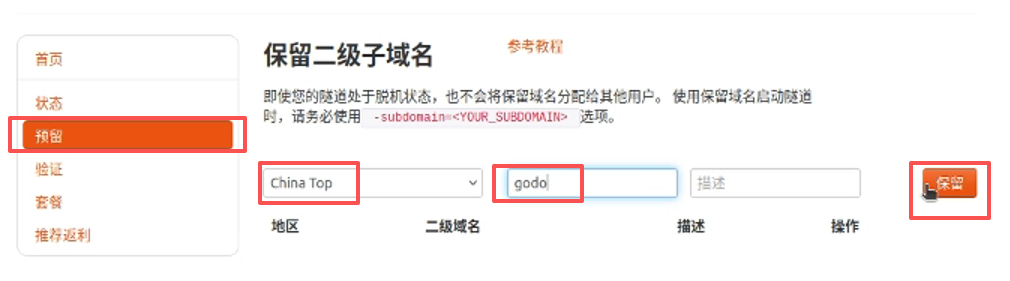 AI Visual Insight: The image shows the reserved subdomain configuration page in cpolar, demonstrating that the public access address can be planned in advance, which is useful for long-term service access and team sharing.
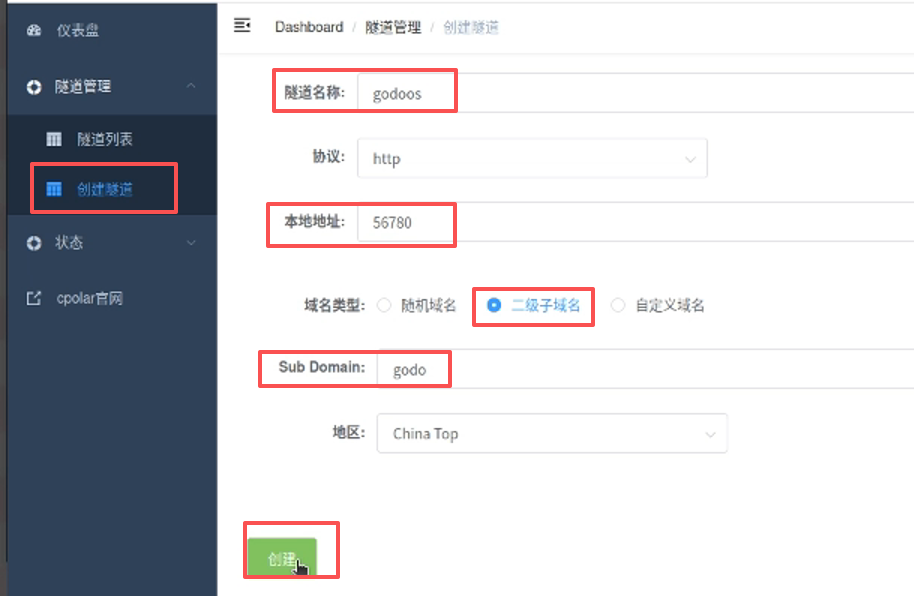 AI Visual Insight: The image shows the form fields used when creating a new tunnel, including protocol, local port, subdomain, and region. It reflects cpolar’s working model of explicitly binding a public endpoint to a local service port.
Remote access also requires the correct storage configuration
Many users find that after opening GodoOS through the public URL, the page is reachable but the content is blank or incomplete. In most cases, this does not mean the tunnel failed. It usually means that GodoOS is still using a storage backend mode that is not suitable for remote access.
At this point, you need to change the storage mode in GodoOS settings, switch it to remote storage, and enter the fixed public address generated by cpolar as the server address.
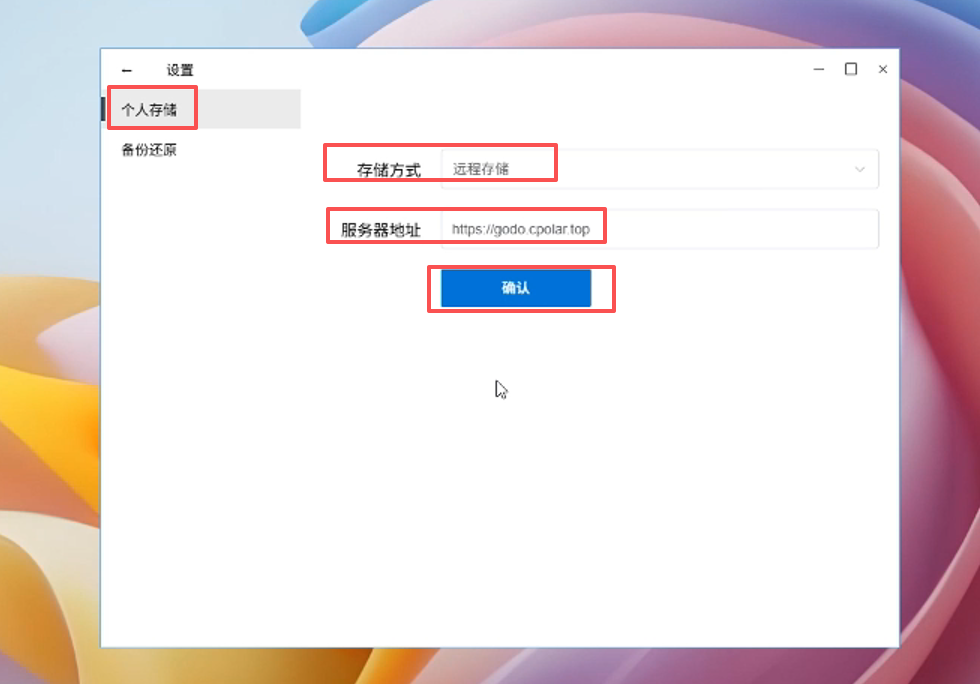 AI Visual Insight: The image shows the storage configuration interface in GodoOS system settings. The key action is switching the storage mode to remote storage and specifying the public service address so that resource paths resolve correctly across networks.
After this configuration, external devices can load the full desktop and application assets correctly, completing the transition from a local productivity workspace to a remotely accessible cloud desktop.
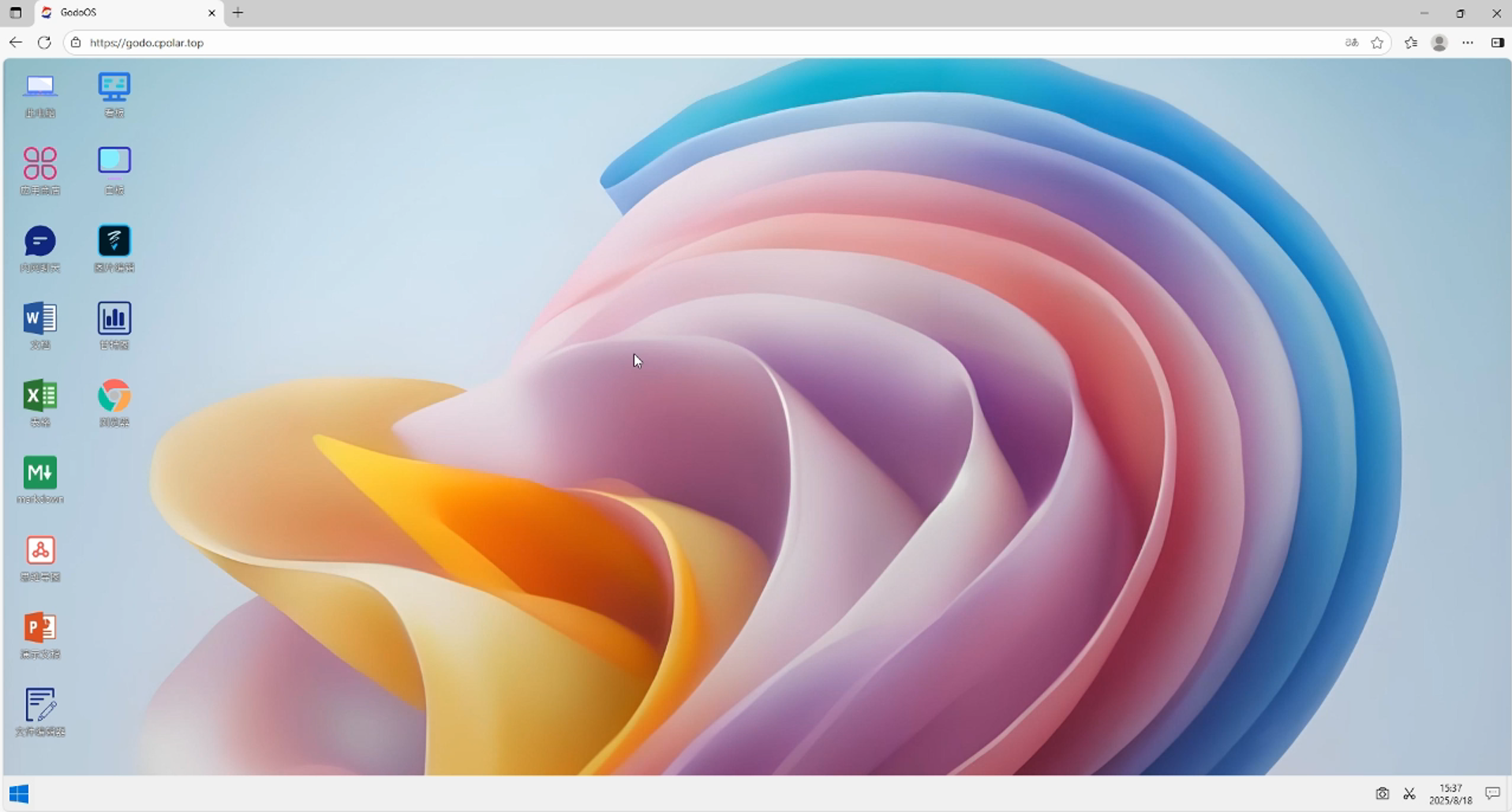 AI Visual Insight: The image shows the normal GodoOS interface after remote storage has been configured, indicating that the frontend UI, asset loading, and access paths are now correctly closed through the public address.
This combination is a strong fit for lightweight teams and individual remote work
GodoOS provides the unified workspace, while cpolar handles network exposure. Together, they solve two consecutive problems: tool consolidation and cross-network accessibility. This stack does not aim to orchestrate complex enterprise workflows, but it is highly suitable for small teams, solo studios, demo environments, and temporary project collaboration.
If your main requirements are low-friction deployment, browser-based access, local-first data handling, and continuous cross-network availability, this setup delivers strong cost efficiency. It is especially practical when you do not have a public IP and do not want to maintain an additional cloud server.
FAQ structured Q&A
1. Is GodoOS suitable as a replacement for traditional Office software?
It works well for light to medium daily office tasks, such as document organization, spreadsheet logging, Markdown writing, and team communication. If your workload involves complex macros, advanced layout design, or heavy presentation design, you should still keep professional desktop software.
2. Why does the GodoOS page appear blank after I open it through cpolar?
The common cause is usually not the tunnel itself. GodoOS is often still running in local storage mode. After you change the storage mode in system settings to remote storage and enter the fixed public address, the full interface usually loads correctly.
3. What is the biggest technical advantage of this setup?
Its main advantage is low coupling. GodoOS handles application integration, Docker handles fast delivery, and cpolar handles public network mapping. Their responsibilities are clearly separated, and the deployment chain stays short, which makes the stack ideal for quickly validating a remote office platform prototype.
[AI Readability Summary]
This article reconstructs a practical GodoOS and cpolar deployment workflow. It focuses on how to use Docker on Ubuntu to quickly build a lightweight office platform that integrates documents, spreadsheets, Markdown, whiteboards, and LAN collaboration, then make it continuously reachable through fixed public access via intranet tunneling.