This lightweight solution publishes a Serv-U SFTP service to the public internet through cpolar. Its core value is enabling secure external access to an internal file server in environments without a public IP address and with NAT or port restrictions. It is well suited for temporary file retrieval, remote work, and small-team collaboration. Keywords: Serv-U, SFTP, intranet penetration.
Technical specifications at a glance
| Parameter | Details |
|---|---|
| Core software | Serv-U, cpolar, FileZilla |
| Deployment environment | Windows |
| Transfer protocols | SFTP, TCP |
| Default local port | 22 |
| Public exposure method | TCP tunnel mapping |
| Address type | Random TCP / Fixed TCP |
| Stars | Not provided in the source |
| Core dependencies | Serv-U listener, cpolar client, outbound network access |
This solution solves the problem of internal file services being inaccessible from external networks
Serv-U is very stable for file services within a LAN. However, once you need to access it from the internet, you are usually blocked by NAT, the lack of a fixed public IP, port mapping approvals, and security policies. In particular, SFTP depends on port 22, and many enterprise edge networks do not allow inbound connections by default.
cpolar does not replace Serv-U. Instead, it creates a TCP path from the public internet back into your internal SFTP service. This means you do not need to modify your router or apply for a public IP address. Remote clients only need to connect to the address assigned by cpolar to access files.
You should first confirm that Serv-U is listening on the SFTP port correctly
In the Serv-U domain configuration, check the listener list and confirm that the SFTP listener is enabled. The default port is usually 22. If the listener does not exist, you must add it manually first. Otherwise, the tunnel configuration will have no target port to forward.
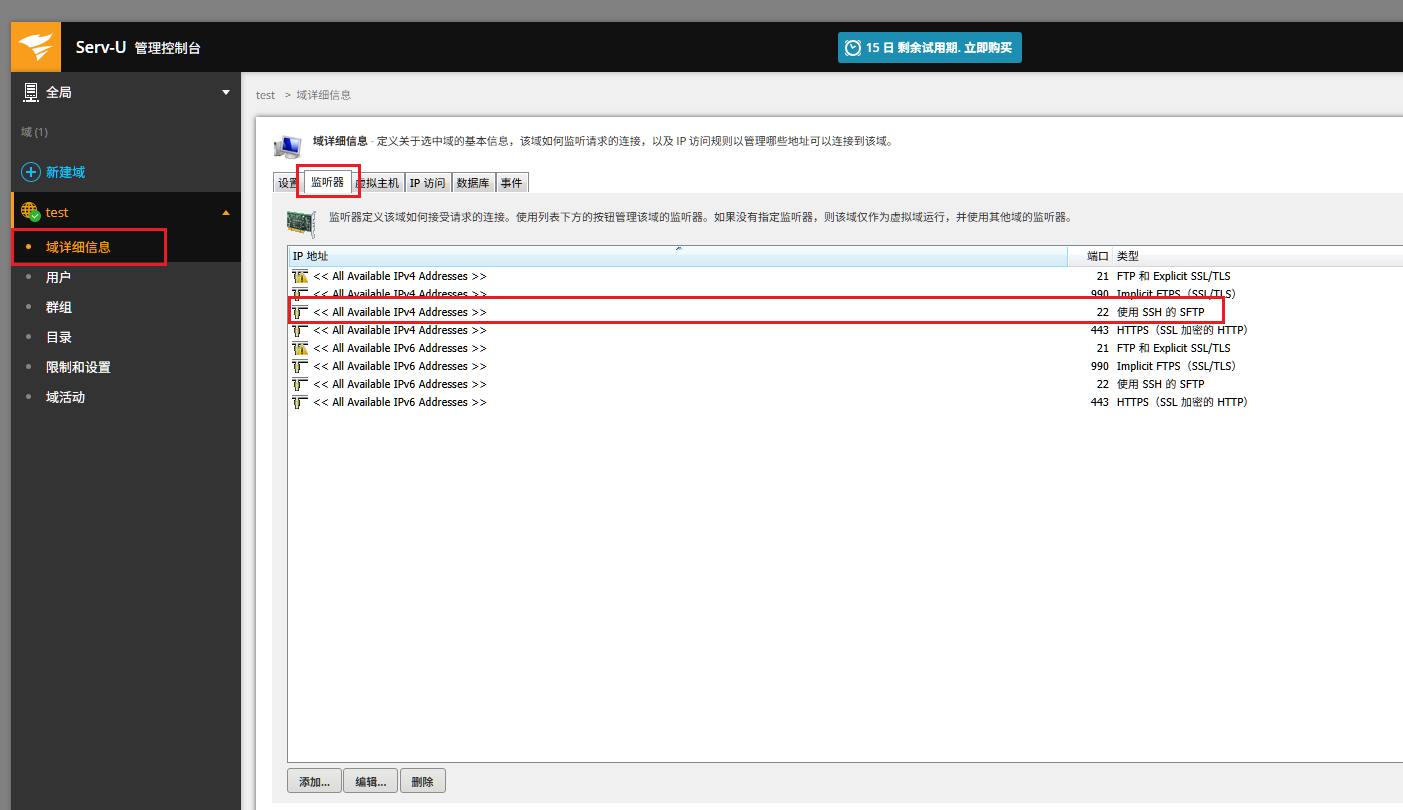 AI Visual Insight: This screen shows the domain-level listener configuration in Serv-U. The key information is the SFTP listener status and the bound port. That port becomes the local forwarding target for cpolar. If the listener is disabled or the port does not match, public connections will fail directly.
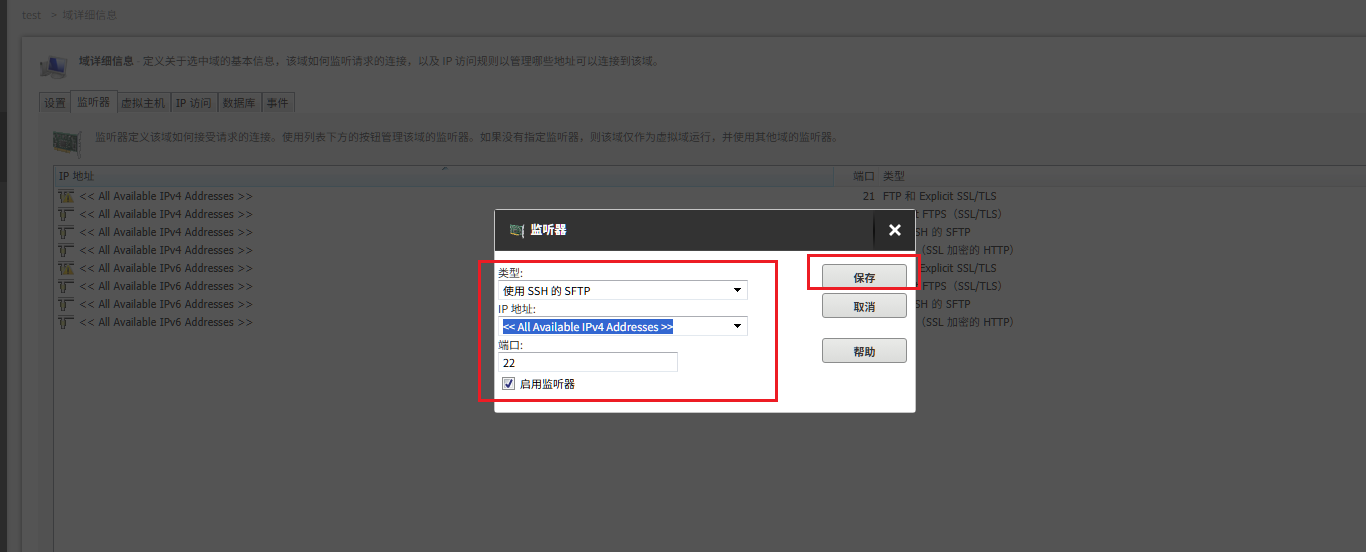 AI Visual Insight: This image highlights the entry point for adding a new listener in Serv-U, indicating that the server supports multiple protocol listeners. For this scenario, you must ensure that the SFTP protocol is enabled separately and bound to an accessible local port.
# Check whether local port 22 is in the listening state
netstat -ano | findstr :22

# Core goal: confirm that a process is listening on the SFTP port
This command confirms whether Serv-U is successfully listening on local port 22.
After installing cpolar on Windows, you can complete the tunnel configuration from the Web UI
After installing cpolar, open http://localhost:9200 in your browser and sign in to the dashboard. You can create tunnels, view public endpoints, and switch to fixed addresses from this management interface. It is a good fit for operations teams that prefer a GUI over the command line.
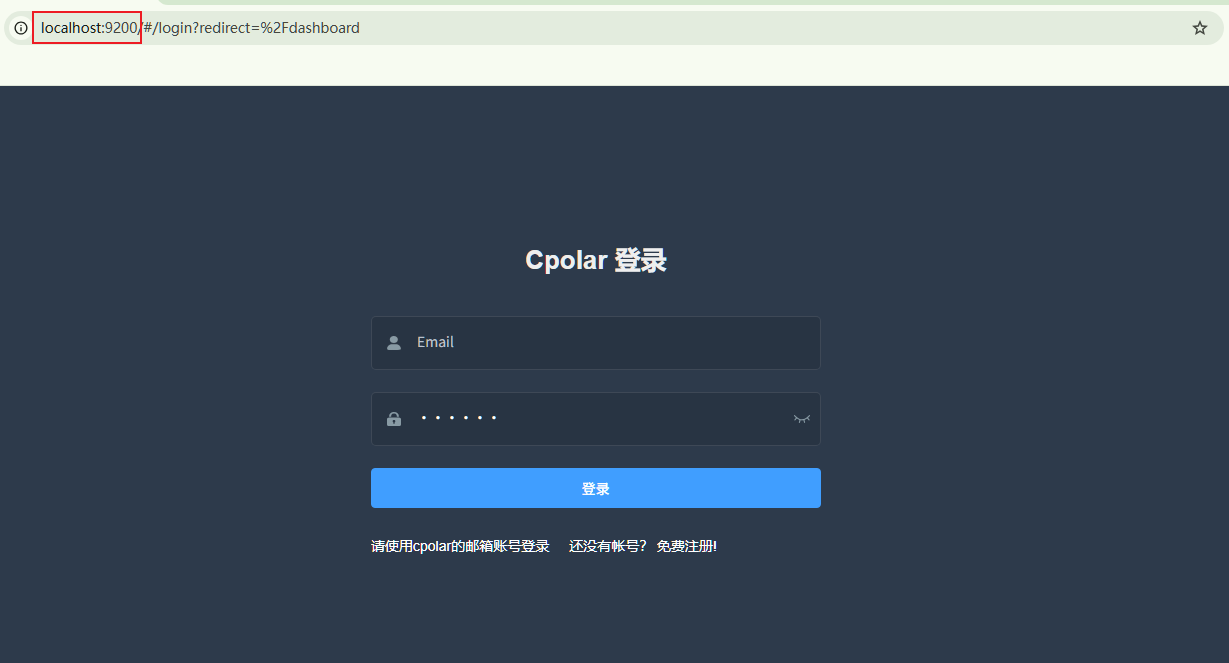 AI Visual Insight: This screen shows cpolar’s local web console, where tunnels, status, and reserved addresses are managed through the browser. Port 9200 is the configuration entry point. If the page is unreachable, the client is usually not running correctly.
Creating a TCP tunnel is the key step for publishing SFTP to the public internet
When creating a new tunnel in cpolar, select tcp as the protocol and enter 22 as the local address. If you only want to verify that the path works, you can start with a random TCP address. If you plan to use it long term for teammates or business systems, upgrade later to a fixed TCP address.
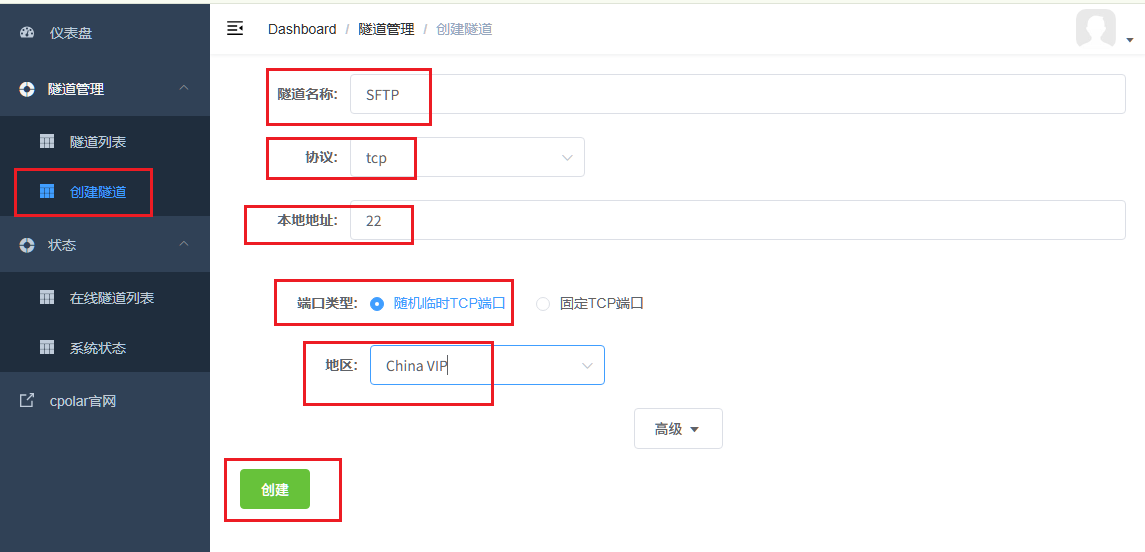 AI Visual Insight: This image clearly shows the TCP tunnel creation form, including the tunnel name, protocol, local port, and region. The most important point is that the protocol must be set to TCP, not HTTP or HTTPS, because SFTP is a raw TCP service built on SSH.
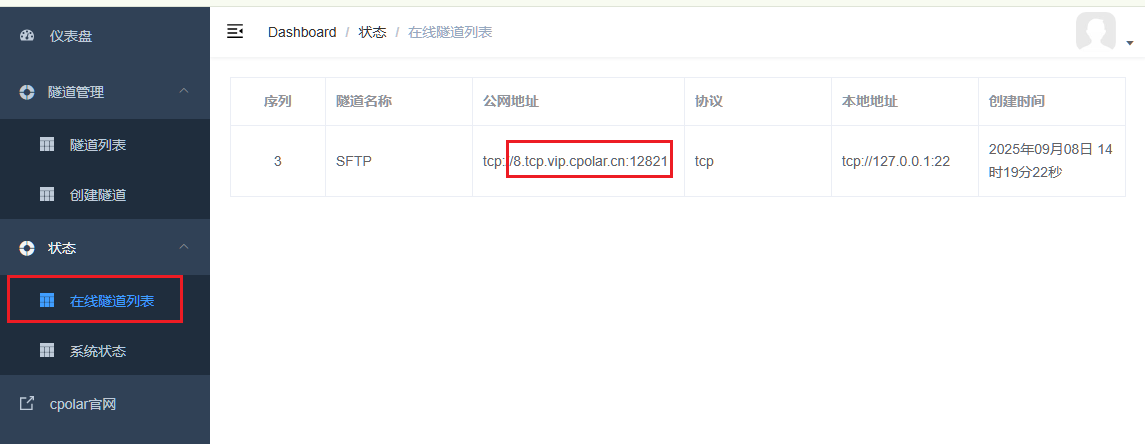 AI Visual Insight: This image shows the remote TCP address generated by cpolar for local port 22. The domain and port combination here is the external access entry point. Clients do not connect to the internal IP address. They connect to this public mapped endpoint instead.
# Example SFTP client connection
sftp -P remote-port [email protected]
# Core logic: use the public TCP address assigned by cpolar to reach the internal Serv-U server
This command demonstrates the standard SFTP connection method when you do not rely on a graphical client.
You can quickly verify external connectivity with FileZilla
In FileZilla, enter sftp://8.tcp.vip.cpolar.cn for the host, use the five-digit port assigned by cpolar, and then provide the Serv-U username and password to connect. If a host key confirmation prompt appears on first connection, verify it and accept it.
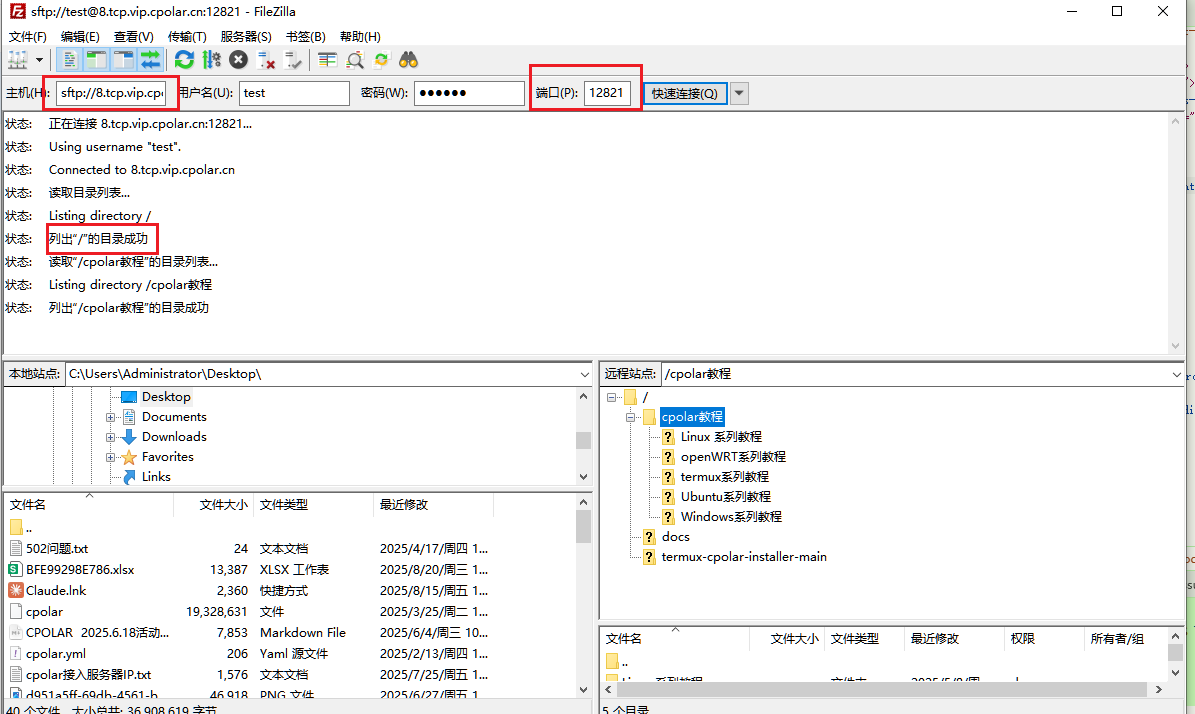 AI Visual Insight: This image shows the connection result in a graphical SFTP client, proving that the public TCP address has successfully connected back to the internal Serv-U server. Pay particular attention to the protocol prefix, target port, and remote directory loading after successful authentication.
Random addresses are good for temporary use, while fixed addresses are better for stable collaboration
A random TCP address is fast to create, but it usually changes within 24 hours. That makes it unsuitable for scripts, long-term sharing with teammates, or integration into fixed workflows. If you need a persistent entry point, reserve a fixed TCP address and bind it to the existing tunnel.
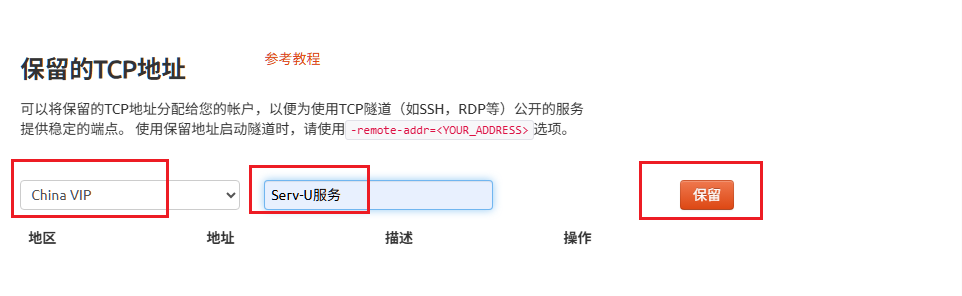 AI Visual Insight: This screen shows the process of requesting a reserved TCP address in the cpolar console, demonstrating that the public endpoint can move from dynamic allocation to persistent binding. For long-term operations, this is the key step from temporary access to stable maintainability.
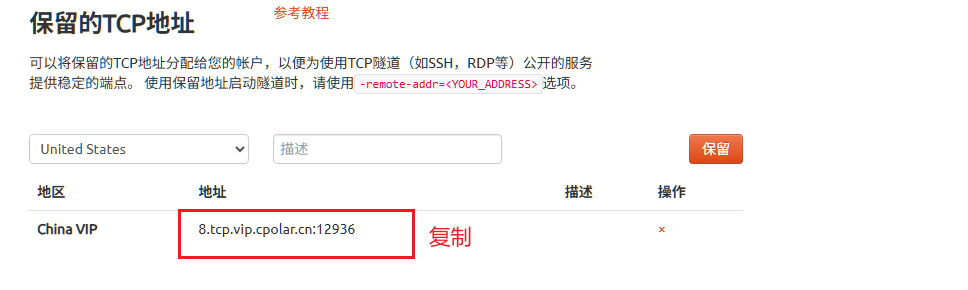 AI Visual Insight: This image presents the reserved public TCP address and port, which become the unique identifier you will bind to the tunnel later. In production, record this in your operations documentation and control how widely it is distributed.
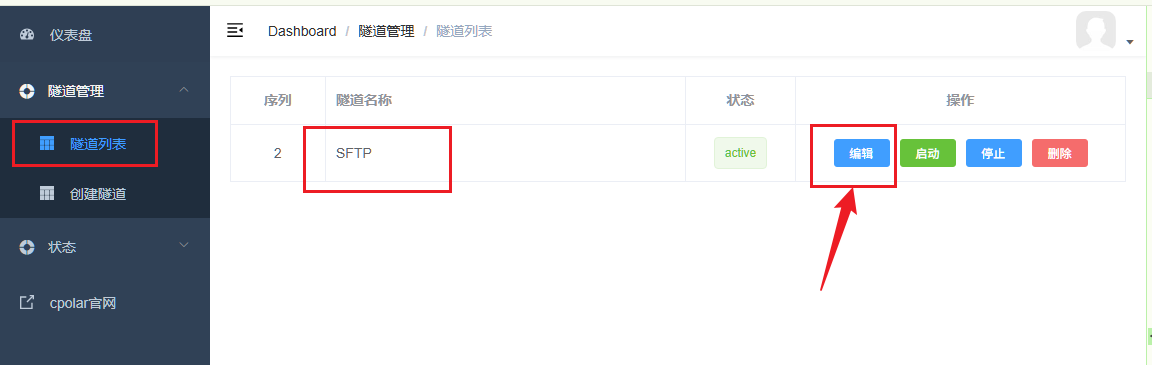 AI Visual Insight: This image shows where to modify an existing TCP tunnel in the tunnel list. It demonstrates that you do not need to rebuild the tunnel from scratch. You only need to edit the target configuration to switch from a random address to a fixed one, which lowers change overhead.
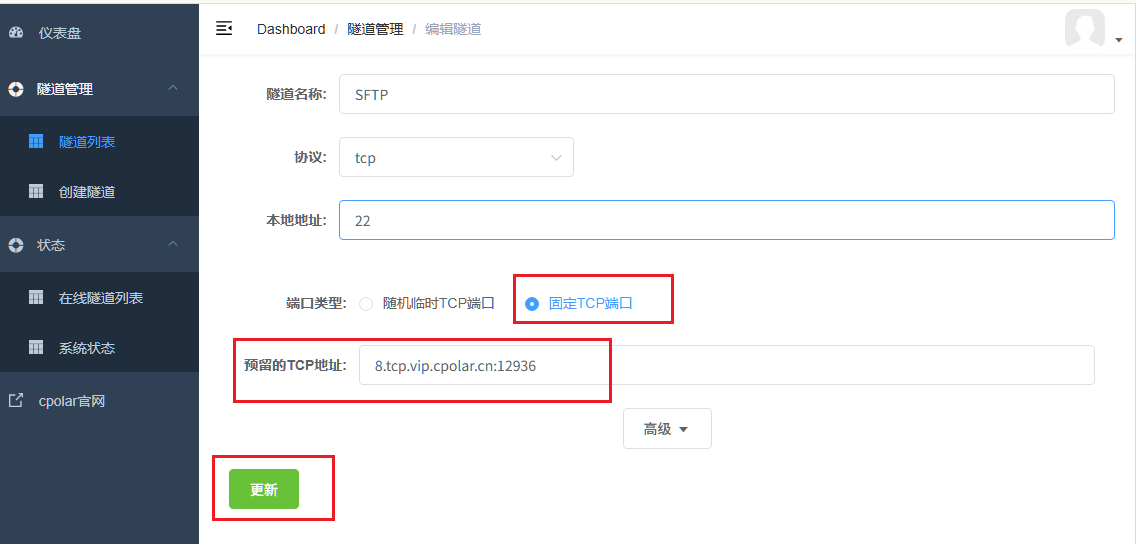 AI Visual Insight: This image shows the specific settings for switching the port type to fixed TCP and entering the reserved address. After this step, the public access endpoint forms a stable mapping to local port 22.
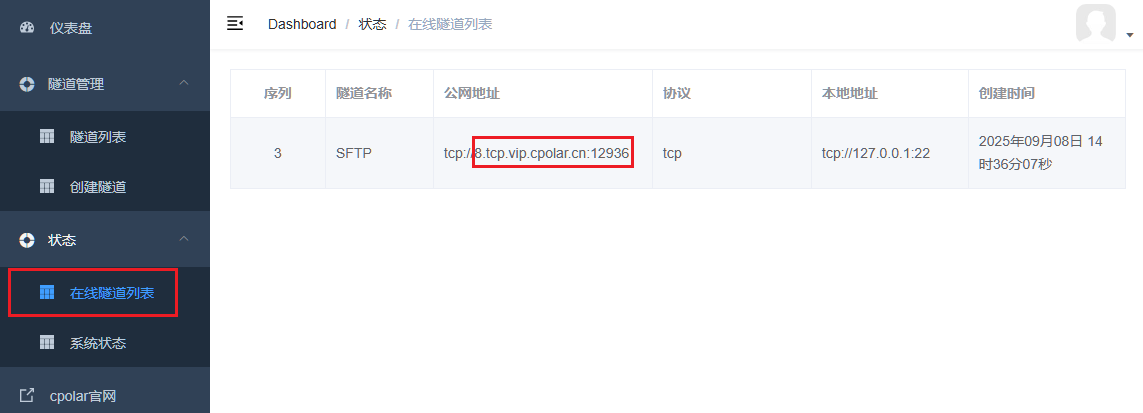 AI Visual Insight: The address shown in the online tunnel view now matches the reserved address, which confirms that the fixed mapping is active. This is the right time to perform a second round of validation, including cross-network testing, permission checks, and stability observation.
sftp_publish:
  local_service: serv-u
  local_port: 22   # Local SFTP listening port
  tunnel_protocol: tcp
  public_endpoint: fixed-tcp-address
This configuration snippet summarizes the entire mapping relationship: local port 22 is exposed as a fixed public endpoint through a TCP tunnel.
A fixed public address makes remote access more suitable for long-term operations
After the fixed address is configured, test the connection again in FileZilla or from the command line by using the new public endpoint. If the service responds correctly, authentication succeeds, and directories are readable and writable, the intranet penetration path is now stable and usable.
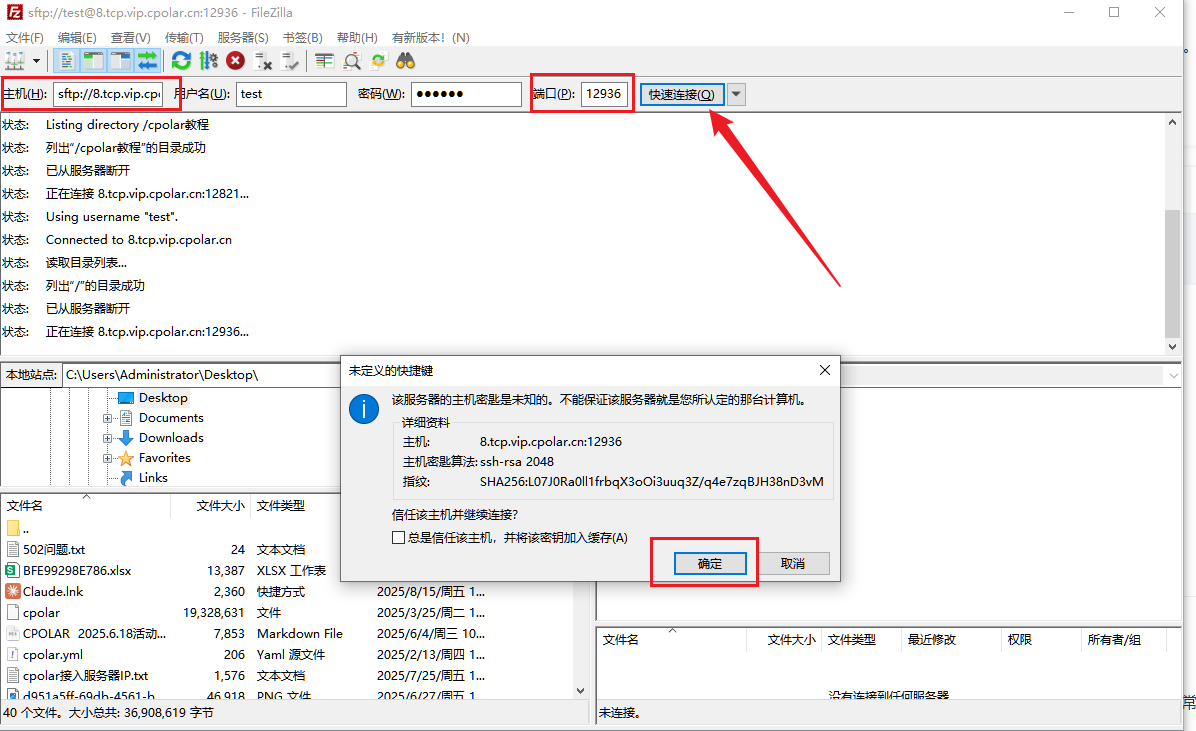 AI Visual Insight: This image emphasizes the client connection flow when using a fixed address. Compared with the random address mode, only the public endpoint changes. The Serv-U authentication and directory access workflow remains the same.
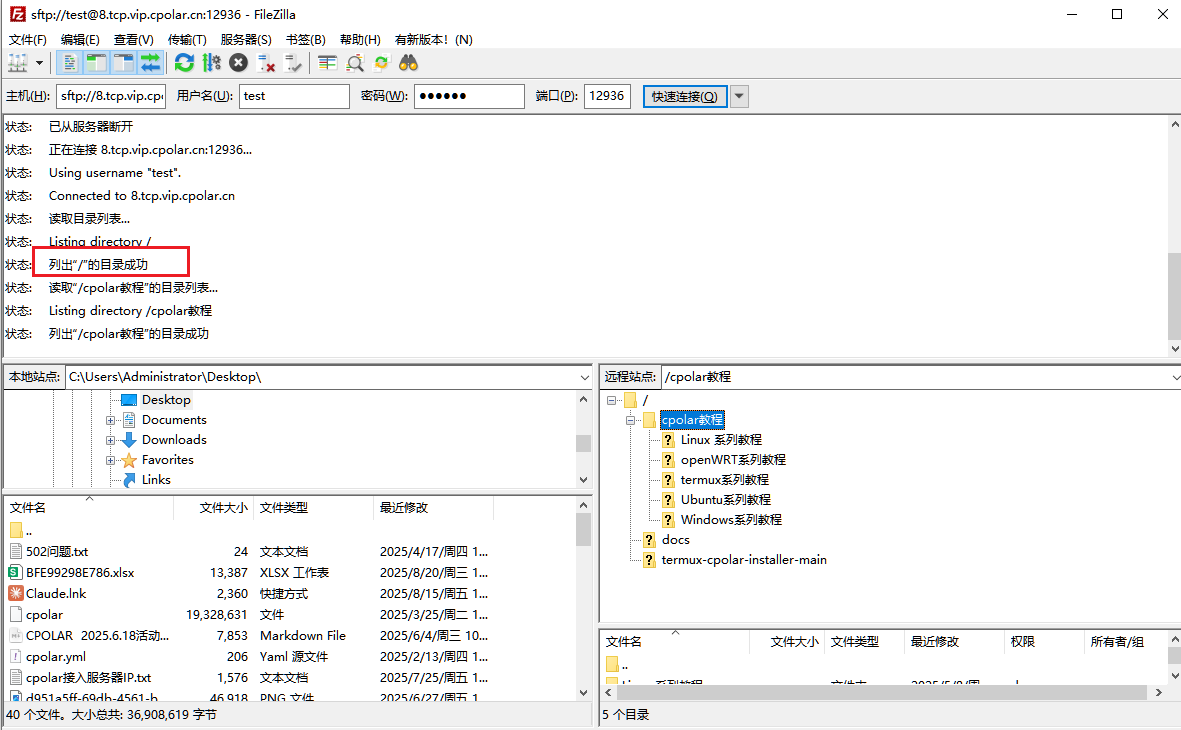 AI Visual Insight: This image shows that the fixed TCP address has been successfully mapped to the internal file service. Remote clients can now establish SFTP sessions consistently and access the directory structure, which means the solution is ready for sustained use.
You must define the security boundary before publishing the service
This solution assumes that the internal host can reach the cpolar service over the internet, which means outbound network access must be available. At the same time, you must configure Serv-U users, directory permissions, and least-privilege access in advance. SFTP is more secure than FTP, but it is not secure by default.
At minimum, enable strong passwords, prefer key-based authentication, and limit the remote use of high-privilege accounts. If the files are business-critical, you should still prioritize an enterprise VPN, zero-trust access, or a formal file gateway instead of treating a temporary tunneling solution as your long-term primary production channel.
FAQ
Q1: Why not just configure port forwarding on the router?
A: Many enterprise networks do not have a fixed public IP, and egress devices are centrally controlled by network administrators. Opening inbound port 22 often requires slow approvals and multiple policy checks. The advantage of cpolar is that it depends only on outbound connectivity, so deployment is much lighter.
Q2: How should I choose between a random TCP address and a fixed TCP address?
A: A random address is fine for temporary debugging and short-term file retrieval. If you need to store the endpoint in client settings, share it with multiple users, or support repeated access over time, a fixed address is the better choice. Otherwise, address changes will break connections.
Q3: What is the most important security action after exposing SFTP to the public internet?
A: Focus on three things first: enable strong passwords or key-based authentication, minimize directory permissions, and regularly audit account login records. If possible, add IP restrictions and multi-factor authentication on top.
Core summary
This article reconstructs a practical Serv-U and cpolar solution for external SFTP access. It covers listener verification, Windows installation, TCP tunnel configuration, fixed public endpoint binding, and FileZilla validation. It also adds security boundaries, suitable use cases, and common questions to help you quickly establish a controlled remote file access path in environments without a public IP address.