This article focuses on the issue where GPT-5.5 cannot be selected directly in Codex. The goal is to provide a reproducible configuration and troubleshooting path that helps developers complete model integration, command validation, and root-cause isolation. Keywords: Codex, GPT-5.5, model configuration.
Technical specification snapshot
| Parameter | Details |
|---|---|
| Tool/Project | Codex CLI configuration for using GPT-5.5 |
| Target issue | /model does not show GPT-5.5, so it cannot be called directly |
| Languages | Shell, JSON, TOML |
| Protocol/API | OpenAI API-compatible interface |
| Star count | Not provided in the source data |
| Core dependencies | Codex CLI, API key, model access permissions, terminal environment variables |
This article focuses on model visibility in Codex rather than model capability itself
The useful information in the original issue is highly concentrated: after running /model in Codex, the developer does not see the GPT-5.5 option and therefore assumes the tool does not support the latest model.
More precisely, this is usually not a case of “the model does not exist.” It typically falls into one of four categories: model enumeration, account permissions, configuration files, or API endpoint settings. For terminal-based AI tools, if a model does not appear, check configuration first and permissions second.
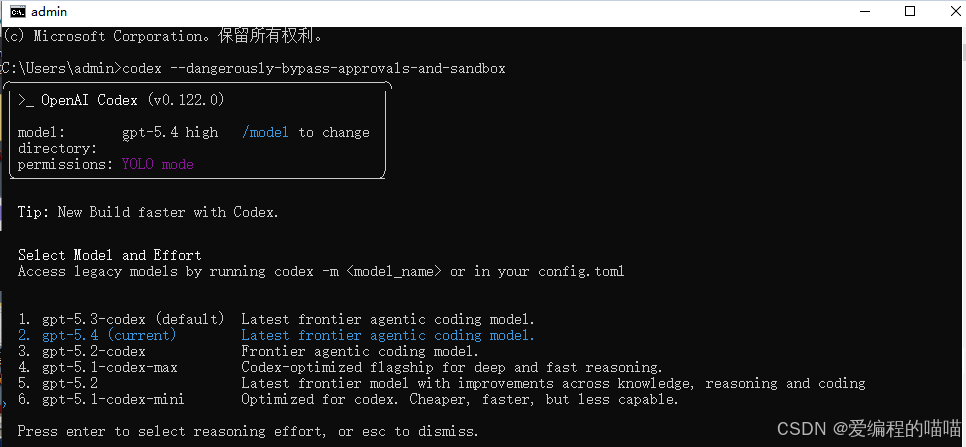 AI Visual Insight: This screenshot shows the model selection stage in the Codex interactive interface. After the user runs
 /model, the target model is missing from the list, which indicates that the current client failed to fetch or recognize GPT-5.5. Initial suspicion should fall on the model allowlist, account authorization scope, or an outdated local configuration cache.
Confirm which layer the problem belongs to first
Use a fixed order of checks: first verify that the account has access to the model, then confirm that the API base URL is correct, and finally inspect Codex local configuration and environment variable overrides.
# Check whether the current environment contains the required settings
# Core logic: verify that the API key and Base URL are injected into the terminal session
echo $OPENAI_API_KEY
echo $OPENAI_BASE_URL
This command is used to quickly verify whether the terminal session already meets the minimum requirements for calling the model.
The key to solving this issue is to align the model name, endpoint, and permission scope
Many developers confuse “model release” with “my account can call it.” Even after a model goes live, whether Codex displays it still depends on the current account, organization, API version, and client support status.
If you use an OpenAI-compatible relay layer or an enterprise gateway, pay special attention to whether the platform rewrites the model name. For example, the platform may expose gpt-5.5, gpt-5.5-codex, or a custom alias instead of the official public name.
A recommended minimal configuration approach
Start with the fewest possible variables and build a configuration that is easy to verify, then return to Codex and select the model. If the request succeeds at the API layer, the CLI layer is most likely dealing with an enumeration or cache issue.
# ~/.codex/config.toml
# Core logic: explicitly specify the model and server endpoint to avoid broken defaults
model = "gpt-5.5"
provider = "openai"
base_url = "https://api.openai.com/v1"

[auth]
# Core logic: read the key from an environment variable first instead of hardcoding it
api_key_env = "OPENAI_API_KEY"
This configuration changes Codex model selection from “automatic discovery” to “explicit declaration.”
The validation path should cover both API testing and Codex terminal testing
If the configuration has already been written but /model still does not show GPT-5.5, do not immediately reinstall repeatedly. A more efficient approach is to bypass UI enumeration first and test whether the API can return a result directly.
Once the direct API call succeeds, the problem is no longer the model itself. It is more likely related to client capability, list refresh behavior, or local cache.
curl https://api.openai.com/v1/chat/completions \
  -H "Content-Type: application/json" \
  -H "Authorization: Bearer $OPENAI_API_KEY" \
  -d '{
    "model": "gpt-5.5",
    "messages": [
      {"role": "user", "content": "Please return ok"}
    ]
  }'
This request is used to verify whether the target model is actually available to the current account.
If the API works but /model still does not show the model
This situation usually has three explanations: the Codex version is outdated, the model list is cached, or the client only shows an official stable allowlist.
You can follow three steps: upgrade the client, clear the cache, and restart the terminal session. If the issue persists, prefer explicitly setting the model in the configuration file instead of relying on the interactive selector.
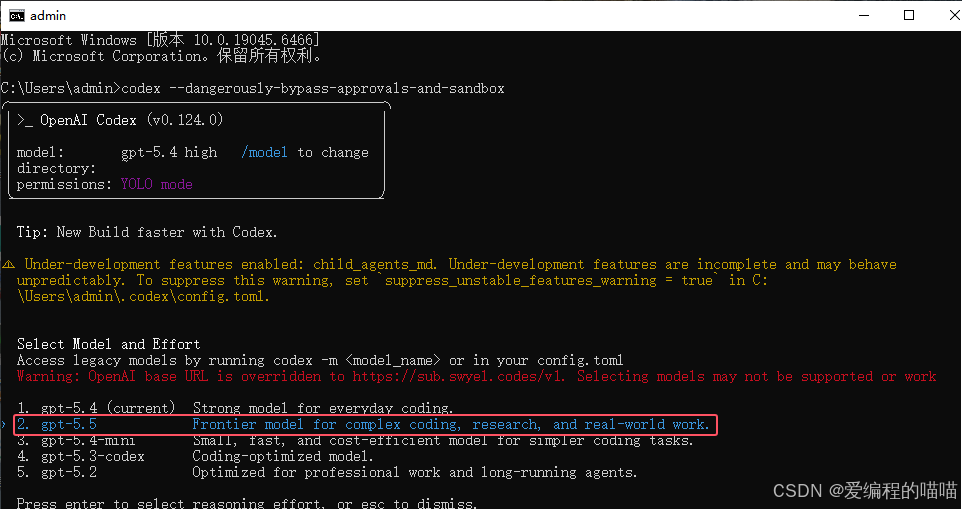 AI Visual Insight: This screenshot reflects the terminal state after the model configuration is completed. The interface can now recognize the target model or related configuration items, which indicates that model metadata synchronization between the client and server has returned to normal. In most cases, this means at least one issue in the environment variables, configuration file, or permission chain has been corrected.
 AI Visual Insight: This screenshot further confirms that GPT-5.5 has entered a callable state. Common signs include the model name appearing in the candidate list, session header, or execution logs. This means the issue has moved from “model not visible” to “model selectable and runnable,” which is the right time to continue with feature-level validation.
Stability recommendations for developers should prioritize maintainability
In team environments, the safest approach is not to explain verbally how to make the model appear. Instead, solidify model configuration in environment templates, including .env, config.toml, and startup scripts.
This makes it much easier to identify which layer shifted when the model changes, the CLI is upgraded, or the gateway is replaced, and it prevents the same class of issue from recurring.
# Load environment variables consistently before startup
# Core logic: centralize management of the key, endpoint, and model name
export OPENAI_API_KEY="your_api_key"
export OPENAI_BASE_URL="https://api.openai.com/v1"
export CODEX_MODEL="gpt-5.5"

# Start Codex
codex
This script turns a temporary debugging solution into a stable startup entry point.
FAQ
1. Why has GPT-5.5 been released, but I still cannot see it in Codex?
The most common reason is that your account has not been granted access to the model, or your Codex client has not been updated to a version that supports enumerating it. You should also check the base URL, model aliases, and local cache.
2. If /model does not show the target model, does that always mean the API cannot call it?
No. /model is only the client display layer. In many cases, the API is already available while the CLI list has not been refreshed. You should validate model access directly with curl or an SDK first.
3. How can a team avoid having every engineer run into the same issue?
Document the API key injection method, base URL, model name, and Codex configuration file in project documentation or startup scripts, and provide a standard template in CI or onboarding environments. This is usually the lowest-cost governance approach.
AI Readability Summary
This article restructures a hands-on troubleshooting record for the case where Codex cannot directly display the GPT-5.5 model. It extracts the issue symptoms, likely causes, configuration strategy, and validation methods to help developers complete model switching and environment self-checks quickly.