This guide explains practical OPPO phone data recovery paths across four common scenarios: lock screen reset, cloud rollback, local backup restore, and deleted data scanning. It focuses on three core problems: being locked out of the system, recovering after a factory reset, and retrieving accidentally deleted files. Keywords: OPPO data recovery, ColorOS backup, HeyTap Cloud.
Technical Specifications at a Glance
| Parameter | Information |
|---|---|
| Target Platform | OPPO phones / Android / ColorOS |
| Related Protocols and Services | Google account, Find My Device, HeyTap Cloud, USB debugging |
| Article Type | Data recovery methodology and operational guide |
| Applicable Scenarios | Forgotten lock screen password, factory reset, cloud rollback, deleted contacts |
| Core Dependencies | OPPO local backup, HeyTap Cloud, Google Drive, Android data recovery tools |
| Data Risk Level | From low to high: local backup < cloud restore < remote wipe < deep scan |
| Stars | N/A (not an open source project; original content is tutorial-based) |
OPPO Phone Data Recovery Typically Follows Several Common Paths
OPPO phone data recovery essentially falls into two categories: regaining access to the device, and retrieving existing backups or residual data. The first category addresses lock screen issues and cases where you cannot enter the system. The second category addresses lost contacts, photos, app data, and similar content.
What actually determines recovery success is not the number of tools you use, but whether you created backups in advance, whether the device can still boot, and whether cloud sync was enabled. In practice, you should always try low-risk, non-destructive options first, and only then move to higher-risk methods.
 AI Visual Insight: The image presents a consumer-electronics-themed visual focused on data recovery. Its core message is the need to restore data after smartphone data loss. While it does not show specific UI details, it reinforces the article’s focus on failure recovery and data rollback scenarios.
You Should Identify Your Failure Type First
1. Forgot the lock screen password -> Restore device access first
2. Already performed a factory reset -> Check cloud and local backups first
3. Accidentally deleted contacts/files -> Check the recycle bin, sync services, and recovery software
4. Switching from an old phone to a new one -> Use Phone Clone first
This flow helps you classify the problem before choosing the lowest-cost recovery path.
Recovering From a Forgotten Lock Screen Usually Involves Data Risk
If you forgot your OPPO lock screen password, pattern, or PIN, the most direct option is usually a factory reset. However, this method often erases local data, so it is best suited to scenarios where you unlock the device first and then restore from a backup.
Common approaches include wiping data through Recovery Mode, using Android device management features, and using Google’s Find My Device. All three are fundamentally about regaining control of the device, not directly restoring local files.
You Can Wipe Data Through Recovery Mode
Power off the phone, then press and hold Volume Down + Power
Release when the OPPO logo appears to enter the recovery screen
Select language -> Wipe data and cache / Factory reset
Confirm -> Reboot the device -> Set up sign-in again
This process resets device access status, but it typically erases any local data that was not backed up.
You Can Remotely Reset the Device Through a Google Account
If the phone is linked to a Google account and is online, you can try the remote control features in Find My Device:
# Example flow showing the action sequence, not a command-line tool
Sign in to Google Find My Device
Select the target OPPO device
Run the "Lock" or "Erase Device" action
Reinitialize the phone with its new state after completion
This approach works well when the device is lost, relocked, or cannot be operated locally.
Recovery Success Rates Are Usually Highest When Backups Already Exist
If you previously enabled a ColorOS local backup, HeyTap Cloud, or Google Drive, the same problem becomes much easier to solve. Recovery no longer depends on low-level scanning. Instead, you can roll back directly from a backup snapshot.
Among these options, local backup restore is usually faster and more complete. Cloud restore is more flexible, but its effectiveness depends on sync coverage and account status.
Restoring From OPPO Local Backup Is the Preferred Option
Go to Settings > Additional Settings > Back Up and Reset > Local Backup, or open the historical backup list through Tools > Backup and Restore. Then select categories such as contacts, messages, call logs, app data, and system settings to restore.
Settings -> Additional Settings -> Back Up and Reset
Select Local Backup
Check Contacts / Messages / System Data and other items
Tap Start to restore them to the current device
This operation rolls back selected data from an existing local backup set.
You Can Download Data Back From HeyTap Cloud and Google Drive
HeyTap Cloud is suitable for restoring OPPO ecosystem data such as text messages, call logs, and system settings. Google Drive is better suited for general files and some synchronized content. In both cases, you must have signed in and enabled sync beforehand.
def choose_restore_source(has_local_backup, has_heytap_sync, has_google_sync):
    if has_local_backup:
        return "Local Backup"  # Prefer the non-destructive option with better completeness
    if has_heytap_sync:
        return "HeyTap Cloud"  # Restore synchronized data from the OPPO ecosystem
    if has_google_sync:
        return "Google Drive"  # Restore general cloud files or synchronized items
    return "Recovery Software Scan"  # Use deep recovery only as the last step
This code quickly determines the optimal recovery source based on backup availability.
If the Old Phone Still Works, Phone Clone Should Be Your First Choice
If your old OPPO phone can still boot and the data is still there, then “recovery” is not the best term. “Migration” is a more efficient strategy. Phone Clone can bypass a complex recovery process and transfer readable data directly to the new device.
On the old phone, select This is the old phone. On the new phone, select This is the new phone. After pairing by scanning the QR code, you can transfer contacts, photos, apps, and other data by category. This approach is ideal for device replacement, system migration, and emergency data transfer.
Phone Clone Works More Like Real-Time Data Transfer
Open Phone Clone on the old phone
Select "This is the new phone" on the new phone
Use the old phone to scan the QR code on the new phone
Select contacts, images, apps, and other data types
Tap "Start Cloning" and wait for the transfer to finish
This process transfers data across devices through a direct wireless connection.
You Should Use Recovery Software Scanning Only After Deletion and Without Backups
When contacts, messages, or files have already been deleted and neither local nor cloud copies are available, data recovery software becomes relevant. These tools usually require a USB connection, USB debugging to be enabled, and a scan of recoverable partitions or residual database records.
The original material mentions using Android data recovery tools to scan contacts. Keep in mind that software-based recovery does not guarantee a 100% success rate. The more new data you write to the device, the higher the chance that old data has already been overwritten.
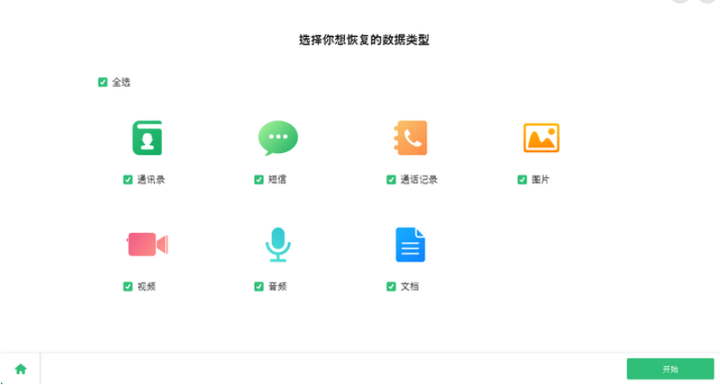 AI Visual Insight: The image shows a desktop Android data recovery application’s scanning and result preview interface. The emphasis is on connecting the phone over USB, scanning by data type, and then filtering, previewing, and exporting recoverable objects such as contacts from the results screen.
The Typical Workflow for Software-Based Scanning Is Straightforward
def recover_contacts_workflow(device_connected, usb_debug_enabled):
    if not device_connected:
        return "Please connect the phone first"
    if not usb_debug_enabled:
        return "Please enable USB debugging first"
    # Run the scan after the connection succeeds
    scanned = ["Contact A", "Contact B"]  # Simulated scan results
    # Export to a local computer directory after user confirmation
    return f"Recoverable data: {scanned}"
This code abstractly demonstrates the connection, scanning, and export flow of recovery software.
The Best Practice for Data Recovery Is to Stop Further Loss Before Taking Action
After data loss, the worst thing you can do is keep taking photos, installing apps, or repeatedly writing files. Android storage continuously reuses free space, and once residual data is overwritten, future scans become far less effective.
The safest strategy is simple: stop writing data immediately, verify whether local or cloud backups exist, use official recovery options first, and only then try third-party recovery tools.
FAQ
Q1: What is the safest option after forgetting an OPPO lock screen password?
A: If preserving data is your goal, first check whether biometric unlock, HeyTap Cloud, or Google sync is available. If a factory reset is unavoidable, focus on unlocking first and restoring from backups afterward rather than expecting local data to remain intact.
Q2: Can I recover photos and contacts after a factory reset?
A: It depends on whether you have a local backup, HeyTap Cloud data, Google Drive data, or a copy on an older device. If none of these are available, your only remaining option is recovery software scanning, and success depends heavily on how much of the old data has been overwritten.
Q3: Is third-party data recovery software worth using?
A: Yes, but only as the last step. It is most suitable for accidental deletion without backups. It has better odds with structured data such as contacts and messages, while large media files that have been overwritten are often less reliably recovered.
Core Takeaway
This guide reconstructs the complete OPPO phone data recovery workflow, covering device access recovery after a forgotten lock screen, ColorOS local backup restoration, data pullback from HeyTap Cloud and Google Drive, and the recovery of deleted contacts and similar data with Android recovery software. The goal is to help you choose the most suitable path based on risk and success rate.