Claude Code is an AI coding assistant that runs directly in the terminal, IDE, and web. Its core value is bringing conversational programming into real engineering environments, reducing the friction of setup, debugging, and delivery. This guide covers installation, configuration, commands, ecosystem resources, and open-source alternatives. Keywords: Claude Code, AI coding assistant, Agent workflow.
The technical specification snapshot provides a fast overview
| Parameter | Details |
|---|---|
| Project Name | Claude Code |
| Primary Language | JavaScript/TypeScript (inferred from the ecosystem; the client is used as a toolchain-style interface) |
| Runtime Entry Points | CLI, VS Code extension, Web |
| Interaction Protocol | Cloud API-based model invocation with terminal/IDE integration |
| Official Website | https://claude.com/product/claude-code |
| Official Documentation | https://code.claude.com/docs |
| GitHub Stars | Not provided in the source |
| Core Dependencies | Anthropic API-compatible endpoint, authentication token, model configuration |
Claude Code has evolved from a chat tool into an engineering execution interface
Claude Code is not just a Q&A bot. It is an AI coding assistant that can enter a project directory, understand context, and execute multi-step development tasks. It works well for prototyping, localized refactoring, debugging, troubleshooting, and scaffolding generation.
For developers, the biggest pain point is usually not writing code itself. It is the cost of switching environments, losing context, and breaking complex work into manageable tasks. Claude Code compresses those actions into a unified workflow through terminal commands, IDE panels, and project memory files.
You should verify the official entry points and documentation first
- Official website: https://claude.com/product/claude-code
- Official documentation: https://code.claude.com/docs
- VS Code extension: https://marketplace.visualstudio.com/items?itemName=anthropic.claude-code
# Install the Claude Code CLI on macOS / Linux
curl -fsSL https://claude.ai/install.sh | bash
This command uses the official script to install the Claude Code CLI quickly.
The CLI mode is best for terminal-driven, high-frequency development workflows
The CLI is the most direct way to use Claude Code. After installation, you should configure authentication and model parameters first, then enter your project directory and start an interactive session.
A common approach is to define environment variables and a default model in ~/.claude/settings.json. This avoids re-entering connection details every time you start the tool and works well for teams that standardize on a shared proxy gateway or model version.
{
  "env": {
    "ANTHROPIC_AUTH_TOKEN": "sk_**",
    "ANTHROPIC_BASE_URL": "https://**/anthropic",
    "ANTHROPIC_MODEL": "claude-opus-4-7"
  },
  "model": "claude-opus-4-7"
}
This configuration defines API authentication, the proxy endpoint, and the default model.
Common commands cover both session management and project initialization
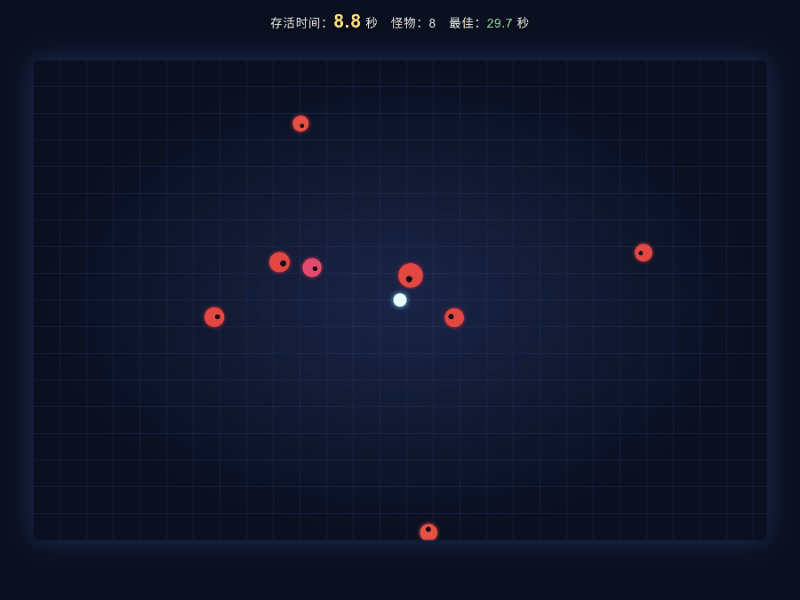
After creating a project, run claude to enter conversational development mode. The source article suggests a representative prompt: build a directly runnable HTML5 2D monster-dodging game. That is a practical way to validate code generation quality and resource organization.
# Create a directory and enter the project
mkdir my-game && cd my-game

# Start Claude Code
claude

# Common slash commands
/help    # Show help
/clear   # Clear history
/status  # Show the current session status
/init    # Initialize the .claude directory
/add-dir # Add a working directory
/model   # Switch models
exit     # Exit the session
These commands initialize project context and manage Claude Code sessions.
The .claude directory is where agent-oriented capabilities become concrete
The original content notes that .claude/ can include agents/, commands/, skills/, memory.md, settings.json, and CLAUDE.md. This shows that Claude Code stores context not only inside the chat window, but also as maintainable project assets.
agents/: Defines agents with different responsibilities.commands/: Stores reusable slash commands.skills/: Encapsulates domain skills or script templates.memory.md: Stores long-term context and constraints.CLAUDE.md: Provides project instructions and collaboration rules.
 AI Visual Insight: This screenshot shows how Claude Code appears in a real terminal or interactive panel. The most important signals usually include the prompt input area, model status, command execution feedback, and project context loading results. This kind of interface makes it clear that the tool is not a static code generator. It is an engineering agent that supports continuous task orchestration, command execution, and result feedback.
VS Code integration makes Claude Code better suited to editor-centered collaboration
If you rely more on an IDE-centric workflow, the VS Code extension provides a smoother entry point. It combines model access, code navigation, and an interactive panel in the same context, which reduces context switching between the terminal and the editor.
After installing the extension, you can inject environment variables in Settings and specify where the panel should appear. The source recommends placing Claude Code in the panel, which works well when you want to inspect code while issuing requests.
{
  "claudeCode.environmentVariables": [
    {
      "name": "ANTHROPIC_BASE_URL",
      "value": "https://**/anthropic"
    },
    {
      "name": "ANTHROPIC_AUTH_TOKEN",
      "value": "sk_**"
    },
    {
      "name": "ANTHROPIC_MODEL",
      "value": "claude-opus-4-7"
    }
  ],
  "claudeCode.preferredLocation": "panel"
}
This configuration declares model access parameters and the preferred extension display location in VS Code.
Model selection directly affects the quality of complex task execution
The source recommends selecting the Opus 4.7 model from the / command menu before getting started. For large refactors, cross-file edits, complex reasoning, or generating a complete game prototype, a stronger model can significantly reduce rework.
The Claude Code ecosystem now extends into workflow orchestration and open-source reimplementations
Beyond the official tool itself, the source highlights two ecosystem categories worth tracking: practical experience reports and workflow or open-source implementations inspired by Claude Code.
Boris Cherny’s usage notes suggest that the tool’s value goes beyond writing code. The real advantage lies in organizing context, constraining task boundaries, and breaking complex goals into small steps that can be executed continuously.
gstack represents a virtual engineering team workflow
gstack is a Claude Code workflow published by Garry Tan. It emphasizes upgrading Claude Code from a single assistant into a virtual engineering team, allowing solo developers to simulate collaboration across product, engineering, and delivery roles.
This direction matters because the next competitive frontier in AI coding is not one-shot function generation. It is the ability to continuously move a requirement through implementation, fixes, validation, and release.
Open-source analysis and rewrite projects help explain internal agent mechanics
The source mentions that after a Claude Code Agent source leak reportedly appeared around 2026-03-31, the community produced multiple analysis articles, architectural breakdowns, and rewrite projects, including:
- Claude Code source analysis
- Decoding Agent Harness
- Building a Code Agent from scratch
- Claude Code Agent architecture diagrams
- The Claw Code rewrite project
For advanced developers, these resources are valuable because they help shift your perspective from user-level operation to system design. You can better understand how an agent handles context injection, command dispatch, tool invocation, and memory organization.
Claude Code is especially effective for generating playable prototypes quickly
The source closes with an example of using AI to generate a small game live. This reveals one of Claude Code’s strongest use cases: instant prototyping. For teaching, idea validation, children’s programming education, or interactive experiments, AI can turn an idea into a runnable project quickly.
Its limits also matter. Simple 2D games, web interactions, and utility scripts usually work well. Large 3D games, complex real-time systems, or high-performance engine-level tasks still require human-led architecture and implementation.
<!DOCTYPE html>
<html>

<body>
    <script>
      // Core idea: start with the smallest playable prototype, then iterate on gameplay
      console.log("Let Claude Code generate the MVP first, then continue refining it with follow-up prompts");
    </script>
  </body>
</html>
This example emphasizes that Claude Code is better suited to shipping a minimum playable version first, then improving it through iterative prompting.
Before deployment, you should establish secure configuration and team conventions
Because Claude Code depends on tokens, proxy endpoints, and project context, teams must avoid committing sensitive settings directly to the repository. Store authentication details in local configuration or a secure injection system, and define code modification boundaries clearly in CLAUDE.md.
At the same time, any workflow that allows automatic code changes should include Git branches, code review, and testing gates. AI assistants improve delivery speed, but they do not replace engineering quality control.
FAQ provides structured answers to the most common adoption questions
1. How is Claude Code different from standard web-based AI coding chat tools?
Claude Code runs directly in the terminal or IDE and works against a real project directory, configuration files, and multi-file context. It is closer to an engineering executor than a single-turn chat assistant.
2. Should I start with the CLI or the VS Code extension?
If you prefer scripting, command-line workflows, and directory-level operations, start with the CLI. If you rely heavily on code navigation, editor integration, and side-panel collaboration, start with the VS Code extension.
3. Is Claude Code suitable for production code directly?
It is well suited to prototyping, refactoring suggestions, repetitive code generation, and localized fixes. For production use, you should still pair it with code review, automated testing, and access control instead of treating AI output as the final result.
 AI Visual Insight: This image looks more like a blog announcement graphic or public account banner. It contains relatively little technical information and mainly serves branding and content distribution purposes rather than demonstrating Claude Code’s interface or system architecture.
 AI Visual Insight: This GIF appears to guide web sharing actions. It reflects platform interaction flow rather than Claude Code’s technical implementation, so its value is primarily instructional for page operations, not for understanding the development workflow.
The core summary reconstructs the source into a developer-focused practical guide
This article restructures the original notes into a high-density guide for developers. It systematically explains Claude Code’s positioning, CLI installation, VS Code configuration, common commands, directory structure, open-source ecosystem, and typical workflows, while also adding technical interpretations of the images and a practical FAQ to help you set up an AI coding assistant environment quickly.