This guide focuses on building a DHCP server on Windows Server 2022/2025 to eliminate IP conflicts, reduce manual maintenance, and avoid configuration errors. It walks through scope planning, automatic address assignment validation, and troubleshooting paths. Keywords: DHCP, Windows Server, Scope.
Technical Specifications Snapshot
| Parameter | Details |
|---|---|
| Platform | Windows Server 2022/2025, Windows 11 |
| Core Protocols | DHCP, UDP 67/68, IPv4 |
| Lab Network | 192.168.10.0/24 |
| Address Pool | 192.168.10.100-192.168.10.200 |
| Recommended Roles | DHCP Server, optional DNS/Web/FTP |
| Core Dependencies | Server Manager, DHCP Console, PowerShell, VMware Workstation |
| Reference Context | Originally based on a CSDN lab-style article for network service training |
This DHCP Deployment Practice Targets Teaching and Lab Networks
The real value of DHCP is not simply that it assigns IP addresses automatically. Its main strength is centralized delivery of network parameters. Once a client connects, it can automatically receive an IP address, subnet mask, default gateway, and DNS settings without per-device manual configuration.
In computer labs, dormitory networks, office networks, or virtual machine lab environments, the moment the number of endpoints grows, manual configuration starts causing IP conflicts, missing DNS settings, incorrect gateways, and difficult bulk changes.
You Should First Build a Minimal DHCP Knowledge Model
DHCP uses a client-server model. The typical process is DORA: Discover, Offer, Request, and ACK. The server listens on UDP 67, and the client uses UDP 68 to receive responses.
A scope is the core management unit in DHCP. For the 192.168.10.0/24 subnet, a recommended scope name is LAN-192.168.10.0, with an address pool of 192.168.10.100-192.168.10.200.
Get-DhcpServerv4Scope  # View current IPv4 scopes
Get-DhcpServerv4Lease -ScopeId 192.168.10.0  # View lease information
These commands help you quickly confirm whether the scope was created successfully and whether clients have already leased addresses.
The Lab Network Should Be Isolated and Planned Before Deployment
A recommended static server address is 192.168.10.10/24. If a real gateway exists, use 192.168.10.1 as the gateway. If this is a pure internal Host-Only network, you can leave the gateway unconfigured for now.
The address pool should not overlap with the server, gateway, or fixed-address devices. You can define an exclusion range such as 192.168.10.180-192.168.10.189 and reserve it for printers, cameras, or future reserved addresses.
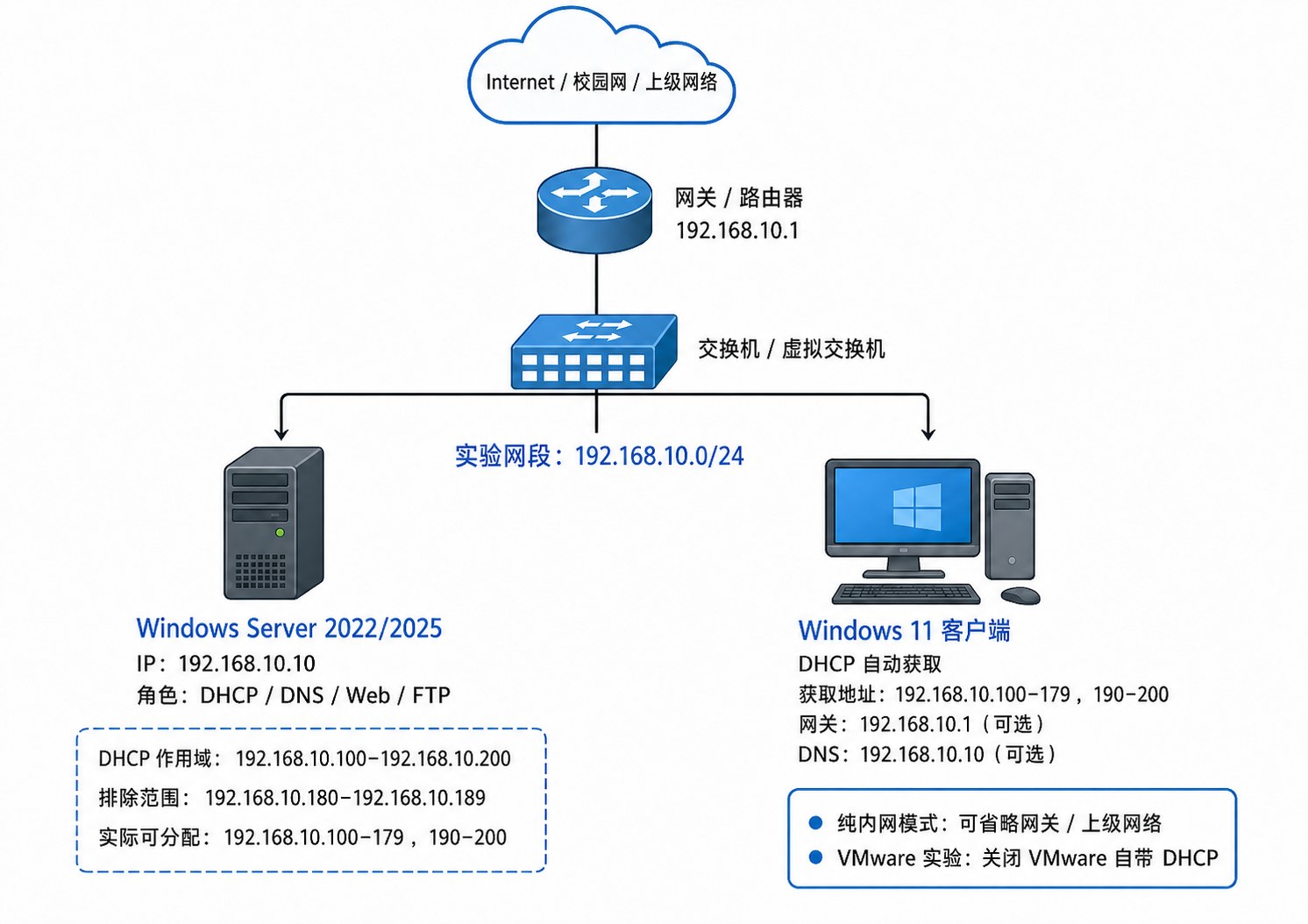 AI Visual Insight: This image shows a full lab topology with a gateway. Windows Server provides DHCP alongside other network services, clients connect through a switched network, and the gateway is
 192.168.10.1. This setup is useful for validating complete connectivity after DHCP delivers the default route and DNS settings.
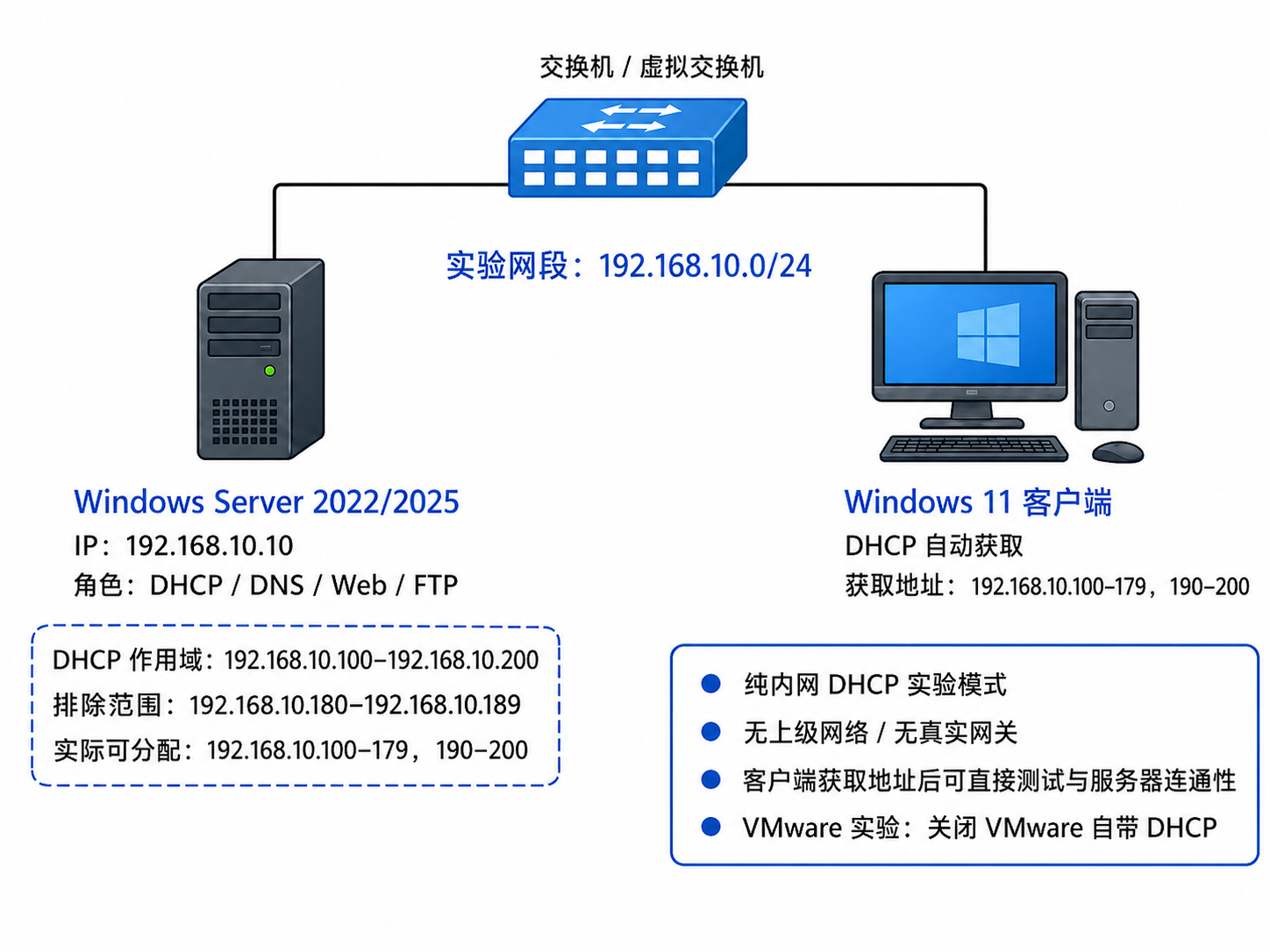 AI Visual Insight: This image shows an isolated DHCP lab topology where only Windows Server and the client exist on the same private subnet, with no external routing involved. It is ideal for validating automatic address assignment, lease generation, and basic connectivity.
DHCP Conflicts in VMware Are the Most Common Risk
If you use VMware Workstation, you must check whether the VMnet already has its own DHCP service enabled. If you leave it on, the client may receive an address from VMware instead of the 192.168.10.x range served by Windows Server.
The lab boundary is simple: only one DHCP server should exist in a single lab subnet, and you should never enable this service casually on a real campus or office network.
Service Installation and Scope Creation Determine Deployment Success
In Server Manager, add the DHCP Server role. After installation completes, open the DHCP console and create an IPv4 scope. Installing the role alone does not mean clients can already obtain addresses automatically.
When creating the scope, define four key values clearly: start address, end address, subnet mask, and lease duration. For teaching labs, a 1-day lease is recommended because it makes lease renewal behavior easier to observe.
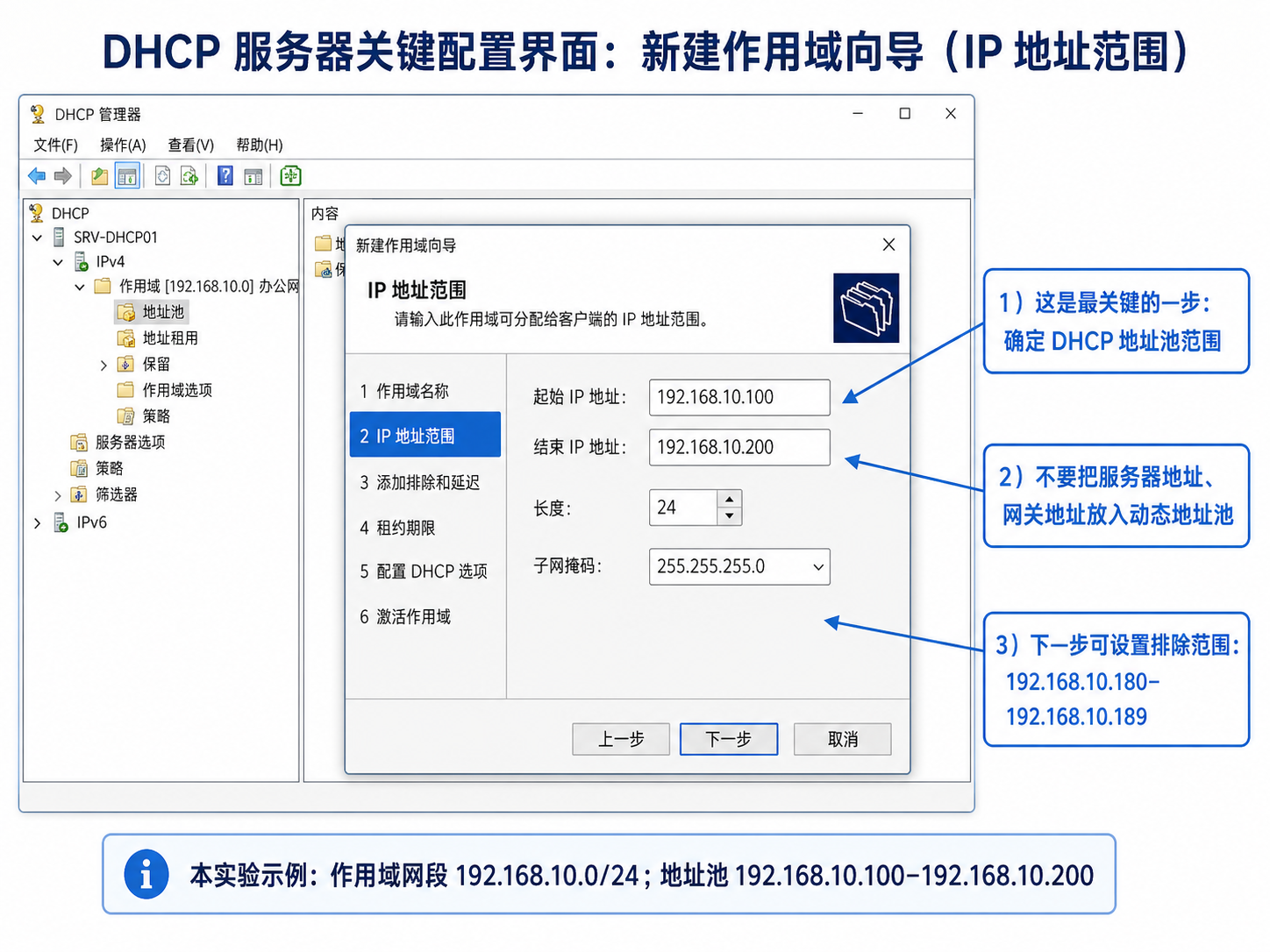 AI Visual Insight: This image shows the address range page in the Windows DHCP New Scope Wizard. Key fields include the starting IP, ending IP, prefix length, and subnet mask. This step defines the assignable pool boundaries and is also the starting point for later
 BAD_ADDRESS and conflict troubleshooting.
Add-DhcpServerv4Scope -Name "LAN-192.168.10.0" `
  -StartRange 192.168.10.100 `  # Start address of the pool
  -EndRange 192.168.10.200 `    # End address of the pool
  -SubnetMask 255.255.255.0     # Subnet mask

Set-DhcpServerv4OptionValue -ScopeId 192.168.10.0 `
  -DnsServer 192.168.10.10      # Assign the DNS server address
This PowerShell example demonstrates the minimum command-line configuration required to create a scope and assign the DNS option.
Scope Options Directly Determine Client Usability
If a real gateway exists in the network, configure option 003 in the scope as 192.168.10.1. If the DNS service runs on the same server, configure option 006 as 192.168.10.10, and you can set the domain suffix to lab.test.
If the gateway or DNS values are filled in but the corresponding services do not actually exist in the network, clients may still receive addresses successfully while the user experience still fails. This is one of the most common false positives in teaching environments.
Client Validation Should Check Addressing, Leases, and Connectivity Together
On the Windows 11 client, enable Obtain an IP address automatically and Obtain DNS server address automatically. Then use ipconfig /release and ipconfig /renew to force the client to release and request an address again.
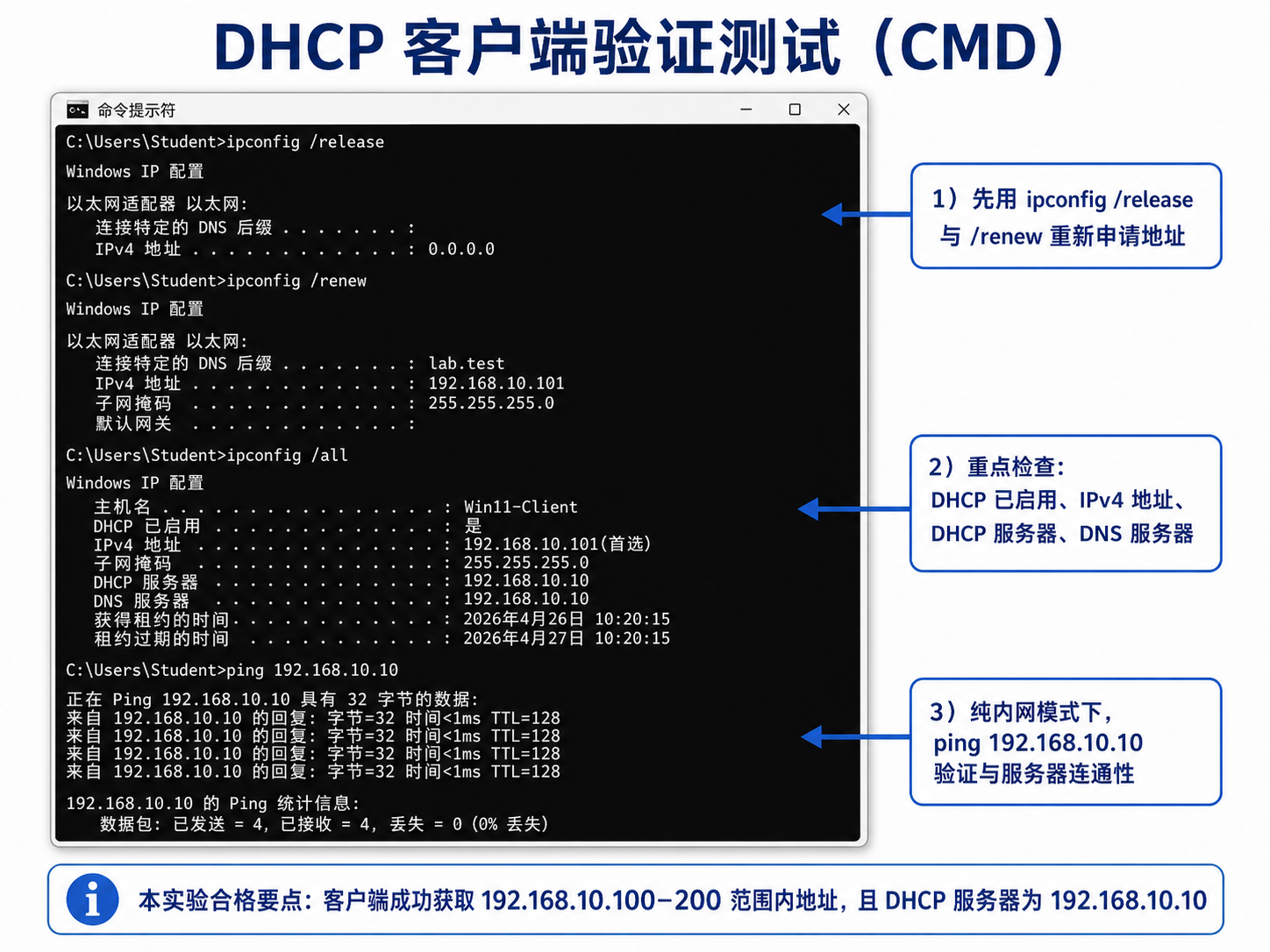 AI Visual Insight: This image shows a client-side command-line validation workflow that typically chains
 ipconfig /release, ipconfig /renew, and ipconfig /all. It gives you a direct view into whether DHCP is enabled, the lease time, the DHCP server address, and the DNS server address.
ipconfig /release   :: Release the old lease and clear the current IPv4 address
ipconfig /renew     :: Request a new address from the DHCP server
ipconfig /all       :: View full DHCP, DNS, and lease parameters
ping 192.168.10.10  :: Verify basic connectivity to the DHCP server
These commands form the core acceptance test for automatic client address assignment.
Success Means More Than Receiving Any IP Address
A valid result should include at least the following: the client address falls within 192.168.10.100-192.168.10.200, the DHCP server is shown as 192.168.10.10, the client can ping the server, and the server-side Address Leases view shows that client.
If the client receives a 169.254.x.x address, it did not successfully obtain a lease from DHCP and instead fell back to an APIPA self-assigned address. In that case, first check the service status, scope activation, VMnet consistency, and multi-NIC bindings.
Reservations and Troubleshooting Show Whether You Truly Understand the Lab
A reservation binds a fixed IP address to a client MAC address. For example, you can permanently assign 192.168.10.120 to a specific Windows 11 client. Unlike a manually configured static IP, a reservation remains centrally managed by DHCP.
BAD_ADDRESS usually indicates a conflict. Common causes include an address pool overlapping with manually assigned static IPs, multiple DHCP servers running at the same time, or fixed devices that were not excluded from the pool. The right troubleshooting path is to first identify who is handing out addresses, then identify who is already using addresses inside the pool.
FAQ
Q1: Why must the DHCP server use a static IP address?
A: Clients depend on it to continuously provide address allocation services. If the server’s own address changes, scope references, DNS targets, and client leases can all break, making the management plane unstable.
Q2: If a client gets a 169.254.x.x address, does that always mean the DHCP configuration is wrong?
A: Not necessarily, but it always means the client failed to lease an address successfully. Common causes include the DHCP service not running, the scope not being activated, the server and client not being on the same VMnet, or interference from VMware’s built-in DHCP service.
Q3: How should I choose between a DHCP reservation and a static IP?
A: Core infrastructure such as servers and gateways is better suited to static IP addresses. Printers, fixed lab endpoints, and cameras are better candidates for DHCP reservations because reservations combine stable addressing with centralized operations.
Core Summary: This article reconstructs the Windows Server 2022/2025 DHCP lab workflow and covers the fundamentals, address planning, scope creation, client validation, reservations, and common troubleshooting scenarios. It is well suited for teaching labs and virtualized internal network deployments.